Reviewed by
Disapproved products don’t show on Google Shopping ads or free listings.
When a product gets disapproved, it usually means something in the product data, landing page, or policy compliance needs attention. The good news is that many product-level disapprovals can be fixed once you identify the exact issue in Merchant Center and correct the source data.
This guide walks through the complete process for fixing Google Merchant Center disapproved products: finding affected items, grouping them by error type, fixing the underlying issues in AdTribes or WooCommerce, and requesting a review where needed. Let’s get right into it!
Product Disapprovals Vs Account Suspension: Know The Difference
Before diving in, it’s worth being clear about which problem you have — because the fix is different.
Product-level disapprovals (this guide):
- Specific products are flagged and stopped from showing
- Your Merchant Center account remains active
- Other products in your catalog continue to run normally
- Fixable by addressing the specific product data issue and requesting a product review
Account-level suspension (different problem):
- Your entire account is suspended — no products show
- Account-level issues usually appear in a banner at the top of Merchant Center and can also be viewed from Products > Needs attention via View setup and policy issues.
- Requires fixing the underlying policy violation and requesting an account review
- If this is your situation, see the Google Merchant Center account suspended guide instead
If you’re seeing individual products marked “Disapproved” but your account is otherwise active, you’re in the right place.
Step 1: Find All Your Disapproved Products
Start by getting a complete picture of your Google Merchant Center disapproved products before making any changes.
In Google Merchant Center
- Go to Google Merchant Center.
- Open Products > Needs attention.
- Review the products listed under All products that need attention.
- Use the filter icon to narrow the list by status, issue, title, or other relevant filters.
- Note the issue types shown for affected products — those are the problems you’ll be fixing.
For large catalogs with many disapprovals, download the full list:
- Click the download icon (top right of the product table)
- Select Download all as a CSV
- Open in a spreadsheet — sort by “Issues” column to group products by error type
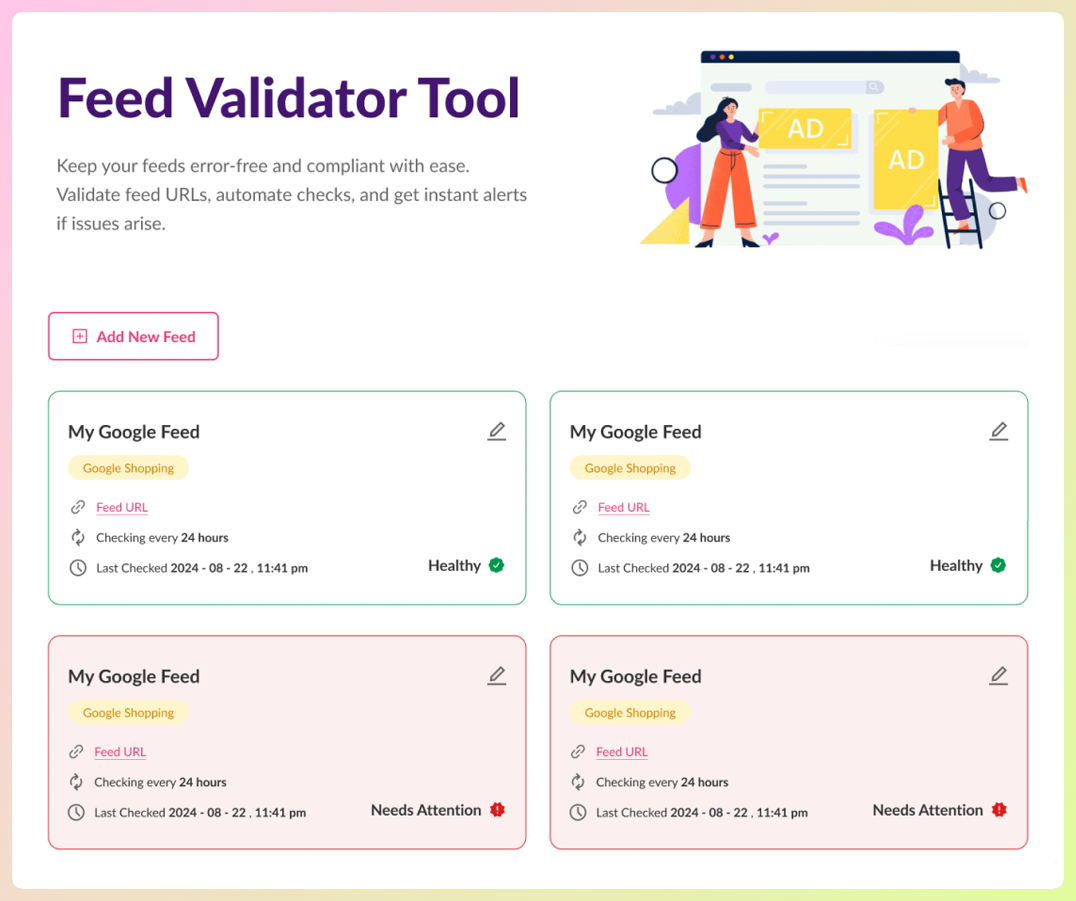
In AdTribes’ feed validator
If you’re on AdTribes Product Feed Elite Plus or Business, run the Feed Validator before resubmitting major fixes. It can help you catch feed issues earlier, review affected products or fields, and clean up feed data before changes reach Google Merchant Center.
Step 2: Group Errors By Type
Once you have your list of Google Merchant Center disapproved products and their error types, group them before starting fixes. This is an easy step to skip, which is why the same fix often gets repeated product by product instead of being handled once with a feed rule.
Grouping errors first saves time because many disapprovals share the same root cause. If dozens of products have the same missing attribute, price issue, or image problem, it’s usually faster to fix the source data or feed rule once than to edit products one by one.
Common groupings:
- All products missing GTIN — one feed rule fixes all of them at once
- All products with price mismatches — one feed refresh or pricing fix resolves the batch
- All products with image violations — identify the specific image issue (watermark, size, broken URL) and address the root cause
- All store-brand products with missing brand — one feed rule can set a default brand value
For each group, identify: is the fix in WooCommerce product data, in the AdTribes feed configuration, or in Google Merchant Center settings?
Step 3: Fix Each Error Type
Here are the most common disapproval reasons and exactly where to fix them for WooCommerce stores.
Missing or invalid GTIN
Where to fix: WooCommerce product data + AdTribes feed mapping
For branded products with barcodes:
- Install AdTribes’ GTIN fields to add a GTIN input to your WooCommerce product editor
- Enter the correct GTIN (UPC/EAN/ISBN) for each affected product — find these on packaging, from your distributor, or on the manufacturer’s website
- In your AdTribes feed, confirm the
gtinfield is mapped to your GTIN custom field
For products that don’t have GTINs (handmade, custom, or unique items):
- Use
identifier_exists = noonly when the product truly does not have applicable unique product identifiers. - If you sell handmade, one-of-a-kind, or custom goods with no GTIN, MPN, or brand, this can be the correct fix.
- If the product is your own store-brand or private-label product, Google may expect your store name as the
brandand anMPNwhere possible, rather than relying onidentifier_exists = no
For the complete Google Shopping feed requirements, including all identifier rules, see AdTribes’ requirements guide.
Price mismatch (preemptive item disapproval)
Where to fix: AdTribes feed refresh settings + WooCommerce pricing
Price mismatches happen when the price in your product data doesn’t match the price on the landing page Google checks. This often happens when store prices change before the feed updates, or when a scheduled sale is missing the correct sale_price_effective_date value or time zone.
Immediate:
- Manually refresh your feed in AdTribes (open the feed > click Refresh)
- Confirm the refreshed feed now shows the correct current prices
Permanent:
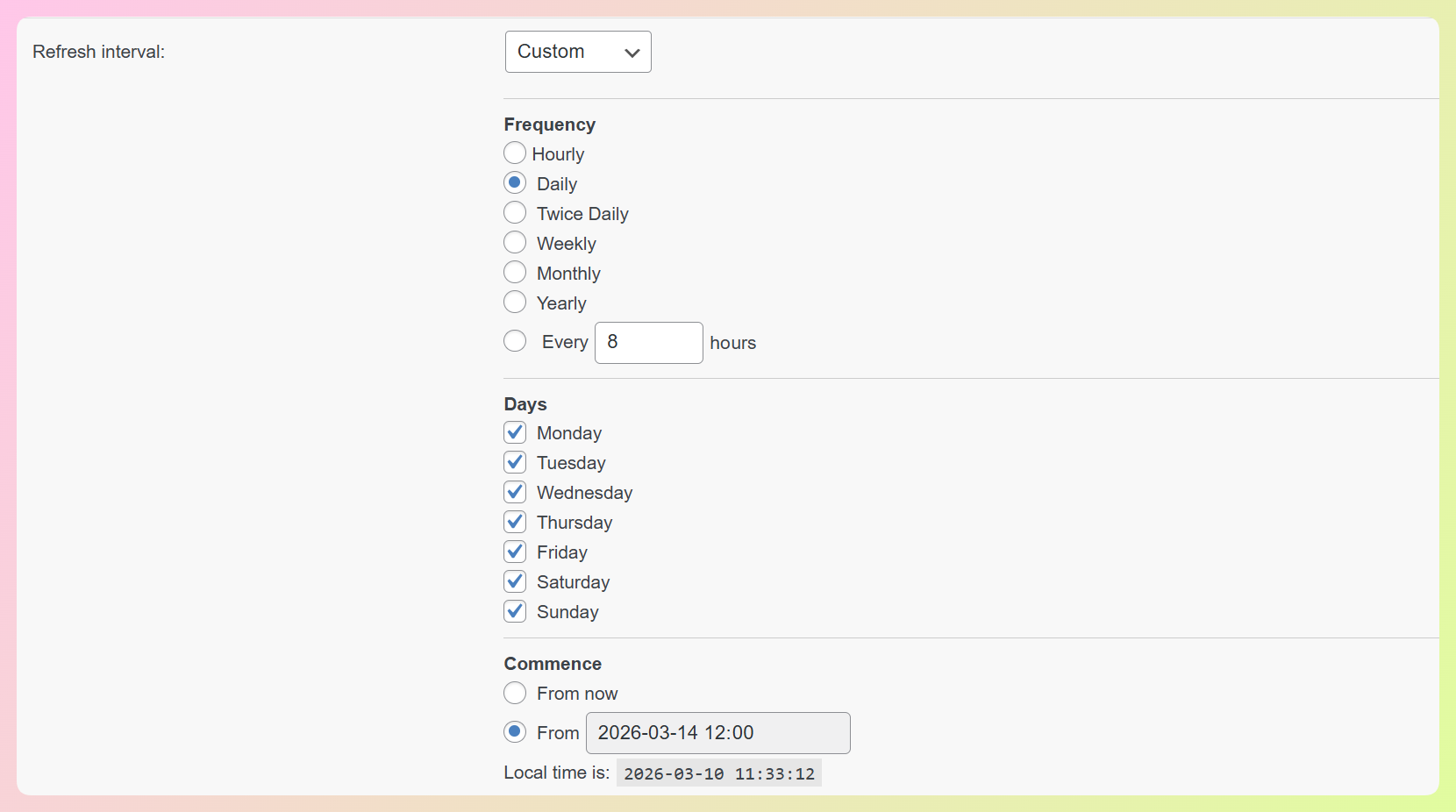
- Set up automatic feed refresh in Product Feed Elite — daily is the minimum; hourly if you run frequent sales
- Check that WooCommerce sale prices are mapped in your feed: the
sale_pricefield must be active, andsale_price_effective_datemust be set if you use WooCommerce’s scheduled sale feature - Verify that tax inclusion/exclusion in your feed matches how prices display on your product pages
Image policy violation
Where to fix: WooCommerce product images + AdTribes field mapping
First, identify the specific image issue from GMC (the error message is specific):
- “Image too small” — Make sure the submitted image meets Google’s minimum size requirements: at least 100 x 100 pixels for non-apparel products and 250 x 250 pixels for apparel. In AdTribes, ensure
image_linkpoints to the main product image rather than a low-resolution thumbnail. - “Promotional overlay” — Remove text like “SALE” or “FREE SHIPPING” from product images; re-upload clean versions
- “Watermark” — Remove logos or watermarks from images; re-upload
- “Invalid image” / broken URL — Check that the image URL in your feed resolves correctly; if you recently changed CDN or hosting, image URLs in your feed may be stale — regenerate the feed after fixing
Missing brand attribute
Where to fix: AdTribes feed rules
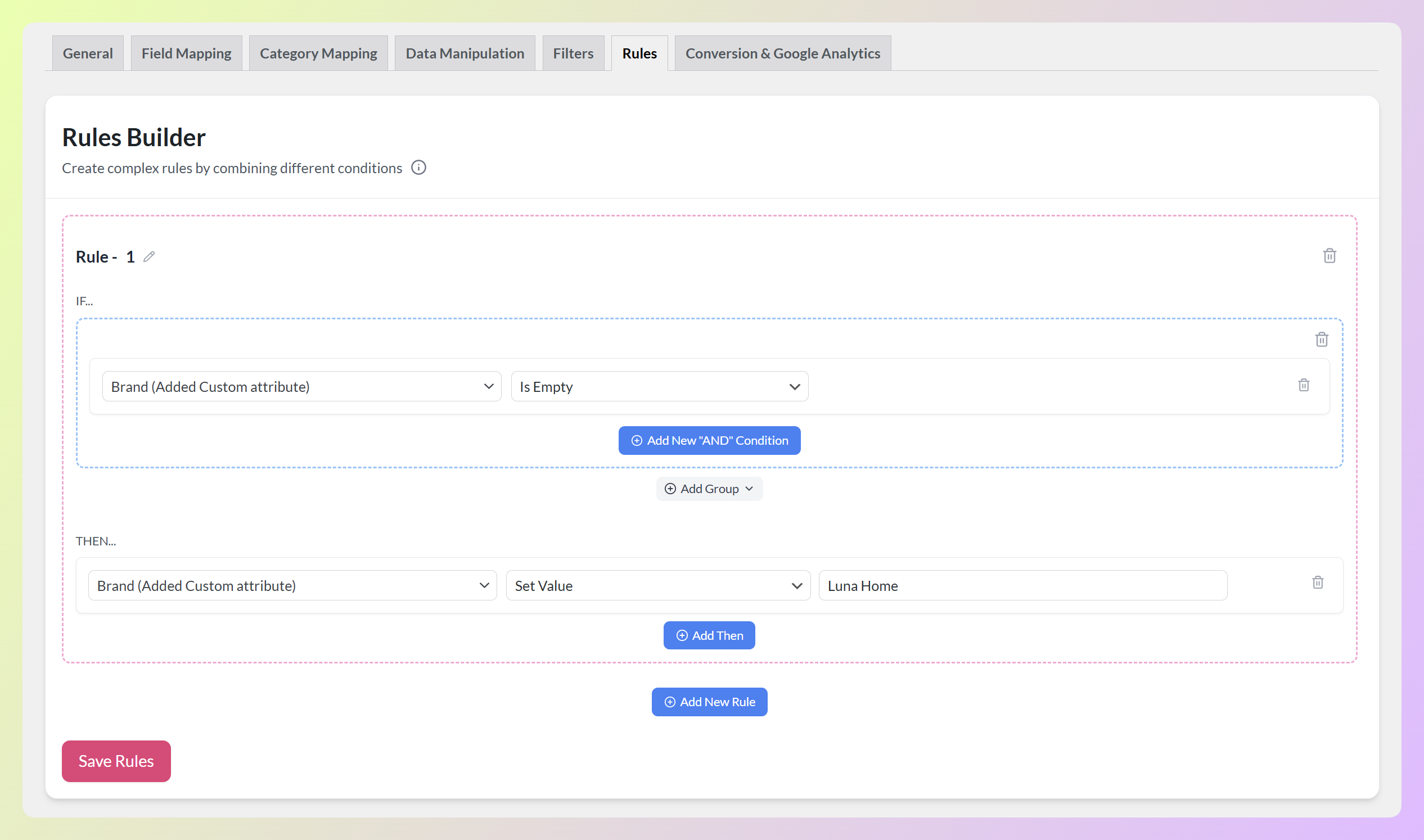
If your WooCommerce products don’t have a brand field, or if brand is inconsistently filled, use a feed rule:
- If brand is empty > set brand to “Your Store Name” (for store-brand products)
- If product category contains “Nike” > set brand to “Nike” (for specific brand categories)
Alternatively, if you sell branded products from multiple manufacturers, add a WooCommerce product attribute called “Brand” and populate it per product — then map it to the brand field in AdTribes.
Availability mismatch
Where to fix: WooCommerce stock settings + AdTribes field mapping
If Google flags availability mismatches, check:
- Is WooCommerce’s stock management enabled for the affected products?
- Is AdTribes’
availabilityfield mapped to WooCommerce’s stock status (not a static value)? - Do products set to “backorder” in WooCommerce have
backorder(notin_stock) in the feed?
For products that are always in stock (no stock management), set availability to in_stock via a feed rule rather than managing stock in WooCommerce.
Missing shipping information
Where to fix: Google Merchant Center shipping settings
In GMC, go to Shipping and returns and verify:
- A shipping service is configured for each country you target
- Delivery time ranges are set
- Shipping rates are accurate (free shipping, flat rate, or table rate matching your WooCommerce shipping settings)
Products flagged for missing shipping usually indicate that either no shipping service is configured for their target country, or there’s a mismatch between the feed’s shipping attribute and GMC’s shipping settings.
Landing page issues (404, redirect, crawl block)
Where to fix: WooCommerce URLs + robots.txt + AdTribes feed filters
- 404 errors: Filter out unpublished/deleted products from your AdTribes feed — go to Feed Filters and exclude products with draft, pending, or private status
- Redirect issues: Test your product URLs in a browser — if they redirect to your homepage instead of the specific product, your WooCommerce permalink structure may have changed after the feed was created. Regenerate your feed
- Crawl block: Check
yourdomain.com/robots.txt— ensureDisallow: /isn’t present and that/product/and/shop/paths are accessible
Step 4: Fix Your Feed In AdTribes
After identifying the fixes needed, apply them systematically in AdTribes before requesting any reviews.
Use feed rules for bulk fixes
Open your Google Shopping feed in AdTribes and go to Feed Rules. Add IF/THEN rules for each systematic issue:
The following table shows illustrative feed rule examples. Adjust values to match your store’s specific data and categories.
| Issue | Rule |
|---|---|
| Missing brand for own-brand products | If brand is empty > set brand to “[Store Name]” |
| No identifiers for handmade/custom items | If category = “Handmade” > set identifier_exists to no |
| Backorder availability | If stock status = backorder > set availability to backorder |
Validate before resubmitting
Run the Feed Validator after applying your fixes:
- Go to your feed settings in AdTribes
- Click Validate Feed
- Confirm the errors you fixed are no longer flagged
- Check for any new issues the validator surfaces
Once you’ve resolved the critical issues you can verify in your feed, continue to Step 5 and confirm the product status again in Merchant Center.
The Feed Validator can help surface feed issues before you re-submit major changes. Use it as an extra quality check, but rely on Merchant Center as your main source of truth for active product disapprovals.
Force-refresh your feed
After fixes are applied and validated:
- Manually refresh your AdTribes feed to push the updated data to your feed URL
- In Merchant Center, go to Data sources and use the Update button for the relevant product data source if you want to manually trigger a refresh there.
Step 5: Request A Product Review
With your feed fixed and refreshed, request reviews for the Google Merchant Center disapproved products that still need attention.
For small numbers of disapproved products (under ~20)
Review each product individually:
- Go to Products > Needs attention.
- Find the affected product and click Fix in the status column.
- Review the issue details on the product page.
- Select I fixed the issue after confirming the correction is in place.
- Click Request review if that option is available for the issue.
For large numbers of disapproved products
If many products share the same error type, fixing the feed and waiting for Google’s next automatic crawl is often more efficient than submitting individual review requests. Google re-crawls feeds on the schedule you configured. After the crawl picks up your fixed data, products that now meet requirements will often be automatically re-approved without a manual review request.
If many products share the same issue, fix the source data first and monitor Google Merchant Center after the next sync or crawl. If the issue remains, review the affected products from the Needs attention tab and request a review where applicable.
What happens after you submit
- Review times vary, but Google notes they can take up to 7 business days depending on the issue type
- Products that pass review become eligible to show in Shopping ads shortly after
- You can monitor the review status directly in Merchant Center.
- If a review is rejected, GMC will show the specific remaining issue — address it and submit again
How To Prevent Future Disapprovals
Fixing today’s disapprovals is only half the job. These practices prevent the cycle from repeating.
Run the Feed Validator on a schedule. Before every major catalog change — new products, pricing updates, category restructures — validate your feed. The AdTribes Feed Validator catches issues before Google does.
Set up automatic feed refresh. Price and availability mismatches are a common cause of product disapprovals when feed data goes stale. Product Feed Elite can refresh your feed on a schedule, which helps keep your submitted data closer to what shoppers see on your store. Daily is a good default for many stores, while more frequent refreshes may help if your prices or availability change often.
Add GTINs at the time of product creation. Don’t add products to WooCommerce and plan to add GTINs later. Use AdTribes’ GTIN fields to make GTIN entry part of your standard product creation workflow.
Monitor GMC weekly. Check the Needs attention tab in Merchant Center at least once a week. Disapprovals caught early are easier to fix — and they prevent the accumulation of disapproved products that can eventually trigger account-level warnings. Our Merchant Center diagnostics guide walks through a simple health routine to catch issues early.
Keep product images standards-compliant. Establish clear image guidelines for anyone adding products to your store: use clean product images, avoid text overlays or watermarks, and make sure the images meet Google’s minimum size requirements. Reviewing new product images before publishing can help prevent avoidable disapprovals.
Frequently Asked Questions
How many disapproved products is “too many” before it affects my account?
Google doesn’t publish a fixed threshold for how many disapproved products are “too many.” What matters is whether the issues suggest broader feed quality or policy problems. If disapprovals are affecting a meaningful part of your catalog, treat that as a signal to review your product data, landing pages, and Merchant Center settings more closely.
Can I request a review for multiple products at the same time?
Usually, you’ll review product-level issues from the Needs attention tab one product at a time. For larger batches, it’s often better to fix the source data first and let Merchant Center re-check the updated products. In some issue flows, broader review or appeal options may also be available.
My products were approved and then got disapproved again. Why?
This usually means something changed after approval. Common examples include a price update that wasn’t reflected in the feed yet, an availability mismatch between the landing page and product data, or a new issue found when Google re-checked the product page. Keeping feed updates in sync with your site and validating major catalog changes can help reduce repeat disapprovals.
Do disapproved products affect the performance of my approved products?
Not directly. Disapproved products simply stop showing on Google surfaces. The main downside is reduced visibility and a less complete catalog, which can limit the reach of your overall Shopping setup until the affected products are fixed.
Conclusion
Fixing Google Merchant Center disapproved products is much easier when you approach the issue systematically instead of correcting products one by one. Once you identify the issue type, fix the root cause in your product data, and validate your feed before resubmitting, you give your products a much better chance of getting approved and staying visible on Google.
In this guide, we covered:
- The difference between product disapprovals and account-level issues
- How to find affected products in Merchant Center
- How to group disapprovals by error type
- Common causes like missing GTINs, price mismatches, image issues, and shipping problems
- How to use AdTribes feed rules and validation tools to apply bulk fixes
- How to reduce repeat disapprovals in the future
If you want a more reliable way to manage your product feed and catch issues earlier, AdTribes can help you clean up feed data, apply fixes more efficiently, and keep your WooCommerce product feeds in better shape over time.