
Your product information rarely lives in one tidy place. A size sits in one custom field, a material in another, and a supplier reference in a third. Sales channels like Google and Facebook want that data combined and clean, not scattered. So you end up editing products by hand or accepting feeds that look incomplete.
Product data manipulation in Elite fixes this. It lets you reshape product data before it reaches your feed, without touching your store’s original product records. Best of all, your rules and filters can now read custom fields too. That means the values you keep in WooCommerce custom fields can drive what goes into the feed and which products are included.
This guide explains how the feature works, how to turn it on, and how to use custom fields inside the Rules and Filters builders.
Prerequisites
| Requirement | Details |
|---|---|
| Plugins | Product Feed Pro 13.5.5 or newer, with Product Feed Elite 5.0.8 or newer active. |
| Setting | The Enable Product data manipulation feature: option turned on (see below). Needed only for the Data Manipulation tab. |
| Products | At least one product that has the custom field you want to use, with a value saved. |
How product data manipulation works
Product data manipulation runs as the very first step when your feed is built. The plugin shapes the product data first, then applies your filters, and finally applies your rules. That order matters: because manipulation happens before everything else, any filters or rules you set also act on the manipulated data, not just the raw values from WooCommerce. Custom fields feed into the same flow, so a value stored in a custom field can be combined into another field, used as a filter condition, or transformed by a rule.
Turn on product data manipulation
The Data Manipulation tab is hidden until you enable it. Follow these steps to switch it on.
- In your WordPress dashboard, go to Product Feed → Settings.
- Open the General tab.
- Tick the Enable Product data manipulation feature checkbox.
- Click Save.
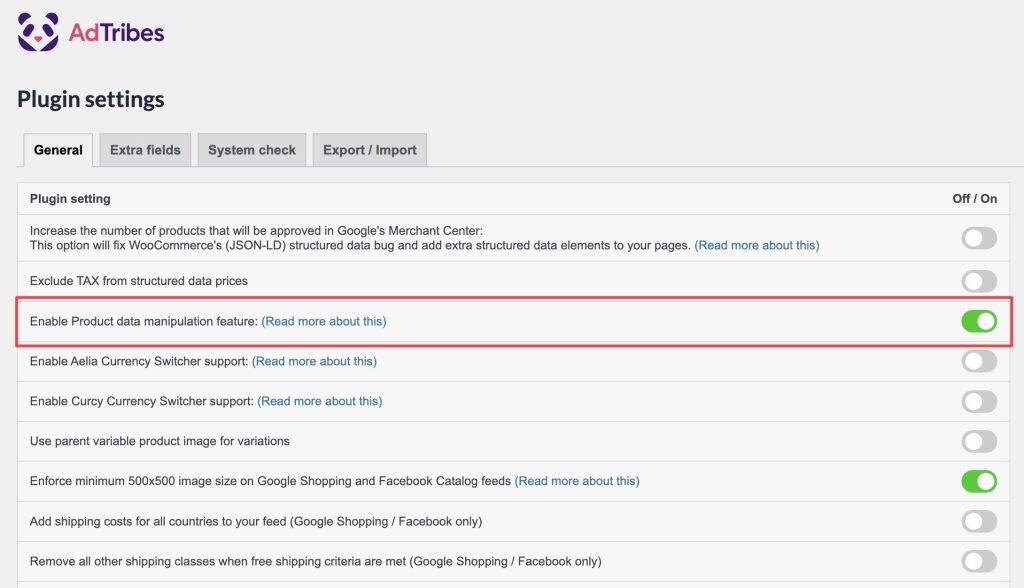
Once saved, open any feed, and you’ll see a new Data Manipulation tab alongside General, Field Mapping, Filters, Rules, and Category Mapping. Use this tab to combine several product fields into a single target field, such as merging a brand, a colour, and a size into one clean product title.
Use custom fields in rules
Rules let you change attribute values in your feed using simple “if this, then that” logic. With custom fields now supported, you can base that logic on data you store in WooCommerce custom fields.
- Open the feed you want to edit.
- Click the Rules tab.
- Add a new rule.
- In the attribute selector, scroll to the Added Custom Attributes group and pick your custom field.
- Choose a condition and a value to complete the rule.
- Click Save Changes.
Your custom fields appear under the Added Custom Attributes group, listed by their field name. A custom field stored as supplier_brand, for example, shows as Supplier brand. You can use a custom field on either side of a rule: as the attribute a condition checks, or as the field an action updates.
The conditions and actions available in the Rules builder are below. Some conditions and actions are Elite only, marked (Elite).
| Condition | What it checks |
|---|---|
| Contains | The value includes the text you enter. |
| Not Contains | The value does not include the text you enter. |
| Equals | The value matches exactly. |
| Not Equals | The value does not match. |
| Greater Than | The value is higher than the number you entered. |
| Less Than | The value is lower than the number you entered. |
| Greater Than or Equal | The value is the same or higher. |
| Less Than or Equal | The value is the same or lower. |
| Is Empty | The field has no value. |
| Is Not Empty | The field has a value. |
| Character Count Greater Than (Elite) | The value has more characters than the number you enter. |
| Character Count Greater Than or Equal (Elite) | The value has the same number of characters or more. |
| Character Count Less Than (Elite) | The value has fewer characters than the number you enter. |
| Character Count Less Than or Equal (Elite) | The value has the same number of characters or fewer. |
| In List (Elite) | The value matches any entry in a comma-separated list you enter. |
| Between (Elite) | The value falls within an inclusive numeric range, entered as min,max. |
| Action | What it does |
|---|---|
| Set Value | Sets the field to a fixed value you type in. |
| Set Attribute (Elite) | Sets the field to the value of another attribute. |
| Find and Replace | Swaps one piece of text for another. |
| Multiply | Multiplies a numeric value. |
| Divide | Divides a numeric value. |
| Plus | Adds to a numeric value. |
| Minus | Subtracts from a numeric value. |
| Exclude Attribute (Elite) | Removes the attribute from the feed. |
For a full walkthrough of the builder, see How to Create Product Feed Rules.
Use custom fields in filters
Filters decide which products go into your feed and which stay out. Now that custom fields are supported, you can include or exclude products based on a custom field value.
- Open the feed you want to edit.
- Click the Filters tab.
- Add a new filter condition.
- In the attribute selector, open the Added Custom Attributes group and pick your custom field.
- Choose a condition and a value.
- Click Save Changes.
Filters use the same conditions as rules: Contains, Not Contains, Equals, Not Equals, Greater Than, Less Than, Greater Than or Equal, Less Than or Equal, Is Empty, Is Not Empty, the four Character Count conditions (Elite, 5.0.9+), and In List / Between (Elite, 5.1.0+). A filter has no action side. Each condition simply keeps or drops the matching products. For a full walkthrough, see How To Create Filters For Your Product Feed?.
Troubleshooting
Frequently asked questions
Need more help?
Elite customers get priority support. If you’re on Product Feed Elite, open a support ticket, and our team will help you set up your rules, filters, and data manipulation.
If you’re on the free Product Feed Pro plugin, post your question on the WordPress.org support forum, and we’ll point you in the right direction.

