
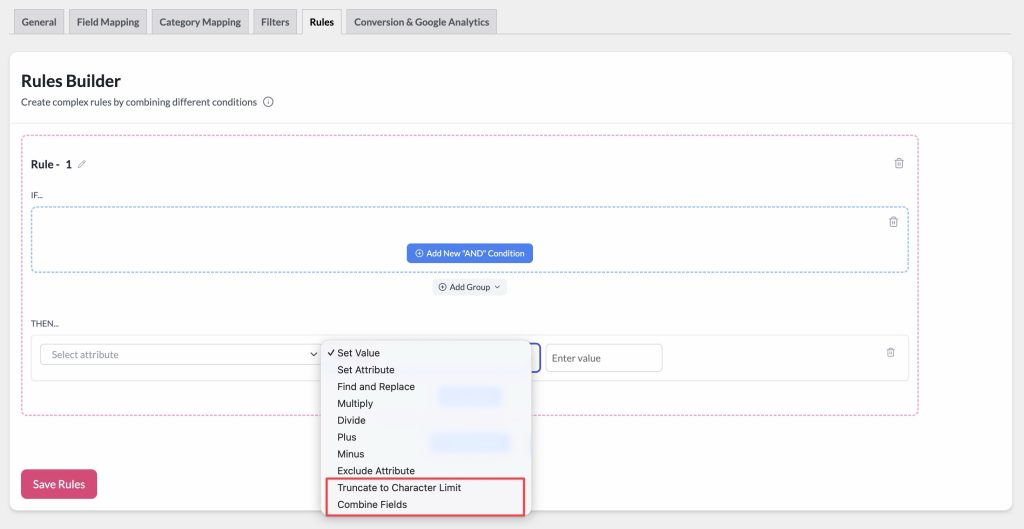
The Rules Builder lets you modify product data in your feed using IF… THEN… logic, without changing your store’s actual product data. Two THEN actions cover two common requests: joining several attributes into a single output field, and shortening a field so it fits a marketplace’s character limit.
- Combine Fields: builds one field’s value out of multiple attributes and fixed text, in an order you control.
- Truncate to Character Limit: shortens a field to a maximum number of characters, so it fits requirements like Google Shopping’s 150-character title limit.
Both actions are Elite-only. If you’re on Product Feed Pro without Elite, they’ll appear in the Action dropdown with an (Elite) label as an upgrade option, the same way Set Attribute (Elite) and Exclude Attribute (Elite) do today.
The same release also adds two Elite-only IF conditions, In List and Between. See How to use In List and Between conditions in Elite.
Prerequisites
| Requirement | Details |
|---|---|
| Plugin installed and activated | Product Feed Elite. Combine Fields and Truncate are Elite-only actions |
| At least one feed created | Open an existing feed to access the Rules tab, or create your first feed |
| Updated plugin version | Requires Product Feed Pro v13.5.7 or higher and Elite v5.1.0 or higher version that includes these two conditions |
Accessing the actions
Both actions live in the same Rules Builder you already use for other rules. There’s no separate screen to learn.
- Go to Product Feed → Manage feeds.
- Edit an existing feed or create a new one.
- Click the Rules tab. (Filters and Rules are separate tabs by default.)
- In the THEN section of a rule, choose Combine Fields or Truncate to Character Limit from the Action dropdown. For a full walkthrough of building rules from scratch, see How to create product feed rules.
Combine Fields
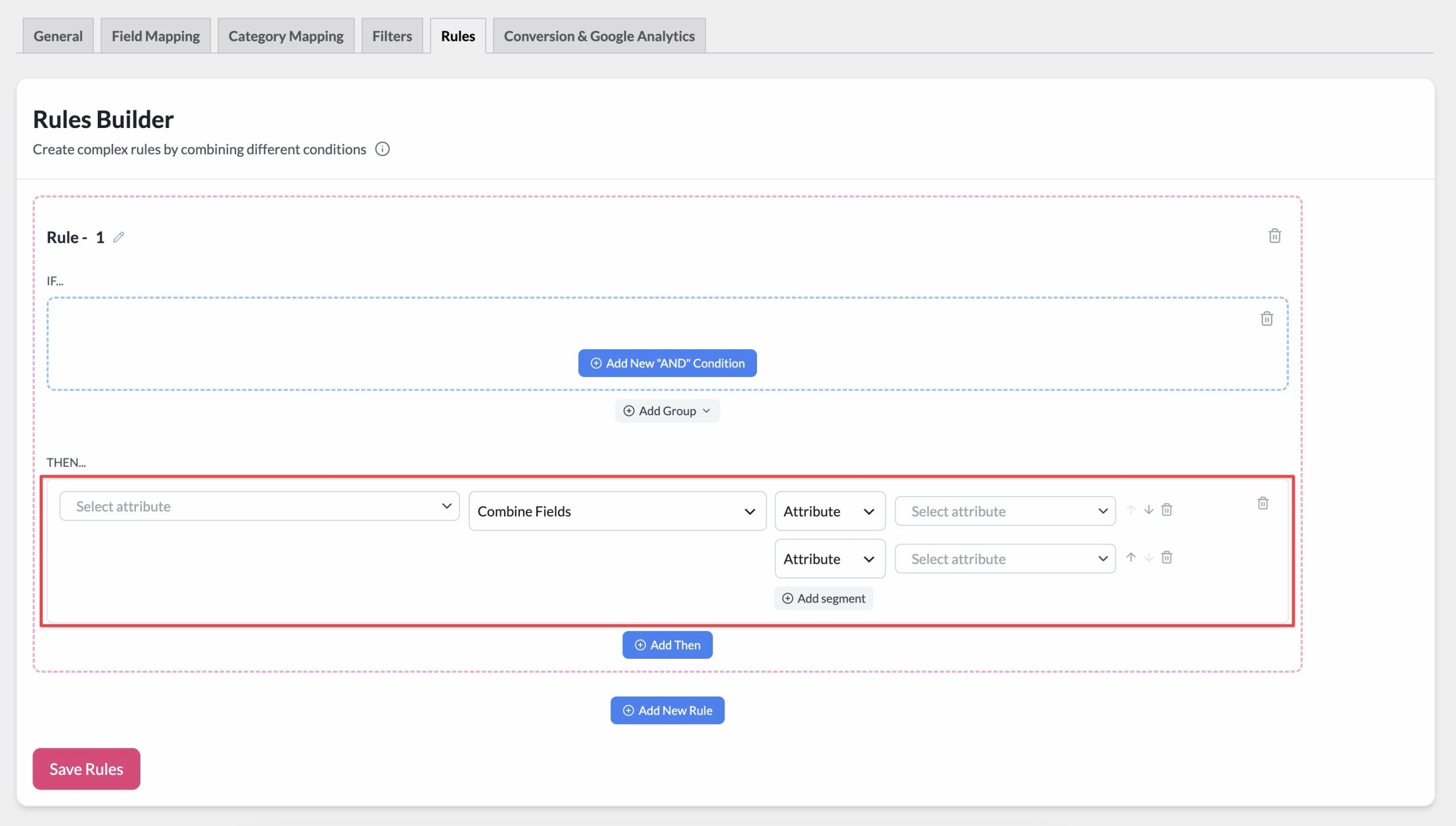
Combine Fields rebuilds the target field’s value out of an ordered list of segments. Each segment is either:
- Attribute: pulls in the value of another product attribute (e.g. Brands, Product name) when the feed generates.
- Static text: a fixed piece of text you type in, typically used as a separator between two attributes.
Setting up a Combine Fields action
- Select Combine Fields from the Action dropdown.
- Click Add segment to add your first segment.
- Choose the segment type: Attribute or Static text. For Attribute, pick the source attribute from the dropdown. For Static text, type the exact text you want inserted (for example, a space or a dash).
- Repeat Add segment for each additional piece you want to include.
- Use the up and down arrows next to each segment to reorder them. Segments combine in the order they’re listed.
- Click the trash icon to remove a segment you no longer need.
Example
To combine Brands and Product name into one field, separated by a dash, set up three segments:
| Segment | Type | Value |
|---|---|---|
| 1 | Attribute | Brands |
| 2 | Static text | - |
| 3 | Attribute | Product name |
For a product with Brands Nike and Product name Air Max 90, the target field outputs: Nike - Air Max 90.

Truncate to Character Limit
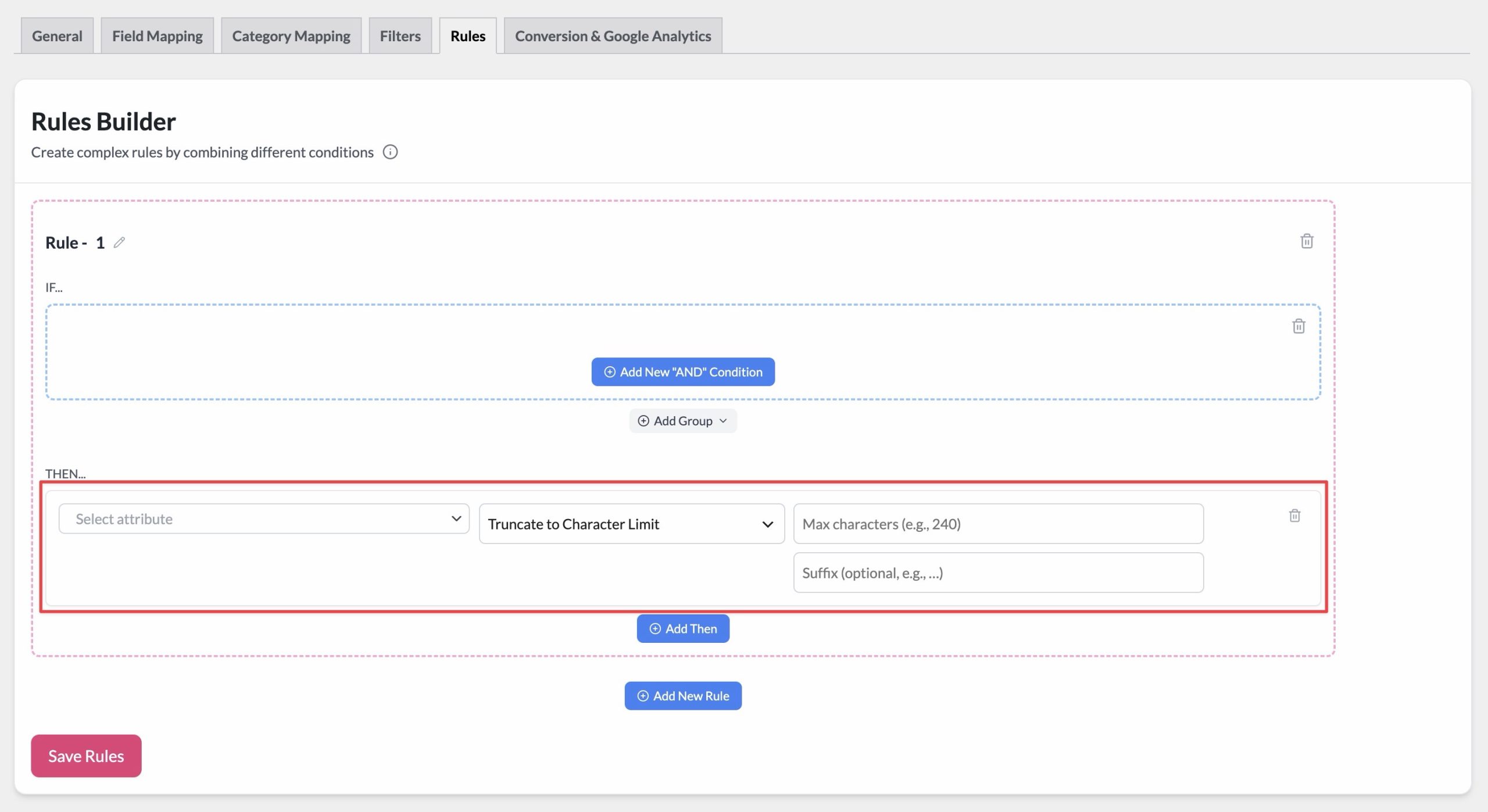
Truncate to Character Limit shortens the target field’s value to a maximum number of characters. This is useful for meeting a channel’s character limit, such as Google Shopping’s 150-character title cap.
Setting up a Truncate action
- Select Truncate to Character Limit from the Action dropdown.
- Enter the Max characters value: a whole number greater than 0.
- Optionally, enter a Suffix (for example,
…) to append after truncation. The suffix doesn’t count toward the character limit. - Click Save Rules and regenerate your feed to apply the change.
How truncation works
- Values already within the limit pass through unchanged.
- The plugin prefers cutting at the nearest word boundary before the limit, so words aren’t cut in half.
- If the text up to the limit is a single unbroken word longer than the limit, it’s cut at the exact limit since there’s no word boundary to fall back to.
- Length is measured in characters, not bytes, so multi-byte text (like accented characters) is counted correctly.
Example
Set Max characters to 25 and Suffix to … on a Product name field.
A title of Comfortable Running Shoes for Everyday Wear (43 characters) truncates to Comfortable Running Shoes… (the first 25 characters, plus the suffix). The cut lands right at the word boundary after “Shoes”, so no word is cut in half.

Troubleshooting
- If it’s an Attribute segment: the product doesn’t have a value set for that attribute. Combine Fields skips empty attribute segments for that product. This is expected, not a bug.
- If it’s a Static text segment: confirm the segment’s text field actually has a value entered. A blank static text segment (for example, an empty separator) produces nothing.
Frequently asked questions
Need further assistance?
If you need any further assistance, feel free to open a support ticket to reach our support team.
Please note that the ticket support system is exclusive to Product Feed Elite users.
If you’re using only the Product Feed Pro plugin, feel free to open a new topic in the WordPress.org forum.

