Reviewed by
AdTribes’ Feed Validator now supports OpenAI Product Feeds. Whether you’re preparing your catalog for ChatGPT product discovery or creating your first OpenAI product feed, you can check required fields, accepted values, and formatting issues before submitting it to OpenAI.
With this update, the Feed Validator now works as an OpenAI feed validator alongside its existing Google and Facebook checks. Below, we’ll look at what it checks and how to set up your first OpenAI feed validation.
Feature Overview: OpenAI Product Feed Validation
OpenAI product feeds use different file formats from the Google and Facebook feeds the Feed Validator already checks. The Feed Validator now reads these feeds record by record and checks required fields, value types, accepted values, formatting, and conditional requirements.
Here’s what that means in practice:
- See where each problem appears. Findings identify the record, field, and offending value, so you can go straight to the part of the feed that needs attention.
- Choose how often the feed is checked. Set a daily, weekly, or monthly schedule instead of relying on one-time validation.
- Review findings in the same log view. OpenAI results use the existing Feed Validator report layout, so the workflow stays familiar.
- Separate errors from warnings. Errors point to records that fail a validation rule, while warnings highlight feed details worth reviewing.
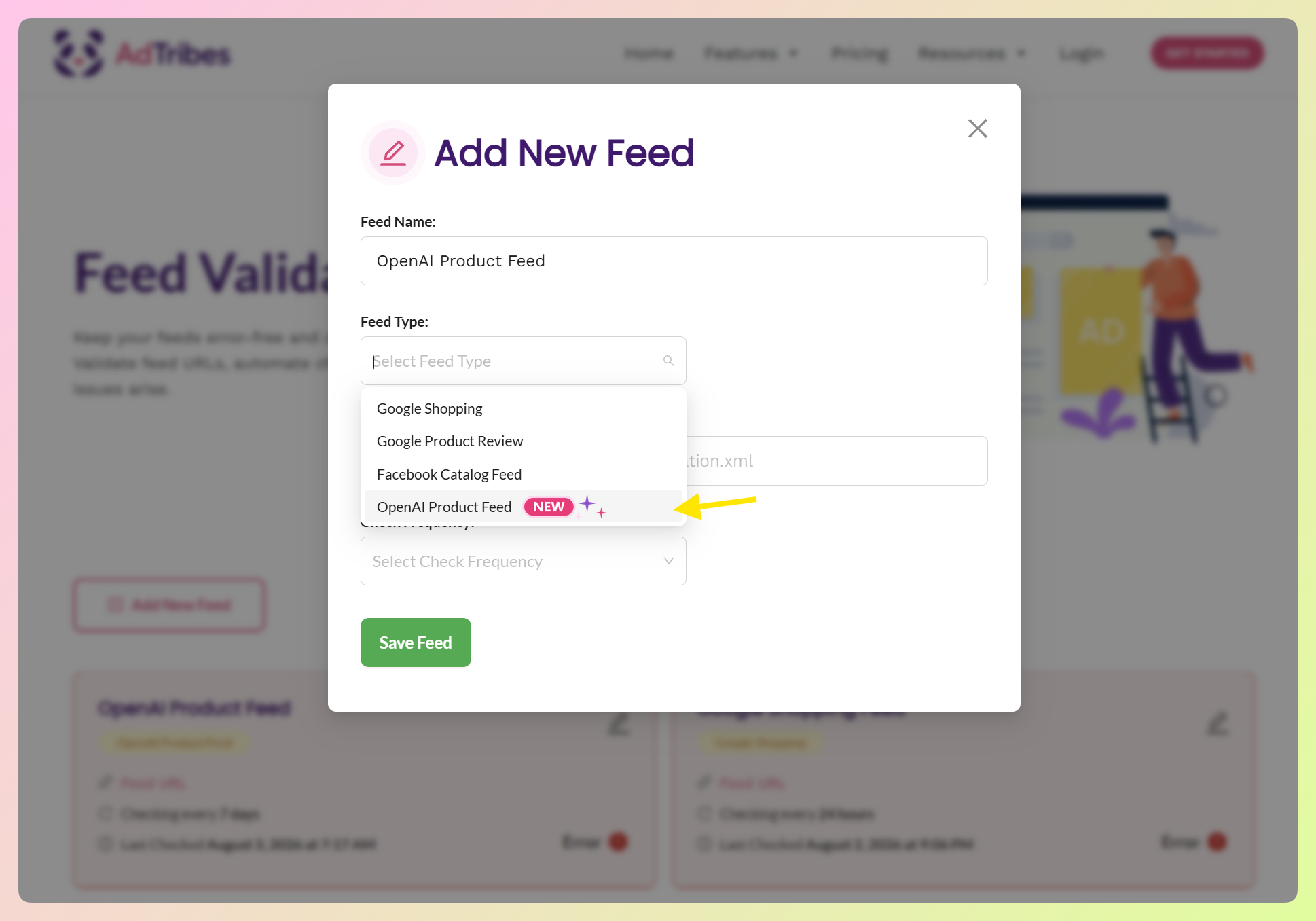
If you’re preparing a ChatGPT product feed for the first time, the validation results give you a clearer view of what needs fixing before submission.
What OpenAI Requires In A Product Feed
OpenAI’s product feed spec includes 15 fields required on every product record, plus three fields that become required in specific situations. The Feed Validator checks all 18 fields, including their conditional requirements.
The 15 always-required fields are:
item_id, title, description, url, brand, image_url, price, availability, seller_name, seller_url, is_eligible_search, is_eligible_checkout, return_policy, target_countries, and store_country.
The three conditional fields
The remaining fields become required based on the value of another field:
availability_datebecomes required whenavailabilityis set topre_order.seller_privacy_policyandseller_tosbecome required whenis_eligible_checkoutistrue.
This is where record-by-record validation becomes especially useful. A pre-order product needs an availability_date, while a checkout-eligible product also needs seller privacy and terms URLs. The validator checks those dependencies for each product instead of only confirming that the fields exist somewhere in the file.
The Formatting Details That Are Easy To Miss
A feed can include every required field and still fail a validation rule when a value uses the wrong format. Here are some of the details the Feed Validator checks:
Field formats worth double-checking
- Prices need a currency code.
79.99 USDmatches the spec,79.99on its own doesn’t. This applies toprice,sale_price, andgeo_price. - Availability uses exact values.
in_stock,out_of_stock,pre_order,backorder, andunknown. A spacedin stockwon’t match. - Dates use the ISO 8601 date format, which looks like
2025-12-01. That coversavailability_date,sale_price_start_date,sale_price_end_date, andexpiration_date. - URLs need to be complete web addresses, including
video_urlandmodel_3d_urlif your products use them. - Structured fields need JSONL. Fields that hold objects or lists, like
ads_metadata,variant_dict,q_and_a, andreviews, can’t survive a flat CSV. A.jsonl.gzfeed keeps them intact. - Deprecated custom variant fields get flagged so you can tidy them up.
The Feed Validator supports OpenAI product feeds in .jsonl.gz, .csv.gz, and .tsv.gz formats.
Feed-level checks
The Feed Validator also checks details that apply to the file as a whole, including UTF-8 encoding. These findings appear separately from record-level errors, making it easier to see whether an issue affects one product or the full feed.
How To Set Up An OpenAI Feed Check
To get started, you’ll need an active AdTribes Product Feed Elite Plus or Business plan and an OpenAI product feed URL hosted on a domain connected to your license.
Finding the Feed Validator
Head to My Account > Feed Validator. This is your dashboard for every feed you’re checking, and each one shows up as a card with its current status, its check frequency, and when it was last checked.
Adding your OpenAI feed
Click Add New Feed and you’ll get a short form:
- Give your feed a Feed Name you’ll recognize later. Something like “OpenAI product feed” is plenty.
- Set Feed Type to OpenAI Product Feed. This tells the validator which checks to apply to your feed.
- Paste your feed URL into the Feed URL field. The placeholder changes based on the feed type you selected. Make sure the feed is hosted on a domain connected to your AdTribes license.
- Choose your Check Frequency: Daily, Weekly, or Monthly. This is how often the validator revisits your feed on its own.
- Click Save Feed.
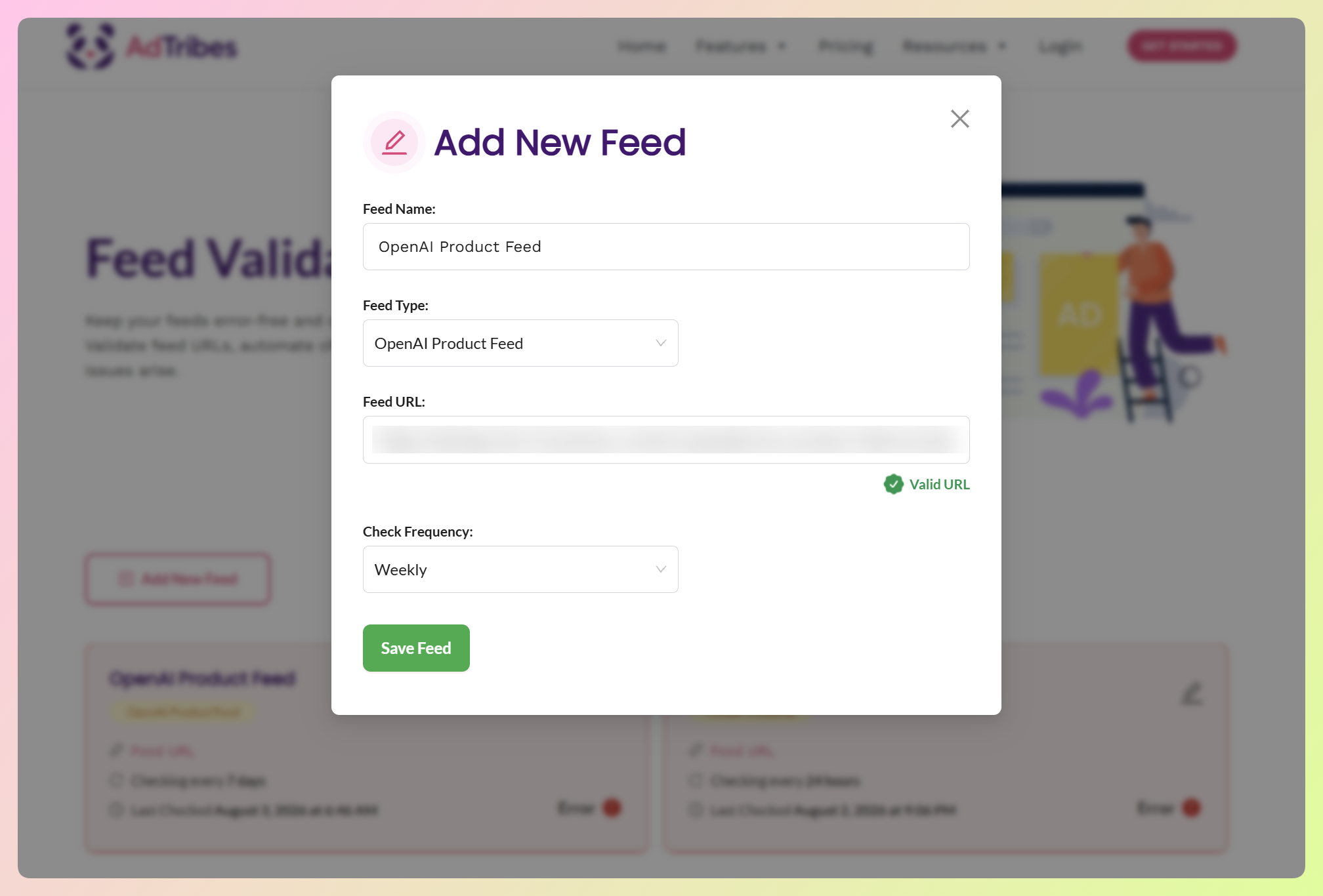
In the example above, the check frequency is set to Weekly. The validator checks the feed every seven days, helping you catch issues introduced by catalog changes during the next scheduled check.
Reading your results
Your feed card shows its current status and when it was last checked.
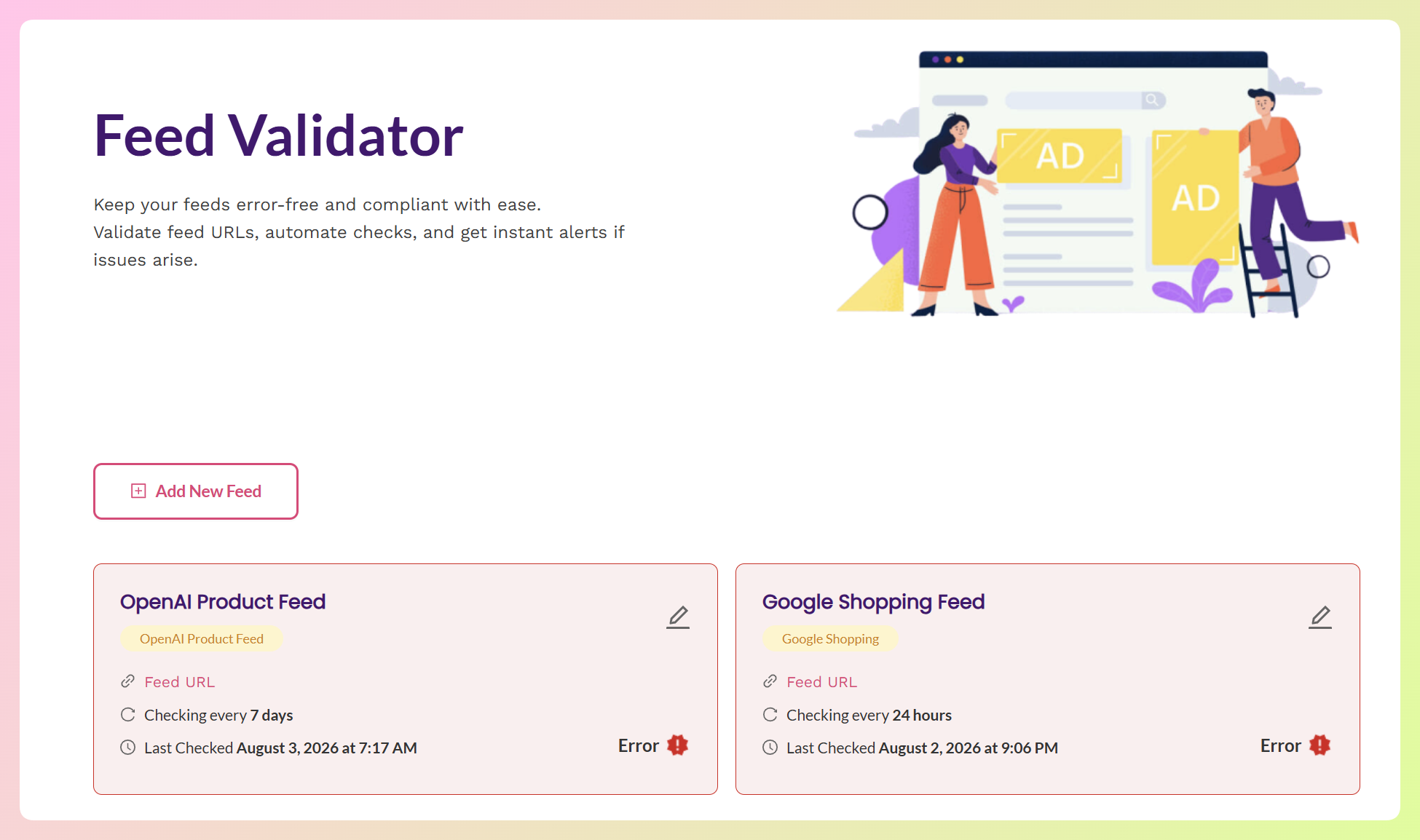
Open the log to review the latest findings. Each one identifies the record, field, and value involved, giving you a clear place to start.
After fixing the issue, select Recheck to run the validation again without waiting for the next scheduled check.
Who has this: OpenAI product feed validation is included with the Plus and Business plans of AdTribes Product Feed Elite at no extra cost. If you already have either plan, select OpenAI Product Feed from the Feed Type menu to get started. You can compare options on our pricing page.
How This Update Benefits Your WooCommerce Store
Regular validation helps you catch feed issues earlier and gives you clearer details when something needs fixing. Here are three practical ways this update helps:
1. You catch issues before submitting your feed
It’s much easier to fix a formatting issue before submission than to trace it after the feed reaches OpenAI. The validator checks your file against OpenAI’s published product feed rules and points you to the records that need attention.
That’s especially useful when you’re preparing your catalog for product discovery through ChatGPT. For more on how that discovery process works, see our guide to ChatGPT shopping.
2. You catch new issues as your catalog changes
A feed can pass one check and develop new issues later as products, prices, and availability change. Scheduled checks help you catch those changes without relying on a one-time review.
It’s the same reason you would check your Google and Facebook feeds on a schedule, now extended to your OpenAI feed.
3. You stop guessing which records are wrong
There’s a big difference between seeing “your feed has errors” and knowing which record is missing brand or which price lacks a currency code. The second gives you a clear place to start.
That specificity is what makes the difference between knowing your feed has a problem and knowing where to start fixing it.
RELATED READ: How To Create An OpenAI Product Feed For WooCommerce

Frequently Asked Questions
Which file formats can I use for an OpenAI product feed?
You can use .jsonl.gz, .csv.gz, and .tsv.gz. Choose JSONL when your feed includes structured fields such as variant_dict or reviews, since it preserves objects and lists. OpenAI also accepts Parquet for feed delivery. For validation, point the Feed Validator to one of the three supported formats above.
Will a warning stop my feed from working?
No. Warnings are advisory findings shown separately from errors. Use them to review feed-level details or deprecated fields that may need attention. Errors point to records that fail a validation rule, so those should be addressed first.
What does the OpenAI feed validator check?
It checks required fields, accepted values, price and date formats, URLs, conditional requirements, deprecated fields, and other record-level rules in the supported OpenAI schema. It also reports feed-level findings, such as encoding issues, separately.
How often does the Feed Validator check my OpenAI product feed?
That’s up to you. When you add or edit a feed, Check Frequency lets you pick Daily, Weekly, or Monthly, and the validator revisits your feed on that schedule. Your feed card shows when it was last checked. If you’ve just fixed something and don’t want to wait, Recheck runs it again immediately.
Can I check more than one OpenAI product feed?
Yes. You can add multiple OpenAI product feeds, each with its own name and check frequency. They appear separately on your Feed Validator dashboard, which is useful when you manage feeds for different countries or product ranges.
Which plans include OpenAI product feed validation?
OpenAI product feed validation is included with the Plus and Business plans of AdTribes Product Feed Elite. If you’re already on either plan, you don’t need a separate add-on or upgrade to use the new feed type.
Wrapping Up
Our newest update brings OpenAI product feed validation into the Feed Validator, so the feed you’re preparing for ChatGPT can be checked alongside your Google and Facebook feeds. You choose how often it runs, and the results point you to the records and fields that need attention.
In this guide, we learned:
- Feature overview: OpenAI product feed validation
- What OpenAI requires in a product feed
- The formatting details that are easy to miss
- How to set up an OpenAI feed check
- How this update benefits your WooCommerce store
Ready to validate an OpenAI product feed? If you’re on a Plus or Business plan, open the Feed Validator from your AdTribes account and add your feed URL. You can also compare Product Feed Elite plans if you need access to the tool.
Questions about the update? Leave them in the comments. We’re happy to help!