Reviewed by

If you send feeds to Google Shopping, Meta, and Pinterest, you’ve probably wondered which ones lead to orders. Finding that out often meant checking reports across different platforms.
Big news for WooCommerce store owners running product feeds! AdTribes Product Feed Pro now shows the orders, revenue, and items sold attributed to each of your feeds, right inside the plugin. It’s product feed conversion tracking built on your own WooCommerce order data, and it’s included for free.
Here’s how the new tracking works, where to find your feed’s numbers, and a few ways to use them.
What Is Product Feed Conversion Tracking?
Product feed conversion tracking connects eligible WooCommerce orders to the feed identified by their UTM tags. AdTribes Product Feed Pro then shows each feed’s attributed orders, revenue, and items sold for the last 7, 30, and 90 days.
You don’t need Google Analytics to see these numbers. Everything runs on the order data WooCommerce already stores, so the results sit right next to the feeds you manage.
How it works behind the scenes
Three pieces work together to connect an order to a feed:
- Your feed tags its product links. AdTribes Product Feed Pro adds UTM tags to the product links in your feed. This is on by default, with the channel name as the source and the feed name as the campaign.
- WooCommerce saves the tracking details. When a shopper arrives through a tagged link and places an order, WooCommerce Order Attribution can save the UTM tags on that order.
- The plugin matches the order to a feed. If the recorded source and campaign uniquely match a feed, AdTribes Product Feed Pro counts that order toward the feed’s totals.
Which orders count
Orders with the status Processing, Completed, or On hold count toward your totals. Pending, failed, cancelled, and refunded orders don’t. Because On hold orders count, the revenue figure isn’t limited to fully paid orders.
The totals update when order statuses change, too. Refunding an order removes it from the feed’s numbers, while moving a pending order to Processing adds it.
Why Seeing Sales Per Feed Matters
Keeping your product feeds updated takes time. Seeing which ones are bringing in orders can help you decide what to work on next.
See what each feed contributes
With the new Conversions (30d) column, you can compare feeds for Google Shopping, Meta, and Pinterest side by side without leaving WordPress. If one feed has steady attributed orders while another shows none, you have a useful starting point for a closer look.
This is especially useful when you promote products on several platforms. While each ad platform may report conversions differently, these figures come from your own WooCommerce orders. Use them alongside ad spend and campaign reports before deciding where to focus your budget.
Spot a feed that has gone quiet
Each feed also shows the date of its last attributed order. If a feed that regularly brings in orders goes quiet, that date gives you a starting point for investigating.
It doesn’t automatically mean something is wrong with the feed. Check product approvals, campaign activity, and recent changes to product data before drawing conclusions.
Put your time where the sales are
Before you build a feed for yet another channel, it’s worth polishing the ones that already sell. Sharper titles through field mapping or cleaner data with product feed rules can give a working feed even more room to grow.
The numbers also help you decide what to try next. A feed with steady attributed orders might be worth expanding with more products, while one with few attributed orders may need a closer look at its product data. Either way, you’re making the call based on real orders from your own store.
How To Set Up Product Feed Conversion Tracking (Step-by-Step)
Setup takes four steps, and on most stores the first two are already done for you. Here’s how to check everything is in place.
Step 1: Check that WooCommerce Order Attribution is on
Go to WooCommerce → Settings → Advanced → Features and make sure Order Attribution is ticked. WooCommerce turns it on by default, but it’s worth a quick look, since the plugin can’t credit any orders without it.
If it ever gets switched off, AdTribes Product Feed Pro shows a reminder on each feed’s Conversion & Google Analytics tab, so it won’t slip by you.

Step 2: Make sure UTM tracking is on for each feed
In your WordPress dashboard, go to Product Feed → Manage feeds, click Edit on a feed, and open the Conversion & Google Analytics tab. Check that Enable UTM tracking (Google Analytics and feed conversions) is switched on.
UTM tracking is on by default, and the source and campaign fields are already filled in with the channel name and the feed name. You can leave them as they are.
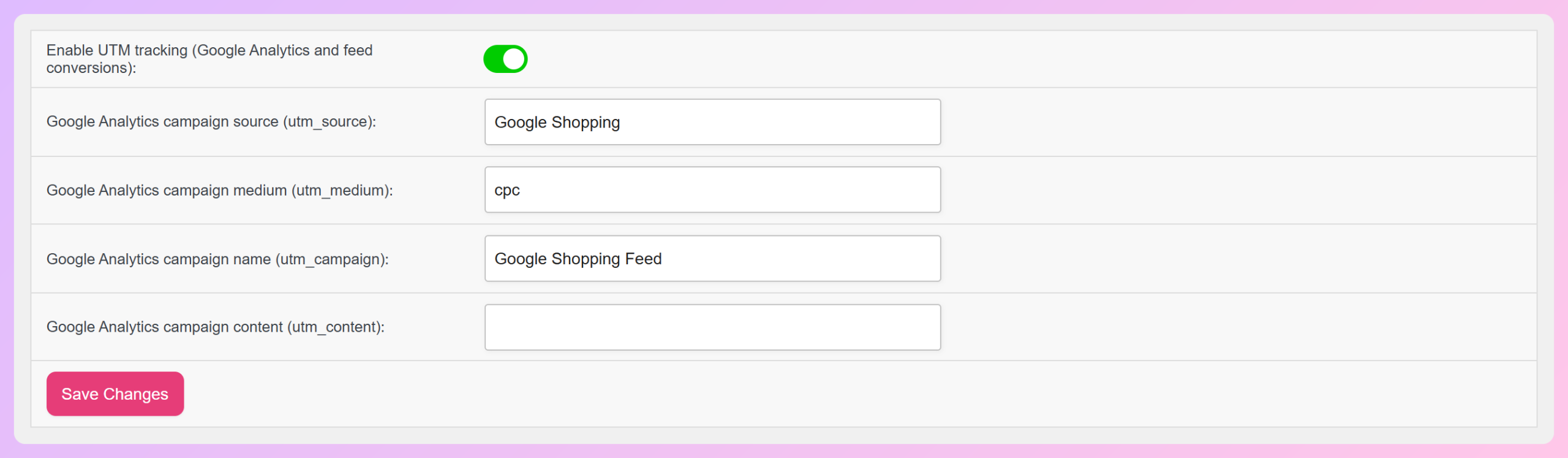
If a feed has UTM tracking turned off, the plugin lets you know in a few places. You’ll see a “UTM off” badge on your feeds list, a reminder notice in your dashboard, and a Turn on UTM tracking button right on the tab.
Step 3: Check the Conversions (30d) column
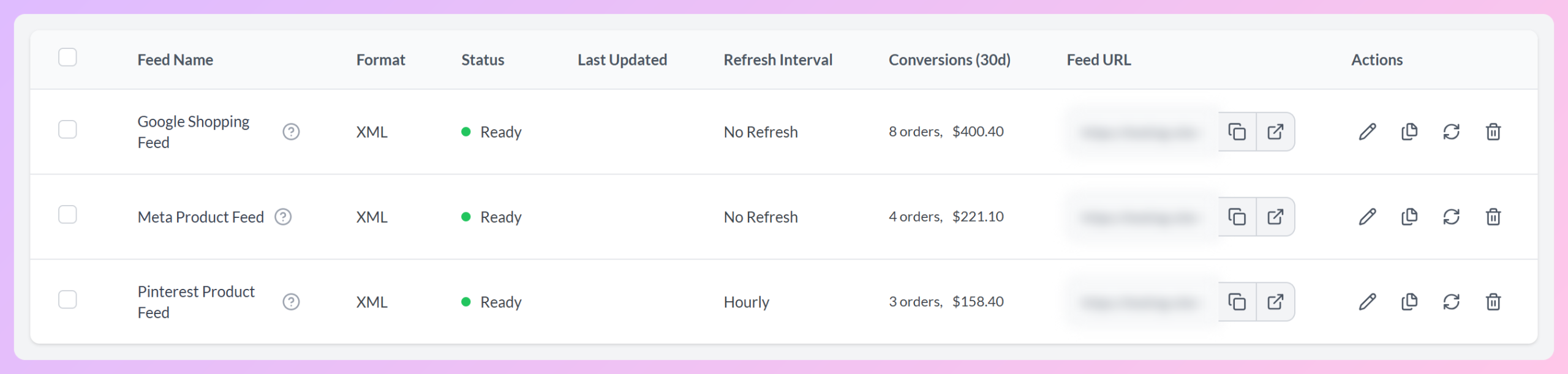
Head back to Product Feed → Manage feeds. You’ll find a new Conversions (30d) column showing orders and revenue attributed to each feed over the last 30 days.
Here’s what it looks like on our demo store with feeds for three channels (example data):
Step 4: Open a feed’s Attributed orders table
For a closer look, edit a feed and open the Conversion & Google Analytics tab again. The Attributed orders table shows orders, revenue, and items sold for the last 7, 30, and 90 days, along with the date of the last attributed order.
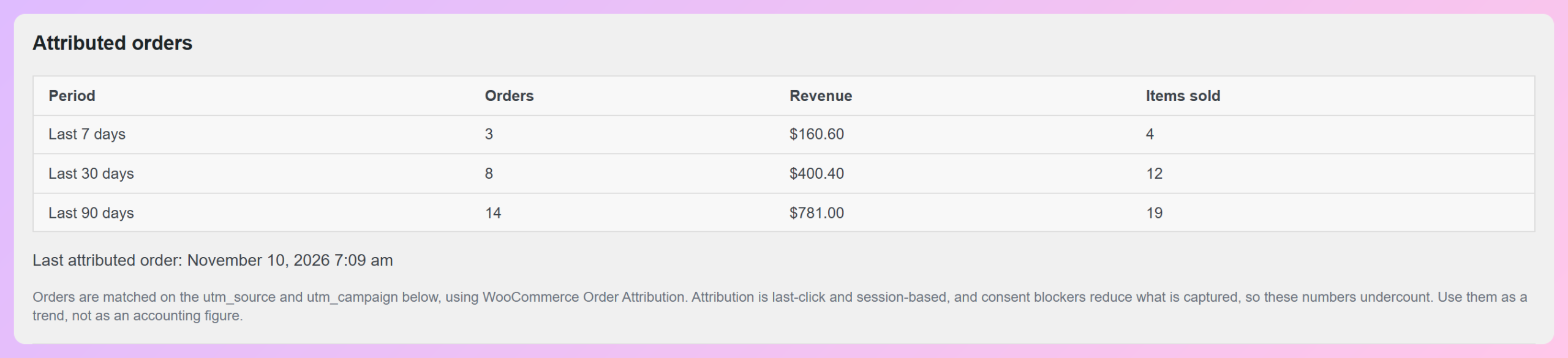
You may already have recent data to look at. After you update, AdTribes Product Feed Pro can attribute orders from the previous 90 days if WooCommerce recorded UTM details that match the feed. This backfill runs after the update, so historical numbers may take a little time to appear.
4 Ways To Use Your Feed Conversion Data
Once the numbers start coming in, here are four practical ways to use them.
1. Compare feeds across channels
The Conversions (30d) column lists results for each feed. You can compare a Google Shopping feed, a Facebook product feed, and a Pinterest feed to see how many attributed orders and how much revenue each one has.
2. Compare two feeds on the same channel
Some stores run more than one feed on the same channel, such as separate Google Shopping feeds for different product groups. By default, each feed uses its name as the UTM campaign. Keep those campaign names distinct so AdTribes Product Feed Pro can match orders to the right feed.
3. Check a feed after you change it
Updated your field mapping or added new rules? Check the 7-day results alongside the 30- and 90-day numbers to see how attributed orders are trending. If you notice a change, review it alongside other factors, like campaign activity, before drawing conclusions.
4. Catch a stalled feed early
A feed that used to sell but shows an old “Last attributed order” date deserves some attention. For Google feeds, check for disapproved products or account issues in Google Merchant Center diagnostics. For other channels, look at that channel’s own catalog or feed reports.
Tips For Clean Feed Conversion Data
If your numbers look off or a feed shows no orders at all, these are the first things to check.
- Give each feed its own campaign name. The default, which is the feed name, already does this. If two feeds on the same channel share a campaign name, the plugin can’t tell which one an order came from, so neither feed gets the credit.
- Keep UTM tracking on. Without UTM tags on new product links, the plugin won’t have the details it needs to attribute future orders to that feed. Watch for the “UTM off” badge on your feeds list.
- Leave WooCommerce Order Attribution on. Without it, WooCommerce doesn’t record where an order came from, so there’s nothing for the plugin to match.
- Read the numbers as a trend. WooCommerce attribution is last-click and session-based. Consent settings can also prevent some orders from being tracked, so these totals may not reflect every sale. Use them to compare feed trends, alongside your analytics and ad platform reports for a wider view.
Frequently Asked Questions
Is product feed conversion tracking free?
Yes. Product feed conversion tracking is part of AdTribes Product Feed Pro, the free plugin, starting with version 13.5.9. You don’t need a paid plan to see orders, revenue, and items sold per feed.
Do I need Google Analytics to track conversions per feed?
No. The plugin uses WooCommerce Order Attribution and the order data already in your store. If you have Google Analytics set up, it can also use the UTM tags on your feed links.
Will it show orders from before I updated?
It can show orders from the previous 90 days, as long as WooCommerce recorded UTM details that match the feed. The backfill runs after the update, so past orders may take a little time to appear.
Which WooCommerce orders are counted?
Orders with the status Processing, Completed, or On hold. Pending, failed, cancelled, and refunded orders aren’t counted, and the totals update as soon as an order’s status changes.
Why does my feed show no conversions?
Start with three checks: WooCommerce Order Attribution is turned on, UTM tracking is on for that feed, and the feed has its own campaign name. If all three are fine, the feed may simply have no attributed orders in that period yet.
Wrapping Up
Knowing which feeds sell changes how you spend your time on them. Instead of piecing it together from separate reports, you can now see attributed orders and revenue for each feed in the same place you manage it.
Here’s what to do next:
- Check your Order Attribution and UTM settings so eligible orders can be attributed to the right feed.
- Compare individual feeds across channels to see where attributed orders come from.
- Run through the quick checks if a feed’s numbers look off.
Version 13.5.9 brings a few more updates too, including an easier way to move your feeds over from other feed plugins and new Google Merchant Center attributes for AI shopping. We’ll cover those in upcoming posts.
Ready to see which feeds sell? Update to the latest AdTribes Product Feed Pro and start using product feed conversion tracking today.