
The Rules Builder lets you filter and modify products using IF conditions, without changing your store’s actual product data. Two conditions cover requests that previously needed several rows to express: matching a field against a curated list of values, and matching a numeric field against a range.
- In List: matches a field’s value against any entry in a comma-separated list, so one condition row can target a specific set of products.
- Between: matches a numeric field against an inclusive range, so one condition row can replace a pair of “greater than or equal” and “less than or equal” rows.
Both conditions are Elite-only. If you’re on Product Feed Pro without Elite, they appear in the comparison dropdown with an (Elite) label as an upgrade option, the same way Character Count Greater Than (Elite) does today.
Prerequisites
| Requirement | Details |
|---|---|
| Plugin installed and activated | Product Feed Elite. In List and Between are Elite-only conditions |
| At least one feed created | Open an existing feed to access the Filters or Rules tab, or create your first feed |
| Updated plugin version | Requires Product Feed Pro v13.5.7 or higher and Elite v5.1.0 or higher version that includes these two conditions |
Accessing the conditions
In List and Between are comparison operators, so they’re available anywhere the Rules Builder’s IF section appears: on the Filters tab and the Rules tab. There’s no separate screen to learn.
- Go to Product Feed → Manage feeds.
- Edit an existing feed or create a new one.
- Click the Filters tab or the Rules tab. (Filters and Rules are separate tabs by default.) For a full walkthrough of building rules from scratch, see How to create product feed rules.
- In the IF section of a condition row, choose In List or Between from the comparison dropdown.
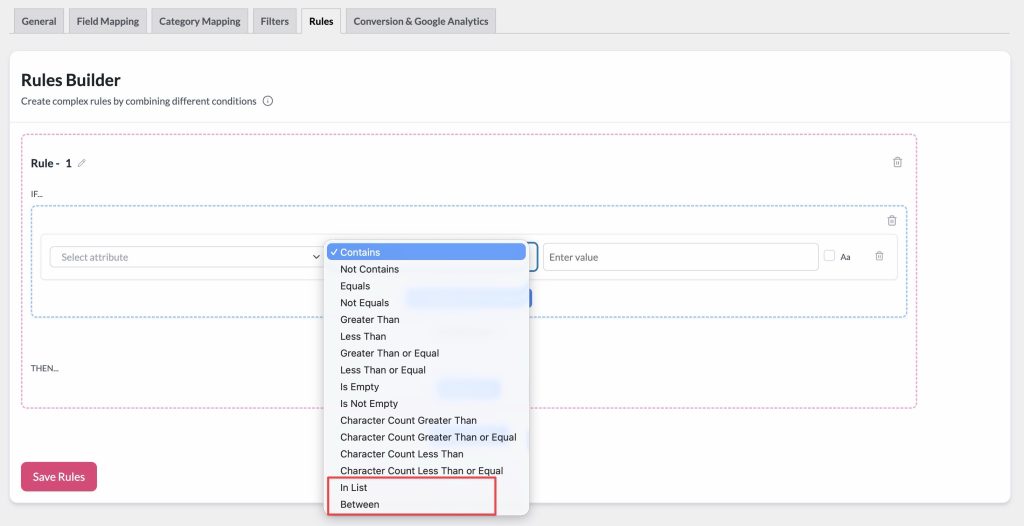
In List
In List checks whether the selected attribute’s value matches any entry in a comma-separated list you type into the same value field used by other conditions. Each entry is trimmed of surrounding spaces before comparison, so 101, 245, 389 matches 101, 245, and 389.
This is useful for targeting a curated set of products in one row, such as a promotion feed that includes a specific list of product IDs, instead of stacking a separate Equals row for every product.
Setting up an In List condition
- In the IF section, select the attribute you want to check (e.g., Product Id, SKU, Category).
- Choose In List from the comparison dropdown.
- In the value field, type your list of values separated by commas (e.g.,
101, 245, 389). - Continue building the rest of your rule or filter as usual.

Example
To include only three specific products in a promotion feed, set the condition to Product ID In List 101, 245, 389. A product with ID 245 matches; a product with ID 250 doesn’t.
Between
Between checks whether a numeric attribute’s value falls within an inclusive range. You enter the range as min,max in the same value field used by other conditions, and the condition matches when the field’s value is greater than or equal to the minimum and less than or equal to the maximum.
This replaces the two-row workaround of a Greater Than or Equal row and a Less Than or Equal row in the same group, which relies on knowing that rows in a group are combined with AND. Splitting those two rows into separate groups by mistake silently matches everything instead of the intended range.
Setting up a Between condition
- In the IF section, select the numeric attribute you want to check (e.g., Price, Stock Quantity, Product Id).
- Choose Between from the comparison dropdown.
- In the value field, type the range as
min,max(e.g.,10,50). - Continue building the rest of your rule or filter as usual.

Example
To include products priced from 10 to 50 inclusive, set the condition to Price Between 10,50. A product priced 10 or 50 matches; a product priced 9.99 or 50.01 doesn’t.
Troubleshooting
- Check the row’s Case sensitive checkbox: it’s off by default, so
Bluematchesblue. If you turned it on, the list entry and the product’s value must match case for case as well as character for character. - Check the attribute, not the display label: confirm you selected the same attribute the value actually comes from (for example, Product Id rather than SKU, if the list contains IDs).
10,50), with no extra text. A missing bound, a non-numeric bound, or a non-numeric field value causes the condition to not match, rather than partially matching.Frequently asked questions
Need further assistance?
If you need any further assistance, feel free to open a support ticket to reach our support team.
Please note that the ticket support system is exclusive to Product Feed Elite users.
If you’re using only the Product Feed Pro plugin, feel free to open a new topic in the WordPress.org forum.

