
Google, Facebook and most other channels want every product name in your feed to be unique. So the plugin builds one for each variation automatically: it takes the attribute values that make the variation different and adds them to the parent product name. That is usually what you want, but not always. If your names are coming out cluttered, you can decide which attributes get appended and which do not.
Before you start
- Product data manipulation is a Product Feed Elite feature. You need Elite active on top of Product Feed Pro.
- You need a variable product whose variations use more than one attribute, otherwise there is nothing to trim.
- You need a feed already created, because the rule is added per feed.
Which tool you need
Two different features change the title that reaches your feed, and it is worth picking the right one before you start.
Use the steps on this page when you want to rebuild the variation name from the parent name plus specific attributes. This needs Elite.
Use the Optimised Title field when you want to shape the title for search instead, for example putting the brand first. That field does not need Elite.
What the plugin does by default
Take a variable product with a colour attribute and a size attribute.
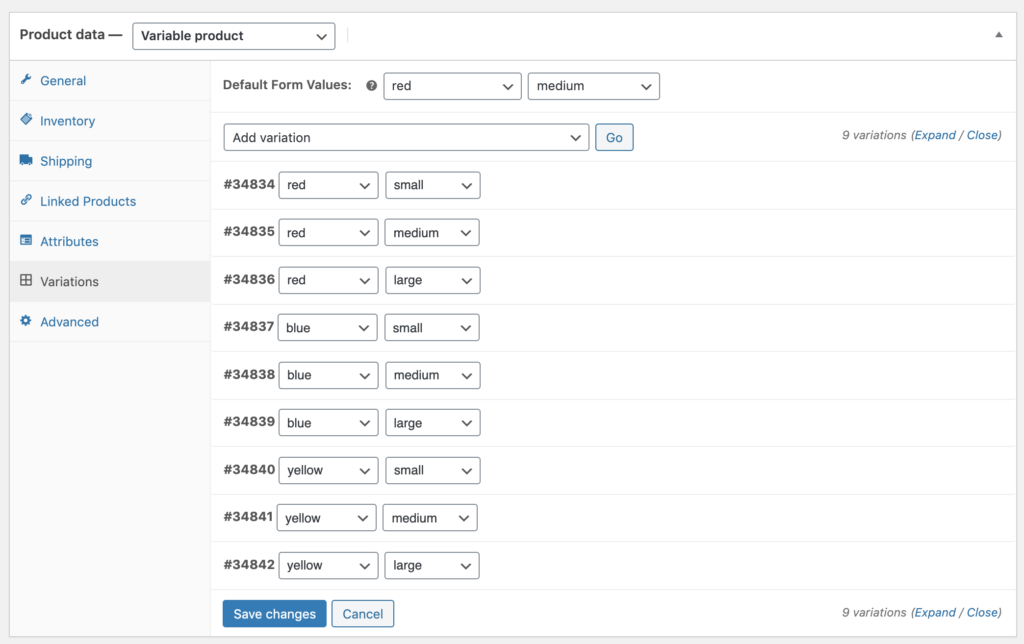
The feed carries names with both values appended.

Rebuild the name with only the attributes you want
Say you want the colour in the name but not the size.
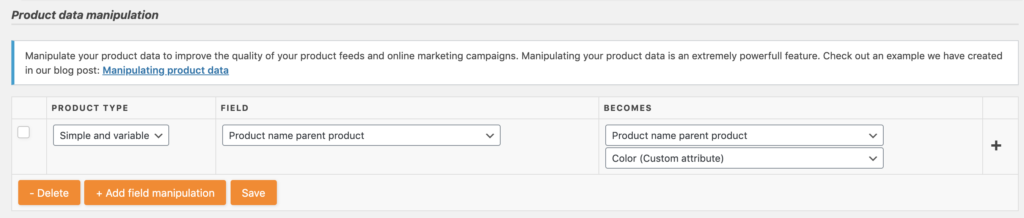
- Go to Product Feed → Settings and switch on Enable Product data manipulation feature.
- Open your feed and go to the Data Manipulation step.
- Add a rule that takes the parent product name and appends only the colour value to it.
- Go to the Field Mapping step and map the title field to the parent product name attribute.
- Save the feed, then refresh it.

Check the result
Open the generated feed. The product names now carry the colour only, and the size values are gone.

Troubleshooting
Two variations now have the same name. This is the risk of trimming attributes. If size was the only thing telling two variations apart, removing it leaves duplicates, and channels reject those. Keep enough attributes in the name to keep every variation distinct.
The names did not change. Check that product data manipulation is switched on in the plugin settings, that the rule is saved on this feed rather than another one, and that the field mapping points at the parent product name attribute.
You wanted to reorder the title, not trim it. Use the Optimised Title field instead.
Related articles
- Product data manipulation in Product Feed Elite
- How To Use The Optimised Title Field?
- How to Combine and Truncate Feed Fields in Product Feed Elite
Need more help?
Elite customers get priority support. If you’re on Product Feed Elite, open a support ticket, and our team will help you build the rule.
If you’re on the free Product Feed Pro plugin, post your question on the WordPress.org support forum, and we’ll point you in the right direction.

