Reviewed by
Good news if you run FOX – Currency Switcher Professional for WooCommerce! The Product Feed Multi-Currency Addon now integrates with FOX, so you can choose the currency each of your product feeds is generated in. Your Google Shopping, Facebook, and other channel listings can show prices in the currency for the market you’re targeting, using your FOX exchange rates and fixed product prices where you’ve set them.
If you already use FOX to show different currencies on your storefront, your product feeds can now use that same currency setup too. In this guide, we’ll show you what the integration does and how to set up your first FOX currency feed.
What The FOX Currency Switcher Integration Does
The integration adds a per-feed currency setting called Currency (FOX): to your feed’s General settings. Pick any currency you’ve configured in FOX, and that feed’s product prices, sale prices, and supported shipping costs are all generated in it.
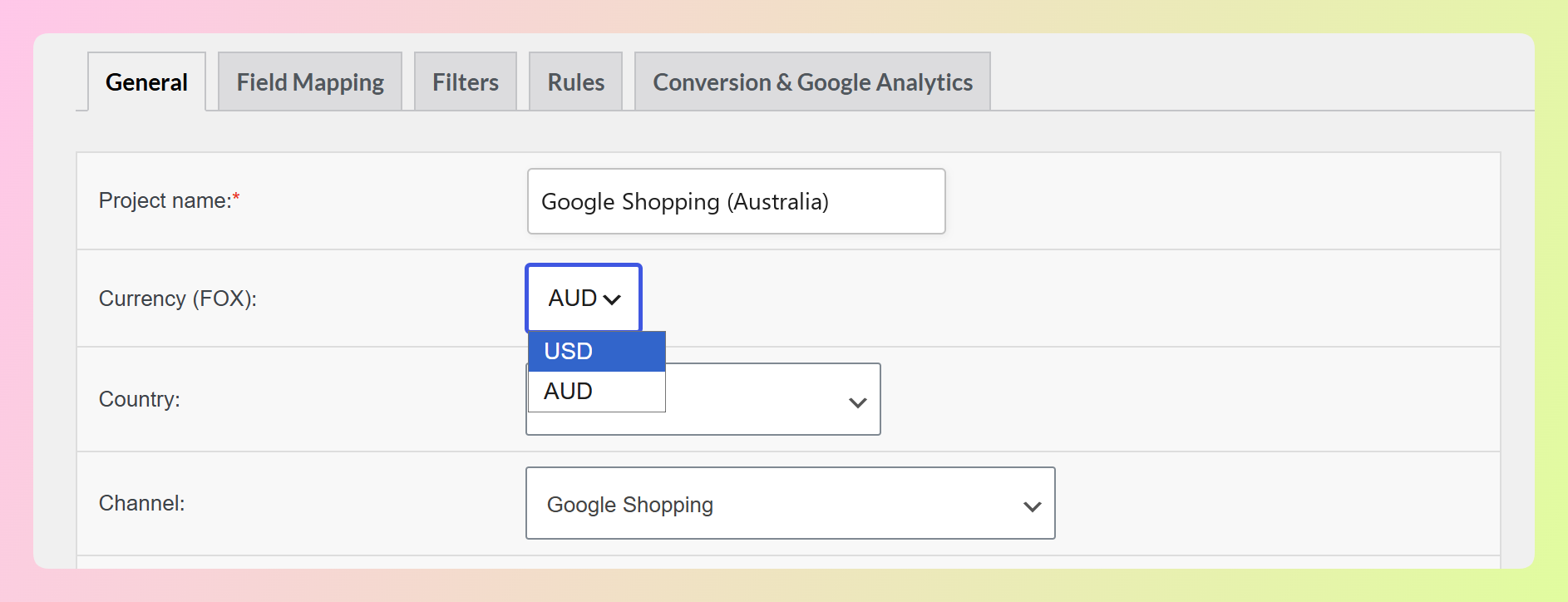
The setting lives at the feed level, not the store level. So you can create a US dollar feed for Google Shopping and an Australian dollar feed for the same catalog, with each feed using the currency for its target market.
Instead of relying on the currency selected in a shopper’s session, the integration reads your FOX configuration directly. That means feed generation can use the currency settings you’ve already configured in FOX, including its exchange rates and fixed product prices where available.
There’s also no separate integration toggle to enable. When FOX and the Product Feed Multi-Currency Addon are active, the Currency (FOX): setting appears automatically in your feed settings.
This has been a highly requested integration. FOX offers a free version and has more than 50,000 active installations, so we’re glad to bring it into the Product Feed Multi-Currency Addon.
How To Set Up A FOX Currency Feed
Setting this up is quick!
Before you follow along, make sure WooCommerce, AdTribes Product Feed Pro version 13.5.5 or newer, and the Product Feed Multi-Currency Addon are installed and activated. You’ll also need FOX active with the currencies you want to use already configured. The addon is available with the Plus and Business plans of AdTribes Product Feed Elite.
Step 1: Check your currencies in FOX
Head to WooCommerce > Settings > Currency and open the Currencies tab. This is where FOX lists the currencies available on your store.
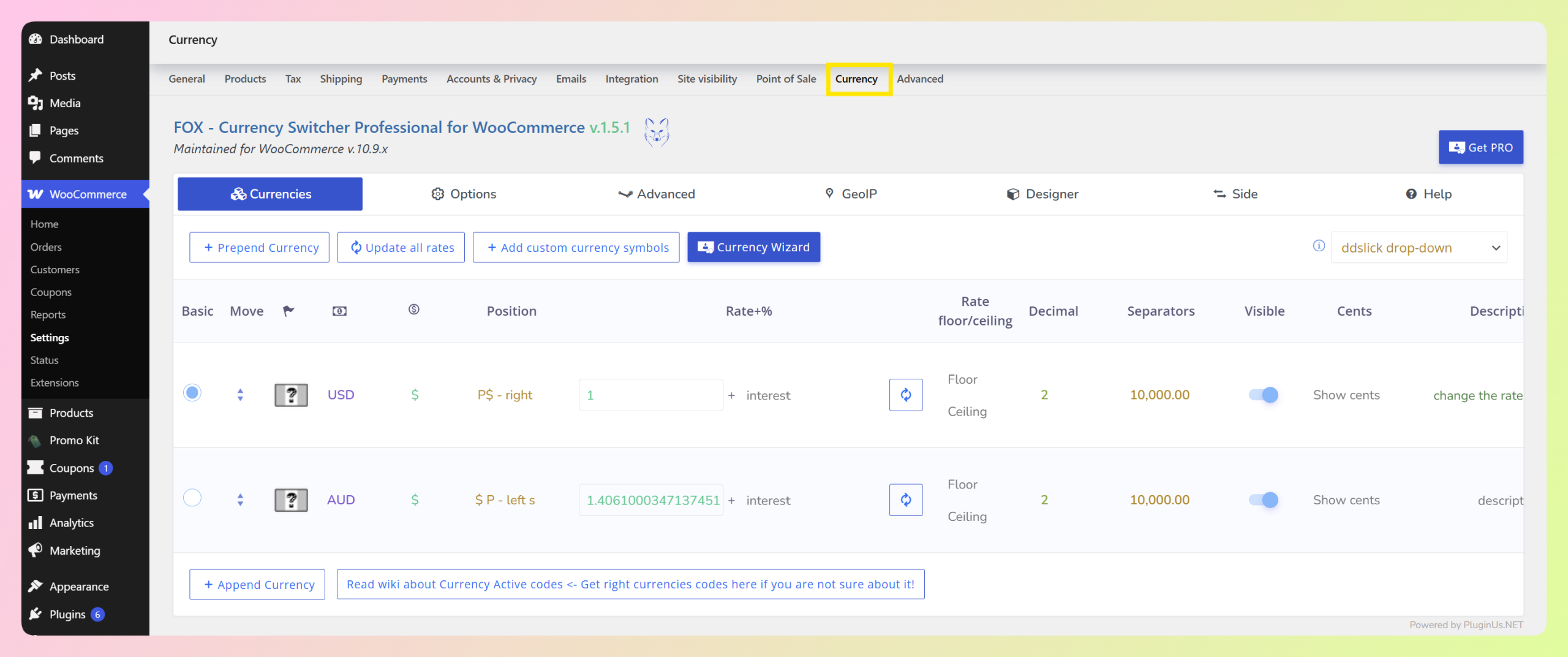
Before creating the feed, check that the currency you want to use is configured here and that its exchange rate is correct. The feed will use your FOX currency setup when it generates prices.
Step 2: Create or edit your feed
Now go to Product Feed > Create feed to start a new one, or open an existing feed from Product Feed > Manage feeds. Either way, you’ll land on the General tab, which is where the currency setting lives.
Step 3: Pick your feed currency
Just below Project name, you’ll see the new Currency (FOX): dropdown. Open it and you’ll find the currencies you configured in FOX. Choose the currency you want this feed to use.
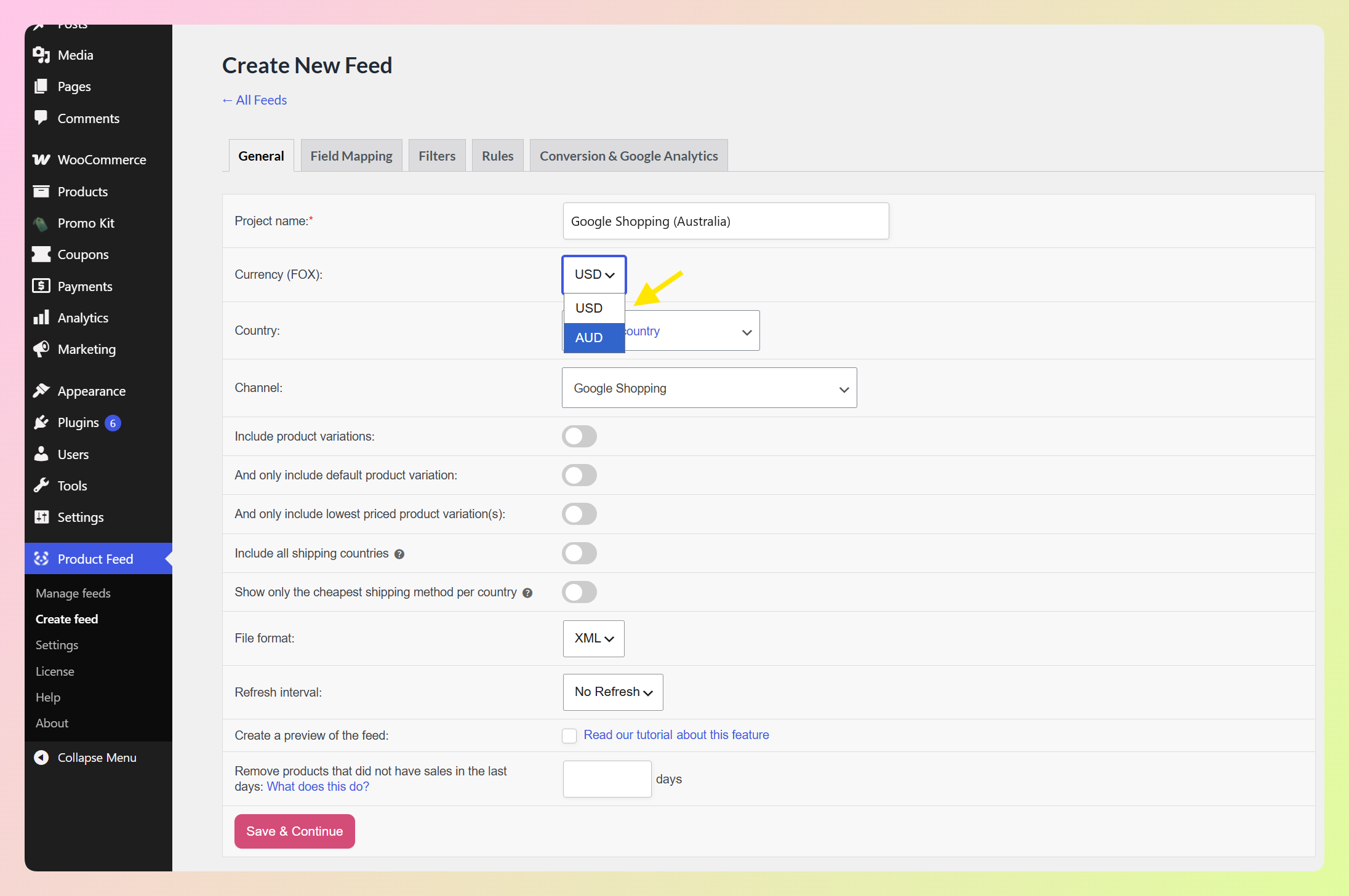
In the example above, we’ve selected a currency that isn’t the store’s base currency. Product and sale prices in this feed will use the selected FOX currency, with fixed product prices used when applicable. Your other feeds keep their own saved currency settings.
Then choose the Country and Channel for the market you’re creating this feed for.
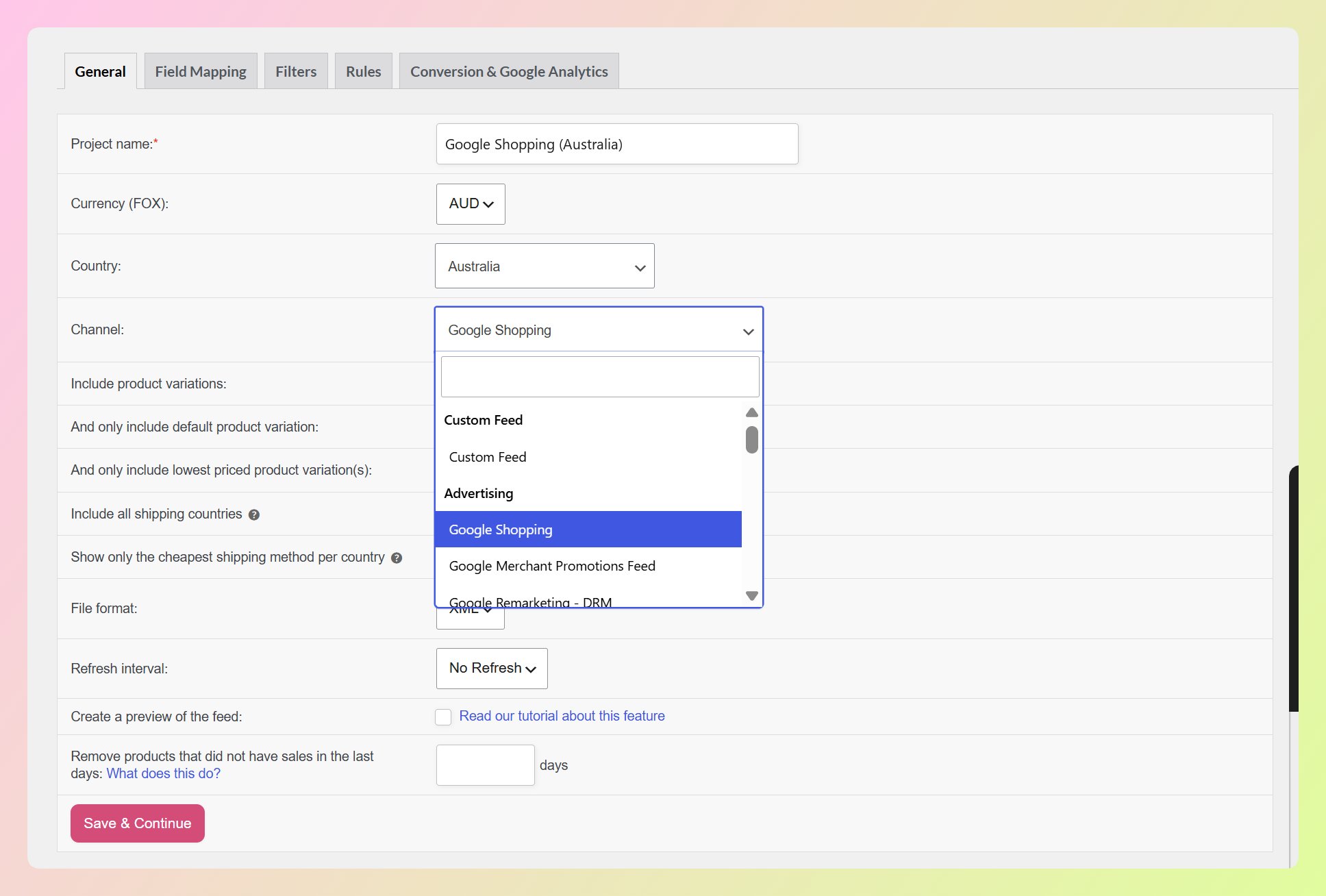
Feel free to check out the other General settings too, such as product variation and shipping options, File format, and Refresh interval. Adjust them based on the feed you’re creating.
Step 4: Save and generate the feed
Click Save & Continue to work through the rest of your feed setup as normal.
Once the feed generates, open the file and check a few product rows. Your feed prices should now use the currency you selected.
That’s it! If you want a full walkthrough of building your first WooCommerce product feed, check out our complete product feed guide.
🎯 POWER TIP: Building feeds for several markets? Duplicate a feed you’ve already set up instead of starting from scratch. The saved FOX currency carries over to the copy, so update the currency and any market-specific settings, such as country or channel, before generating the new feed.
Ways To Use The FOX Currency Switcher Integration
Choosing a currency per feed gives you a practical way to tailor product feeds for different markets. Here are a few ways you can use the FOX currency switcher integration.
1. One feed per market, priced for that market
Build a feed per market and set each one to the currency you want to use there, then match the country and channel settings to that feed.
This lets each feed send prices in the currency for that market instead of using your store’s default currency across every feed.
2. Keep market-specific fixed prices
When FOX is configured to use fixed product prices, the integration uses the per-currency value you’ve set for a product instead of recalculating it from the exchange rate.
This is useful when you want a specific price point for a market rather than a rate-converted amount. If fixed product pricing isn’t being used for that product, the feed converts the price using the currency rate instead.
3. Keep shipping costs in the same feed currency
For channels that include shipping in the feed, shipping costs are converted alongside your product prices into the currency selected for the feed.
This keeps your shipping costs aligned with the currency used for product prices in that feed.
4. Keep the same currency on scheduled refreshes
Because the integration reads your FOX configuration rather than the current visitor session, scheduled feed refreshes use the same saved feed currency and FOX setup as manual generation.
So once you’ve chosen a currency for the feed, you don’t need to select it again each time the feed refreshes.
Frequently Asked Questions
Which currency switchers does the Product Feed Multi-Currency Addon support?
The addon supports four currency switchers: Aelia Currency Switcher, CURCY (WooCommerce Multi Currency), WooCommerce Multilingual & Multicurrency (WCML), and now FOX – Currency Switcher Professional for WooCommerce. Whichever one your store already uses, the addon reads its settings and generates your feed prices from them.
Do I need the premium version of FOX Currency Switcher?
No, the integration works with the free version of FOX. FOX’s free version supports up to two currencies, so you’ll need the premium version if you want to configure more than two currencies for additional market feeds.
Do I have to turn the FOX integration on?
No. There’s no separate FOX integration setting to enable. When FOX and the Product Feed Multi-Currency Addon are both active, the Currency (FOX): dropdown appears automatically in the feed’s General settings.
Does the integration convert shipping costs as well as product prices?
Yes, for channels that include shipping in the feed. Shipping costs are converted into the same currency selected for the feed, alongside your product prices.
What happens to my feed if I remove a currency from FOX?
The feed can keep its previously saved currency setting, but if that currency is no longer configured in FOX, it can’t be used for normal conversion. Open the affected feed, choose an available FOX currency, and regenerate it.
Wrapping Up
With the FOX currency switcher integration, your product feeds can use the FOX currency setup you already manage on your store. Choose a currency per feed, and AdTribes uses your FOX currency settings when that feed is generated.
In this guide, we learned:
- What the FOX Currency Switcher integration does
- How to set up a FOX currency feed
- Ways to use the FOX Currency Switcher integration
Selling across borders comes with enough moving parts, and your product feeds shouldn’t be one of them. Head over to your feed settings and set up your first FOX currency feed today!
Do you have any questions about this new integration? Let us know in the comments. Always happy to help.