
 Reviewed by
If Google Merchant Center has flagged your products with errors or disapprovals, Google Shopping feed errors may already be limiting your visibility, reducing clicks, or stopping some products from showing at all.
The good news: many Google Shopping feed errors are fixable once you identify the exact issue. The harder part is that Google’s error messages can feel vague, and the actual fix often lives in your WooCommerce product data or feed configuration rather than in Merchant Center itself.
This guide covers eight common Google Shopping feed and Merchant Center issues WooCommerce stores encounter, with practical ways to fix each one in WooCommerce, AdTribes, or Merchant Center as needed. It also shows how to use the Feed Validator to catch feed-level issues earlier, so you can clean them up before they turn into bigger problems in Merchant Center.
Where To Find Your Feed Errors In Google Merchant Center
Before fixing anything, you need to know exactly what Google flagged.
- Log in to Google Merchant Center
- Click Products in the left navigation
- Go to the Needs attention tab
- For account-level issues, look for the banner at the top — click View setup and policy issues
- For product-level errors, click any individual product to see its specific issues
Google labels errors by severity:
- Error — product is disapproved; not showing in Shopping ads
- Warning — product is showing but may underperform; fix recommended
- Notification — informational; no immediate action required
Copy the exact error name from Google Merchant Center before searching for a fix. Google’s error names are specific — “Missing GTIN” and “Invalid GTIN” are different issues with different fixes.
8 Common Google Shopping Feed and Merchant Center Issues
Not every Shopping issue starts in the same place. Some come from missing product data, while others are tied to feed settings or Merchant Center setup. Below are some of the most common issues WooCommerce stores face, plus practical ways to fix them.
1. Missing GTIN or incorrect product identifiers
What it means: Your product is missing a GTIN (Global Trade Item Number — the barcode/UPC/EAN on the product packaging). Google requires GTINs for any product that is manufactured by a third party and sold by multiple retailers.
Why it happens in WooCommerce: WooCommerce doesn’t have a built-in GTIN field. Unless you’ve added GTINs to your products using a plugin or custom field, this data simply doesn’t exist in your feed.
How to fix:
For branded products that have GTINs (barcodes):
- Install AdTribes’ GTIN and identifier fields to add a GTIN field to your WooCommerce product editor
- Enter the correct GTIN for each affected product (found on the product’s barcode, manufacturer’s website, or distributor catalog)
- In your AdTribes feed, map the
gtinfield to your GTIN custom field
For products that genuinely have no GTIN (handmade, custom, or unique items):
- In AdTribes feed rules, add: If product category contains [your handmade category] > set
identifier_existstono - This tells Google that the product does not have a product identifier available. Use this only when that’s genuinely true, since incorrectly marking products this way can still lead to issues.
Priority: High. Missing or incorrect product identifiers can lead to product disapprovals or limited visibility, especially for widely manufactured products that should have GTINs.
2. Price mismatch
What it means: The price in your product feed doesn’t match the price shown on your product page when Google checks it. If Google sees a mismatch between your feed and landing page, the product can be flagged or disapproved.
Why it happens in WooCommerce: Your WooCommerce store price updated (sale started, sale ended, price change) but your feed wasn’t refreshed. Google’s crawler finds a different price than what’s in the feed.
How to fix:
- Immediate fix: Force-refresh your AdTribes feed manually (go to the feed, click Refresh)
- Permanent fix: Set up automatic feed refresh in AdTribes. Daily refresh is a good baseline for many stores, while hourly refresh can make sense if your prices or stock change often. Custom intervals are available on Elite plans.
- Check tax settings: Ensure your feed price includes/excludes tax the same way your product page displays it. If your store shows prices with tax but your feed sends prices without tax (or vice versa), this triggers a mismatch
- Check sale price mapping: In AdTribes, ensure the
sale_pricefield is mapped and thatsale_price_effective_dateis set if you use scheduled sales in WooCommerce
3. Image policy violation
What it means: Your product image doesn’t meet Google’s image requirements. Disapproved image types include: watermarked images, promotional text overlaid on images, placeholder/generic images, images with multiple products shown separately (when submitting individual products), or images that are too small.
Common Google image error messages:
- “Invalid image” — image URL returns a 404 or redirect
- “Image too small” — below Google’s minimum image size requirements
- “Promotional overlay” — text like “SALE” or “FREE SHIPPING” on the image
- “Watermark” — visible logo or watermark on the product image
How to fix:
- Resize issues: Re-upload product images at 800x800px or higher. WooCommerce generates multiple sizes automatically — ensure your feed is pulling the full-size image URL, not a thumbnail
- Watermarks/text overlays: Reshoot or re-export images without overlays. Product images must show the product cleanly
- 404 image URLs: Check that your image links in the feed resolve correctly. If you recently migrated your store or changed CDN settings, image URLs in your feed may be stale
- In AdTribes, go to the feed’s field mapping and confirm
image_linkis mapped to the correct WooCommerce image field (main product image, not gallery images)
4. Missing or invalid availability
What it means: The availability attribute in your feed is either missing, using an invalid value, or doesn’t match your actual stock status.
Valid values Google accepts: in_stock, out_of_stock, preorder, backorder
Why it happens in WooCommerce: AdTribes auto-maps availability from WooCommerce stock status, but if products are set to “manage stock” with 0 units and no backorder settings, the mapping can produce unexpected results.
How to fix:
- In AdTribes, check that
availabilityis mapped to WooCommerce stock status — not hardcoded to a static value - For products on backorder: ensure WooCommerce’s “Allow backorders” setting is enabled for those products, and that your feed maps backorder status to
backorder - For preorder products: set up a feed rule: If product tag contains “preorder” > set availability to
preorder - Never submit out-of-stock products with
in_stockavailability — this triggers PID (price/availability mismatch) flags - If you submit
preorderorbackorder, make sure you also provide anavailability_dateand show that timing clearly on the product page.
5. Weak product titles
What it means: Google doesn’t usually disapprove products just because titles are short, but vague titles can limit how clearly Google understands and matches your products. Adding useful attributes like brand, size, color, or material can improve relevance and make your listings easier for shoppers to understand.
Warning message: “Limited performance due to missing product information” or “Improve your title”
How to fix without editing individual products:
Use AdTribes’ feed rules to transform titles in the feed:
- If brand field is not empty > prepend
[brand]to title - If title length < 50 characters > append
—+ product type - If product has color attribute > append color to title
Target format: Brand + Product Type + Key Attribute (color, size, material, gender) — for the complete title optimization playbook, see our WooCommerce product title optimization guide.
Examples:
- “Denim Jacket” > “Levi’s Men’s Denim Trucker Jacket — Dark Wash, Size M”
- “Coffee Mug” > “Fellow Clyde Mug — 10oz Ceramic, Matte White”
6. Incorrect Google product category override
What it means: The google_product_category field can be useful when Google’s automatic categorization is not accurate or when a category-specific requirement applies. Problems usually happen when the category override is invalid, too broad, or mapped to the wrong taxonomy value.
Why it matters: If the wrong category override is used, it can create mismatches with Google’s product requirements or make your feed less accurate. Getting category mapping right is especially helpful for stores with specialized catalogs or products that are easy to misclassify.
How to fix:
- In AdTribes, go to Category Mapping in your feed settings
- Map each of your WooCommerce categories to the most specific matching Google category
- Use Google’s full taxonomy (available at support.google.com/merchants/answer/6324436) — Google accepts either the numeric ID or the full text category path in the feed
- If unsure of the correct category, choose the more specific option: “Apparel & Accessories > Clothing > Tops & T-Shirts” beats just “Apparel & Accessories”
7. Shipping setup issues
What it means: Google can’t calculate shipping costs for your products, either because shipping isn’t configured in your Merchant Center account or because there’s a mismatch between your GMC shipping settings and what’s shown at checkout.
How to fix:
If shipping isn’t configured at all in GMC:
- In Merchant Center, go to Shipping and returns > Shipping services
- Add a shipping service for each country you sell to
- Set delivery times and rates that match what customers see at checkout
If shipping is configured but products are still flagged:
- Check that your shipping service covers the same countries as your product targeting
- If you offer free shipping over a threshold, configure this as a minimum order value condition — don’t leave it as always-free (which may not be accurate)
- For products with
shippingattributes set in your feed, ensure the values match GMC settings
8. Landing page crawl errors
What it means: Google’s crawler can’t access your product page at the URL in your feed. This returns a 404 error, an unexpected redirect, or the page is blocked by robots.txt.
Common causes in WooCommerce:
- Product was deleted or unpublished but is still in your feed
- URL structure changed (permalink settings changed) after feed was created
- robots.txt file blocks Googlebot or Googlebot-image
- WooCommerce store in maintenance mode when Google crawled
How to fix:
- In your AdTribes feed, enable product filtering to exclude unpublished/draft products — these shouldn’t be in your feed at all
- Check
yourdomain.com/robots.txtand ensureDisallow: /is not present, and that/shop/,/product/, and product image paths are accessible to Googlebot - If you changed your WooCommerce permalink structure, regenerate your feed immediately after the change
- Test individual product URLs from your feed in a browser — any that return 404 or redirect to your homepage need to be fixed or excluded from the feed
How To Use AdTribes’ Feed Validator
The most efficient way to handle feed errors is to catch them before you submit to Google Merchant Center — not after products are disapproved.
AdTribes’ Feed Validator helps store owners check feed quality before submitting changes to external channels. It’s a useful way to catch issues earlier, review affected products, and clean up feed data before problems surface in Google Merchant Center.
To run the Feed Validator
- Open the Feed Validator in your AdTribes account
- Add the feed you want to check
- Review the validation results and note the affected products or fields
- Fix the issues in your feed settings, feed rules, or product data
- Re-run the validation to confirm your fixes before submitting changes to Google Merchant Center
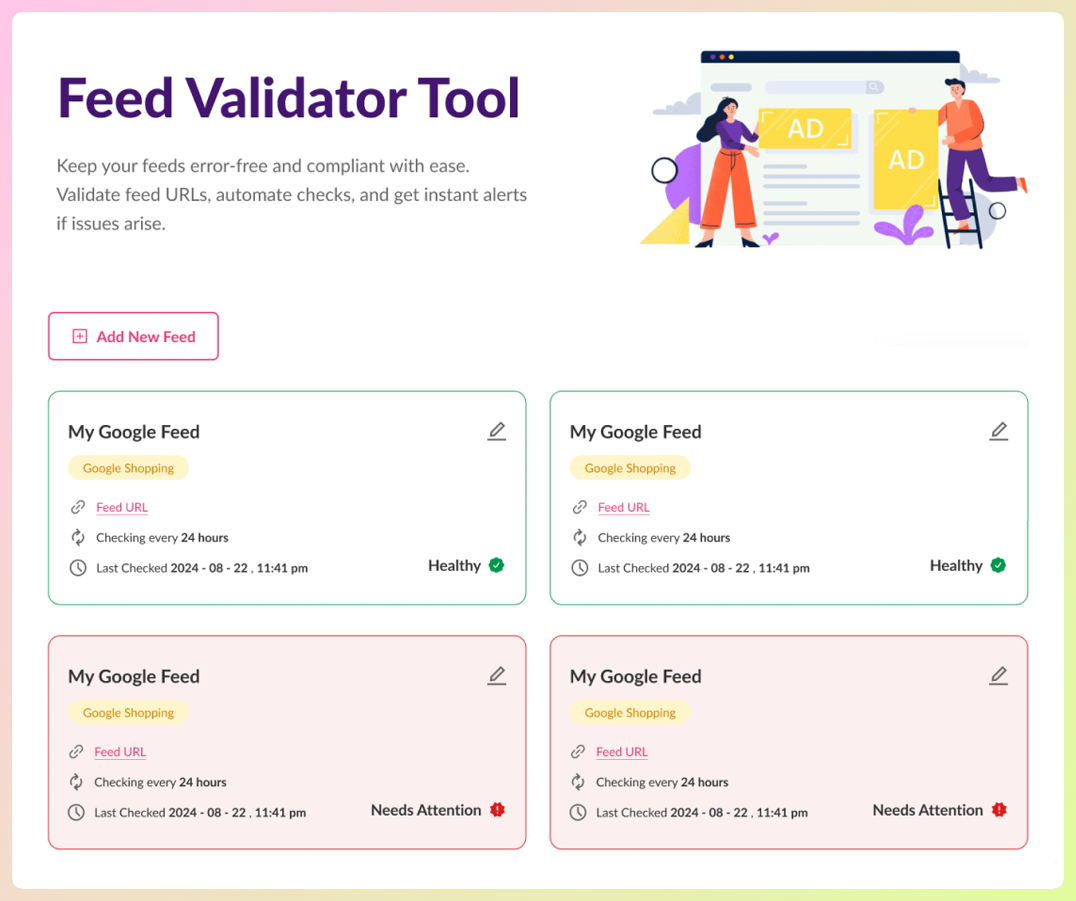
Running the validator before major feed changes — like price updates, new products, or catalog restructures — can help you catch issues earlier and reduce avoidable feed problems.
What We’ve Seen: Running the Feed Validator before major feed changes can help you catch issues earlier, especially after catalog updates like price changes, new products, or category restructuring. That makes it easier to fix problems before they show up in Google Merchant Center.
Running validation after major catalog or feed changes is a simple way to catch problems earlier and clean them up before they become harder to trace.
Fixing Issues In Bulk With Feed Rules
Many feed errors affect dozens or hundreds of products simultaneously. Fixing them one by one in WooCommerce is impractical. AdTribes’ feed rules engine lets you fix them systematically across your entire catalog.
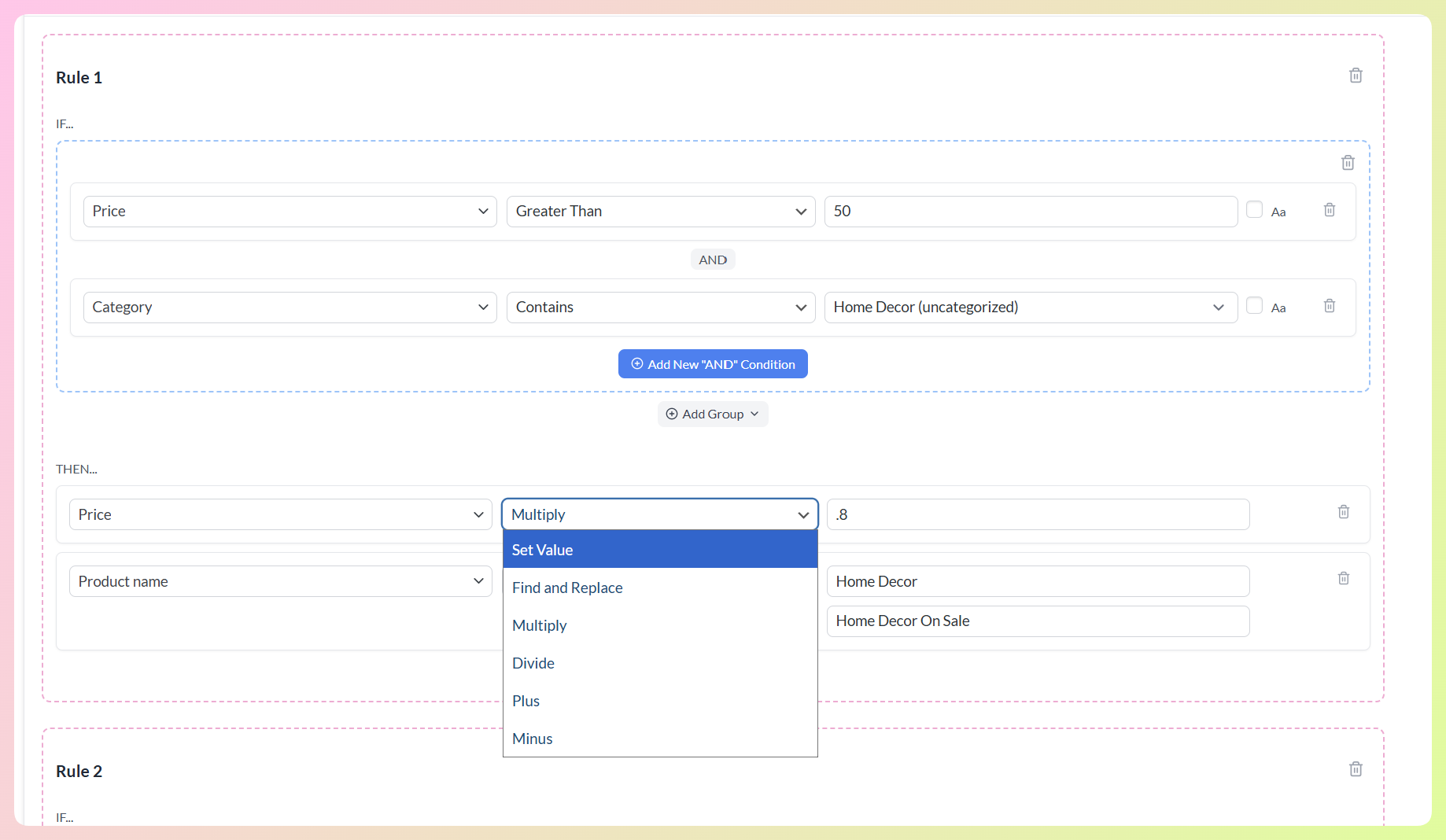
Examples of bulk fixes via feed rules:
| Issue | Example feed rule |
|---|---|
| Missing brand on all products | If brand is empty → set brand to “Your Store Name” |
| Products need a category-based price adjustment | If price is greater than 50 and category contains “Home Decor” → multiply price by 0.8 |
| GTINs missing for non-branded items | If category equals “Handmade” → set identifier_exists to no |
| Wrong availability for backorder items | If stock status equals backorder → set availability to backorder |
| Product names contain unwanted promotional text | If the product name contains “Free Shipping,” find and replace “Free Shipping” with a blank value |
Feed rules run every time your feed refreshes — so the fix applies automatically to new products matching the same condition, not just existing ones.
How To Request a Review After Fixing Issues
Once you’ve fixed the issue, Merchant Center may reprocess the product automatically or prompt you to request a review, depending on the issue type.
For individual product issues:
- In Merchant Center, open the affected issue or product from the Needs attention area
- Review the problem and fix it in your product data, feed settings, or landing page
- If Google shows an option like I fixed the issue or Request review, use it after your changes are live
For issues affecting many products:
If the same problem affects multiple products, fix the root issue in your feed or store data first. After that, Merchant Center may reprocess the products automatically, or you may be prompted to request a review depending on the issue type.
Timeline: Review and reprocessing times can vary. Some updates are reflected fairly quickly, while others may take several business days.
If your account (not just individual products) has been flagged or suspended, see the Google Merchant Center account suspended guide for the account-level review process.
Frequently Asked Questions
How do I know which products have feed errors?
In Google Merchant Center, go to Products > Needs attention. This tab shows all products with errors or warnings, grouped by issue type. You can filter by error severity and download the list as a CSV. In AdTribes, the Feed Validator helps you catch many feed-level issues before submission, which can make cleanup easier before problems appear in Google Merchant Center.
Can I fix feed errors without editing my WooCommerce products?
Yes — for most errors. AdTribes’ feed rules engine lets you transform product data in the feed without touching individual WooCommerce products. Missing brands, some title formatting issues, availability mismatches, and missing identifier_exists flags can often be handled with feed rules. The main exceptions are GTINs (which need to be entered as product data) and image issues (which require re-uploading correct images).
How long does it take for fixed products to start showing after a review?
Once an issue is fixed, Merchant Center may reprocess the product automatically or prompt you to request a review. Timing can vary depending on the issue, so it’s better to expect anywhere from a short delay to several business days rather than a single fixed timeline.
Will feed errors affect my entire Google Ads account or just specific products?
Product-level feed errors affect only the specific products flagged — your other products continue to show. However, if too many products are disapproved or if Google detects a pattern suggesting policy violations, it can escalate to account-level warnings or suspension. That’s why it’s worth resolving recurring errors early instead of letting them build up across the catalog.
Conclusion
Google Shopping feed errors can feel frustrating at first, but most of them are fixable once you know what to check. In this guide, we walked through some of the most common Google Shopping feed errors, what they mean, and the practical steps WooCommerce store owners can take to resolve them more confidently.
In this article, we covered:
- Where to find feed errors in Google Merchant Center
- Common feed and Merchant Center issues that can affect your listings
- How to use AdTribes’ Feed Validator to catch issues earlier
- How to fix problems in bulk with feed rules
- How to request a review after making changes
The key is to catch problems early, fix the root cause, and make feed checks part of your regular workflow. If you want a simpler way to manage feed quality and spot issues before they turn into bigger problems, AdTribes can help make that process much easier.