Reviewed by
If you run a WooCommerce store, figuring out how to sell on Amazon can feel confusing at first. Amazon doesn’t accept a product feed URL the way Google Shopping or Facebook do, so it’s easy to assume your WooCommerce catalog can’t help you get listed. That isn’t the case.
Your WooCommerce product data is actually the perfect starting point for Amazon. You just need the right approach, because Amazon manages listings through its own system rather than pulling a live feed from your store.
This guide explains how to sell on Amazon from WooCommerce: how Amazon listings really work, your options for getting your catalog onto Amazon, how Amazon compares to Google Shopping, and the easiest way to turn your WooCommerce products into an upload-ready Amazon feed.
How Amazon Product Listings Work
Amazon uses its own seller platform called Amazon Seller Central to manage product listings, and the process is fundamentally different from feed-based channels like Google Shopping.
When you list products on Google Shopping, you generate a product feed (typically XML or CSV), submit it to Google Merchant Center, and Google pulls your data on a schedule. You control the feed, and Google displays it. The same general pattern applies to Facebook, TikTok Shop, Bing Shopping, and most comparison shopping engines.
Amazon doesn’t work that way. With Seller Central, you either match your products to existing Amazon catalog entries (ASINs) or create entirely new product listings within Amazon’s own database. Every product on Amazon lives in Amazon’s catalog system, not yours. You don’t just push a feed and walk away.
Here’s how the listing process typically works:
- Match existing ASINs: If Amazon already has your product in its catalog (common for branded goods), you match your listing to the existing entry and compete on that product page
- Create new listings: If your product isn’t in Amazon’s catalog, you create a new listing with your title, description, images, and identifiers (UPC, EAN, or ISBN)
- Bulk uploads via flat files: Amazon does allow bulk product uploads using spreadsheet templates (.xlsx), but these are Amazon-specific templates, not standard product feeds
The key distinction is ownership. On Google Shopping, your product feed drives what shoppers see. On Amazon, the catalog belongs to Amazon, and you contribute your product data within their framework.
Your Options For Getting WooCommerce Products Onto Amazon
You can’t point Amazon at a live product feed URL the way you would with Google Shopping, but you do have a few solid ways to move your WooCommerce catalog onto Amazon. The right one depends on how many products you sell and how hands-on you want to be.
- Enter listings by hand: fine for a handful of products, but slow and error-prone once your catalog grows
- Generate an Amazon feed file from WooCommerce: map your product data to Amazon’s inventory template, export a ready-to-upload file, and add it in Seller Central. This is the sweet spot for most stores, and it’s what AdTribes Product Feed Pro now does for you
- Use a full sync integration: dedicated connectors keep inventory and orders in sync through Amazon’s API in near real time. This is the most automated option, but also the most complex and costly to run
For most WooCommerce store owners, generating an Amazon feed file is the practical middle ground. Your product titles, descriptions, images, prices, SKUs, and GTINs already live in WooCommerce, which is exactly the information Amazon needs. Instead of retyping it all, you map those fields once and let the plugin build the file.
With the Amazon channel in AdTribes Product Feed Pro, you map your WooCommerce data to Amazon’s fields, then generate a ready-to-upload file in TSV (Amazon’s recommended tab-separated format), TXT, or CSV. You upload that file to Amazon Seller Central, so you stay in control of when and what goes live.
For the full walkthrough, see our guide on how to create a WooCommerce Amazon product feed.

One thing to keep clear: a generated feed file is not a live, two-way sync. It’s a snapshot you upload on your own schedule. If you need real-time inventory and order syncing between WooCommerce and Amazon, a dedicated multichannel selling solution or Amazon integration plugin is the better fit. For everything else, an upload-ready Amazon feed keeps the process simple.
Amazon vs Google Shopping: Key Differences For WooCommerce Stores
Understanding the differences between Amazon and feed-based channels helps you plan your multichannel strategy more effectively. Here are the areas where they diverge most.
Listing control
Google Shopping gives you more direct control over your product data through your feed. You decide the titles, descriptions, images, and pricing you submit for search results. Amazon, on the other hand, may merge your listing data with other sellers’ contributions to the same product page. You share the product page with competitors selling the same item.
Fee structure
Google Shopping free listings cost nothing. Paid Shopping ads use a cost-per-click model where you set your budget. Amazon charges referral fees on every sale, with rates varying by category, plus additional fees if you use Fulfillment by Amazon (FBA). The cost structures require completely different margin calculations.
Fulfillment requirements
Feed-based channels like Google Shopping and Facebook Shops send buyers to your WooCommerce store, where you handle fulfillment your way. Amazon gives you two choices: fulfill orders yourself (FBM) or send inventory to Amazon’s warehouses for them to handle (FBA). FBA adds costs but can significantly increase your Buy Box eligibility and visibility.
Competition dynamics
On Google Shopping, you compete for visibility in search results. On Amazon, you often compete directly on the same product page, fighting for the Buy Box. This means pricing strategy on Amazon is much more aggressive and dynamic than on other ecommerce sales channels.
Data ownership
When you sell through Google Shopping, all customer data flows through your WooCommerce store. You own the email addresses, purchase history, and analytics data. Amazon keeps customer data within its ecosystem. You get order information, but you don’t build a customer list the same way.
How To Start Selling On Amazon From Your WooCommerce Store
Getting your WooCommerce products onto Amazon requires a deliberate approach. Here’s a practical path forward.
Step 1: Set up an Amazon Seller Central account. Choose between an Individual plan with per-item fees or a Professional plan with a monthly subscription. In the U.S., Amazon currently lists the Professional plan at $39.99 per month, but fees can vary by marketplace, so check the current pricing for your region before choosing a plan.
Step 2: Prepare your product identifiers. Amazon requires product identifiers such as UPC, EAN, ISBN, JAN, or GTIN-14 for most categories. If your WooCommerce products already have valid GTINs assigned, you’re ahead of the game. If not, check Amazon’s product ID requirements and obtain the correct identifier through the product manufacturer or GS1 where applicable.
Step 3: Turn your WooCommerce catalog into an Amazon feed. Instead of exporting and reformatting your data by hand, you can let AdTribes Product Feed Pro pull your titles, descriptions, images, prices, SKUs, and GTINs straight from WooCommerce and map them to Amazon’s inventory fields. It builds a ready-to-upload file for you, which saves the tedious part of the job.
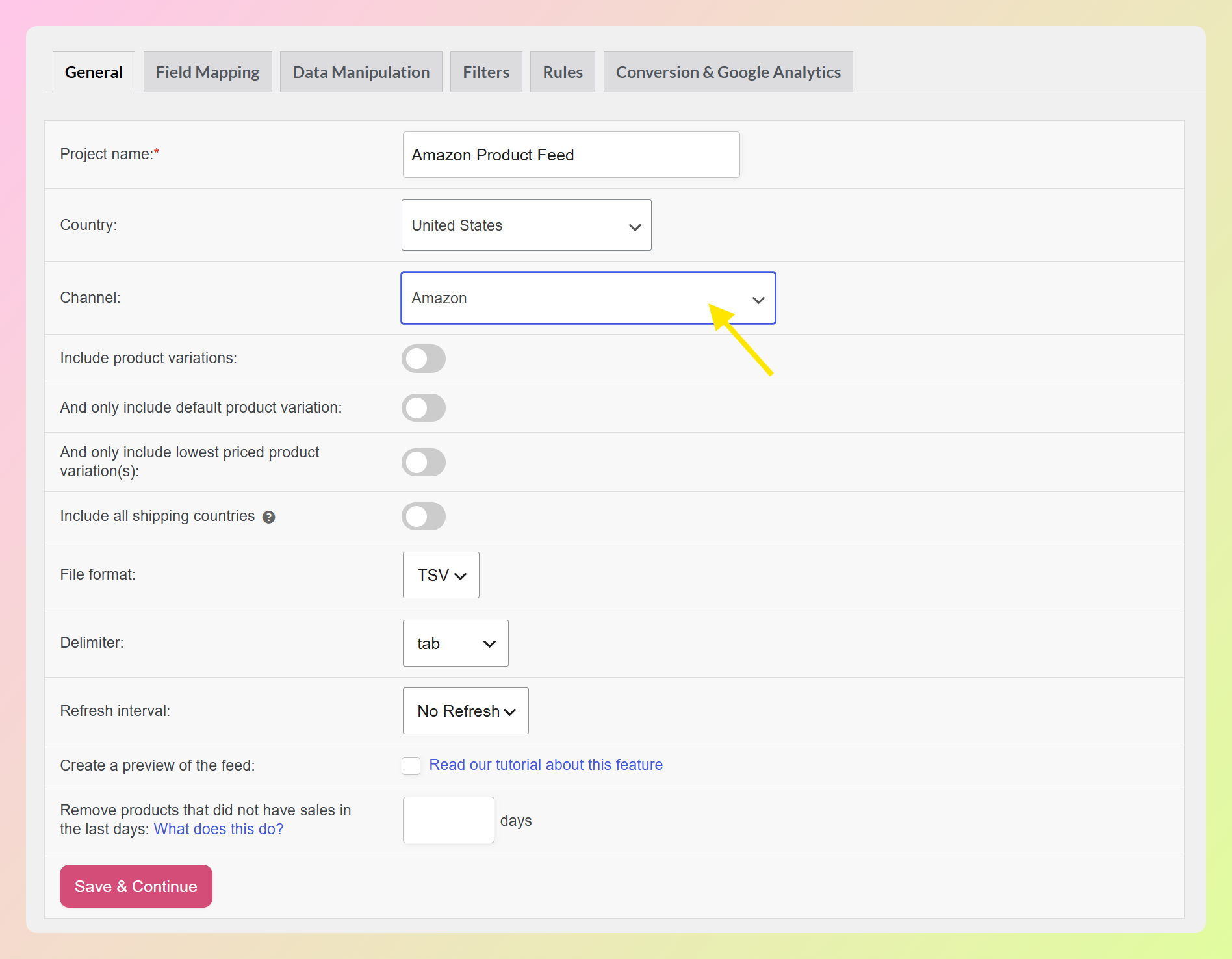
Step 4: Generate the file and upload it in Seller Central. Export your feed in Amazon’s recommended TSV format (TXT and CSV also work), then upload it through Seller Central’s inventory tools. Our step-by-step guide to creating a WooCommerce Amazon product feed covers the field mapping and upload in detail.
Step 5: Optimize your Amazon listings. Once your products are live, fine-tune your titles, bullet points, images, and product details for Amazon shoppers. Amazon SEO works differently from Google SEO, and your Amazon titles may look different from your WooCommerce titles because they need to follow Amazon’s category and title requirements.
Doing this by hand, downloading Amazon’s flat file template and mapping every field yourself, is where most store owners lose time. Letting AdTribes Product Feed Pro handle the mapping keeps your data accurate and your listings consistent, which matters more and more as your catalog grows.
How AdTribes Product Feed Pro Helps You Sell On More Channels
AdTribes Product Feed Pro takes the manual work out of multichannel selling, Amazon included. It builds optimized product feeds from your WooCommerce catalog for Amazon, Google Shopping, Facebook/Meta, TikTok Product Catalog, Pinterest, Bing Shopping, and 250+ other channels, all from one place.
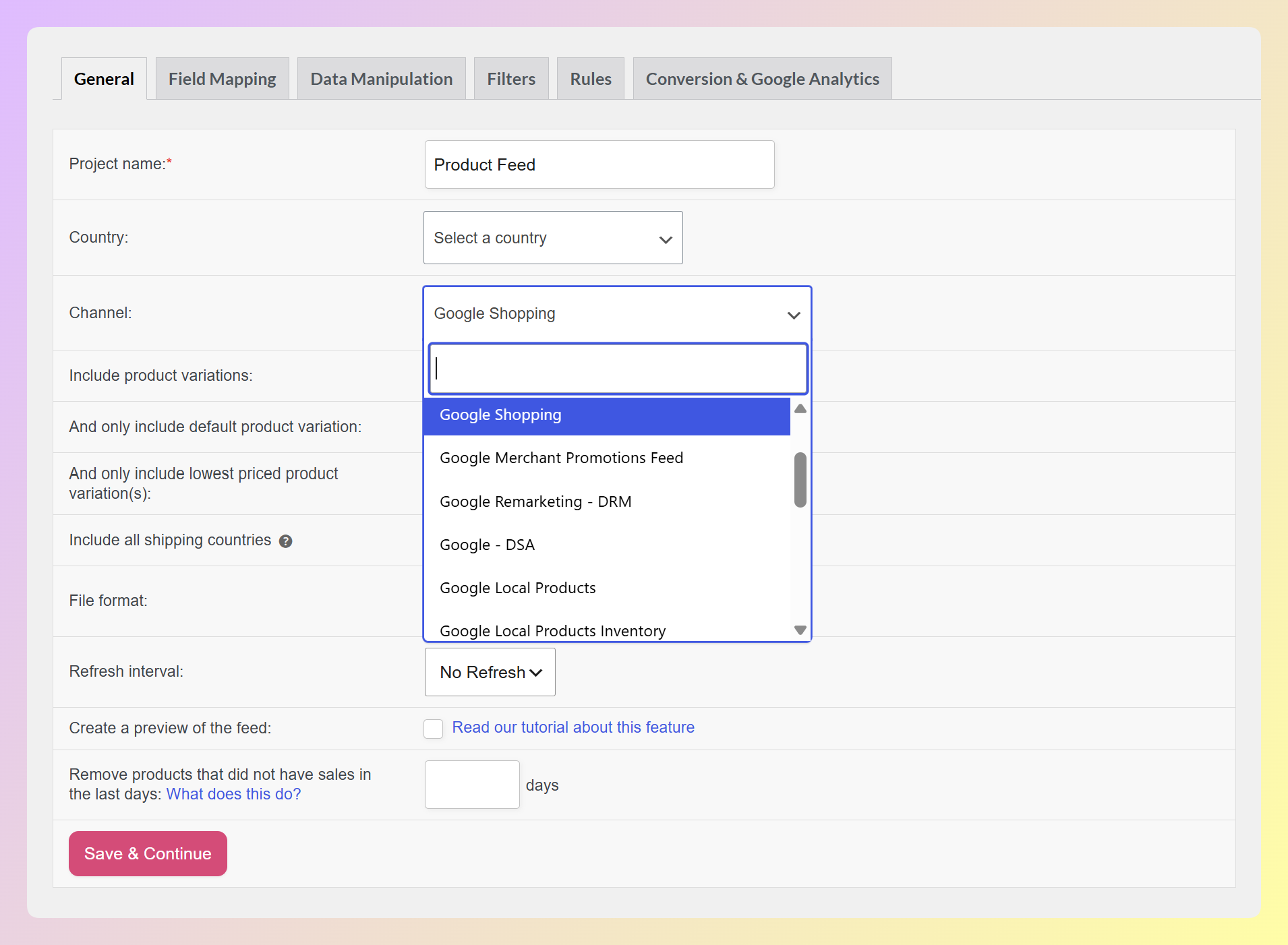
Here’s how that helps a WooCommerce store that’s selling on Amazon:
- Amazon feed file: map your WooCommerce data to Amazon’s inventory fields and export a ready-to-upload TSV, TXT, or CSV file for Seller Central
- Google Shopping free listings: list your products on Google at no cost to capture shoppers who search on Google rather than Amazon
- Facebook and Instagram Shopping: reach social shoppers with a catalog pulled automatically from WooCommerce
- Bing, Pinterest, TikTok, and more: create dedicated feeds for the other channels where your buyers spend time
Custom filters and rules let you control exactly which products go to each channel, and scheduled refreshes keep your feeds current as your catalog changes. The result is a complete multichannel setup, with Amazon as one part of it, managed from a single plugin.
You can see the full feature set on the Amazon product feed page, including field mapping, formats, and refresh scheduling.
Frequently Asked Questions
Can I send my WooCommerce product feed directly to Amazon?
Not as a live feed URL the way Google Shopping works, since Amazon listings are created or matched inside Seller Central. What you can do is generate an Amazon feed file from your WooCommerce catalog with AdTribes Product Feed Pro, then upload that file in Seller Central. It maps your product data to Amazon’s inventory fields and exports a ready-to-upload TSV, TXT, or CSV file.
Do I need a product feed plugin if I only sell on Amazon?
Even if Amazon is your only channel, a product feed plugin can save you time. AdTribes Product Feed Pro builds your Amazon upload file straight from WooCommerce, so you skip the manual data entry and reformatting. And if you expand to Google Shopping, Facebook, or other channels later, you can manage all of those feeds from the same place.
What’s the easiest way to sync WooCommerce inventory with Amazon?
For real-time inventory and order syncing, you’ll need a dedicated Amazon integration plugin that connects to Amazon’s API. If you don’t need live syncing, a simpler option is to regenerate your Amazon feed file with AdTribes Product Feed Pro on a schedule and re-upload it in Seller Central to refresh your listings.
Should I sell on Amazon or Google Shopping first?
For most WooCommerce store owners, Google Shopping free listings are the fastest and lowest-risk starting point. You can set up a product feed with AdTribes Product Feed Pro in minutes, and there are no selling fees on free listings. Amazon requires more setup, has ongoing referral fees, and involves a steeper learning curve. That said, Amazon’s massive buyer audience makes it worth pursuing once your Google Shopping presence is established.
How do I sell on Amazon from my WooCommerce store?
Start by opening an Amazon Seller Central account and making sure your products have valid identifiers like UPC, EAN, or GTIN. Then prepare your listings: the quickest way is to generate an Amazon feed file from your WooCommerce catalog with AdTribes Product Feed Pro, upload it in Seller Central, and optimize your titles and images for Amazon shoppers. From there, you manage orders and inventory inside Seller Central.
Start Selling Across More Channels From Your WooCommerce Store
Selling on Amazon from WooCommerce isn’t about finding a magic feed URL. It’s about preparing your product data well and choosing the right way to get it onto Amazon. Once you understand how listings work, the setup is very manageable.
Here’s what to take away from this guide:
- How Amazon Product Listings Work: Amazon uses Seller Central and its own catalog system, not a live external feed
- Your Options For Getting WooCommerce Products Onto Amazon: manual entry, an Amazon feed file from WooCommerce, or a full sync integration
- Amazon vs Google Shopping: Key Differences For WooCommerce Stores: weigh the fee, control, and fulfillment differences before committing
- How To Start Selling On Amazon From Your WooCommerce Store: a practical path from Seller Central setup to your first Amazon feed
- How AdTribes Product Feed Pro Helps You Sell On More Channels: build your Amazon feed plus Google, Facebook, Bing, and 250+ other channels from one plugin
Ready to sell on Amazon from WooCommerce? AdTribes Product Feed Pro turns your catalog into an upload-ready Amazon feed and keeps your other channels current too. Get AdTribes Product Feed Pro for free and create your first Amazon product feed today.