Reviewed by
Your Instagram shop is approved, but the product grid is empty. Or some products have disappeared after a stock update. If your Instagram shop products aren’t showing, start by checking your shop status, the catalog connection, and the product data reaching Meta.
Instagram can use the same Meta catalog as your Facebook shop, so you don’t need a separate Instagram feed. The next step is finding which part of that setup needs attention. Work through the checks below in order, from the account down to single products.
Why Aren’t My Products Showing In My Instagram Shop? (Quick Answer)
If your Instagram shop products aren’t showing, check three things first: the catalog connection, any issues Meta has flagged, and the product data sent from WooCommerce. Start with the connection before looking at individual items.
For example, if your shop is connected to the wrong catalog, fixing product images won’t help yet. Use the symptoms below to narrow down where to look:
| Symptom | Likely cause | Where to fix |
|---|---|---|
| Shop approved, zero products | Catalog disconnected from the shop, or the wrong catalog selected | Commerce Manager and your business settings |
| Some products missing | Catalog issues or products excluded from the feed | Commerce Manager, then AdTribes feed settings and WooCommerce data |
| Products missing after a stock change | Outdated availability data, or products marked out of stock for too long | WooCommerce stock, feed refresh, and the product’s status in Commerce Manager |
| Duplicate products in the catalog | Translated products sent as separate items (WPML) | Feed-level ID fix for translations |
| Old prices or stock showing | Feed not regenerated, or Meta hasn’t imported the latest version | AdTribes refresh and Commerce Manager import schedules |
Start With Your Account And Shop Status
Check the account first, because an account-level hold can hide every product at once. If Meta is still reviewing your shop, your business is in a region where Shops aren’t supported, or your account no longer meets Meta’s commerce eligibility requirements, product data fixes alone won’t solve the problem.
Open your shop in Commerce Manager and check its status. If it’s pending, check whether the review has finished. If it’s restricted, read the reason and follow Meta’s instructions for resolving the issue or requesting another review.
Next, check how your assets are connected. Confirm that the Facebook Page linked to your Instagram professional account, your shop, and your catalog are connected to the intended business portfolio and that you have access to manage them. Meta’s guide to controlling which products appear in your shop also lists two permissions you need: commerce account permissions and Full control catalog permissions.
Check The Catalog Is Connected To The Right Place
A single Meta catalog can supply products to both Facebook and Instagram shops, so a separate Instagram-only feed isn’t necessary. Check that your Instagram shop uses the catalog containing your WooCommerce products.
If you’ve tried more than one sync method, check for multiple catalogs. Your shop may still be connected to an older one while WooCommerce sends new products to another.
Open Commerce Manager, select your shop, and confirm which catalog it uses. If you’re still building the catalog, follow our walkthrough to set up your first Facebook catalog and Instagram product feed rather than starting a second one.
Instagram can’t find your catalog
If no catalog or product source appears when you connect your shop, check that the correct catalog is available to your business portfolio and that you have permission to manage it. Then confirm the catalog is connected to the intended shop.
Find The Error In Commerce Manager
In Commerce Manager, select your catalog, open the Catalog tab, choose Products, and use Filters to narrow the list by status or issue. Meta’s guide to products not showing in your ads or shop provides more troubleshooting details.
Start with the Shops and Marketplace issues filter. Select an affected product and open Status and issues to see what needs attention. Also look for products marked Archived or Hidden from Shops. Archived products won’t appear in the shop, while Hidden from Shops products can be unhidden from the Shops or Products tab.
Check your shop’s inventory setting too. Meta includes every catalog product by default, but businesses running several shops from one catalog may see an Advanced option, which shows a product only after you add it to a collection, feature it, or show it individually.
💡 Quick tip: Changes made directly in Commerce Manager may be overwritten the next time your feed updates. If WooCommerce or AdTribes supplies the field, make the correction there so it carries through to future updates.
Fix The Product Data Problems
If a product appears in your Meta catalog but not in the shop, check its status and reported issues. If it isn’t in the catalog at all, check whether it made it into your AdTribes feed. Filters, variation settings, and the optional image-size check can exclude products before Meta receives them. Our guide to Meta product feed specifications explains the fields Meta expects.
Images that fail Meta’s checks
Meta’s image issues include broken links, a blocked crawler, files larger than 8 MB, and images that are too small. Meta also re-downloads an image only when its link changes. Replacing a file at the same URL won’t refresh it, so upload the new image as a new file in WooCommerce.
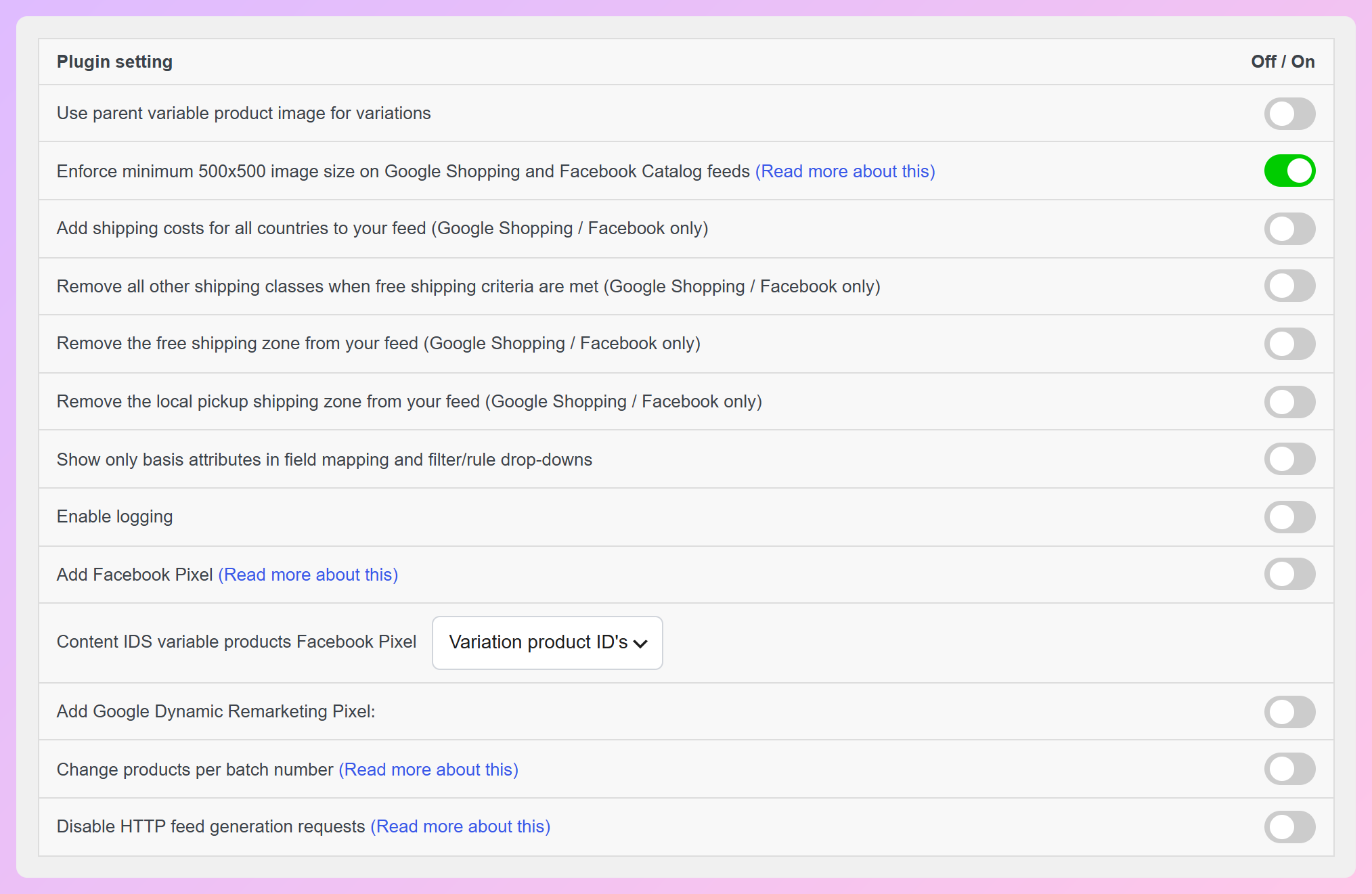
For small images, AdTribes Product Feed Pro has a setting to enforce a minimum 500×500 image size on Facebook Catalog and Google Shopping feeds. When a product’s main image is undersized, the plugin looks for a qualifying gallery image (or parent image for variations). If none meets the minimum, it excludes that product from the feed.
Stock and availability
Meta removes out-of-stock products in two stages. They leave your ads straight away, then stay in your shop marked as sold out for up to 56 days before they disappear from it. If the product is in stock, correct the stock in WooCommerce and let the catalog update.
Missing or wrong fields
Meta flags products missing a title, description, price, availability, product link, condition, or image link. It also rejects all-caps descriptions, descriptions that repeat the title, prices outside its supported range, and links that don’t go to the product page on your own domain. Each product needs at least one of brand, GTIN, or MPN as well.
WooCommerce variations and translations
Variations can trigger an ID conflict. Meta flags a product whose ID matches another product’s group ID, because every ID in the catalog must be unique.
In multilingual stores, WPML gives each translation its own product ID, so Meta counts every language version as a separate product. Our guide shows how to fix duplicate products from WPML translations with a short AdTribes Product Feed Elite snippet that gives all translations the original product’s ID.
Keep Your Catalog Complete With A Scheduled Feed
A scheduled feed helps prevent outdated product data from causing the same problems again. It keeps your WooCommerce product information available at a URL that Commerce Manager can fetch regularly to update your catalog.
You can add products manually in Commerce Manager or use a sync plugin such as Meta for WooCommerce (formerly Facebook for WooCommerce). A scheduled feed gives you control over the fields sent to Meta without manually updating every product.
AdTribes Product Feed Pro builds that feed with its Meta / Facebook catalog channel, and you add it to Commerce Manager as a Scheduled Feed by URL. Instagram reads the same catalog, so one feed covers both shops.
Make sure your feed refreshes in AdTribes and that Commerce Manager is scheduled to fetch the updated file. Both need to run for your latest product changes to reach Meta.
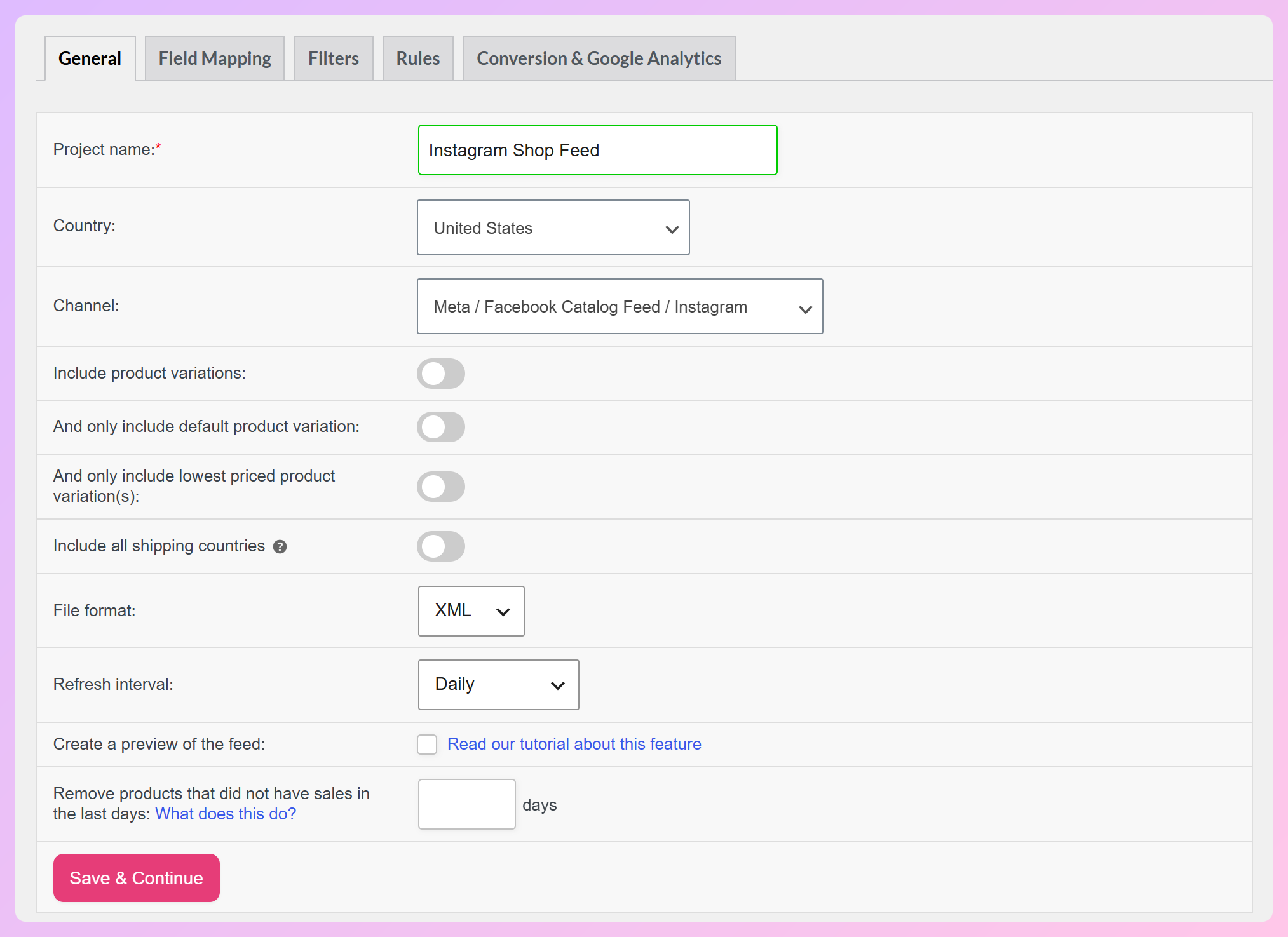
Alongside the image-size check, these AdTribes settings can help you keep product data accurate:
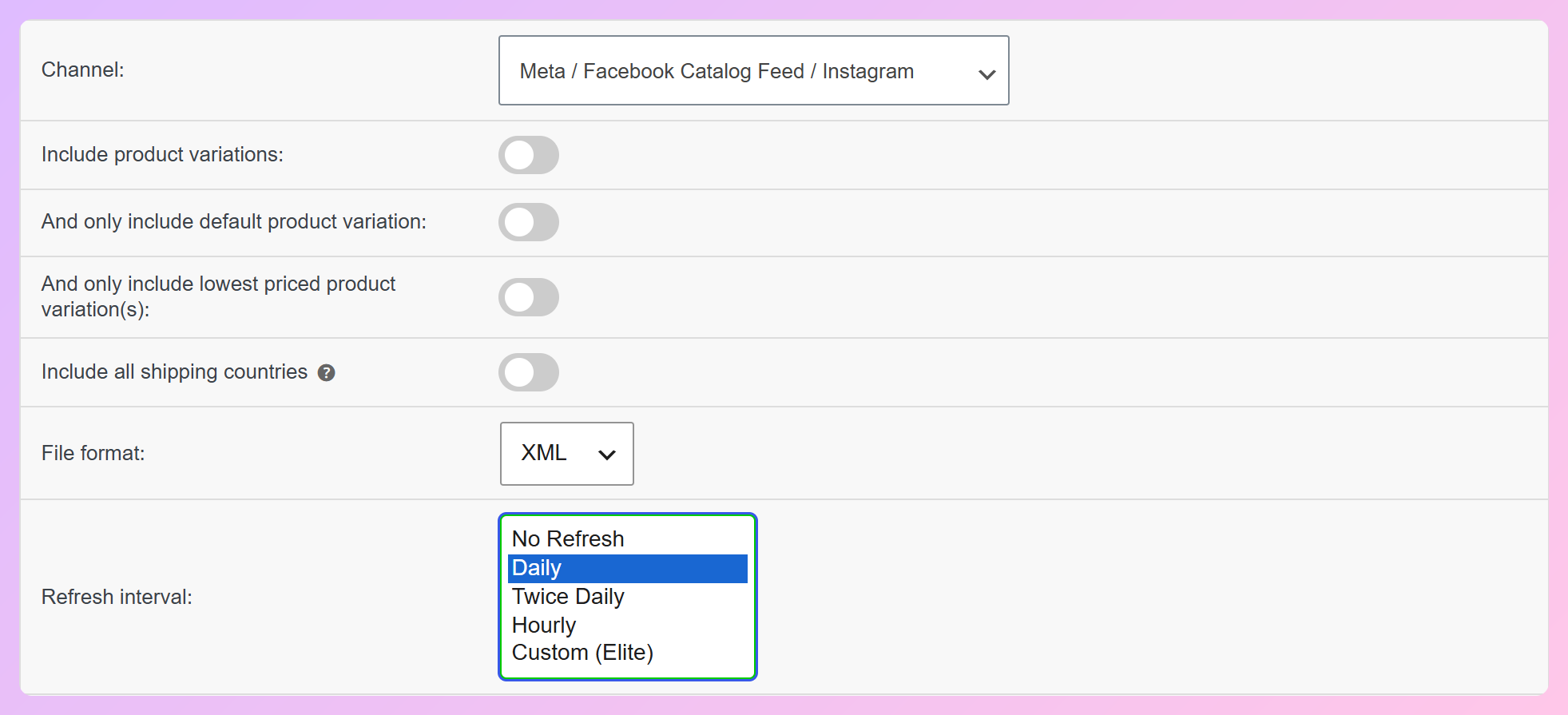
- Refresh interval: Refresh daily, twice daily, or hourly in the free plugin. Custom intervals come with Product Feed Elite.
- Field mapping: Point each Meta field at the right WooCommerce attribute so titles, links, and prices arrive complete.
- Filters and rules: Use include/exclude filters to control which products go into the feed, and IF/THEN rules to fill or clean field values.
The image-size check doesn’t display a count of excluded products. If an item disappears from your feed after you enable it, check its image dimensions first.
When It’s Still Not Working
If products still don’t show, confirm that the updated feed finished generating and that Commerce Manager successfully imported it. Then check the affected products’ Status and issues again.
If you also run dynamic Meta ads, check that your Pixel’s content IDs match the product IDs in your catalog. Map the feed’s id field to Product ID, then follow our guide to keep your Pixel and catalog in sync. This helps with dynamic ad matching, not with whether products appear in your Instagram shop.
For a restricted shop or rejected shop review, follow the appeal or support options available in Commerce Manager. For a flagged individual product, check whether its status offers a review option. If you also sell on Google, our guide to products not showing on Google Shopping covers the Merchant Center side.
Frequently Asked Questions
Why is my Instagram shop empty?
An empty Instagram shop can mean the shop is still under review, restricted, or connected to a catalog without eligible products. Check which catalog your shop uses, how your Page and Instagram account are connected, and whether you have the right permissions. If the catalog is connected, filter by Shops and Marketplace issues to find problems affecting your products.
How long do products take to show on Instagram after a catalog update?
It depends on when your WooCommerce feed updates and when Meta fetches and processes it. With a scheduled feed, the updated file must be generated first, then fetched by Commerce Manager. If a product still doesn’t appear after a successful import, check its Status and issues in Commerce Manager.
Do I need a separate Instagram product feed?
No. Instagram Shopping uses the same Meta catalog as your Facebook shop, so one catalog feed can cover both. Connect that catalog to your Instagram shop and maintain your product data in one place. Creating a separate Instagram-only feed usually isn’t necessary.
Why did my products disappear from my Instagram shop?
Products may disappear if they’ve been out of stock for too long, develop a catalog issue, or are hidden or archived. Out-of-stock items can remain visible in your shop as sold out for up to 56 days before Meta removes them. A broken image link or missing field after a WooCommerce edit can also cause issues. Check the affected item in Commerce Manager to find out why it isn’t showing.
Can I use my WooCommerce products on Instagram without a plugin?
Yes. You can add WooCommerce products manually in Commerce Manager, but you’ll also need to update their prices, stock, and images as they change. A plugin that syncs your catalog or generates a scheduled feed can make those updates easier to manage.
Get Your Products Back In Your Instagram Shop
Once your shop is eligible and connected to the right catalog, keep checking product issues and feed updates. Stock, price, and image changes need to reach Meta before shoppers see the latest details.
Work through these steps in order:
- Check your account and shop status before touching product data.
- Confirm your shop uses the catalog containing your WooCommerce products.
- Filter Commerce Manager by issue to see which products are blocked.
- Fix product data at the source in WooCommerce or your feed rules.
- Keep your feed refresh and Meta import schedules running so product data stays current.
Want your Instagram shop to stay up to date as stock changes? Build a scheduled Instagram product feed for WooCommerce with AdTribes to keep your catalog data current.