
Not every advertising platform has a built-in template in Product Feed Pro for WooCommerce. If the platform you’re targeting isn’t in the channel list, the Custom Feed format lets you build a feed from scratch. You define the column names and map your WooCommerce product data to them yourself.
This guide walks you through creating a custom product feed format and configuring it so the output file contains exactly the fields your platform expects.
Prerequisites
- Product Feed Pro is installed and activated
- Products in your WooCommerce store with the attributes you want to export
How to create a custom feed
Step 1: Start a new feed
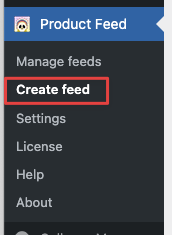
- In your WordPress admin sidebar, go to Product Feed.
- Click Create feed.
Step 2: Configure the general settings
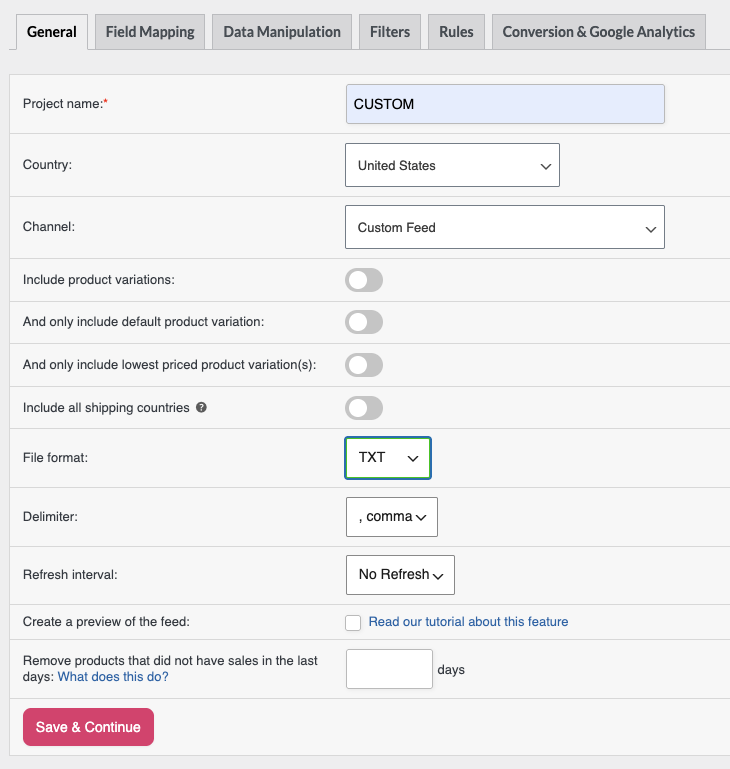
In the General tab, fill in the following fields:
- Enter a name in the Project name field. This is for your own reference.
- Select a country from the Country dropdown.
- Open the Channel dropdown and choose Custom Feed.
- Select the File format that your advertising platform expects. The available options are XML, CSV, TXT, TSV, and JSONL.
- If you chose any format other than XML or JSONL, select a Delimiter from the dropdown. The available options are
,(comma),|(pipe),;,tab, and#. - Set your Refresh interval to control how often the feed regenerates automatically.
- Click Save & Continue. On an existing feed, this button reads Save Changes.
Step 3: Map your product fields
After saving the general settings, you’re taken to the Field Mapping tab. This is where you define what data appears in each column of your feed.
The table has four columns:
| Column | What it does |
|---|---|
| Custom Feed attributes | The column name that appears in your feed file (e.g. title, price, brand) |
| Prefix | Optional text added before the product value (e.g. a currency symbol) |
| Value | The WooCommerce product attribute to pull the data from |
| Suffix | Optional text added after the product value (e.g. a unit like EUR) |
The table pre-fills rows for the channel’s required attributes: id, title, description, link, image_link, price, categories, and brand. You can keep these, remove the ones you don’t need, or add more.
To add a row from the predefined attribute list:
Click + Add field mapping. A new row appears with a dropdown in the Custom Feed attributes column. Select the attribute name from the list.
To add a row with a completely custom column name:
Click + Add custom field. A new row appears with a text input in the Custom Feed attributes column. Type in any column name your platform requires (e.g. mpn, store_id, or any label you need).
To remove a row:
Tick the checkbox next to the row and click Delete.
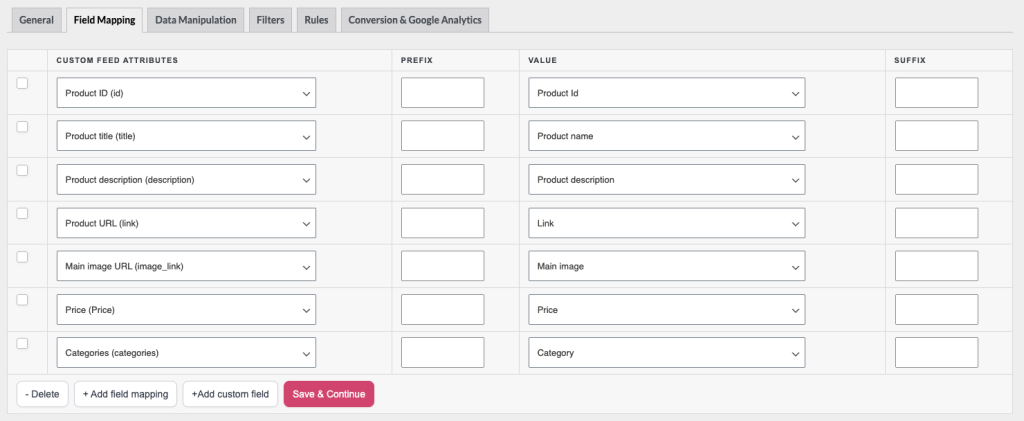
When you’re done mapping, click Save & Continue. On an existing feed, this button reads Save Changes.
Step 4: Set filters and rules (optional)
The Filters tab lets you limit which products appear in the feed. The Rules tab lets you transform values before they’re written. Both are optional. Skip these tabs if you want all products included as-is.
For detailed instructions, see How to create filters for your product feed and How to create rules.
Step 5: Run the feed
After saving, the plugin generates your feed in the background. Return to Product Feed → Manage feeds to monitor the progress. Once the status shows as complete, copy the feed URL and submit it to your advertising platform.
Troubleshooting
FAQ
") as the enclosure character for all CSV feeds. This isn’t configurable in the UI. It’s applied automatically to every CSV output.Need more help?
If you’re on Product Feed Elite, open a support ticket, and the team will help you get your custom feed working.
If you’re on the free version, post your question in the Product Feed Pro support forum on WordPress.org.

