Did your feed suddenly lose products, or stop updating? Product Feed Elite keeps a short history of how many products each feed held after every refresh. This article shows you where to find the feed history, how to read it, and how to use it to spot a problem early.
Before you start
- Product Feed Elite 5.1.2 or later, with Product Feed Pro 13.5.9 or later. See How to install the Product Feed Elite plugin.
- A saved feed that has refreshed at least once.
How to open the feed history
- Go to Product Feed > Manage feeds.
- Click the name of the feed you want to check. The Edit Feed page opens.
- At the top of the Edit Feed page, click Feed History. You find it next to Refresh Feed and View Feed.

The Feed History window opens. To close it, click the × in the top corner.
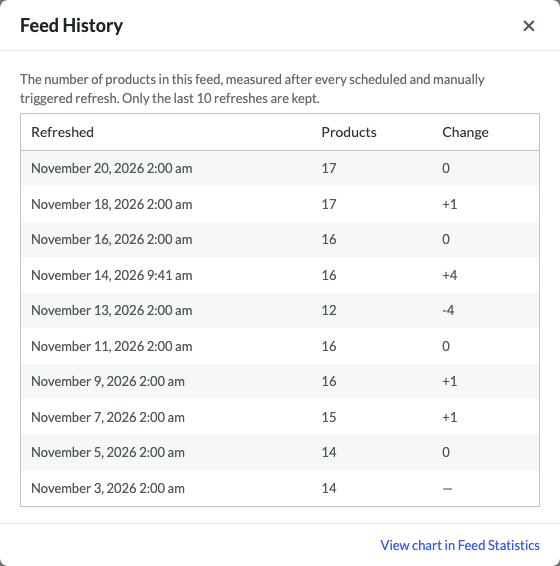
What the feed history shows
Each row is one refresh of the feed. The newest refresh is at the top.
| Column | What it shows |
|---|---|
| Refreshed | The date and time of the refresh, in your site’s time zone and date format. |
| Products | The number of products in the feed file after that refresh. |
| Change | How many products the feed gained (for example, +12) or lost (for example, -40) since the refresh before it. The oldest row shows a dash, because there is no earlier refresh to compare it with. |
The product count comes from the finished feed file. So it shows the products that actually made it into your feed, after your filters and rules ran.
How the history is recorded. A new row appears after every scheduled refresh and every manual refresh. Only the last 10 refreshes are kept, so older rows drop off the list.
The window loads the latest rows each time you open it. Did you just click Refresh Feed on this page? Wait for the refresh to finish. Then open Feed History again to see the new row.
Want to see the trend as a chart? Click View chart in Feed Statistics at the bottom of the window. The Feed Statistics page opens in a new tab.
How to use the history to spot a problem
A sudden drop in products. A large negative number in the Change column means products left the feed between those two refreshes. Check what changed in that time, such as your filters and rules, stock levels, or products you excluded from feeds. For the most common causes, see Why are products missing from my feed?.
No new rows for a long time. If the newest row in the Refreshed column is older than you expect, the feed may not be refreshing on its schedule. Check the refresh interval in How to control how often your product feed refreshes. If a refresh starts but never finishes, see Why is my feed stuck or not updating?.
A row with no change after you cancel a refresh. When you cancel a refresh with the X icon (Cancel Feed Processing) that shows on the feed’s row on the Manage feeds screen while a refresh is running, a new row still appears. The count comes from the feed file that was already there, so the Change column usually shows 0.
Frequently asked questions
Why does the Feed History window say “No history yet”?
The feed has no finished refresh on record yet. Click Refresh Feed, wait for the refresh to finish, then open Feed History again.
Why can’t I see the Feed History button?
The button shows only on the Edit Feed page of a saved feed, with Product Feed Elite active. It does not show while you create a new feed. If the feed is saved and the button is still missing, update Product Feed Pro and Product Feed Elite to the versions in Before you start.
Can I keep more than 10 refreshes?
Yes, with a small code snippet. Add this to your child theme’s functions.php file or a code snippets plugin, and change 20 to the number of refreshes you want to keep:
add_filter( 'adt_product_feed_max_history_products', function () {
    return 20;
} );
The new limit applies from the next refresh. Rows that were already removed do not come back.
Not comfortable editing code? Ask your developer, or open a support ticket and we can help.
Need help?
If you have a question or run into any issues, we’re here to help.
- Premium users: Open a support ticket
- Free users: Visit our community forum