Reviewed by
A shopper can be just a few blocks from your store, searching for a product you already have on the shelf. But if Google can’t see your local inventory, they may never know it’s available nearby.
That’s where local inventory ads come in. They connect your product data with store-level availability, helping Google show nearby shoppers what you have in stock.
In this guide, you’ll learn what local inventory ads are, what Google needs from your store, and how to generate the local feed files with AdTribes Product Feed Pro. We’ll also cover which parts of the setup happen in Merchant Center rather than inside the plugin.
What Are Google Local Inventory Ads?
Google local inventory ads use store-level inventory data to show nearby shoppers which products are available at your physical locations. Pickup details can also appear when your setup supports an eligible pickup experience.
Local inventory ads are the paid option, while free local listings give you an unpaid way to surface local product and store information across Google. Both can help nearby shoppers discover what’s available at your physical locations.
What You Need Before You Start
Before you build any feeds, make sure the main pieces of your Google setup are in place.
- A physical store: A brick-and-mortar location where customers can visit and buy. According to Google Merchant Center Help, membership-only stores are generally ineligible unless non-members can also purchase.
- A Merchant Center account: This is where you activate local inventory ads or free local listings, connect your stores, and manage the product and inventory data Google uses.
- A Google Business Profile: Linked to Merchant Center, with store codes that match the ones in your inventory feed.
- A Google Ads account: Needed for the paid local inventory ads. Free local listings don’t require ad spend.
- An eligible country: Availability varies by country and changes over time, so check Google’s current list before setting up the program.
The Product And Inventory Data Google Needs
For a feed-based setup, Google needs two types of information: your product data and your store-level inventory data. If you already have a primary product source in Merchant Center, you can usually use that for both online and local offers. Then you add the local inventory data that tells Google what’s available at each store.
Here’s how those two data layers fit together:
| Data layer | AdTribes option | Carries | Key attributes |
|---|---|---|---|
| Product data | Existing primary source or Google Local Products | What the product is | id, title, description, image_link, identifiers when required |
| Store inventory | Google Local Products Inventory | What’s in stock where | id, store_code, availability, price, quantity, pickup fields when used |
Your product data source
Your product data tells Google what each item is. If you already send your catalog to Merchant Center, you can use that same primary source for local inventory ads and free local listings. If you need a separate local product feed from AdTribes, use the Google Local Products channel. Core fields include id, title, description, and image_link, with identifiers such as GTIN and brand required for some products. Store-level stock belongs in the inventory data source instead.
For identifiers such as GTIN, MPN, and brand, AdTribes Product Feed Pro maps the values from a custom field or product attribute you already store in WooCommerce. Product Feed Elite adds dedicated product-editor fields for entering them.
The Local Products Inventory feed (store-level stock)
Your local inventory feed tells Google which products are available at each store. Each row uses the same product id as your product data, along with a store_code for the location. Per Google Merchant Center Help, that code must match the one in your Google Business Profile. The feed can also carry availability, quantity, price, and pickup attributes such as pickup_method and pickup_sla.
How To Build Local Inventory Feeds In AdTribes
Once you know which data sources your setup needs, AdTribes Product Feed Pro can generate the local feed files directly from WooCommerce. The free plugin includes both Google Local Products and Google Local Products Inventory among its 250+ channel templates.
If your existing Merchant Center product source already covers the catalog side, you may only need to create the local inventory feed in AdTribes.
- Confirm your product data source. If your WooCommerce catalog already goes to Merchant Center, use that primary source for local offers instead of submitting the same products again. If you need a separate local product feed, create one in AdTribes with the Google Local Products channel and map the fields your products require.
- Create the local inventory feed. Select the Google Local Products Inventory channel. AdTribes marks
store_code,availability, andpriceas required for this channel, whilequantityis optional. If you offer an eligible pickup experience, map the pickup fields your setup needs, such aspickup_methodandpickup_sla. Because WooCommerce has no built-in store-code field, choose Static value forstore_codeand enter the code that matches your store in Google. - Preview each feed. Use the feed preview to confirm each AdTribes feed you created outputs the attributes you expect.
- Submit the feed URLs. Copy the URL for each AdTribes feed you created and add it to the appropriate data source in Merchant Center.
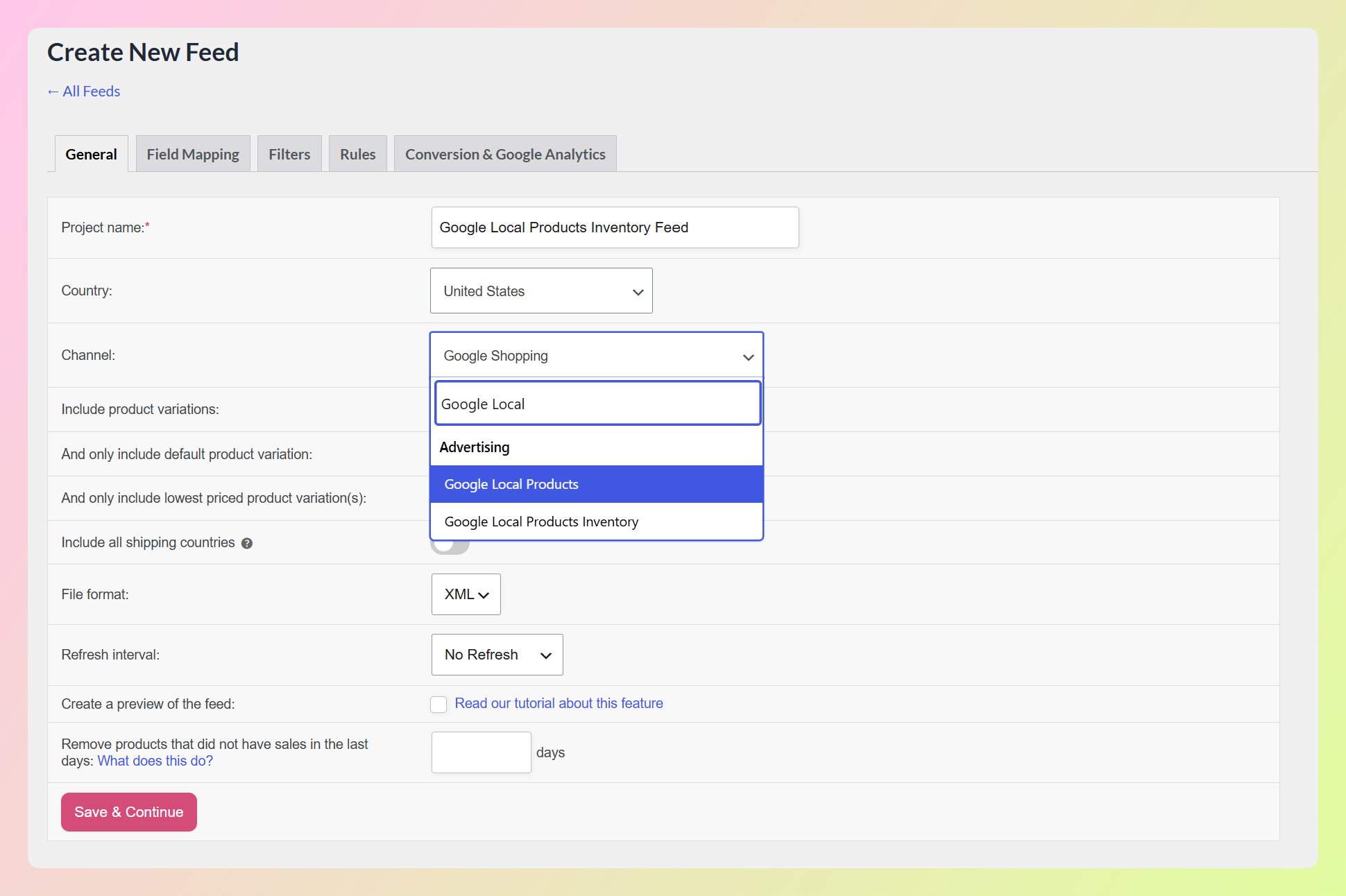
Important: Your local inventory data must match the product IDs in your primary product source and identify the store where each item is available. In the AdTribes file-based workflow, the Google Local Products Inventory feed supplies that store-level data.
You can also use our Google Local Products Inventory feed template as a starting point for the store-level feed. AdTribes handles the feed files, while program activation and store setup happen in Google’s tools.
Submit Your Local Data In Merchant Center
Once your feeds are ready, finish the Google-side setup in Merchant Center. Activate local inventory ads, free local listings, or both, then add or connect your stores. Make sure your primary product source is enabled for local use and add your local inventory data source. If your setup uses a separate Google Local Products feed, add that as well. From there, complete any product-page or inventory verification Google requires for your store.
Keep your local inventory data fresh. Google Merchant Center Help says local inventory data should be refreshed once a day. Your store_code values also need to match your Business Profile so Google can attach the inventory to the right location.
If products are disapproved, our guide to fix disapproved products in Google Merchant Center can help you work through the issue.
Frequently Asked Questions
What’s the difference between local inventory ads and free local listings?
Local inventory ads are the paid version that can appear in sponsored placements and need a Google Ads account. Free local listings are the unpaid option and don’t require ad spend. Both rely on product data and local store availability, but the exact setup can vary. If you already have a primary product source, you can enable it for local use instead of creating a duplicate product feed.
Do I need a physical store to run local inventory ads?
Yes. Local inventory ads require a brick-and-mortar location where customers can visit and buy in person. According to Google Merchant Center Help, membership-only stores are generally ineligible unless non-members can also purchase.
What is store_code and why does it matter?
store_code is the unique identifier for each of your store locations. It links a product’s inventory to a specific store, and it must match the store codes in your Google Business Profile. If the codes don’t match, Google can’t tie your stock to a location and the listings won’t show.
Do I need a Google Ads account?
You need a Google Ads account for paid local inventory ads. Free local listings don’t require ad spend or a Google Ads account, but you still need to complete the local setup in Merchant Center, connect your stores, and provide the required product and inventory data.
Why aren’t my local inventory ads showing?
Check that your product source is enabled for local use, your local inventory data is present and processing without blocking errors, product IDs and store codes match, availability is current, and any required store or inventory verification is complete. For paid local inventory ads, also confirm the Google Ads and campaign setup is complete.
Can AdTribes enroll me in the local inventory ads program?
No. AdTribes can generate the Google Local Products and Google Local Products Inventory feeds when your setup needs them. Activating the program, connecting your stores, linking Google Ads for paid local inventory ads, and completing any required verification happen in Google’s tools.
Is it free to generate local feeds in AdTribes?
Yes. AdTribes Product Feed Pro is free and supports unlimited products and unlimited feeds, including the Google Local Products and Google Local Products Inventory channels. Google supports local inventory ads and free local listings only in eligible countries, so check the current country list before you set up the program.
Bring Your In-Store Products To Google
When Google can see what’s available in your physical store, nearby shoppers can discover those products when they search locally. Local inventory ads connect your product data with store-level availability, helping bridge the gap between online searches and in-store purchases or pickups.
- What Are Google Local Inventory Ads?: understand the paid and free versions.
- What You Need Before You Start: line up the store, accounts, and Business Profile.
- The Product And Inventory Data Google Needs: understand the catalog and store-level inventory layers.
- How To Build Local Inventory Feeds In AdTribes: use your existing product source or create the local feeds you need.
- Submit Your Local Data In Merchant Center: connect the data sources and complete Google’s setup.
The key is keeping your product data and store-level inventory accurate and connected. AdTribes can generate the local feed files from WooCommerce alongside other product feeds for your store. For a broader look at your options, see our guide to WooCommerce product feed plugins.