Reviewed by
Performance Max campaigns are a black box. You set a budget, upload your assets, and let Google’s machine learning handle the rest. But if your results are disappointing, there is one lever you still control: your product feed.
Google uses your feed data to decide which products to show, which audiences to target, and which ad placements to prioritize. A thin, unoptimized feed forces Google to guess. A rich, well-structured feed gives Google exactly what it needs to match your products with high-intent shoppers.
A better-structured feed can give Google clearer signals about what you sell, which can improve how your products are matched and shown across Performance Max. While results will vary by store, stronger feed data usually gives you more control over the quality of what you’re sending into the campaign.
This performance max feed optimization guide walks you through seven specific feed improvements and shows you how to implement them using AdTribes Product Feed Pro.
Why Feed Quality Matters More In Performance Max
Feed quality is one of the most important inputs in Performance Max because so much of the campaign is automated. Bidding, audience targeting, ad placement, creative combinations. Google handles all of it. Your feed is the primary input the algorithm relies on to make those decisions.
In a Standard Shopping campaign, you can manually adjust bids per product group, exclude search terms, and control placements. In PMax, those levers are gone. Google reads your product titles, descriptions, images, prices, custom labels, and product identifiers to determine where and when to show each product. If your title is vague, Google targets the wrong queries. If your custom labels are empty, Google cannot distinguish your bestsellers from your clearance items.
Think of it this way: PMax is only as smart as the data you give it. A feed with generic titles like “Blue Shirt” tells Google almost nothing. A feed with “Men’s Slim Fit Oxford Button-Down Shirt – Navy Blue – 100% Cotton” gives the algorithm enough to match that product with specific search intent, display placements, and audience segments.
This is why stores running Performance Max and Standard Shopping side-by-side often see different results from the same catalog. The campaign type that depends more on feed data rewards stores that invest in feed quality.
7 Feed Optimizations That Improve PMax Performance
These seven optimizations cover the main feed elements to review when working on performance max feed optimization for WooCommerce PMax campaigns. Start with titles and descriptions since those have the biggest impact, then work through the rest.
1. Optimize your product titles with brand, type, and attributes
Product titles are one of the highest-impact fields to review when working on performance max feed optimization for WooCommerce PMax campaigns. Google uses titles to match products with search queries and to determine relevance for display and video placements.
The best-performing title structure follows this pattern: Brand + Product Type + Key Attributes (color, size, material). For example, instead of “Running Shoes” use “Nike Air Zoom Pegasus 40 Running Shoes – Men’s – Black/White – Size 10.”
Practical rules for title optimization:
- Put the most important identifying words first since Google may truncate long titles on mobile
- Include the brand name at the beginning for branded search matching
- Add 2-3 product attributes that shoppers actually search for (color, size, material, model number)
- Keep titles under 150 characters but use as much of that space as you can
- Avoid promotional language like “Best Deal” or “Free Shipping” in titles since Google may disapprove these
2. Write keyword-rich descriptions that help Google understand context
Descriptions give Google additional context for matching products with relevant audiences. PMax uses descriptions across Search, Display, YouTube, and Discover placements, so they need to work across formats.
Write descriptions the way you would explain the product to someone who has never seen it. Lead with the primary use case, then cover materials, dimensions, compatibility, and any differentiating features. Include natural search terms that shoppers would use, but do not stuff keywords.
Descriptions should give Google clear product context without sounding stuffed or repetitive. In general, it helps to include useful details like materials, dimensions, compatibility, and standout features in a natural way.
3. Use custom labels for campaign segmentation
Custom labels are five optional fields (custom_label_0 through custom_label_4) that let you tag products with business-level data that Google Ads can use for segmentation.
In PMax, custom labels are especially valuable because they help you segment products more intentionally through listing groups and campaign structure. This gives you a cleaner way to organize products inside a largely automated campaign setup.
Effective custom label strategies for PMax:
- Margin tier (custom_label_0): “high_margin,” “medium_margin,” “low_margin”
- Performance tier (custom_label_1): “bestseller,” “rising,” “underperformer”
- Seasonality (custom_label_2): “summer,” “winter,” “holiday,” “evergreen”
- Price band (custom_label_3): “premium,” “mid_range,” “budget”
- Lifecycle (custom_label_4): “new_arrival,” “core,” “clearance”
With these labels, you can group high-margin bestsellers more intentionally within your PMax setup and keep your product segmentation cleaner.
4. Upload high-quality images that stand out across placements
PMax runs ads across Search, Display, YouTube, Gmail, Discover, and Maps. Your product images need to work in all of these contexts, from small Shopping thumbnails to large display banners.
Google’s image requirements for Shopping feeds:
- Minimum 100×100 pixels for non-apparel, 250×250 pixels for apparel
- Maximum 64 megapixels, file size under 16 MB
- White or transparent background preferred for the main image
- No watermarks, promotional text, or badges on the image
- Show the actual product clearly with no props that could confuse the algorithm
For PMax specifically, consider adding multiple images per product using the additional_image_link field. Google’s automation will test different images across placements and surface the best performer. Providing more than one product image can give Google more creative options to work with across placements.
5. Keep pricing and availability accurate in real time
Stale pricing or availability data is one of the fastest ways to damage PMax performance. If Google shows a product with outdated pricing or availability, that can waste ad spend and increase the risk of product issues or disapprovals.
For performance max feed optimization, WooCommerce stores should refresh their feed often enough to keep pricing, stock, and availability aligned with what shoppers see on the site. If your catalog changes frequently, more frequent refreshes can help reduce mismatches. If your inventory and pricing are more stable, a lighter schedule may be enough.
Price mismatches between your feed and your landing page trigger automatic disapprovals in Google Merchant Center. Always include sale prices using the sale_price and sale_price_effective_date fields rather than changing the base price field during promotions.
6. Include GTINs and product identifiers wherever possible
Global Trade Item Numbers (GTINs), MPNs, and brand identifiers help Google match your products with its product catalog. When Google can identify your exact product, it can show your ads for more relevant queries and compete in product-level auctions more effectively.
If your WooCommerce store does not already store that data, AdTribes Product Feed Elite includes WooCommerce Extra Product Fields, which lets you add fields like GTIN, MPN, UPC, EAN, Brand, and more to your products. Once enabled, those values can be mapped directly in the Field Mapping step so they are included in the feed for channels that need them.
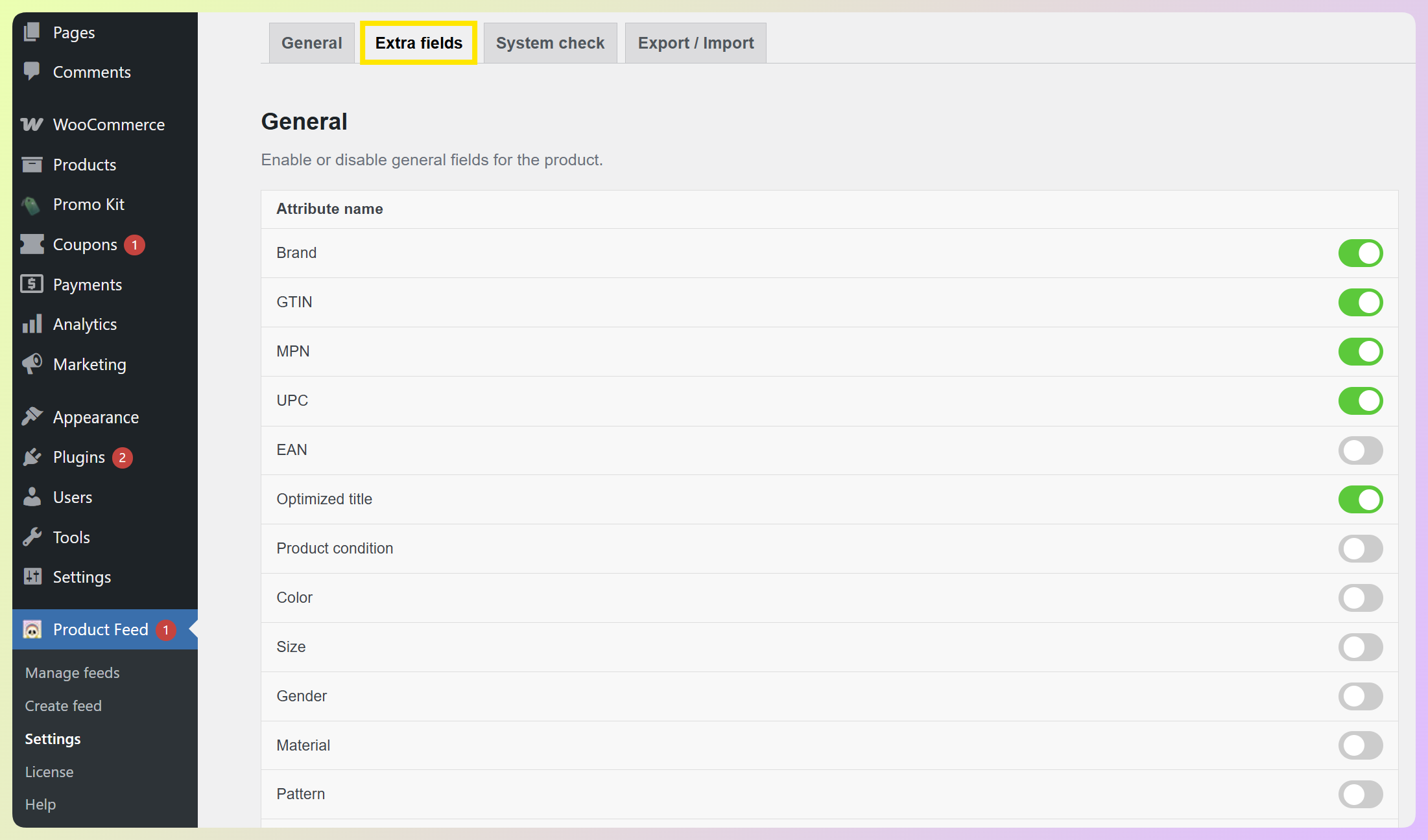
For PMax, product identifiers are particularly important because the algorithm uses them to understand product relationships and competitive pricing. A product with a valid GTIN gets matched against Google’s product graph, which means more informed bidding and better placement decisions.
If you sell products without GTINs (custom items, handmade goods, private-label products), set the identifier_exists field to “no.” This tells Google not to look for a GTIN rather than penalizing you for a missing one.
7. Add supplemental feed data for fields your store does not cover
Extra fields are a strong first step when you need to enrich your product data inside WooCommerce itself. They are especially useful for identifiers and other channel-specific attributes that are not part of your default product setup. If some data lives outside WooCommerce, supplemental feeds can still be useful for filling gaps without changing your main feed setup.
Supplemental feeds let you add or override product data without changing your primary feed. This is useful for adding data that WooCommerce does not natively store, like custom labels based on external performance data, manually researched GTINs, or seasonal tags.
You can create a supplemental feed as a simple spreadsheet with product IDs in one column and the new data in additional columns. Upload it to Google Merchant Center and it merges with your primary feed automatically.
Common supplemental feed use cases for PMax:
- Adding GTINs for products where your WooCommerce store does not have them
- Overriding titles for specific products that need custom optimization
- Adding promotion IDs for Google Promotions
- Setting custom labels based on Google Ads performance data that your store does not have
How To Use Product Feed Pro Feed Rules For PMax Optimization
Product Feed Pro’s feed rules can support performance max feed optimization by helping you adjust titles, categories, labels, and filtering before the feed reaches Google.
Title improvement rules
Feed rules can prepend, append, or replace text in your product titles based on conditions. This lets you add brand names, product types, and attributes automatically.
Example feed rules for title optimization:
- Prepend brand name: IF brand is not empty THEN prepend brand to title
- Append color: IF color is not empty THEN append ” – [color]” to title
- Replace generic terms: IF title contains “Tee” THEN replace with “T-Shirt”
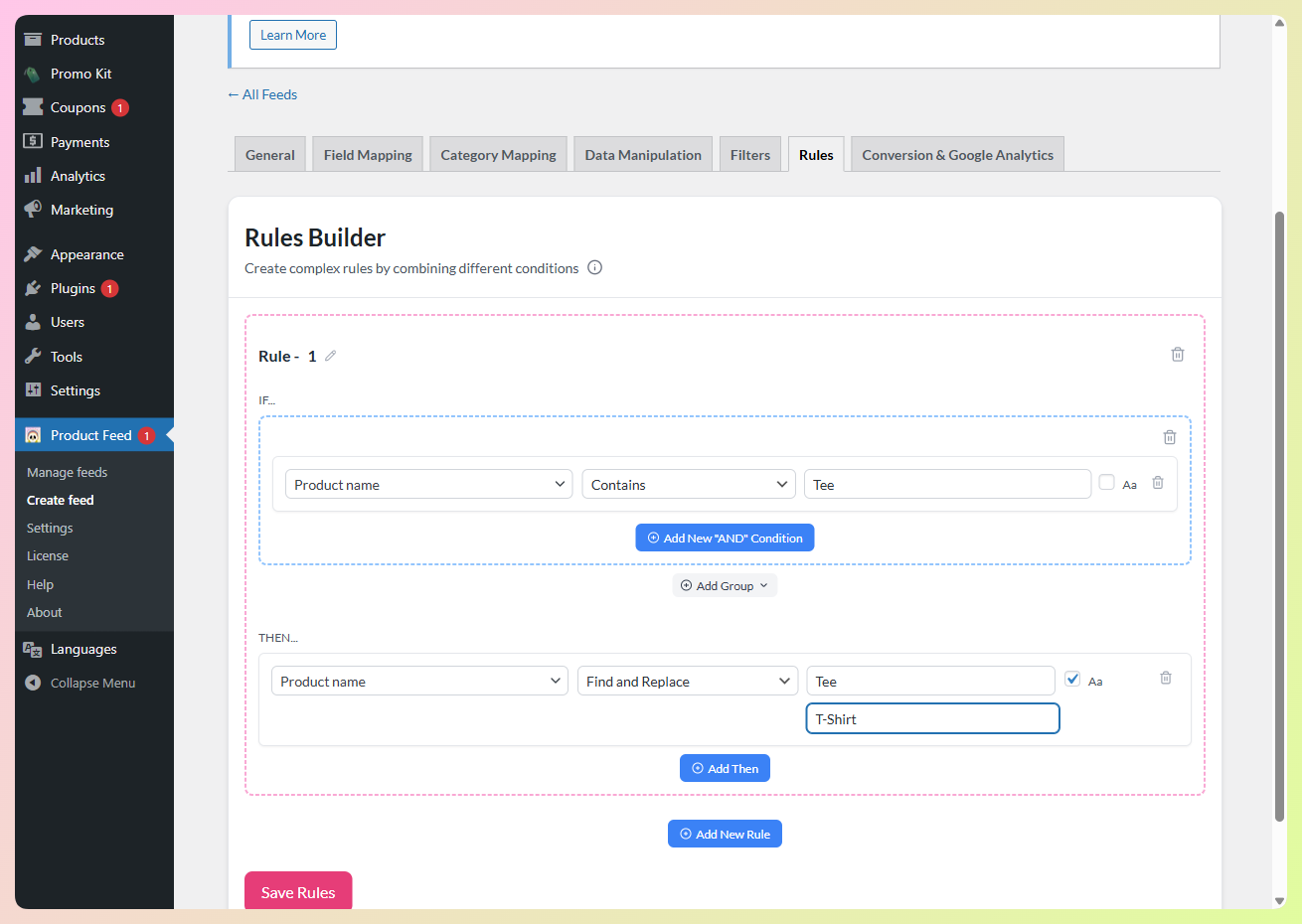
These rules can help standardize your product titles across the catalog without editing each product manually. That makes it easier to add clearer product context at scale, especially when your current titles are too short or too generic.
Category mapping rules
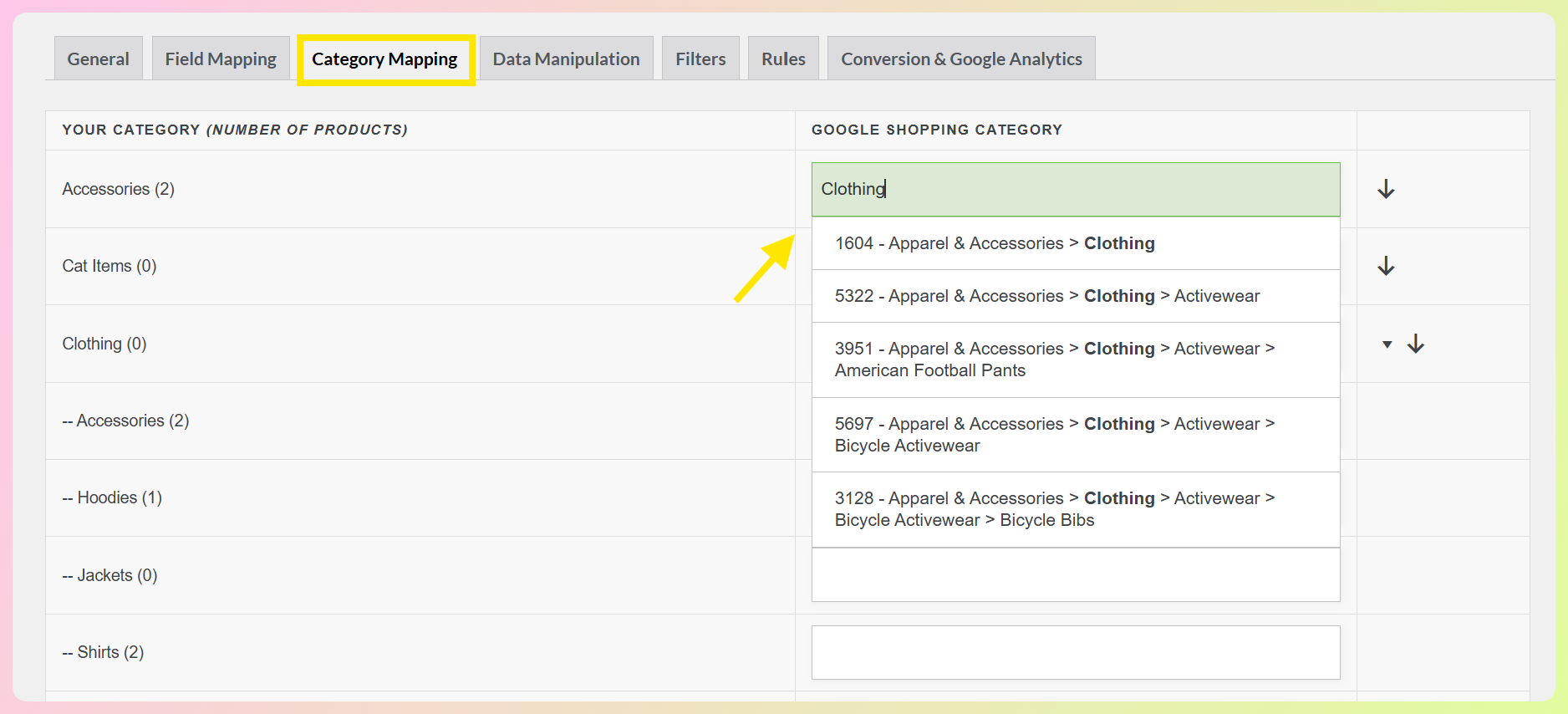
Google Shopping requires specific product categories from its taxonomy, but WooCommerce stores often use their own category structure. Product Feed Pro’s category mapping lets you translate your WooCommerce categories to Google’s taxonomy without restructuring your store.
Map each of your WooCommerce categories to the most specific Google category available. “Clothing” should map to something like “Apparel & Accessories > Clothing > Shirts & Tops” rather than just “Apparel & Accessories.” More specific categories give PMax better context for targeting.
Rules for excluding low-performing products
Not every product in your catalog belongs in a PMax campaign. Products with very low margins, products frequently returned, or products with poor images will drag down overall campaign performance.
Use Product Feed Pro’s filter rules to exclude products based on conditions:
- Exclude products below a minimum price threshold
- Exclude products with fewer than a set number of images
- Exclude products in specific categories that historically underperform in paid ads
- Exclude out-of-stock products automatically
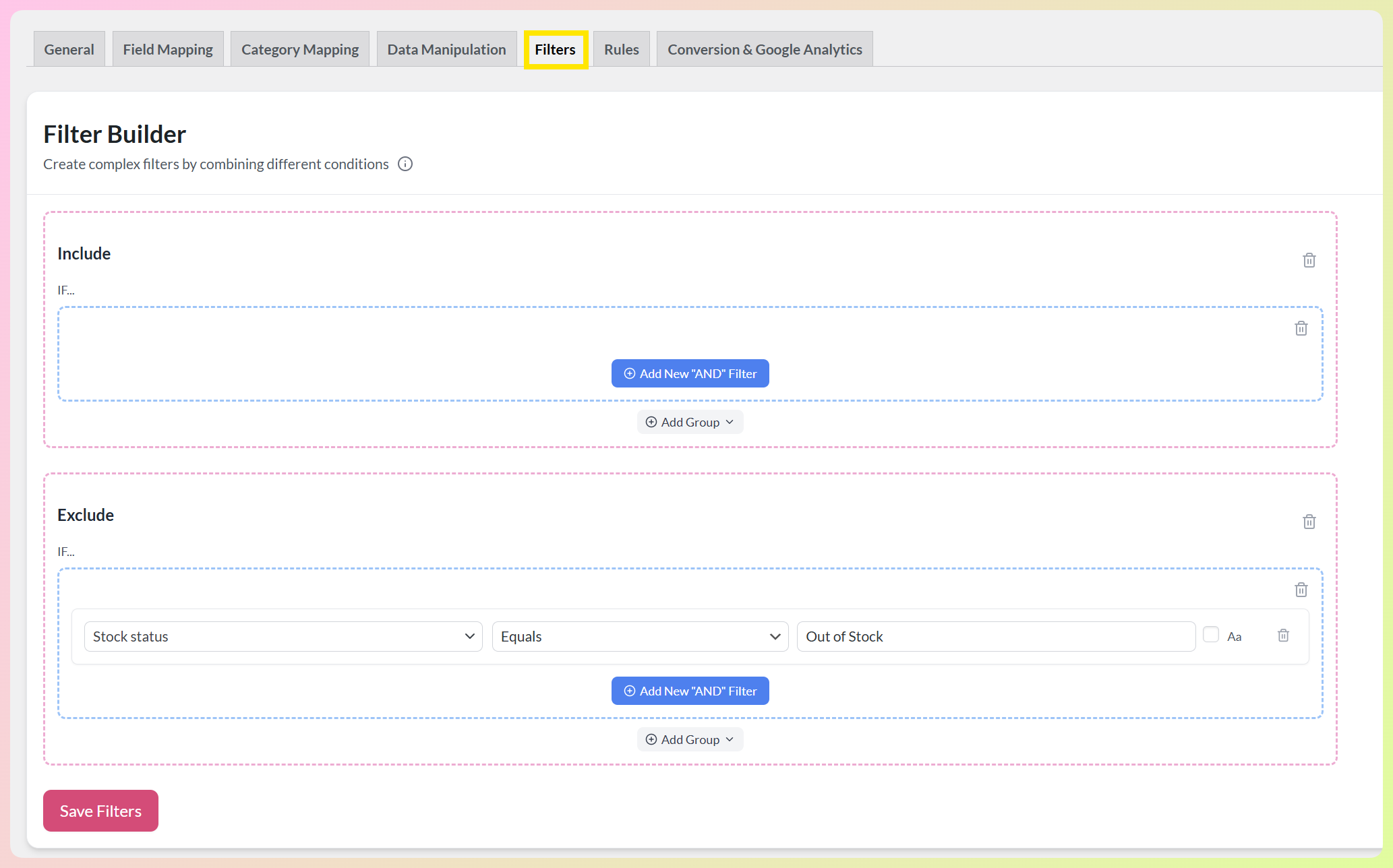
Removing underperformers lets PMax focus budget on products that actually convert. This is one of the simplest optimizations with the most immediate impact. Before you decide what to exclude, our guide to tracking your product feed ROI shows how to tell which feeds and channels actually drive profit.
Add custom labels for better campaign segmentation
Custom labels in Product Feed Pro give you a flexible way to organize products for Google Shopping and Performance Max. You can use them to group items by things like category, seasonality, pricing strategy, or other campaign-relevant attributes, which makes it easier to build cleaner product segmentation in Google Ads.
In Product Feed Pro, custom labels live in the Shopping campaigns group on the Field Mapping tab, as Custom label 0 through Custom label 4 (custom_label_0 to custom_label_4). For each label, pick a source from your product data, such as Category or SKU, or choose Static value to send the same fixed value for every product, like high_margin.
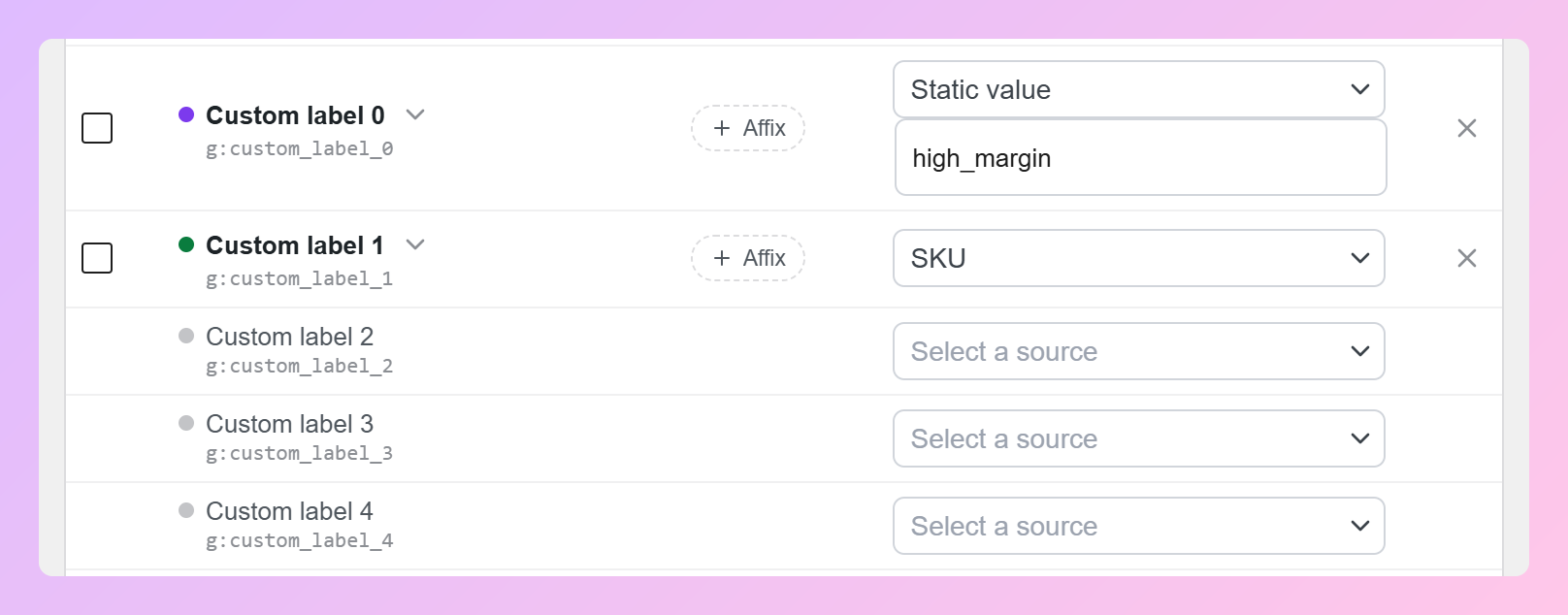
Custom labels can make your feed much more useful for segmentation, especially when you want to group products by category, lifecycle, seasonality, or campaign priority. In Performance Max, that helps create a cleaner structure around how products are organized and optimized.
Common PMax Feed Mistakes WooCommerce Stores Make
Even experienced store owners make feed mistakes that quietly sabotage their PMax performance. Here are the five most common ones and how to fix each.
Using default WooCommerce titles without optimization
WooCommerce product titles are written for on-site shoppers, not for Google’s algorithm. They are often short, missing brand names, and lacking the attributes that help Google match products with search intent.
Fix: Use Product Feed Pro feed rules to automatically prepend brand names and append key attributes like color, size, and material. Run an audit of your current titles and identify products that feel too short or too generic, then expand them with clearer product details where needed.
Ignoring custom labels entirely
Many WooCommerce stores leave all five custom label fields empty. This means every product in your PMax campaign is treated equally by Google, regardless of margin, seasonality, or performance history.
Fix: Start with just one custom label (margin tier is the most impactful) and expand from there. Even a single label that separates high-margin from low-margin products gives you meaningful budget control.
Infrequent feed refreshes causing stale data
Stores that refresh their feed too infrequently risk showing ads for products with outdated pricing or availability. That can waste ad spend and increase the chance of product issues or disapprovals in Merchant Center.
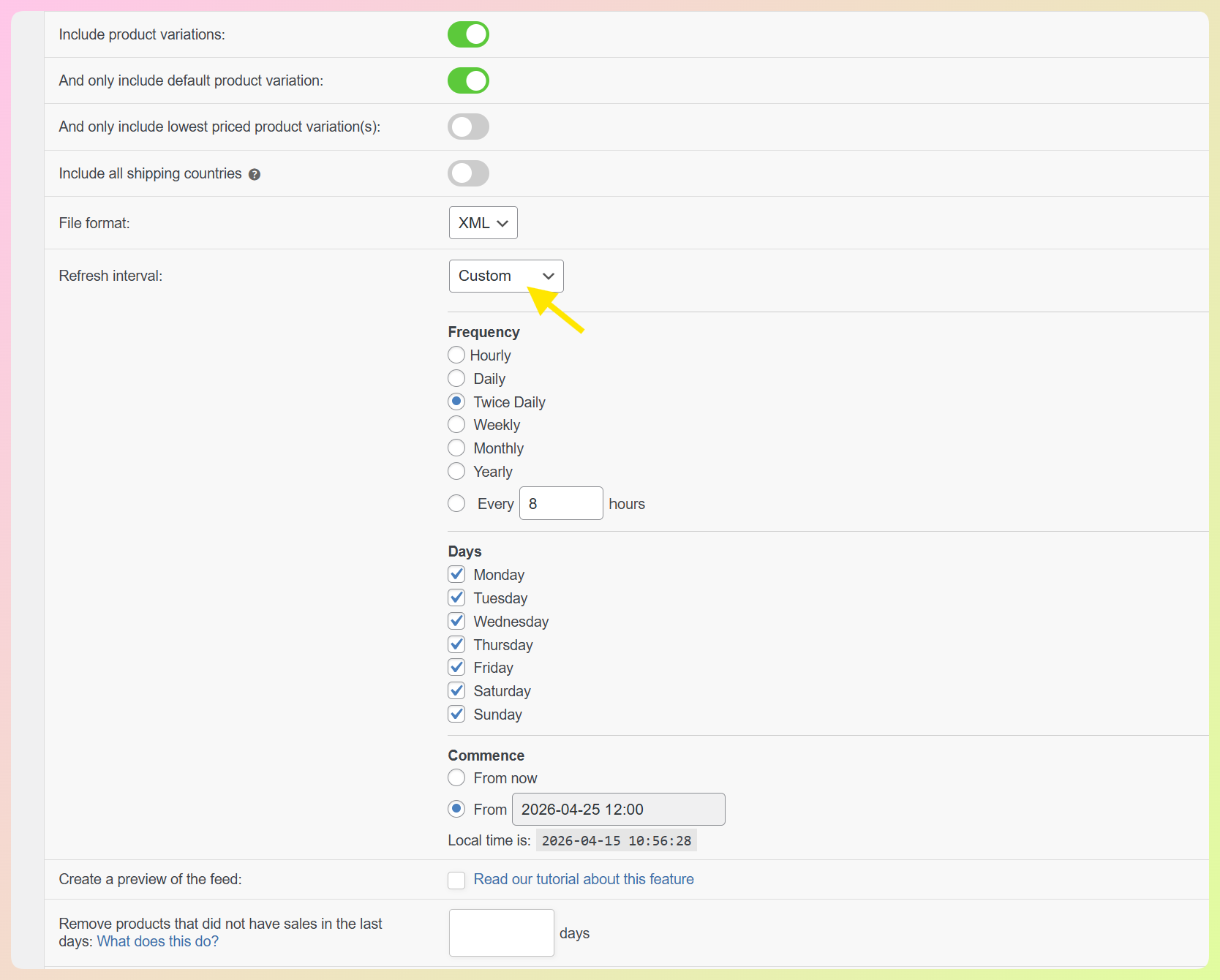
Fix: Set Product Feed Pro to refresh your feed often enough to keep your product data aligned with your store. If your pricing or stock changes frequently, a more frequent refresh schedule can help reduce mismatches. Elite users can configure custom refresh intervals for tighter control.
Missing GTINs for resold products
If you resell branded products and do not include GTINs, Google cannot match your products with its product catalog. This means less competitive bidding data, fewer relevant queries, and lower visibility in Shopping results.
Fix: Source GTINs from your suppliers or the manufacturer’s website. For products without GTINs, set identifier_exists to “no” explicitly. Use a supplemental feed to add GTINs in bulk without editing each WooCommerce product.
Sending every product to PMax without filtering
Not every product in your catalog is a good fit for paid advertising. Products with margins too thin to support ad costs, products with poor images, and products with very low search demand will dilute your campaign performance.
Fix: Create Product Feed Pro filter rules to exclude products below a minimum price or margin threshold. Start by excluding products that are clearly less suitable for paid campaigns, then review performance over time and refine from there.
Frequently Asked Questions
How often should I update my product feed for PMax campaigns?
Refresh your feed often enough to keep your product data current, especially if your store changes pricing, stock, or promotions frequently. Google’s automation makes real-time decisions based on your feed data, so stale information leads to wasted ad spend. Stores with fast-changing inventory or frequent price adjustments may benefit from a more frequent refresh schedule. Product Feed Pro handles scheduled refreshes automatically once configured.
Can I run Performance Max and Standard Shopping with the same feed?
Yes. The same product feed can support both campaign types. However, you may want to use custom labels differently for each. In Standard Shopping, labels can help you organize products into more specific groups for bidding and reporting. In PMax, labels can help you structure product segmentation more intentionally within your campaign setup. Strong feed optimization benefits both campaign types.
What is the most impactful feed optimization for PMax ROAS?
For many stores, product title optimization is one of the most impactful places to start. Titles influence which queries your ads can match and how Google understands your products across PMax placements. Custom labels can also make a meaningful difference when you want cleaner product segmentation and a more intentional campaign structure.
Do I need Product Feed Elite for PMax optimization, or is the free version enough?
The free version of Product Feed Pro includes feed rules, category mapping, and custom label assignment, which covers the core optimizations in this guide. AdTribes Product Feed Elite adds the Feed Validator (which catches errors before they reach Google Merchant Center), custom refresh intervals for tighter feed freshness, and advanced feed rules for more complex conditions. If you manage a larger catalog or want more control over feed quality and refresh behavior, Elite can be a helpful upgrade.
Wrapping Up
Strong performance max feed optimization starts with better product data, not just better campaign settings. The optimizations in this guide give Google’s algorithm the data it needs to make better decisions with your budget.
Here is a recap of what to focus on:
- Optimize product titles with brand, product type, and key attributes for better query matching
- Write detailed descriptions that give Google context across all PMax placements
- Use custom labels to segment products by margin, performance, seasonality, and price
- Upload multiple high-quality images so PMax can test creative variations across placements
- Keep pricing and availability accurate with frequent feed refreshes
- Include GTINs and product identifiers to connect your products with Google’s product graph
- Filter out underperformers so your budget goes to products that actually convert
AdTribes Product Feed Pro can help you apply many of these feed optimizations more efficiently, especially when you want to improve titles, labels, category mapping, and product filtering at scale.
Get Product Feed Pro for free and start building a feed that gives Performance Max the data it needs to deliver real results.