Reviewed by
Exciting news! The new Product Feed Multi-Currency Addon helps you create multi-currency product feeds for WooCommerce using the supported currency switcher you already have on your store.
That means your Google Shopping, Facebook, and other channel listings can show prices in the currency that fits each market you’re targeting, instead of sending every shopper the same default store currency.
It’s a simple but important update for international WooCommerce stores. Your storefront may already show local prices through a currency switcher, and now your product feeds can better match that same market-specific pricing before shoppers even click through to your site.
Let’s walk through what the addon does, which currency switchers it works with, and how to set it up with Product Feed Elite.
What Is the Product Feed Multi-Currency Addon?
The Product Feed Multi-Currency Addon is a standalone addon for AdTribes Product Feed Elite that helps international WooCommerce stores create market-specific feeds in the currencies they sell in.
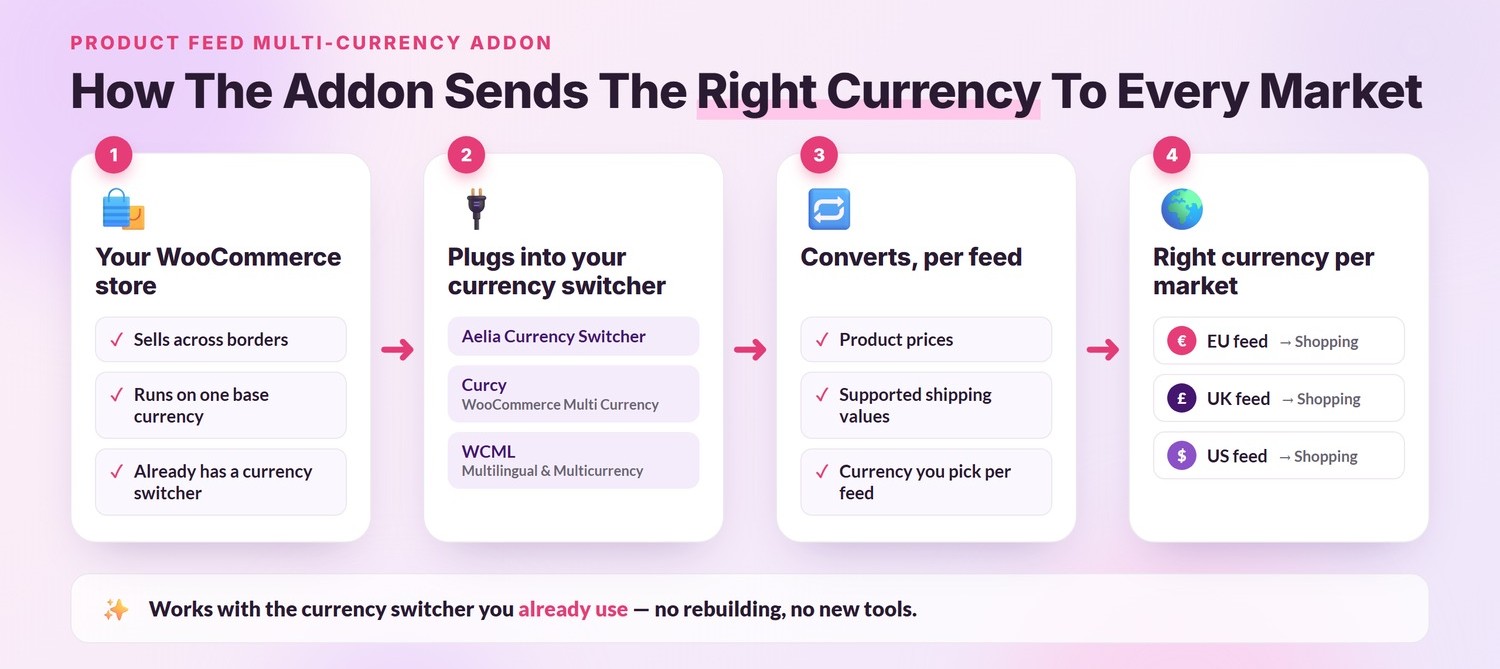
Once the addon is installed and active, it uses the supported currency switcher you already have on your store to convert prices in your feed output. You choose the currency per feed, so you can create a separate feed for each market and send that feed to the channel or country it’s meant for. If your setup includes supported shipping values, those can also be passed in the currency selected for the feed. If you sell in more than one country, our guide to Google Shopping for multiple countries covers when a separate feed like this makes sense.
The best part is that you don’t have to swap tools or learn a new system. The addon works with these supported WooCommerce currency switchers:
- Aelia Currency Switcher — builds your feeds using the currencies and exchange rates you’ve already configured in Aelia, so your feed prices stay in step with your store’s conversion settings.
- Curcy (WooCommerce Multi Currency) — works with your Curcy currencies to produce accurate per-currency feeds for the markets you’re targeting.
- WooCommerce Multilingual & Multicurrency (WCML) — picks up your WCML currency settings and applies them when your feeds are generated.
- FOX – Currency Switcher Professional for WooCommerce — reads your FOX exchange rates and fixed prices, so each feed is generated in the currency you pick for it.
Whichever supported switcher you’re running, the addon uses the currencies and exchange rates from that existing setup once the integration is enabled. That means you don’t have to rebuild your multi-currency configuration inside Product Feed Elite just to create a feed in another currency. FOX Currency Switcher is now one of them, so you can generate feeds in FOX currencies.
📝 Already using multi-currency feeds in Product Feed Elite?
Your existing currency feeds are designed to keep working while this update rolls out. You may also see an admin notice inside Product Feed Elite prompting you to install the Product Feed Multi-Currency Addon. If that notice appears, follow it to finish the setup on your site.
Why Product Feed Currency Matters
When you advertise on shopping channels like Google Shopping or Facebook, the prices in those listings come straight from your product feed. Price is usually the first thing a shopper notices, so it’s doing a lot of heavy lifting before anyone even clicks through to your store.
And shoppers are quick to react to it. When someone sees a price in an unfamiliar currency, they may pause to convert it, wonder about fees, or question whether your store is set up for their country. On a crowded results page, that small bit of friction can make a local-looking listing feel easier to click. The currency on your listing isn’t just a small detail; it’s part of the first impression.
The data tells the same story. According to Capital One Shopping, 92% of global consumers prefer buying from e-commerce websites that show prices in their local currency, and 33% of international shoppers will likely abandon a purchase if pricing is only available in U.S. dollars. A separate 2025 report from PYMNTS Intelligence and Worldpay found that 94% of cross-border shoppers want to pay in their local currency.
That preference doesn’t switch off once a shopper sees your product in an ad or listing. Sending currency-accurate feeds to your channels helps you:
- Show accurate pricing for every market — prices are converted into the currency you choose for each feed, so shoppers see figures that make sense to them right from the ad, with no guesswork about what they’ll actually pay.
- Make your listings more relevant — each market can get a feed in the currency you want to target, instead of every shopper seeing one default currency that only fits one region.
- Save yourself the manual work — your switcher’s exchange rates do the converting, so you’re not editing prices product by product or keeping separate spreadsheets for each currency.
- Keep your multi-currency setup easier to manage — the addon works alongside Product Feed Elite and your supported currency switcher, so you can create market-specific feeds without rebuilding your existing multi-currency setup.
How To Get Started With the Product Feed Multi-Currency Addon
The Product Feed Multi-Currency Addon is available with the Plus and Business plans of Product Feed Elite, and it works alongside your existing Product Feed Elite setup. If your plan includes the addon, you should find it in your AdTribes account downloads.
Here’s how to get it up and running in four steps.
Step 1: Download the addon
Log in to your AdTribes account and look for the Product Feed Multi-Currency Addon in your available downloads. If you don’t see it there, check that your plan includes it or reach out to our team, and we’ll point you in the right direction.
Step 2: Install and activate the addon
Install the addon on the same WordPress site where AdTribes Product Feed Elite is already installed and active. It’s built to sit alongside Product Feed Elite and extend it, not replace it, so you activate it the same way you would any other plugin, and your existing feeds stay exactly where they are.
Step 3: Activate your addon license
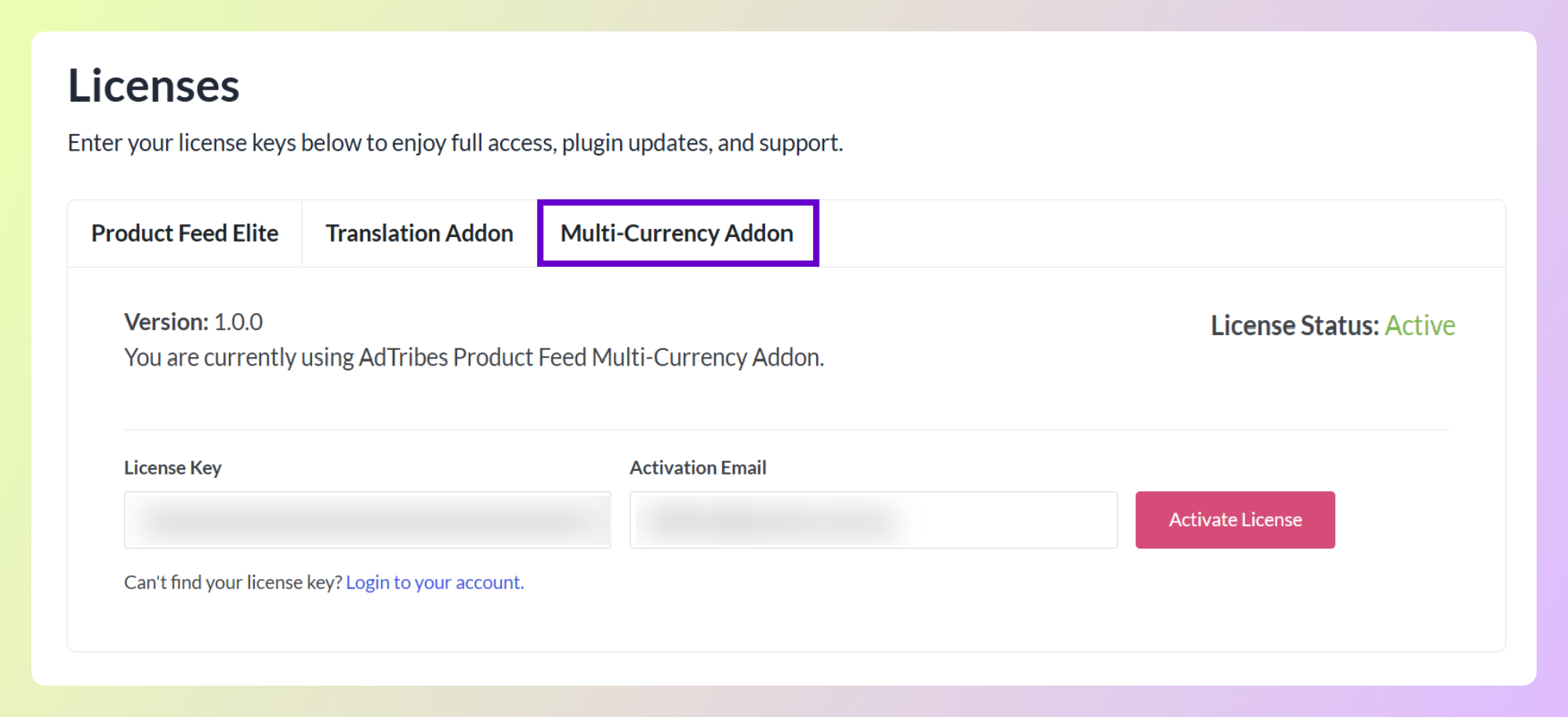
Once the addon is active, enter your license key and activation email in your WordPress admin to switch on multi-currency support. Activating your license also unlocks automatic updates and support, so it’s worth doing right away rather than leaving it for later.
Step 4: Create your first multi-currency feed
With the addon active, enable your supported currency switcher in the Product Feed Elite settings, then create a new feed or open an existing one. In the feed’s General settings, choose the currency you want that feed to use and finish the rest of your setup as usual. Depending on your currency switcher, you may also need to review any switcher-specific feed or product link settings before submitting the feed to your channel.
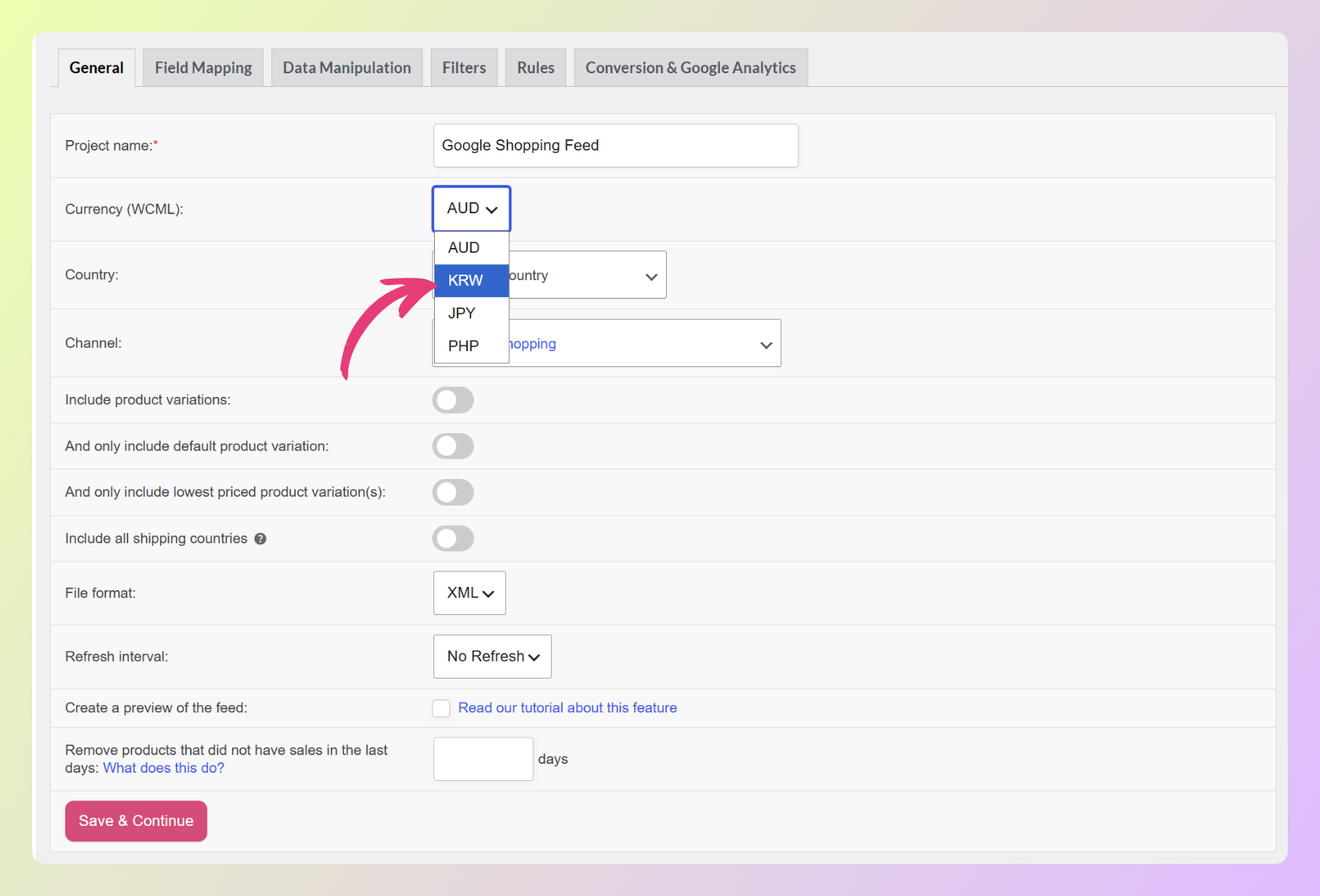
If you sell into several markets, you can repeat the same steps to create a dedicated feed for each currency. For example, you might create a Euro feed for European Google Shopping campaigns and a separate GBP feed for the UK.
📝 If you already use multi-currency feeds in Product Feed Elite, the addon is designed to work with that setup without making you rebuild your existing feeds.
Frequently Asked Questions
What is the Product Feed Multi-Currency Addon?
The Product Feed Multi-Currency Addon is a standalone addon for Product Feed Elite. It helps your product feeds show prices in the right currency for each market you sell in, working with your currency switcher so shoppers see pricing that makes sense to them.
Which currency switchers does the Product Feed Multi-Currency Addon support?
The addon supports Aelia Currency Switcher, Curcy (WooCommerce Multi Currency), WooCommerce Multilingual & Multicurrency (WCML), and FOX – Currency Switcher Professional for WooCommerce.
How do I get access to the Product Feed Multi-Currency Addon?
For new purchases, the addon is available with the Plus and Business plans of Product Feed Elite. If your existing license already included multi-currency support, you’ll continue to have access to the features included with your purchase. To check what’s available for your account, log in to AdTribes and review your available downloads or license details.
What do existing Product Feed Elite users need to know about this change?
If you already use multi-currency feeds in Product Feed Elite, your current setup is designed to keep working while this update rolls out. You may also see an admin notice prompting you to install the addon. Once it’s installed and activated, the addon is designed to support your existing setup without a full rebuild.
Does the addon convert shipping costs as well as product prices?
Yes. The addon converts both product prices and supported shipping values into the currency you choose for each feed, helping your feed data stay aligned with the market you’re targeting.
Wrapping Up
The Product Feed Multi-Currency Addon gives international WooCommerce stores a cleaner way to create feed pricing for different markets, using the supported currency switcher they already have in place.
For stores selling across borders, that means your ads and shopping listings can better match the currencies your customers expect to see. Existing currency-enabled feeds are also designed to keep working without manual reconfiguration once the addon is installed and activated.
In this article, we covered:
- What the addon does and which currency switchers it works with
- Why your product feed currency matters
- How to get started with the addon
If your store sells to customers in more than one country, this is a good time to check out the Product Feed Multi-Currency Addon. Want to brush up on the basics first? Our guide to WooCommerce currency for international sales is a good place to start.
If you have any questions about this update or your current setup, feel free to reach out to our team. 😊