Reviewed by
Exciting update for WooCommerce store owners! AdTribes Product Feed Elite now includes a Character Count condition in the Rules Builder. It checks whether a selected feed field falls above or below the length you set, then automatically runs your chosen action for matching products.
This becomes especially useful once your product data reaches different sales channels. A title or description that looks fine in WooCommerce may be shortened in the listing or fall outside a channel’s requirements, which can hide useful details or lead to warnings and disapprovals.
With the new Character Count condition, you can manage product feed character limits as part of your regular feed workflow. Below, we’ll look at why these limits matter, how the condition works, and three practical ways to use it.
Why Product Feed Character Limits Matter More Than You Think
Each sales channel sets its own field-length requirements and handles over-limit content differently. A platform may shorten the text it displays, issue a warning, or reject the affected field or listing.
Google Shopping is a useful example. According to Google Merchant Center Help, the Google Shopping title character limit is 150 characters, although shoppers usually see only the first 70 or fewer depending on screen size. Descriptions can contain up to 5,000 characters, but Google recommends using around 500 to 1,000 characters and placing the most important details within the first 160 to 500. Other sales channels publish their own limits, so a field that fits one feed may need a different rule in another.
When a field exceeds those limits, two common issues can follow:
- Cut-off titles can hide useful product details. When a title is shortened in the listing, details such as size, color, material, or model may not appear. Front-loading the most important information and keeping title length under control can help. We cover this in our WooCommerce product title optimization guide.
- Over-limit fields can create feed issues. Some channels may reject fields that do not meet their specifications, which can prevent the affected product from appearing until the issue is corrected. Our guides on Google Shopping feed requirements and how to fix Google Shopping feed errors explain what to check.
There’s also the time involved in checking these fields manually. Reviewing a large catalog can quickly become repetitive, especially when each channel follows different limits. A feed rule gives you a more consistent way to handle those checks as the feed is generated.
Here’s a quick look at the limits that trip stores up most, using Google Shopping as the example (always check each channel’s own feed specification for its exact numbers):
| Field | Google limit | Practical guidance |
|---|---|---|
| Title | 150 characters | Place the most important details within the first 70 characters |
| Description | 5,000 characters | Aim for around 500 to 1,000 characters, with key details in the first 160 to 500 |
What The Character Count Condition Does
The Character Count condition is a new option inside the AdTribes Product Feed Elite Rules Builder. Feed rules work on a simple “if this, then that” logic: you set a condition, and when a product matches, an action runs. Character Count is a new condition, so it powers the “if” side of that rule. Elite also has In List and Between conditions, which our guide to matching multiple values in feed filters and rules covers.
It gives you four ways to compare a field’s length:
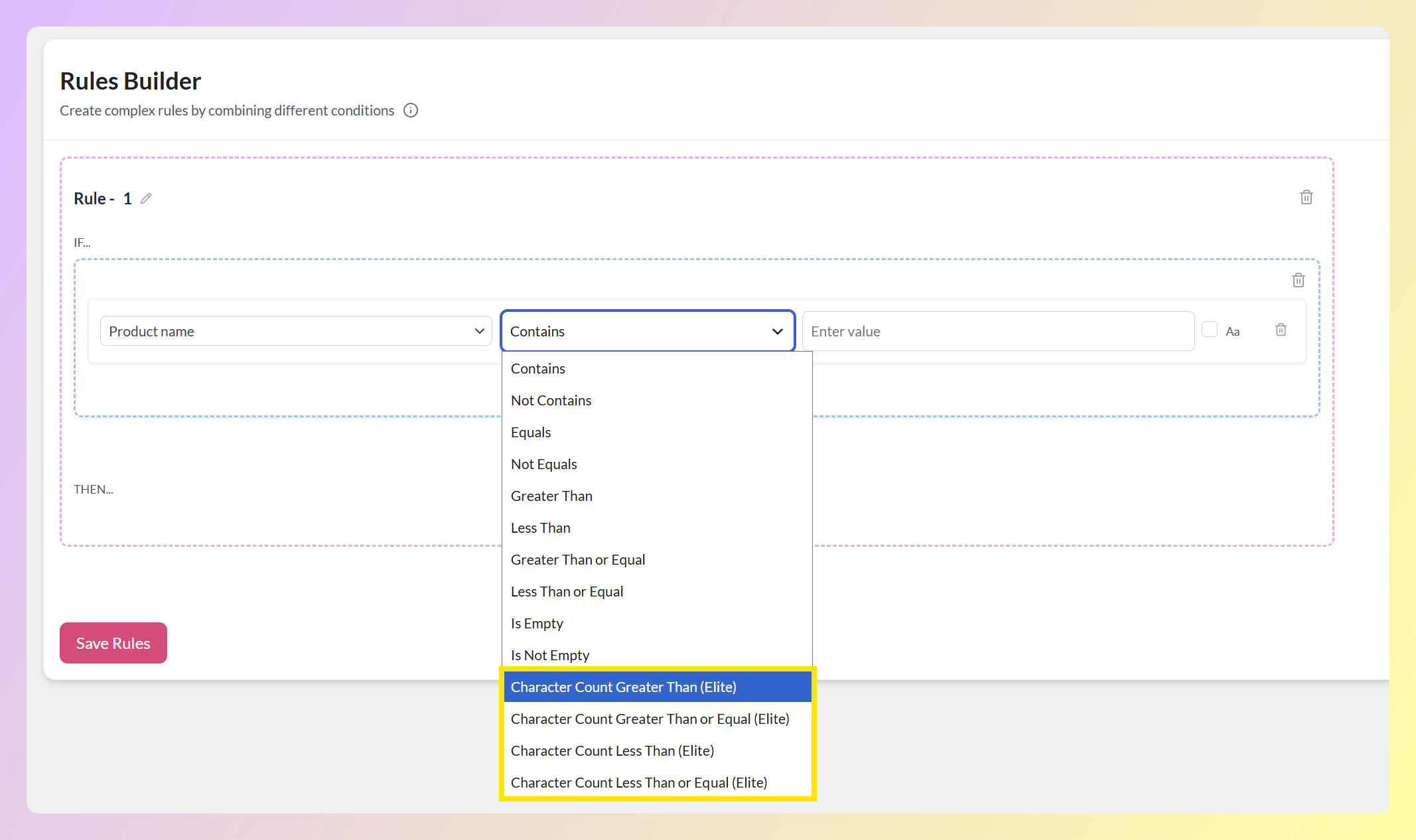
- Character Count Greater Than: matches fields longer than your chosen number, making it useful for targeting values above a channel limit or your preferred length.
- Character Count Greater Than or Equal: matches at your number and above.
- Character Count Less Than: matches fields shorter than your number, handy for finding thin content.
- Character Count Less Than or Equal: matches at your number and below.
Once a product matches, you decide how to handle it. The action you attach to the rule shapes the outcome, so you can tailor it to each field and channel:
- Truncate to Character Limit trims the field to the maximum number of characters you set, cutting at the nearest word boundary where it can. You can add an optional suffix, such as an ellipsis, which is applied after the trim so it doesn’t count toward your limit. Values already inside the limit are left untouched, which makes this the most direct option for a field that runs long.
- Combine Fields rebuilds the field from an ordered list of segments, so you can assemble a shorter value from the attributes and static text you choose.
- Exclude Attribute removes an over-limit field from the feed for the matched products.
- Set Attribute swaps the field for the value of another field you’ve prepared.
- Find and Replace removes or replaces a specific piece of text you name.
- Set Value replaces the field with one fixed value you enter.
Truncate to Character Limit and Combine Fields are newer additions to the Rules Builder, available in AdTribes Product Feed Elite across the Growth, Plus and Business plans. Our guide on how to combine product feed fields and truncate values walks through both in detail.
A couple more things worth knowing:
- It counts characters, not words, and it counts them accurately even for accented or non-Latin text, so your limits stay reliable on multilingual and international feeds.
- It works across supported feed fields and channels. You can apply it to titles, descriptions, custom labels, and other fields available in the Rules Builder, then set a different character limit for each feed.
How To Set A Product Feed Character Limit With Feed Rules
Setting this up takes one rule. You’re building an “if this, then that” instruction: if a field is over (or under) your limit, then run the action you choose. Here’s the full flow, using a Meta feed as the example.
Step 1: Open your feed’s Rules tab
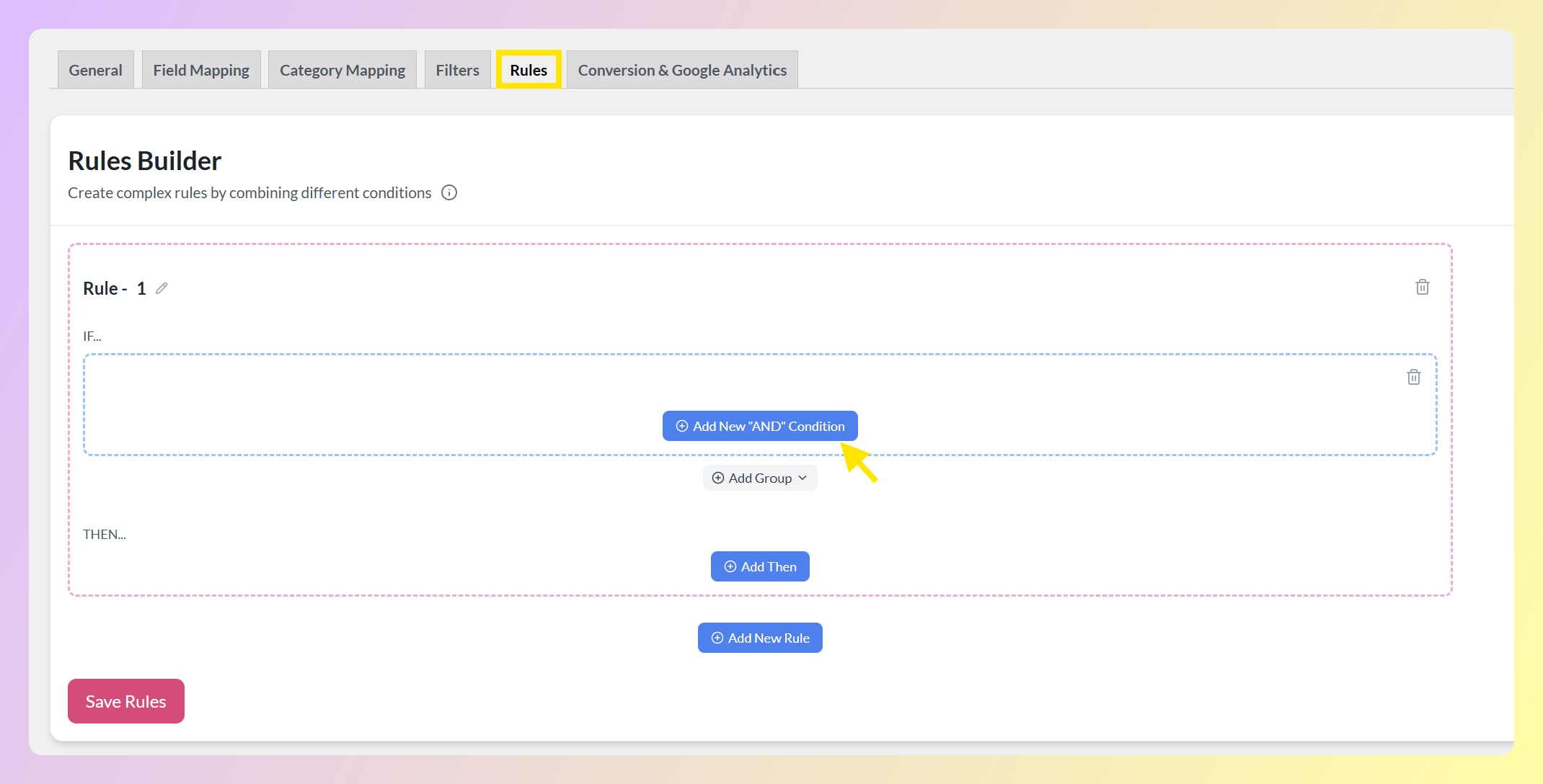
Edit an existing feed or create a new one, then open the Rules tab. You’ll land on the Rules Builder. Rules run while the feed is generated, so they shape what the channel receives without changing your actual WooCommerce products.
Step 2: Build the condition (the “IF”)
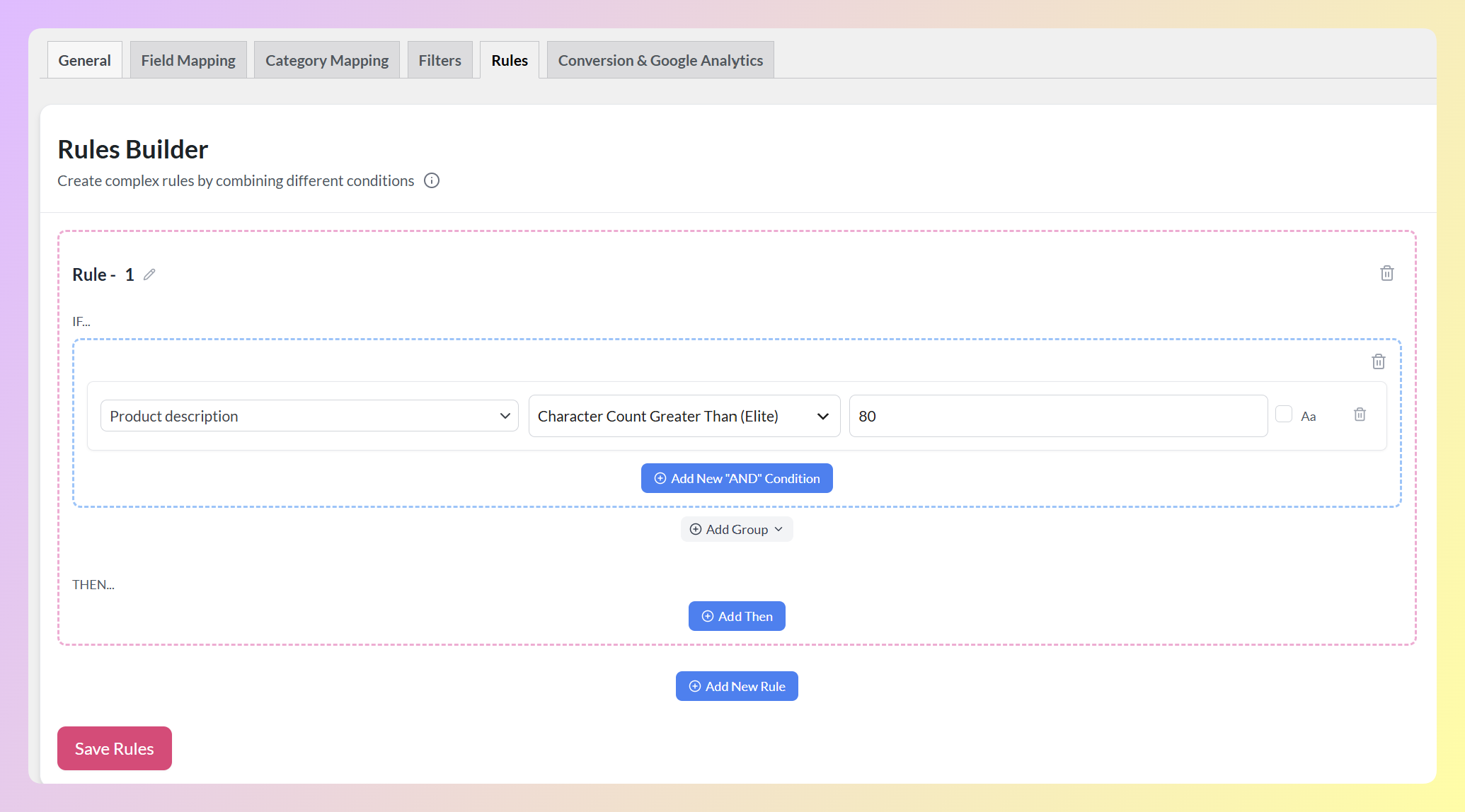
Add a new rule and set the condition. Choose the field to check, such as Product description, select Character Count Greater Than (Elite), and enter the character limit you want to use. In this example, we’ll use 80 to demonstrate the setup. The rule will then match products whose descriptions contain more than 80 characters.
Step 3: Choose the action (the “THEN”)
Now decide what happens to a matched product. Pick the field to act on, then the action that fits your goal:
- Truncate to Character Limit to trim the field to the maximum length you set, with an optional suffix.
- Combine Fields to rebuild the value from shorter segments you choose.
- Exclude Attribute to remove an optional field from the feed for matching products.
- Set Attribute to swap in a shorter field you maintain, such as a short description.
- Find and Replace to strip a specific phrase that bloats the field.
- Set Value to replace the field with one fixed value you enter.
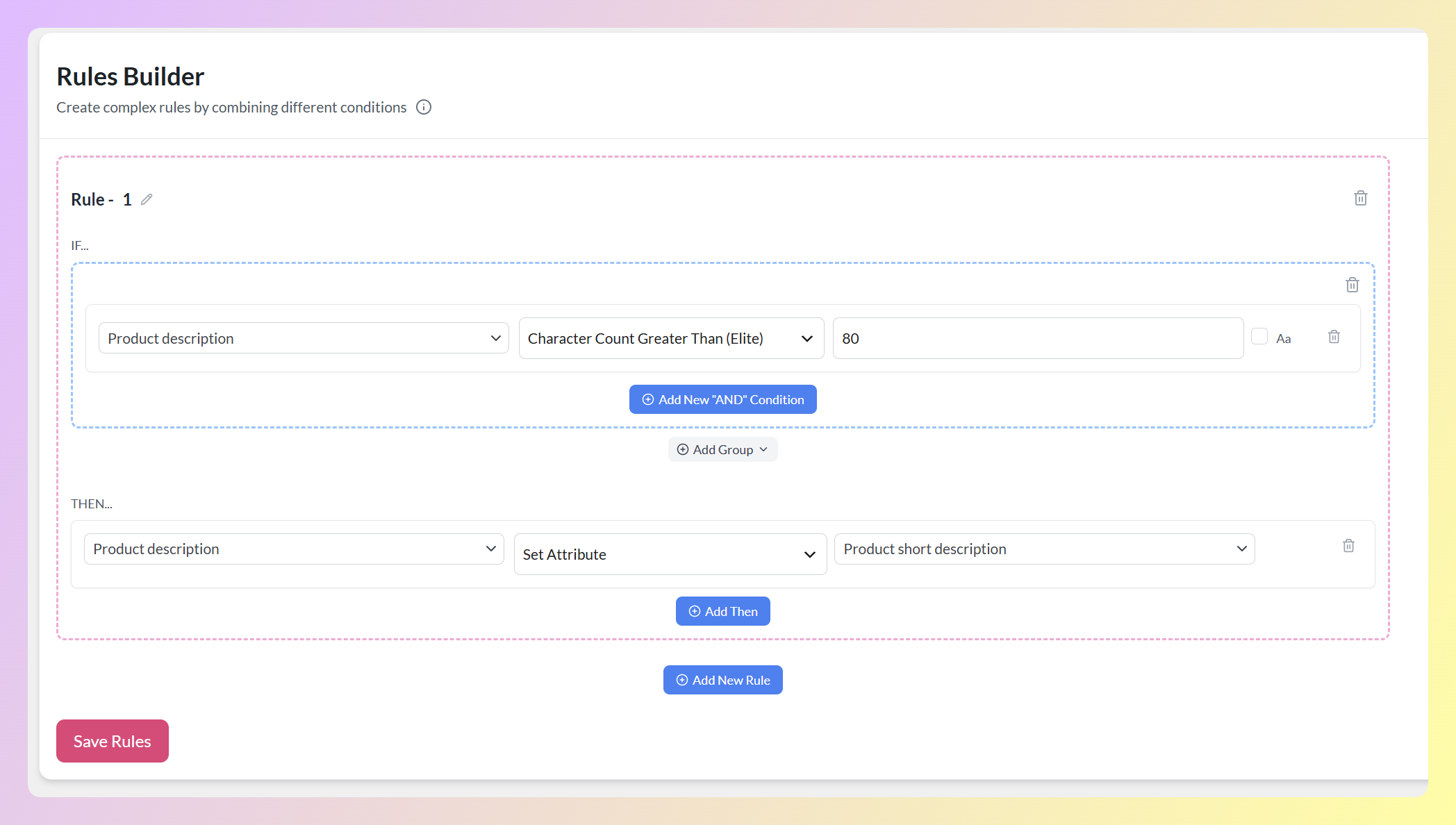
In the example above, we chose Product description as the field to update, selected Set Attribute, and used Product short description as the replacement. This means products with descriptions longer than 80 characters will use the shorter description in the generated feed.
Click Save Rules to apply your changes.
Four Ways To Put Character Count Rules To Work
Once the pattern clicks, the same condition can support several everyday feed workflows. Here are four practical ways to use it.
1. Trim a long field down to the limit
When a title or description runs past a channel’s limit, trimming it keeps most of your text in the feed rather than removing the field or replacing it wholesale. It’s the most direct fix, and it needs no extra fields prepared in advance.
Set IF Title, Character Count Greater Than, 150, THEN Truncate to Character Limit, then enter your Max characters and, if you want one, a Suffix such as an ellipsis. The trim cuts at the nearest word boundary where it can, so you won’t be left with half a word at the end.
Two things make this a safe rule to apply widely. Values already inside your limit are left exactly as they are, and the suffix is added after the trim rather than counted inside it, so set your maximum a little below a hard channel limit if you plan to use one.
2. Drop an over-limit optional field automatically
This is one of the simplest ways to use the condition. An optional or custom attribute may occasionally exceed a channel’s limit even when the rest of the product data is ready to use. In that case, removing the optional field may be more practical than excluding the entire product.
Set a rule like IF [your attribute], Character Count Greater Than [limit], THEN Exclude Attribute. This removes only the optional field for matching products while leaving the rest of their product data in the feed. Make sure the field is not required by the channel before excluding it.
3. Swap in a shorter field you’ve prepared
If you keep a shorter version of a field, such as a short title or short description, you can serve it exactly where the full one runs too long. It stays accurate because you control the replacement text, and it only kicks in for the products that need it.
Use IF Title, Character Count Greater Than, 150, THEN Set Attribute and point it at your shorter field. Products under the limit keep their full title, while the ones over it fall back to the version you prepared, with no manual editing per product.
4. Strip a known phrase that bloats a field
Sometimes the extra length comes from predictable text, such as a fixed tagline or boilerplate added to product descriptions. When you know the exact phrase causing the issue, Find and Replace lets you remove only that text from matching fields.
Set IF Description, Character Count Greater Than [limit], THEN Find and Replace, then leave the replacement value empty. The rest of the description remains in place, and the action runs only on products that go over the number you set.
You can also pair these rules with the Feed Validator, available with the Plus and Business plans. Character Count lets you apply actions based on field length, while the Feed Validator checks for other feed issues before submission.
Frequently Asked Questions
Does the Character Count rule count characters or words?
Characters. It measures the exact number of characters in a field, and it handles accented and non-Latin text correctly, so your limits stay accurate no matter what language your feed is in.
How do I fix a field that’s over the limit?
The most direct option is Truncate to Character Limit, which trims the field to the maximum you set and cuts at the nearest word boundary where it can, with an optional suffix such as an ellipsis. Values already inside the limit are left as they are. You can also use Combine Fields to rebuild the value from shorter segments, Exclude Attribute to remove an over-limit optional field, Set Attribute to use a shorter field you’ve prepared, Find and Replace to remove a known phrase, or Set Value to apply one fixed value. The selected action then runs automatically on every matching product.
Will this change my actual WooCommerce product data?
No. Feed rules act on the feed as it is generated, so they change what the channel receives, not the products stored in your WooCommerce store. Your original titles and descriptions stay exactly as they are.
Can I set different limits for different feeds or channels?
Yes. Rules belong to the feed you build them in, so you can apply one limit on your Google Shopping feed and a different limit on your Meta feed, each tuned to that channel’s requirements.
Which channels does this work for?
The Character Count condition isn’t tied to one specific sales channel. You can use it across the feeds you create and set a different character limit for each channel, as long as the field is available in the Rules Builder.
Which plan includes it?
The Character Count condition is part of the AdTribes Product Feed Elite Rules Builder. If you are weighing the free plugin against the paid version, our Product Feed Pro vs Elite comparison breaks down what each one includes.
Wrapping Up
Character limits can be easy to miss until a title gets cut short or a feed reports an issue. With the new Character Count condition in Product Feed Elite, you can apply a chosen action whenever a field is longer or shorter than the number you set, all without changing the original product data in WooCommerce.
Start with one feed and one field, then preview the result before adding the same type of rule elsewhere. It’s a practical way to manage product feed character limits more consistently across channels with different requirements.