Reviewed by
If you run a WooCommerce store with more than a handful of products, your product data does not always line up with what shopping channels want. Your titles may be too short. Your categories may not match Google’s taxonomy. A few products might be missing fields that cause issues during feed review. Fixing all of that by editing products one by one gets harder as your catalog grows.
This is exactly what product feed rules and filters are for. They let you reshape what leaves your store, without changing a single WooCommerce product. You set a condition once, and it applies across your catalog every time the feed regenerates.
In this guide, we’ll walk through how feed rules work in AdTribes Product Feed Pro, the real actions you can use, and a set of practical examples you can copy today. We’ll also be upfront about what is included for free and what needs AdTribes Product Feed Elite, so you know exactly what you’re working with.
What Feed Filters And Rules Actually Do
Product Feed Pro gives you two related tools that often get lumped together, but they do different jobs. Knowing the difference saves you a lot of confusion later.
- Filters decide which products go into the feed. Use a filter to include only certain products, or to exclude products that should never be advertised.
- Rules change the data on the products that are already in the feed. Use a rule to rewrite a title, adjust a price, or set a field to a specific value.
So if you want to keep out-of-stock items out of your feed entirely, that’s a filter. If you want to tidy up the titles of the items that remain, that’s a rule. Both are available when you edit a feed, with filters handled under Filters and rules handled under Rules. Once saved, both run automatically every time the feed updates.
The reason this matters comes down to one simple reality. Channels like Google Merchant Center, Meta, and Bing have data requirements that do not always match how WooCommerce stores are organized. Filters and rules let you meet those requirements per channel, while your store stays exactly as it is.
For a deeper look at the full range of filters and rules available in Product Feed Pro, this guide walks through the available options.
How Product Feed Rules Work In AdTribes Product Feed Pro
Feed rules in AdTribes Product Feed Pro follow an IF/THEN structure that feels familiar if you’ve ever written a spreadsheet formula. Every rule has a condition, an action, and the field the action applies to.
The condition checks a product attribute against a value you set. For example, “IF the product type equals variable” or “IF the description is empty.” You can stack several conditions together using AND/OR logic, so a rule only fires when the right combination is true.
The action tells Product Feed Pro what to do when the condition is met. These are the actions you’ll actually see in the dropdown:
- Set Value: set the field to a fixed value you type in.
- Find and Replace: find specific text inside a field and swap it for something else.
- Multiply, Divide, Plus, Minus: run math on numeric fields like price, sale price, and quantity.
- Set Attribute (Elite): set one field from the value of another field.
- Exclude Attribute (Elite): remove a single attribute from the feed for matching products.
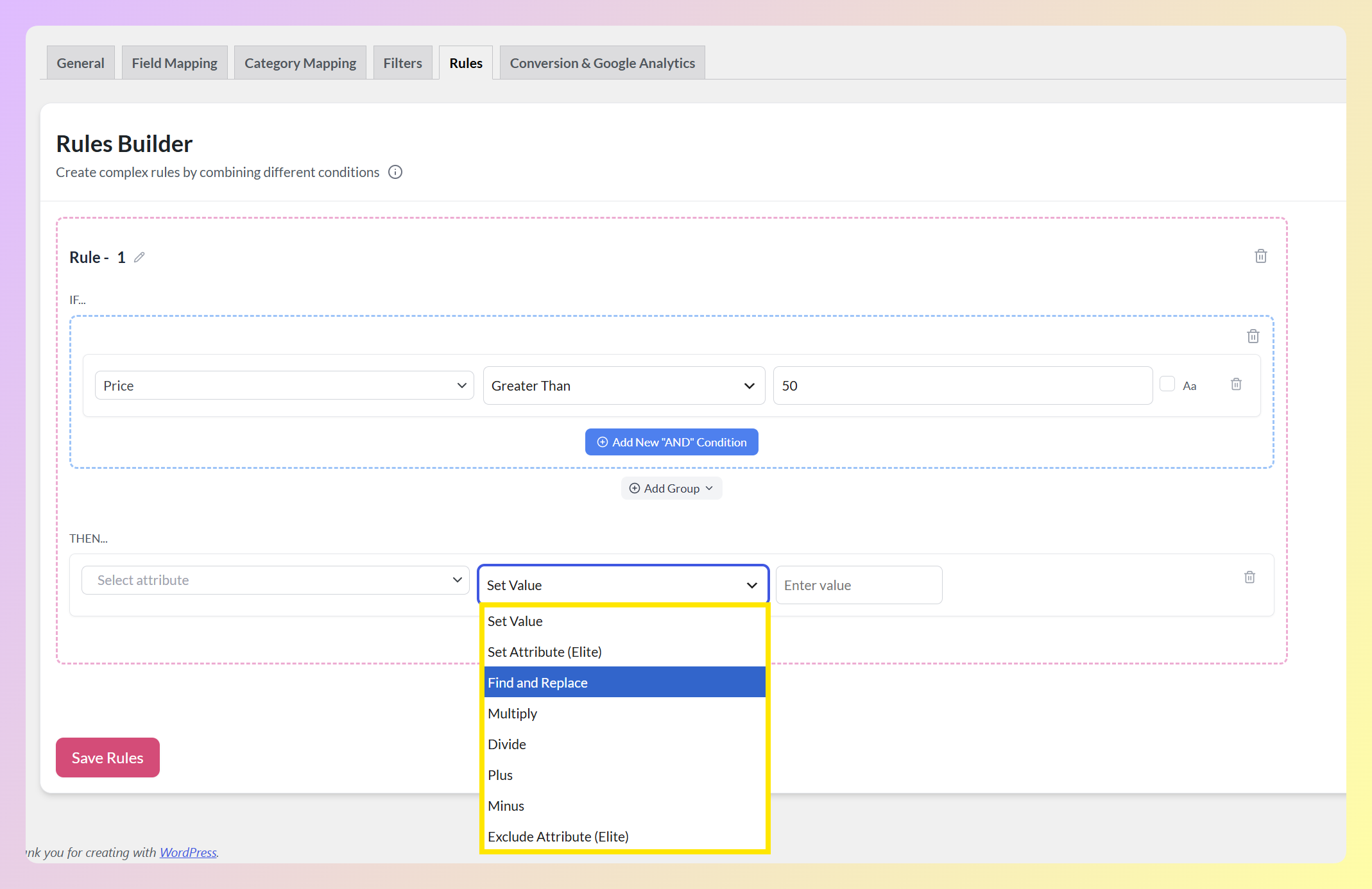
The last two are labeled “Elite” right in the dropdown, so you always know which actions belong to the free plugin and which come with AdTribes Product Feed Elite. We’ll cover those in their own section.
The field is the attribute the action changes, such as title, description, or price. One thing worth knowing early: rules in the free plugin work on your core product fields. Writing rules into feed output columns like custom_label_0 is part of Product Feed Elite.
Rules run in the order you create them, top to bottom, so a later rule can build on a change an earlier one made. That sequencing gives you fine control over how your data transforms before it reaches the channel.
Product Feed Rule And Filter Examples You Can Try
Here are practical setups you can build with the free version of AdTribes Product Feed Pro. Each one notes whether it’s a filter or a rule, since that decides where you set it up.
1. Exclude out-of-stock products (filter)
Advertising products that can’t be bought wastes ad spend and frustrates shoppers. Use a filter to drop them automatically.
- Type: Filter (exclude)
- Condition: IF availability equals “out of stock”
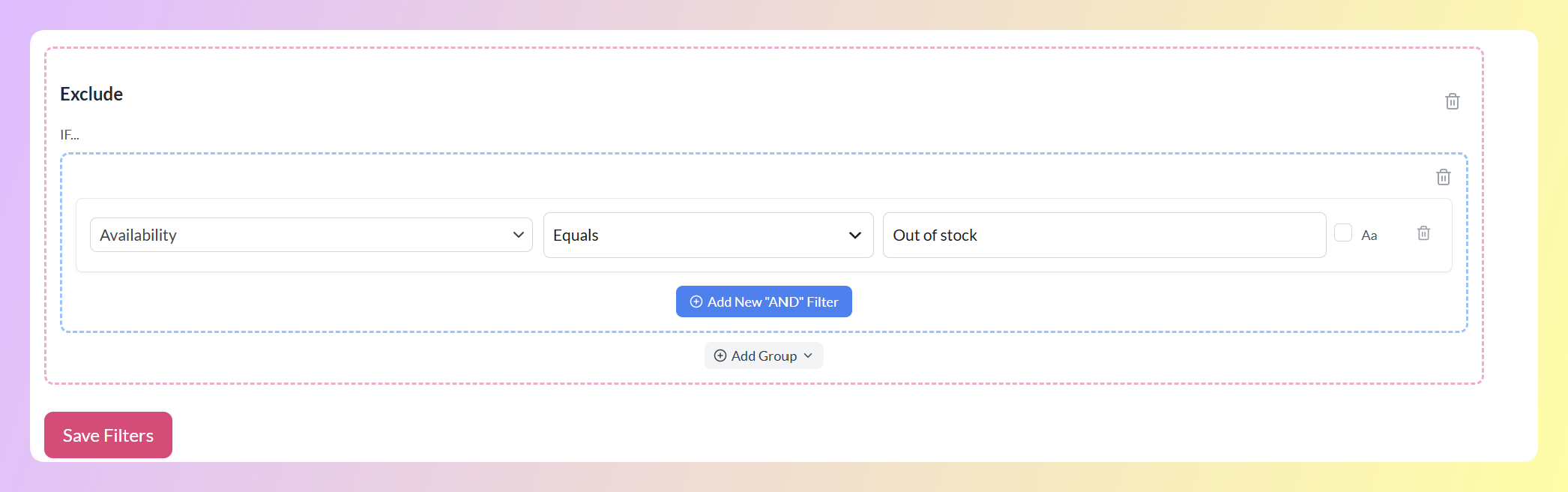
Because Product Feed Pro regenerates on your schedule, matching products can drop out on the next feed refresh and come back once your stock data updates.
2. Exclude very low-priced products (filter)
Very low-priced items can be harder to advertise profitably in paid shopping ads. A filter lets you keep them out of feeds where they may not make sense for your campaign goals.
- Type: Filter (exclude)
- Condition: IF price is less than your chosen minimum threshold, such as 5.00
A practical way to approach this is to choose a minimum price threshold that makes sense for your margins and ad costs. If a product is unlikely to cover the cost of the click, it may be better to keep it out of paid feeds.
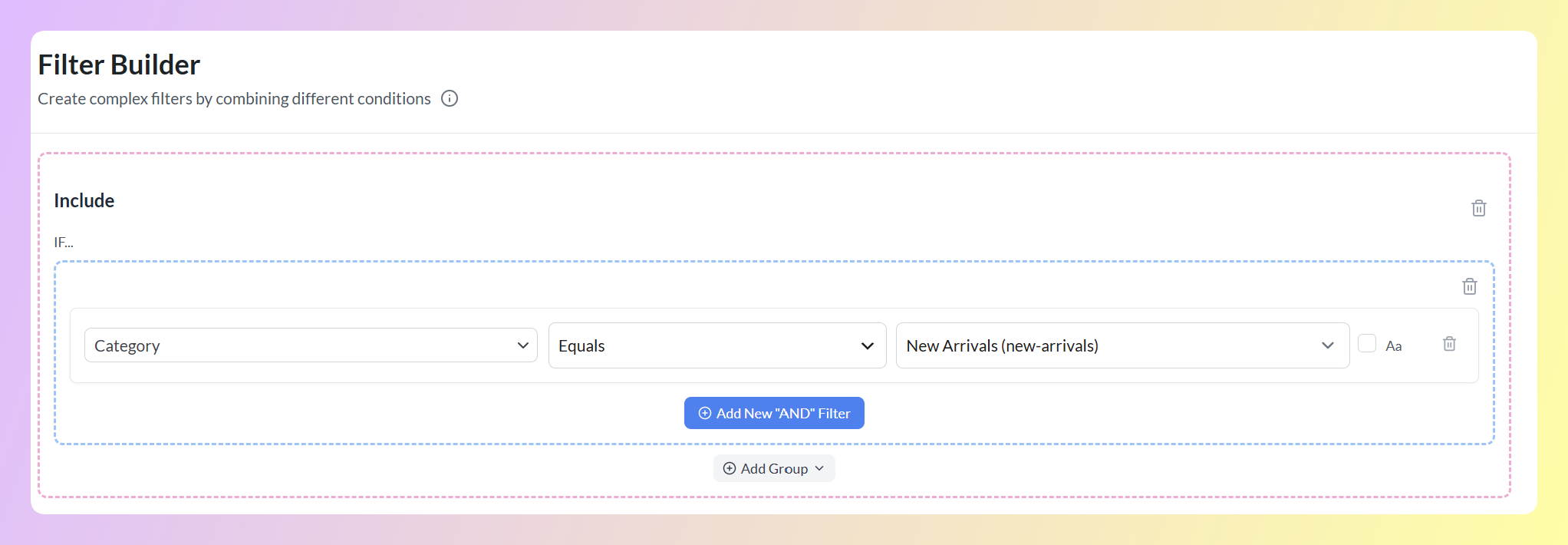
3. Only include one category in a feed (filter)
Sometimes you want a feed that carries a single slice of your catalog, like one collection for a dedicated campaign. An include filter handles that.
- Type: Filter (include only)
- Condition: IF category equals “New Arrivals”
4. Clean up messy titles with find and replace (rule)
If your product names carry shorthand that shoppers don’t search for, swap it out. Find and Replace looks inside the field and replaces only the matched text.
- Type: Rule
- Action: Find and Replace on the Product name field
- Find “Tee”, replace with “T-Shirt”
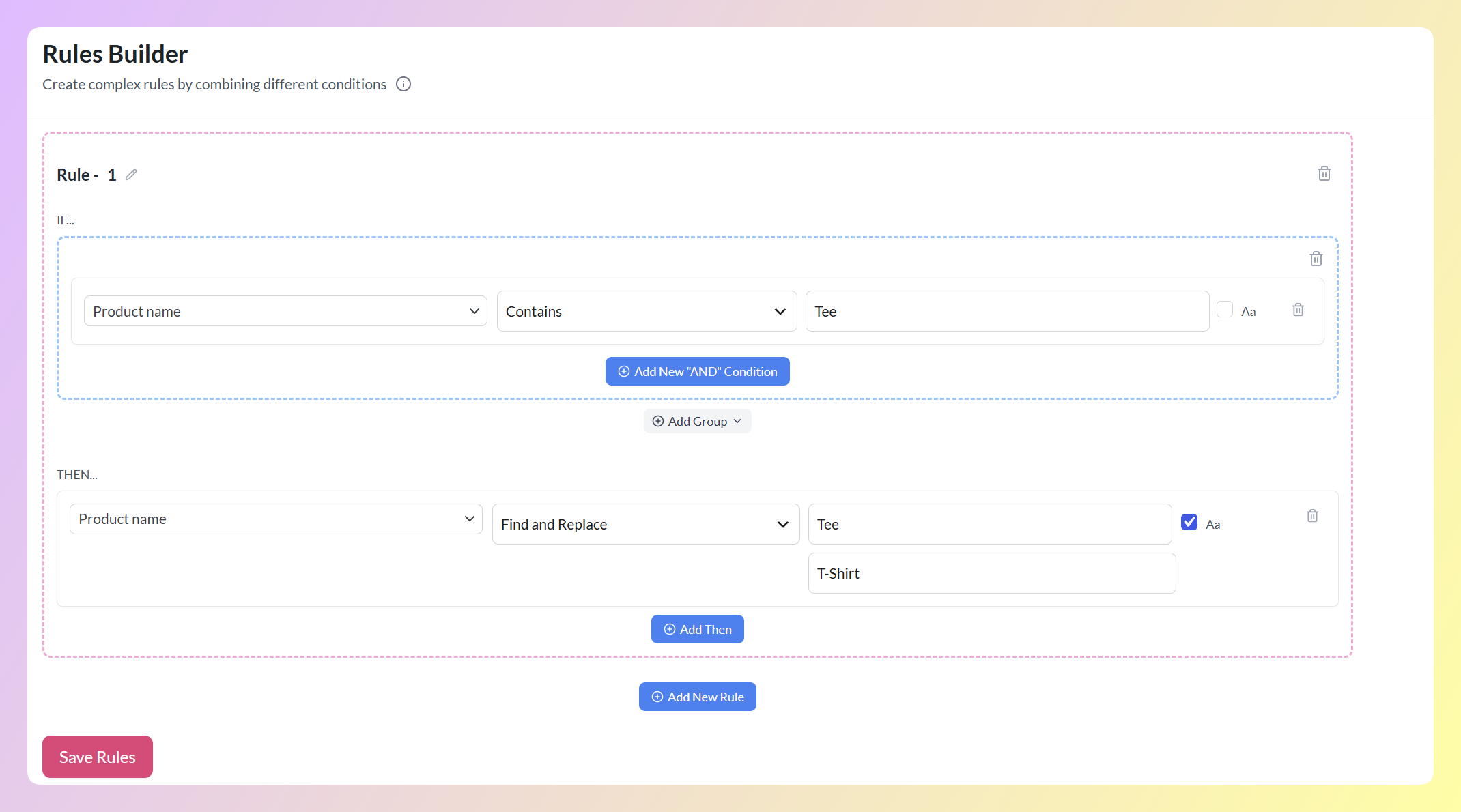
This is handy for fixing abbreviations, removing internal codes, or standardizing wording across a whole category at once.
5. Write a channel-specific description for a category (rule)
Your website descriptions are written for visitors who are already on the page. They don’t always work well in a feed, especially when they contain HTML or shortcodes. Set Value lets you replace the description for a category with clean, feed-friendly copy.
- Type: Rule
- Condition: IF category equals “Gift Cards”
- Action: Set Value on the description field
- Value: “Digital gift card delivered instantly by email. Available in several amounts. A simple choice for any occasion.”
6. Apply a feed-only price adjustment with math (rule)
You can adjust prices in the feed without touching the prices on your store. The math actions work on numeric fields like price and sale price.
- Type: Rule
- Condition: IF category equals “Accessories”
- Action: Multiply the price field by 0.80
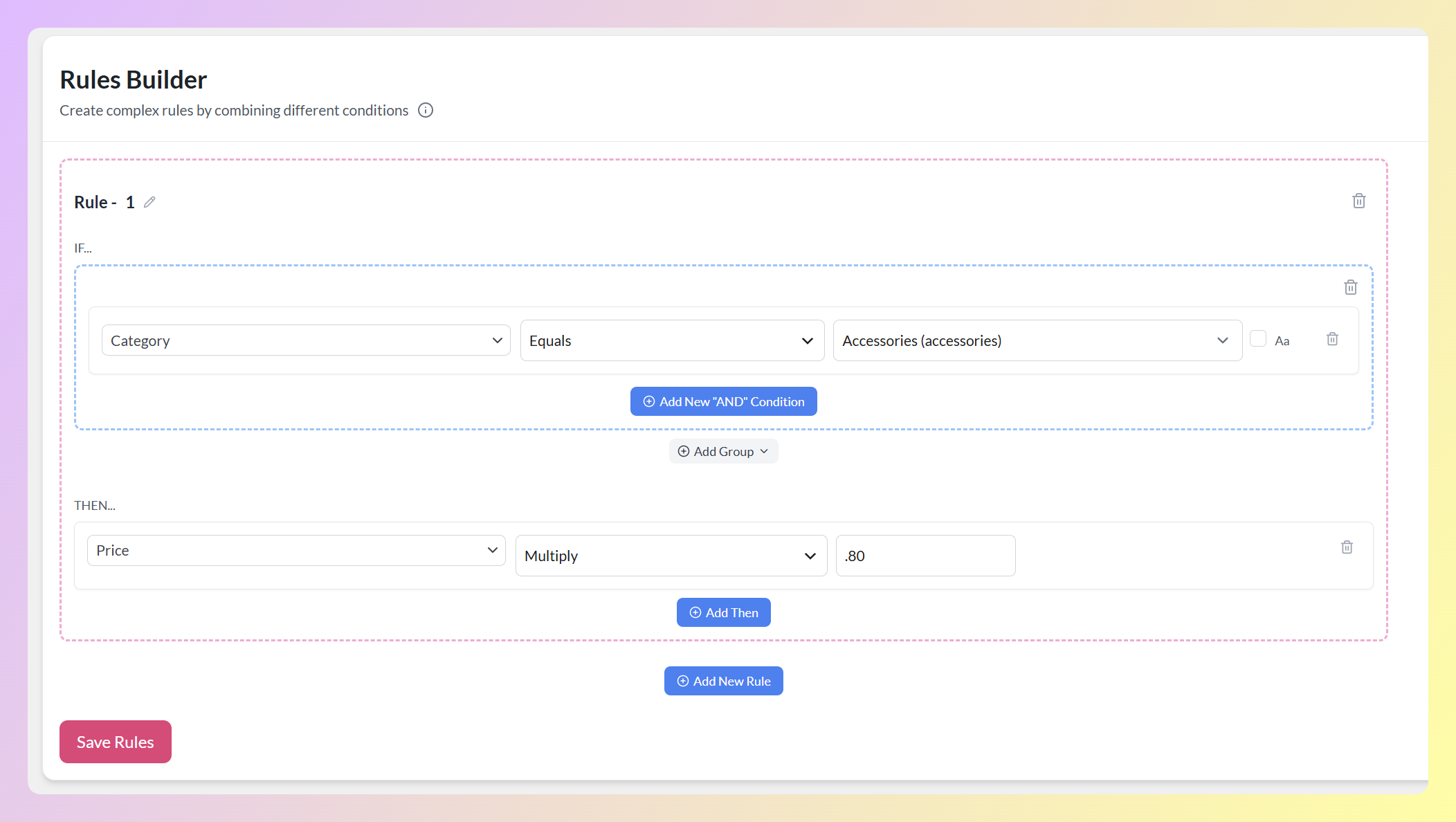
This applies a 20% reduction in the feed for that collection, while your WooCommerce prices stay where they are. Use Plus or Minus the same way when you need to add a buffer or shave a fixed amount.
7. Set a default value for an empty field (rule)
Empty fields can hold a product back or get it flagged. Set Value fills the gap with a sensible default whenever a field is blank.
- Type: Rule
- Condition: IF brand is empty
- Action: Set Value on the brand field
- Value: your store or house brand name
A quick note on categories: matching your WooCommerce categories to Google’s product taxonomy is best done through the dedicated category mapping feature when you set up the feed, rather than a rule per category. It’s built for exactly that job.
For more ways to get the most out of your feed data, our feed optimization guide covers techniques beyond filters and rules.
What Product Feed Elite Adds To Your Rules
The free plugin covers a lot, but a few advanced rule actions belong to AdTribes Product Feed Elite. If your catalog is large or you manage multiple paid shopping campaigns, these are the features worth knowing about.
- Set Attribute: set one field from another field’s value on the fly. A common use is filling an empty description from the short description, so matching products do not go out with a blank field.
- Exclude Attribute: remove a single attribute from the feed for products that match a condition. Useful for stripping a field that doesn’t meet a channel’s requirements, without dropping the whole product.
- Rules that write to feed output fields: with Elite, your rules can set output columns like custom_label_0 and custom_label_1. Custom labels are how you segment products in Google Ads for different bidding strategies, such as separating high-value items from the rest.
- Extra identifier fields and custom refresh intervals: Elite adds fields like GTIN, MPN, and EAN, plus more flexible feed refresh options for fast-moving catalogs.
If you want to remove specific attribute fields based on conditions, our guide on excluding product attribute fields with feed rules walks through how the Exclude Attribute action works.
Feed Rules vs Editing WooCommerce Products
Store owners often ask whether it’s better to fix product data directly in WooCommerce or use feed rules. In many cases, feed rules are the better first step, and here’s why.
Feed rules are non-destructive. They change the feed output without altering your WooCommerce database. If you make a mistake, you delete the rule and your original data is untouched. Editing products directly risks overwriting something you’ll want back later.
Feed rules are channel-specific. You can set different rules for your Google Shopping feed, your Facebook feed, and your Bing feed. Each channel gets the format it needs. Editing a product in WooCommerce changes it for every channel at once.
Feed rules scale. A single rule can touch every matching product in your catalog. Editing products one at a time might work for a small set of items, but it becomes harder to manage as your catalog grows.
Feed rules keep working on their own. When Product Feed Pro regenerates your feed, your rules run again against current data. New products that match a rule’s condition are handled automatically, with nothing extra to remember.
There’s one exception. If your WooCommerce data is genuinely wrong, like an incorrect price or the wrong image, fix it at the source. Rules are best for optimizing and reshaping correct data, not for papering over broken records. A cleaner workflow is to keep your base product data accurate in WooCommerce, then layer filters and rules on top for each channel.
Frequently Asked Questions
Are feed rules free in AdTribes Product Feed Pro?
Yes, filters and rules are part of the free plugin. You can include or exclude products with filters, and you can change product data with the Set Value, Find and Replace, Multiply, Divide, Plus, and Minus actions. Two rule actions, Set Attribute and Exclude Attribute, along with rules that write to feed output fields like custom labels, are part of AdTribes Product Feed Elite. The plugin labels the Elite actions clearly so there’s no guesswork.
Can I use multiple feed rules on the same product?
Yes, you can stack as many rules as you need. Rules run in the order you create them, top to bottom, so each one can build on the result of the rule before it. For example, you could clean up a title with Find and Replace first, then apply a price adjustment to the same matching product.
Will feed rules change my WooCommerce store?
No. Filters and rules only affect the data inside the generated feed file. Your product listings, prices, descriptions, and categories stay exactly as they are. Shoppers browsing your store see your original data, and only the channels receiving the feed see the adjusted version.
Can I preview my feed before it goes live?
Yes. Product Feed Pro has a preview option that builds a small sample of the feed so you can check the output before submitting it to a channel. Turn it on in the feed’s general settings, then review the result to spot-check your titles, prices, and filter behavior.
Get Started With Feed Rules Today
Filters and rules turn AdTribes Product Feed Pro from a simple feed generator into a real product data layer. Filters decide which products go out, and rules clean up the data on the ones that stay, all without touching your WooCommerce catalog.
Start with the quick wins. Use filters to keep out-of-stock and very low-priced items out of your paid feeds, then use product feed rules like Find and Replace to tidy up titles. From there, layer on more as you spot issues in your channel reports.
Get AdTribes Product Feed Pro for free and start building cleaner product feeds with filters and rules.