
Testing feed changes on a staging copy of your store keeps your live product feeds safe. Your AdTribes license covers up to 3 staging sites on top of the sites your plan covers. This guide shows which staging addresses count, how to activate one, and what to do when your address does not match.
Prerequisites
- An active license for the AdTribes plugin you want to use, for example Product Feed Elite. Your keys are listed under My Account, then Downloads.
- A staging copy of your store with that plugin installed and active.
- Admin access to the staging site.
How a staging site is recognised
Your license allows up to 3 staging sites in addition to the sites your plan covers. Staging sites use their own allowance, so activating one does not use up a paid site.
That only applies when the staging site’s web address matches one of the patterns below. The match is made from the start of the address, so the shape of the address matters. A staging site on an address outside these patterns is treated as a normal site and uses one of your paid activations.
localhost127.0.0.1*.dev*.local*.test*.staging*.example*.invaliddev.*(for example dev.yourstore.com)local.*(for example local.yourstore.com)test.*(for example test.yourstore.com)staging.*(for example staging.yourstore.com)stage.*(for example stage.yourstore.com)preprod.*(for example preprod.yourstore.com)*staging.wpengine.com(WP Engine)*stg.wpengine.com(WP Engine)*dev.wpengine.com(WP Engine)dev-*.pantheonsite.io(Pantheon)test-*.pantheonsite.io(Pantheon)staging-*.kinsta.com(Kinsta)staging-*.kinsta.cloud(Kinsta)env-*.kinsta.cloud(Kinsta)*.cloudwaysapps.com(Cloudways)*.sg-host.com(SiteGround)*.myftpupload.com(GoDaddy)*.instawp.xyz(InstaWP)*.preload.site*.tempurl.host*-staging.wpdns.site*-staging.onrocket.site*staging.astahosting.com.au*staging.leserviceweb.com*-dev.ksysweb.com*-stg.ksysweb.com*.ngrok.io
The dev, local, test, staging and stage prefixes each allow one optional digit, so addresses like dev2.yourstore.com and staging1.yourstore.com also count as staging.
If you’re a web host that provides staging services and would like your address pattern added to this list, please reach out.
Step 1: Find your license key and activation email
- Open My Account, then Downloads.
- Copy the License Key for the plugin you want to use.
- Open the order confirmation email you received when you bought the license.
- Find the License Keys table and copy the address in the Activation Email column.
The activation email belongs to your license, so it can be different from the email you use to log in to WordPress. If you can’t find the order confirmation email, open a support ticket and we’ll confirm the activation email on your key.
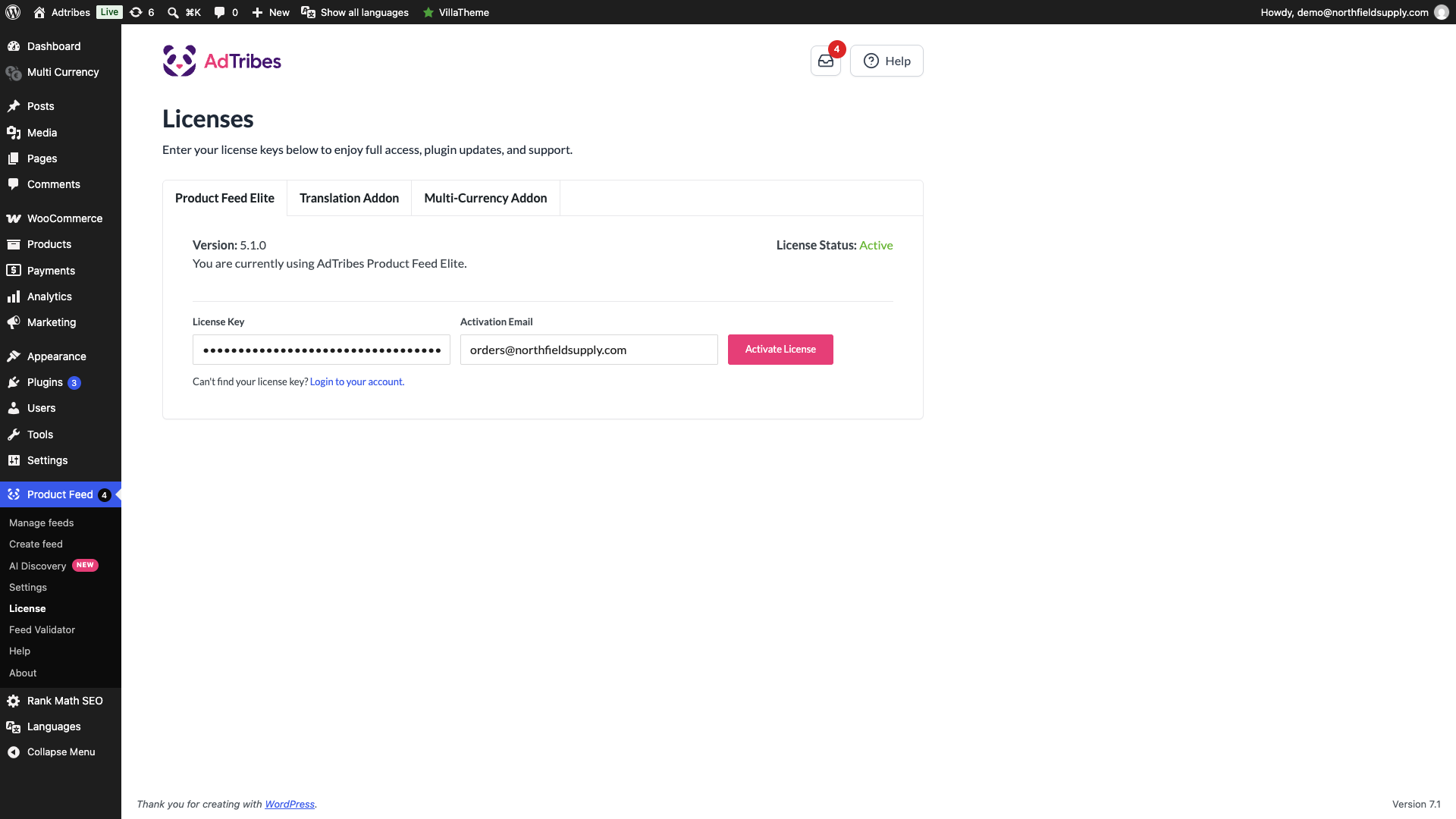
Step 2: Activate the license on your staging site
- Log in to the WordPress admin of your staging site.
- Go to Product Feed and click License.
- Click the tab for your plugin, for example Product Feed Elite.
- Enter your key in the License Key field.
- Enter the address from your order confirmation email in the Activation Email field.
- Click Activate License.
A confirmation message appears once the staging site is activated.
Free up an activation
You can do this yourself. You don’t need to contact us.
- Log in and open My Account, then Downloads.
- Find the license for the plugin you’re moving.
- Click View Sites. The window lists your activated sites and your staging sites.
- Click the red cross beside the site you no longer need.
- Activate the plugin on the new site using the same license key and the same activation email.
Your license key does not change when you move a site, and you don’t lose any of your subscription time. For more detail, see how to remove an activated site from your license.
Troubleshooting
Activation says the email does not match
Copy the address from the Activation Email column of your order confirmation email and enter it again. The check ignores upper and lower case, but the address must otherwise match exactly. If it still fails, open a support ticket and we’ll confirm the activation email on your key.
You have used all 3 staging sites
Your license allows up to 3 staging sites. When all 3 are in use, activating a 4th shows the message “You have reached the maximum number of staging sites allowed for this license.” The 4th site does not use one of your paid activations instead. Open My Account, then Downloads, click View Sites, and click the red cross beside a staging site you no longer use. Then activate the new staging site again.
I can’t find License under Product Feed
On a multisite network, look for AdTribes License in the main admin menu of the staging site instead. The License page and its fields are the same.
My staging address is not recognised
Use an address that matches one of the patterns above, for example dev.yourstore.com or staging.yourstore.com. An address outside the patterns counts as a normal site, so activating it uses a paid activation from your plan. You can activate it anyway and free the activation again later, as shown in Free up an activation.
If your host uses a staging address pattern that is not on the list, contact us with the pattern so it can be considered for the list.
Frequently Asked Questions
Do I need a separate license key for my staging site?
No. Use the same license key and the same activation email as your live site. There is no separate development key.
Does a staging site use one of my paid site activations?
Not when its address matches one of the staging patterns. Staging sites use their own allowance of up to 3 per license.
Need help?
If you have a question or run into any issues, we’re here to help.
- Premium users: Open a support ticket
- Free users: Visit the Product Feed Pro community forum

