Reviewed by
Getting started with WooCommerce Google Shopping ads isn’t overly complicated, but there are more moving parts than most guides make it seem.
You’ll need a Google Merchant Center account, a properly configured product feed, and a Google Ads campaign. Do any of those three wrong and your products either won’t show, will get disapproved, or will show for the wrong searches and convert poorly.
Google Shopping can be a strong acquisition channel for WooCommerce stores, but results depend heavily on feed quality, product data, bidding setup, and how competitive your category is. If your Merchant Center setup or feed data is off, products can be limited, disapproved, or shown for less relevant searches.
Most guides focus on account setup or campaign launch, but spend less time on the feed itself. This guide covers all three parts — Merchant Center, your WooCommerce Google Shopping feed setup in AdTribes, and campaign launch — because feed quality has a big impact on approvals, search matching, and campaign performance.
By the end of this guide, you’ll have:
- A verified Google Merchant Center account
- A properly structured product feed connected to GMC via AdTribes
- A live Google Shopping campaign
Let’s get right into it!
What You’ll Need Before You Start
Before beginning, confirm you have:
- A WooCommerce store with products published and purchasable
- A Google account (Gmail or Google Workspace) — this will be your GMC and Google Ads login
- A Google Merchant Center account (free to create at merchants.google.com)
- A Google Ads account (free to create; requires billing info to run ads)
- Product images that meet Google’s requirements: at least 100 x 100 pixels for most non-apparel products and 250 x 250 pixels for apparel, with clear images that avoid watermarks or promotional overlays
- A returns and refund policy page on your website — Google requires this to be visible
- Shipping information — you’ll configure this in Merchant Center; know your shipping rates/zones before starting
If your store is new and you haven’t completed this checklist, do it first. You can set up Merchant Center and the AdTribes feed now, but ads won’t go live until all requirements are met.
Part 1: Set Up Google Merchant Center
Google Merchant Center (GMC) is where Google reads and manages your product data, connecting your WooCommerce store to Shopping ads and free product listings across Google, as well as the Google Ads campaigns built around that inventory.
Step 1: Create your Merchant Center account
Go to merchants.google.com and sign in with your Google account. Click Get started and follow the prompts:
- Enter your business name (use your store name as customers know it)
- Select your business country — this determines which Google Shopping features are available to you
- Choose whether you’re selling online, in a physical store, or both
Step 2: Complete your business information
In the GMC dashboard, go to Business information and fill in:
- Business name and address — use accurate business details that customers can also find on your website
- Customer service email and phone — add valid contact details customers can use to reach you
- Time zone and currency — choose the settings that match your store and target market
Step 3: Verify and claim your website
Merchant Center needs you to verify and claim your website before your product data can be used reliably for Shopping ads and free listings. Under Business information > Website, enter your store URL and choose the verification method that fits your setup:
- Your e-commerce platform — if your platform offers a direct verification option
- Email verification — if you can receive email at an address associated with your domain
- HTML tag or HTML file — if you can edit your site header or upload files to your server
- Google Tag Manager — if you have admin access to GTM
- Google Analytics — if you have admin access to the connected GA property
After verifying, click Claim — this links your domain exclusively to your GMC account.
Step 4: Configure shipping settings
Under Shipping and returns, add at least one shipping service for your target country. Shipping details need to be in place and easy for customers to understand, since missing or inconsistent shipping information can cause Merchant Center issues.
Set up:
- Shipping service name (e.g., “Standard Shipping US”)
- Countries you ship to
- Delivery time (min/max transit days)
- Shipping rates (flat rate, free shipping, or table rate)
If you offer free shipping over a threshold (e.g., free over $50), configure this as a “Minimum order value” condition.
Step 5: Configure return policy
Under Shipping and returns > Returns, add your returns policy:
- Return window (e.g., 30 days)
- Return shipping cost (free or paid by customer)
- Refund method
This must match what’s on your website’s returns policy page. Discrepancies can trigger a Misrepresentation policy flag.
Part 2: Create Your WooCommerce Product Feed With AdTribes
This is the step most Google Shopping guides skip — and where most WooCommerce stores run into problems.
Your product feed is the file that tells Google about your products: titles, descriptions, prices, images, availability, GTINs, and dozens of other attributes. The quality of this file directly determines which searches trigger your ads, whether your products get approved, and how well Google’s AI can optimize your campaigns.
Because standard plugins sometimes miss complex catalog variables, setting up a reliable, customized process to export WooCommerce products to Google Merchant Center ensures your specific custom fields and variations sync perfectly without manual formatting errors.
AdTribes’ Google Shopping feed template gives you a faster starting point with mapped fields and channel-specific structure. If you’re on a Plus or Business plan, you can also use Feed Validator to validate supported XML feeds before submission.
If you’re expanding beyond Google Shopping, you can also create a ChatGPT (OpenAI) product feed with AdTribes. This gives you a separate, channel-ready feed for AI shopping discovery while keeping your Google Shopping XML feed intact.
Step 1: Install AdTribes
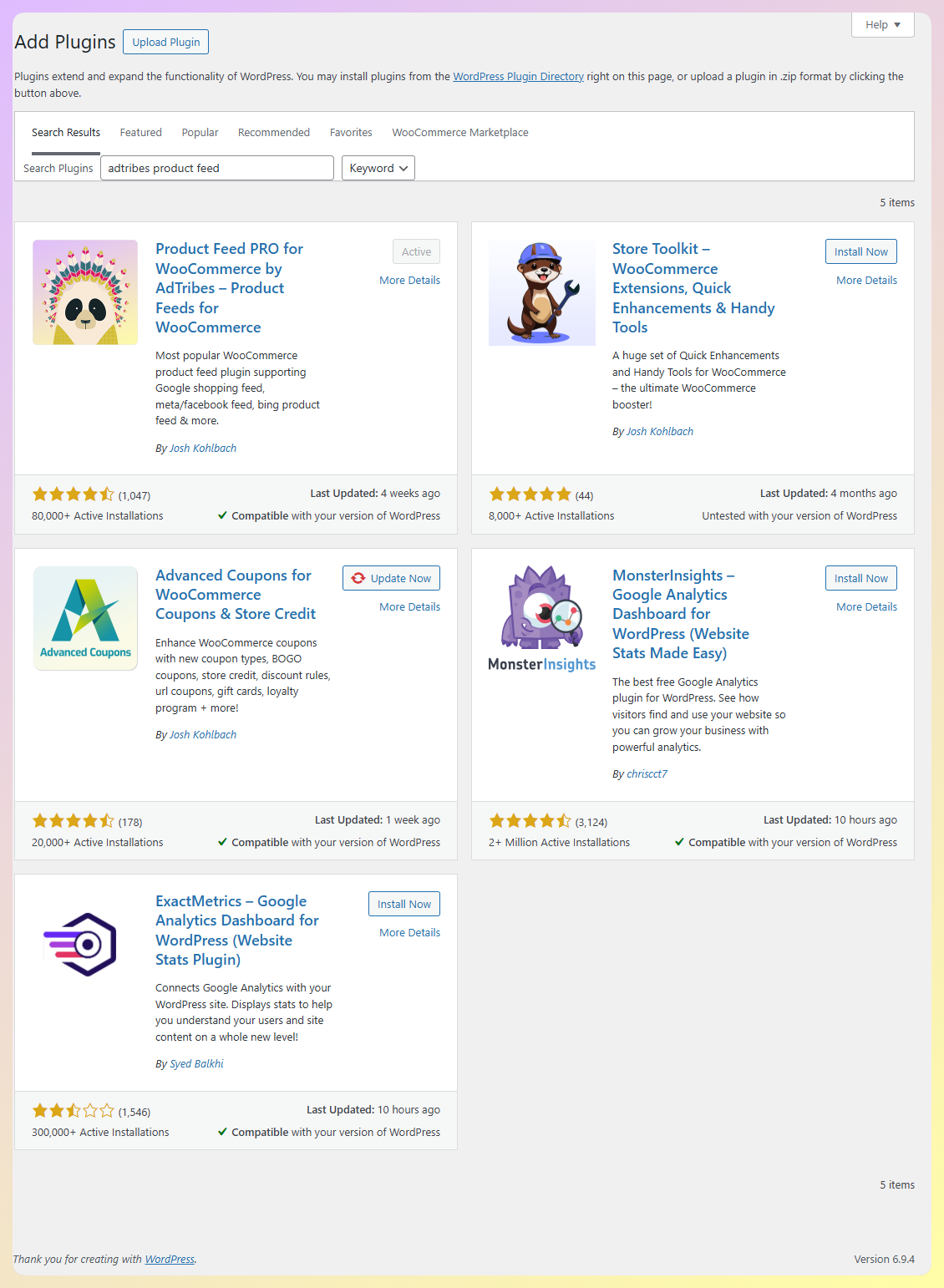
In your WordPress dashboard, go to Plugins > Add New and search for “AdTribes Product Feed.” Install and activate the free plugin.
Product Feed Pro gives you the core tools to create a WooCommerce Google Shopping feed and keep it refreshed on a schedule. If you need extra product fields, custom refresh intervals, broader integrations, or Feed Validator access, upgrade to Product Feed Elite. Feed Validator is available on the Plus and Business plans.
Step 2: Create a new feed
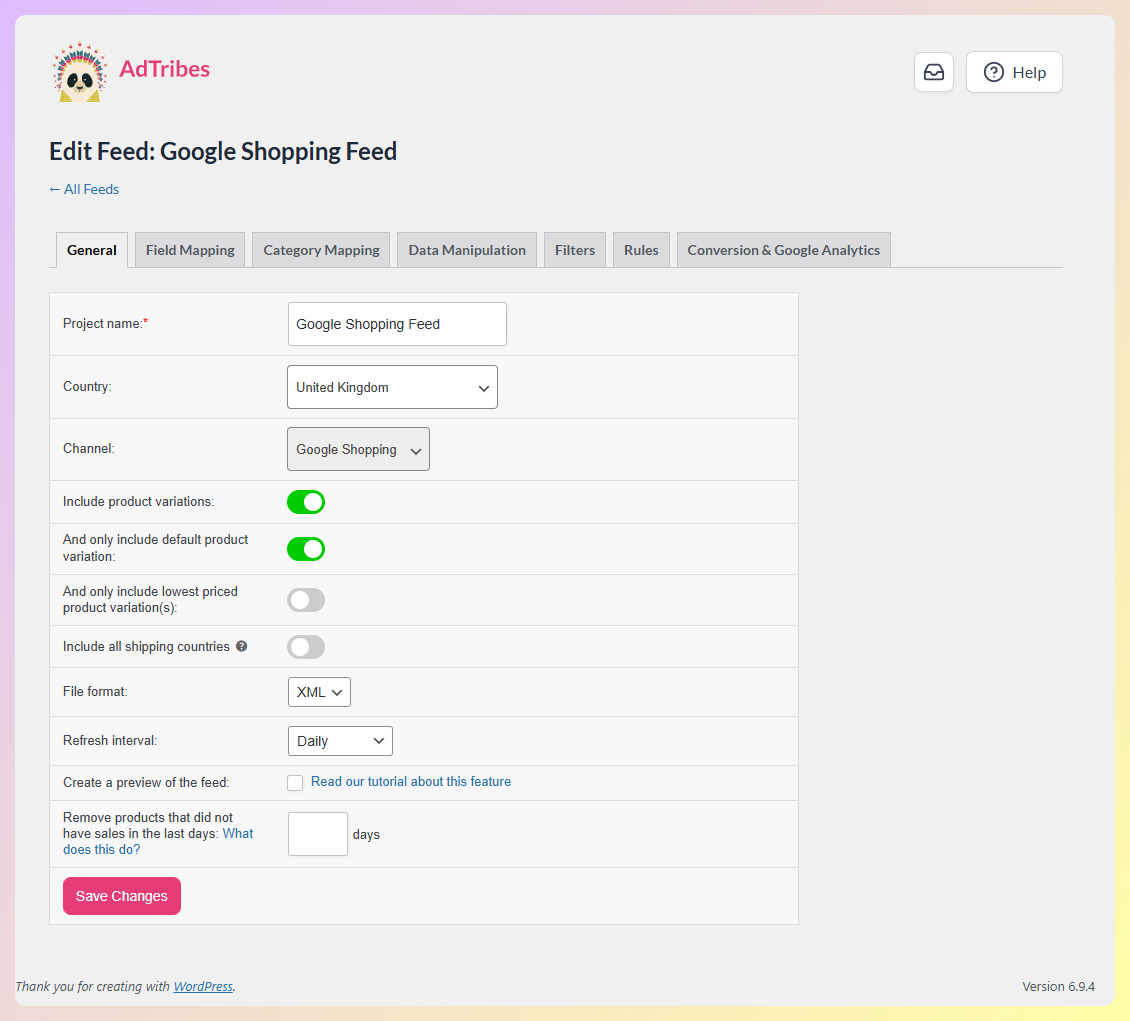
In your WordPress dashboard, navigate to AdTribes > Manage Feeds > Add New Feed.
- Channel: Select “Google Shopping” from the template library
- Feed name: Give it a descriptive name (e.g., “Google Shopping US — Main Catalog”)
- Feed format: XML (Google’s preferred format for scheduled fetch)
Step 3: Map your product fields
AdTribes pre-maps many fields automatically from your WooCommerce product data. Review and complete the key fields:
Key fields to review carefully in your WooCommerce Google Shopping feed setup:
id— your WooCommerce product SKU or post ID (auto-mapped)title— your product name (auto-mapped; optimize this — see feed optimization section)description— your product description (auto-mapped from short or long description)link— your product page URL (auto-mapped)image_link— your product image URL (auto-mapped)availability— in_stock / out_of_stock / preorder (auto-mapped from WooCommerce stock status)price— your product price with currency (auto-mapped)brand— important for many products; use the actual brand, or your store name for private-label items
Strongly recommended (improves approval rate and performance):
gtin— barcode/UPC/EAN (map from your GTIN field; use AdTribes’ GTIN fields if not already in WooCommerce)mpn— Manufacturer Part Number (for products without GTINs)condition— new / used / refurbishedproduct_type— your WooCommerce category pathgoogle_product_category— Google’s taxonomy ID for your product type
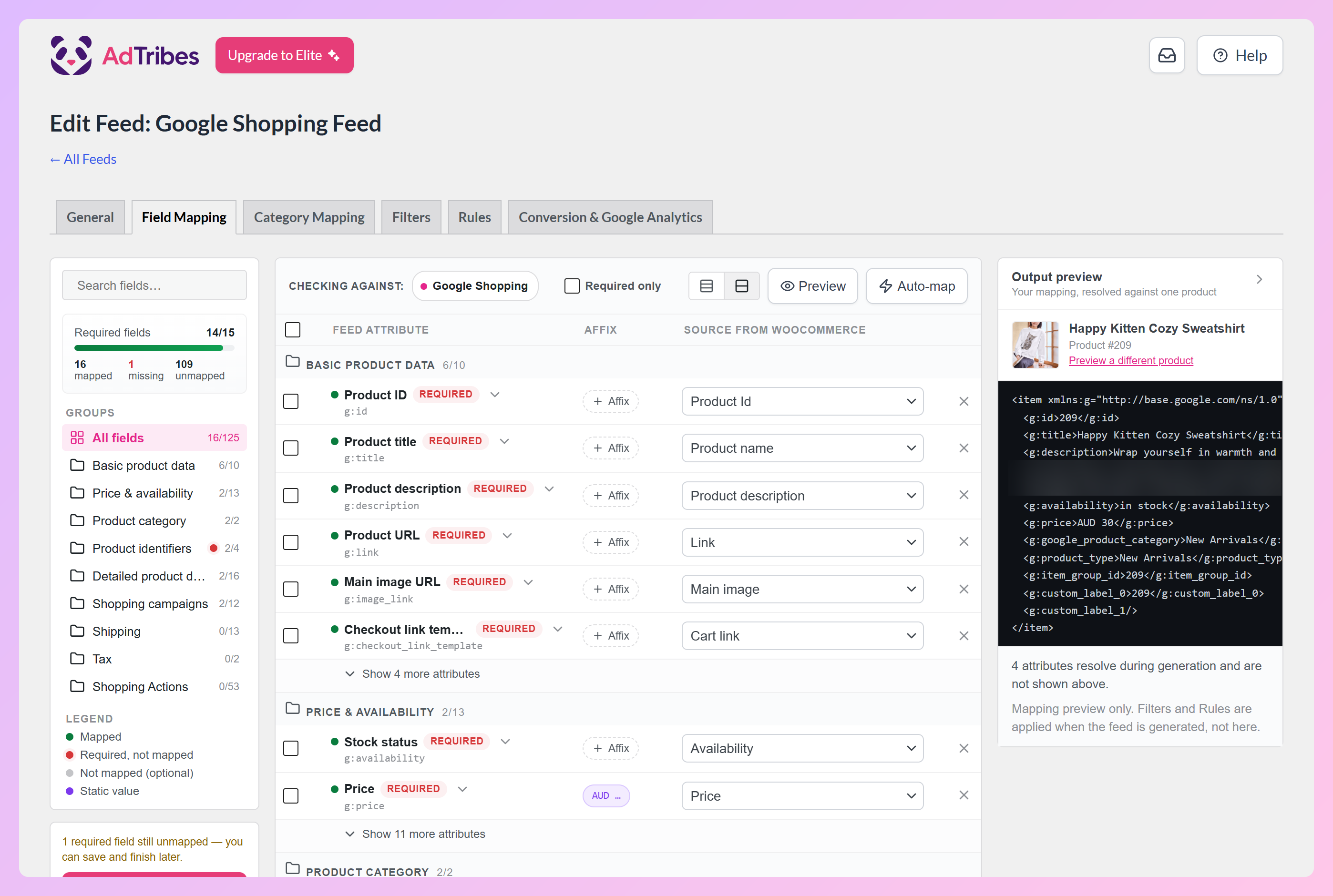
The Required fields counter at the top of the Field Mapping tab shows which of Google’s required fields are still missing, and Auto-map fills in common fields with one click.
Step 4: Use feed rules to fix data gaps
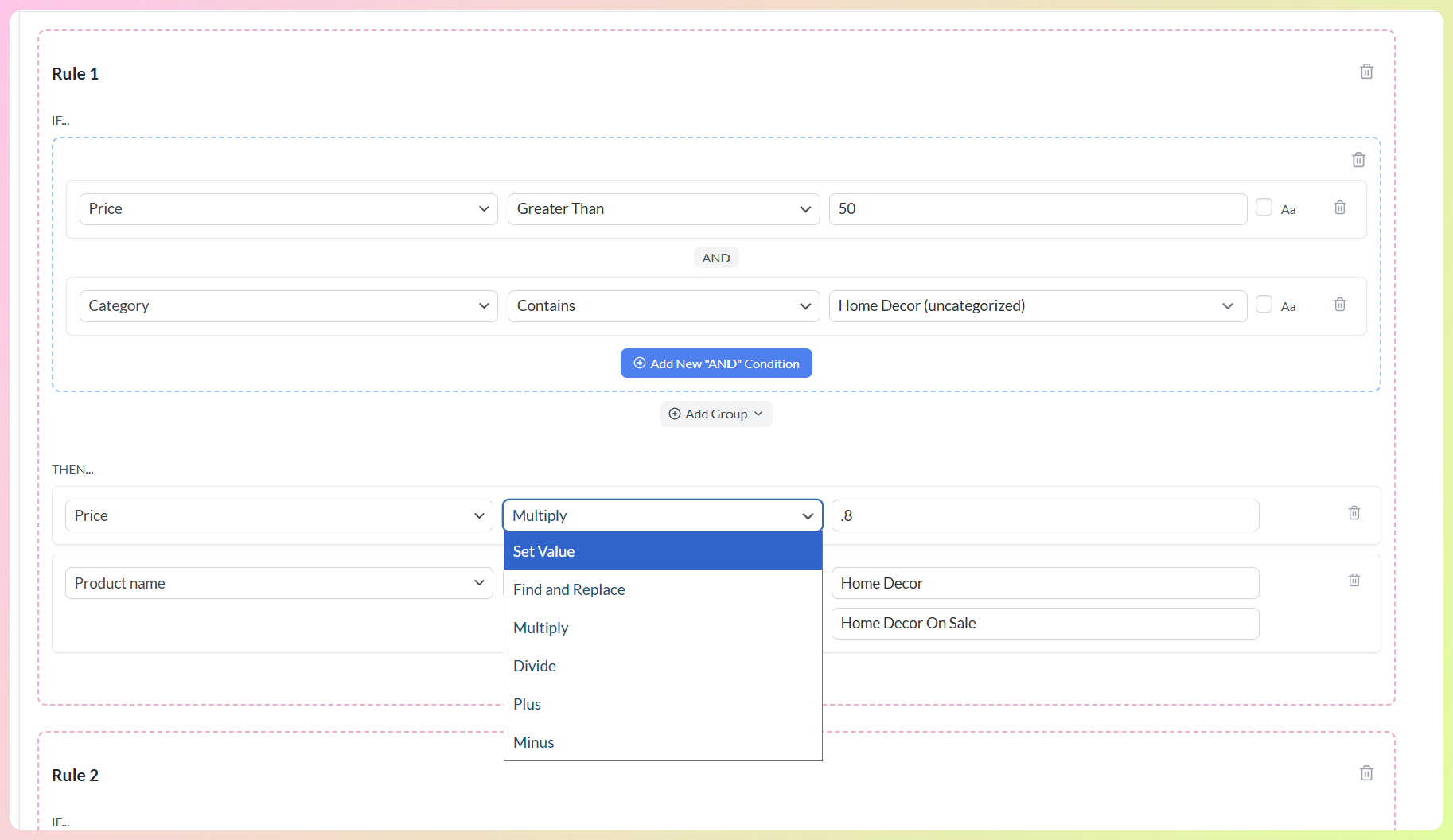
If your WooCommerce product data isn’t complete, AdTribes lets you use rules to adjust feed values without editing your store data directly. In the Rules tab, you can create IF/THEN logic such as:
- If brand is empty > set brand to “Your Store Name”
- If product title contains “blk” > replace it with “Black”
- If price is greater than 100 > set sale_price to 90
See the Google Shopping feed requirements for the complete field reference and what Google actually checks.
Step 5: Set up automatic feed refresh
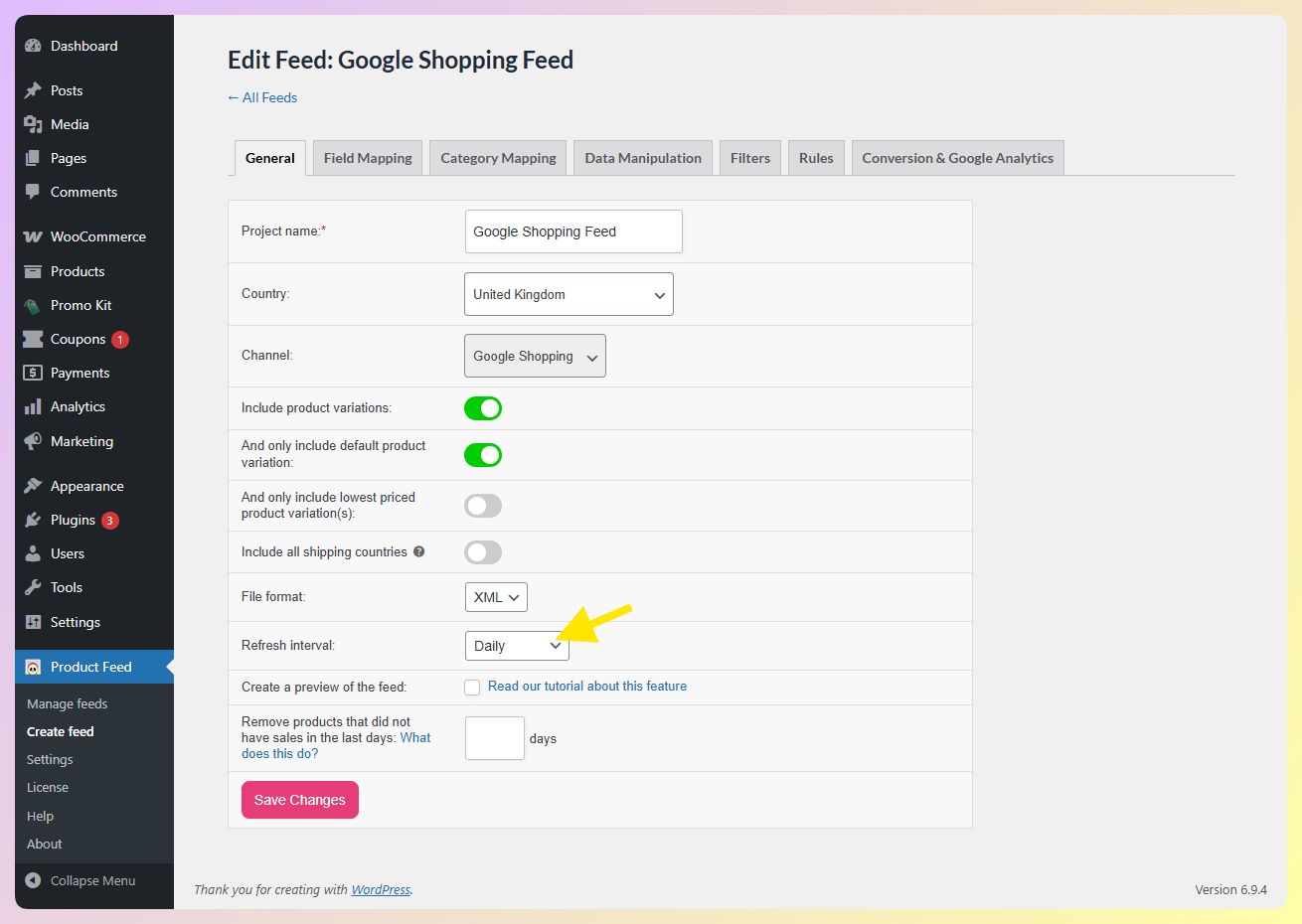
Under Feed Settings, configure your refresh schedule. For Google Shopping, a daily refresh is the minimum — more frequently if you run sales or have fast-moving inventory.
Stale feeds can cause problems when your product data no longer matches your website. Product Feed Pro supports basic scheduled refreshes such as hourly, daily, and twice daily, while Product Feed Elite adds custom refresh intervals for stores that need more control.
Step 6: Run the feed validator
Before submitting your feed to GMC, run AdTribes’ Feed Validator if you’re on a Plus or Business plan. It validates supported XML feeds, shows whether a feed is healthy or needs attention, and gives you a log you can review before rechecking.
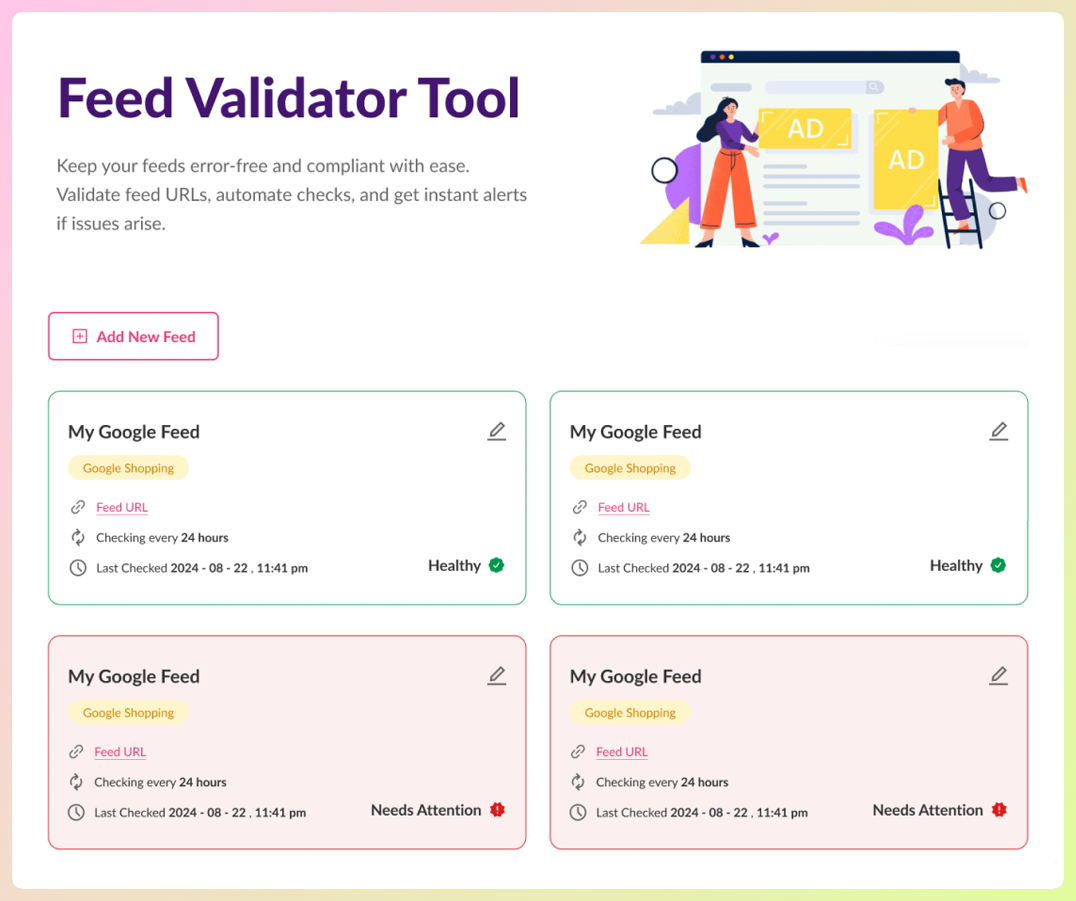
Review the issues it reports before proceeding. Catching feed problems earlier can save time and reduce avoidable submission delays.
Step 7: Submit your feed URL to Google Merchant Center
In AdTribes, copy your feed URL (shown in the feed settings). In Google Merchant Center:
- Go to Settings > Data sources
- Under Product sources, add a new product source or open the one you want to schedule
- Choose Add products from a file
- Select Scheduled fetch
- Paste your AdTribes feed URL
- Set the fetch timing to match your feed refresh schedule
- Click Save
Google will fetch your feed and begin reviewing your products. Initial product review for new accounts typically takes several business days.
Part 3: Connect To Google Ads And Launch Your Campaign
With your Merchant Center account verified and your product feed submitted, you’re ready to connect to Google Ads and create your campaign.
Step 1: Link Google Merchant Center to Google Ads
In Merchant Center, go to Settings > Access and services > Apps and services. Under Google services, choose Add service, then select Google Ads and link the account you want to use.
If the Google Ads account is managed elsewhere, enter the customer ID and send the request. Then, in Google Ads, go to Tools > Data Manager, open Google Merchant Center under connected products, review the request, and approve it.
Step 2: Create your shopping campaign
In Google Ads, click + New Campaign and select your goal:
- Sales — if you have conversion tracking set up and want Google to optimize for purchases
- Website traffic — if you want to drive clicks without conversion optimization
- Create a campaign without a goal’s guidance — recommended if you want full control
Select Shopping as the campaign type.
Step 3: Choose your campaign subtype
Google will ask you to choose between:
- Performance Max — uses your product feed and campaign inputs to serve ads across multiple Google channels. It can be useful if you want broader automation and already have solid conversion tracking in place.
- Standard Shopping — gives you more manual control over structure, bidding, and reporting for your product groups.
Not sure which to choose? See the Performance Max vs Standard Shopping comparison for a full breakdown.
Step 4: Configure campaign settings
For Standard Shopping:
- Campaign name — descriptive (e.g., “Google Shopping — All Products US”)
- Merchant Center account — select your linked GMC account
- Country of sale — where your products will be sold
- Bidding strategy — Maximize Clicks can be a reasonable starting point for some new Standard Shopping campaigns, while Target ROAS becomes more useful once you have reliable conversion value data.
- Daily budget — start conservatively; a modest daily budget is enough to gather meaningful data in the first few weeks
- Product filters — leave as “All products” to start; segment later with custom labels
For Performance Max:
- Select your GMC account and country
- Set your bidding goal (Maximize Conversion Value recommended if tracking purchases)
- Attach your Merchant Center feed, then add headlines, descriptions, images, logos, and other assets to support placements beyond Shopping when needed
Step 5: Set up conversion tracking
Shopping campaigns without conversion tracking are flying blind. Before your campaign goes live, set up Google Ads conversion tracking on your WooCommerce order confirmation page.
One common setup is to use the Google tag directly or deploy Google Ads conversion tracking through Google Tag Manager, then fire a purchase conversion on your WooCommerce order confirmation page or purchase event. Make sure the conversion records the order value accurately.
Without this, you can’t use Target ROAS bidding, and Performance Max has no signal to optimize against.
How To Improve WooCommerce Google Shopping Ads Performance With Better Feed Data
Going live is the starting point. These optimizations improve click-through rate, approval rates, and conversion performance over time. For the full guide, see AdTribes’ product feed optimization guide.
Optimize product titles first
Your product title is one of the strongest signals in your Google Shopping feed because Google uses product data to match listings to relevant searches. Clear, specific titles also make it easier for shoppers to understand what you’re selling at a glance.
It determines:
- Which searches your product is more likely to match
- How clearly shoppers understand the item in the ad
- How relevant and competitive your product data is
Use the formula: Brand + Product Type + Key Attribute(s)
The following examples are illustrative and show how title structure affects clarity.
Examples:
- “Air Max 90” > “Nike Air Max 90 Running Shoe — Men’s White/Black Size 10”
- “Leather Wallet” > “Fossil Men’s Leather Bifold Wallet — Brown, RFID Blocking”
- “Coffee Table” > “Mid-Century Modern Coffee Table — Walnut Wood, 120cm”
Use AdTribes’ feed rules to apply title transformations without editing products individually.
GTINs: required for most branded products
For many branded products, GTINs are important identifiers and may be required by Google depending on the product and market. If a required GTIN is missing or incorrect, your products can run into approval issues.
Add GTINs to WooCommerce using AdTribes’ GTIN and identifier fields. For products you manufacture yourself (no barcode), set identifier_exists = no in your feed rules — this tells Google the product genuinely doesn’t have one.
Use custom labels for cleaner campaign segmentation
Custom labels (0-4) let you tag products in your feed for campaign segmentation. Common uses:
The following table shows illustrative custom label examples. Adjust labels and values to match your store’s catalog strategy.
custom_label_0 = bestseller— bid higher on proven performerscustom_label_1 = high_margin— protect ROAS on high-margin productscustom_label_2 = sale— run separate campaigns or lower bids during sale periodscustom_label_3 = seasonal— easily toggle seasonal product groups
Set up custom labels in AdTribes through Field Mapping, then use Rules to refine the source data behind them when needed.
Images: first impressions in the shopping tab
Google Shopping is visual. Your primary product image must:
- Meet Google’s minimum size requirements: at least 100 x 100 for most non-apparel products and 250 x 250 for apparel
- Use a clear, high-quality image that shows the product accurately
- Avoid watermarks, logos, or promotional overlays
- Avoid misleading cropping or clutter that makes the product harder to understand
If your current product images have busy backgrounds or watermarks, consider reshooting key products before launching.
Common Setup Mistakes (And How To Avoid Them)
1. Submitting the feed before fixing errors
Most new stores submit their feed as soon as it’s connected, without reviewing it carefully first. Google can then surface problems like missing identifiers, price mismatches, or image issues. Review your feed before submission, and if you’re on a Plus or Business plan, use Feed Validator as an extra check.
2. Price mismatches between feed and website
If your feed says a product costs $49 but your website shows $39 (after a discount code or sale), Google flags it as a price mismatch. Set your feed to auto-refresh daily and ensure your sale price fields (sale_price and sale_price_effective_date) are correctly mapped in AdTribes.
3. Missing or wrong shipping configuration in GMC
Missing or inconsistent shipping information can cause Merchant Center issues. If the shipping details in Merchant Center don’t match what shoppers see on your site or at checkout, Google may flag the account for misrepresentation-related problems.
4. Using the wrong product titles
Generic titles like “Blue Dress” or “Men’s Shoes” don’t match how people actually search. They also make it harder for Google and shoppers to understand the product quickly. Spend time on title optimization before launch because clearer titles can improve matching and click quality.
5. Starting with too many products in one campaign
Some stores launch with their full catalog in one campaign, which can make early optimization harder. Starting with a smaller, more controlled product set can make it easier to read performance data and refine your structure before expanding. Use AdTribes’ product filters or custom labels to control which products go into your first campaign.
If you do run into disapprovals or account issues after launch, see the Google Merchant Center account suspended guide or how to fix disapproved products in GMC.
Frequently Asked Questions
How long does it take for Google Shopping ads to go live?
Initial review timing can vary. Google notes that account reviews typically take about 7 business days, and some setups may take longer. Once your products are approved and your campaign is active, ads can begin serving shortly after that.
Do I need a Google Ads account to run Google Shopping?
Yes. Google Merchant Center holds your product data; Google Ads is where you create and manage the actual advertising campaigns. Both are free to create — you only pay when someone clicks your Shopping ad. Your GMC and Google Ads accounts must be linked before you can create Shopping campaigns.
Can I run Google Shopping ads without a product feed plugin?
Technically yes — you can manually upload a spreadsheet feed to GMC. But for a WooCommerce store with more than a handful of products, manual uploads are impractical. Product data changes (prices, stock, new products) would require constant manual exports and re-uploads. A plugin like AdTribes automates this entirely, keeps your feed current automatically, and structures the data to Google’s specifications.
How much does it cost to run Google Shopping ads?
Google Shopping costs vary by category, competition, margins, and bidding strategy. You control spend through your daily budget, so many stores start with a modest test budget, then scale once they see which products and searches are performing.
Wrapping Up
Setting up WooCommerce Google Shopping ads in 2026 comes down to three core pieces: a verified Merchant Center account, a well-structured product feed, and a campaign setup you can actually measure. Feed quality matters because incomplete identifiers, weak titles, or mismatched pricing can limit visibility and cause approval issues.
In this guide, we covered:
- What you’ll need before you start
- How to set up Google Merchant Center
- How to create your WooCommerce product feed with AdTribes
- How to connect Google Ads and launch your campaign
- Ways to improve performance with better feed data
- Common setup mistakes to avoid
- Answers to frequently asked questions
AdTribes helps you manage the feed layer with field mapping, feed rules, and scheduled refreshes. If you need more advanced control, Product Feed Elite adds extra feed tools, and the Feed Validator is available on Plus and Business plans.
Hope this guide helped!