
Product Feed Elite rozszerza Narzędzie do tworzenia reguł o akcje, które wykraczają poza proste zastępowanie tekstu. Akcja Ustaw Atrybut pozwala pobrać bieżącą wartość z jednego atrybutu kanału i zapisać ją w innym dla produktów, które pasują do warunków Twojej reguły. W ten sposób możesz wyrównać pola kanałów, ponownie wykorzystać dane, które już mapujesz gdzie indziej, i zachować kontrolę nad tym, co otrzymuje każdy rynek.
Poniżej dowiesz się, gdzie znaleźć Ustaw Atrybut, jak działa podczas generowania kanału, czym różni się od Ustaw Wartość i zobaczysz praktyczne przykłady optymalizacji kanału.
Wymagania wstępne
- Product Feed Elite dla WooCommerce (akcja nie jest dostępna w Product Feed Pro; Pro może wyświetlać Ustaw Atrybut (Elite) jako monit o uaktualnienie).
- Kanał używający zakładki Reguły w nowym Narzędziu do tworzenia reguł (kanały zapisane z danymi reguł w wersji 13.4.6 lub nowszej, chyba że polegasz na starszych regułach).
Jeśli dopiero zaczynasz przygodę z regułami warunkowymi, zacznij od Jak tworzyć reguły kanałów produktów w bazie wiedzy AdTribes.
Gdzie znaleźć „Ustaw atrybut”
- Przejdź do Kanał produktów → Zarządzaj kanałami.
- Otwórz istniejący kanał lub utwórz nowy.
- Otwórz zakładkę Reguły w nawigacji kroków kanału.
- W sekcji WTEDY reguły skonfiguruj trzy części w jednym wierszu:
- Pierwszy dropdown – Atrybut docelowy (pole, którego wartość chcesz ustawić w kanale).
- Środkowy dropdown – Wybierz Ustaw Atrybut jako typ akcji.
- Trzeci dropdown – Atrybut źródłowy (pole, którego wartość chcesz skopiować).
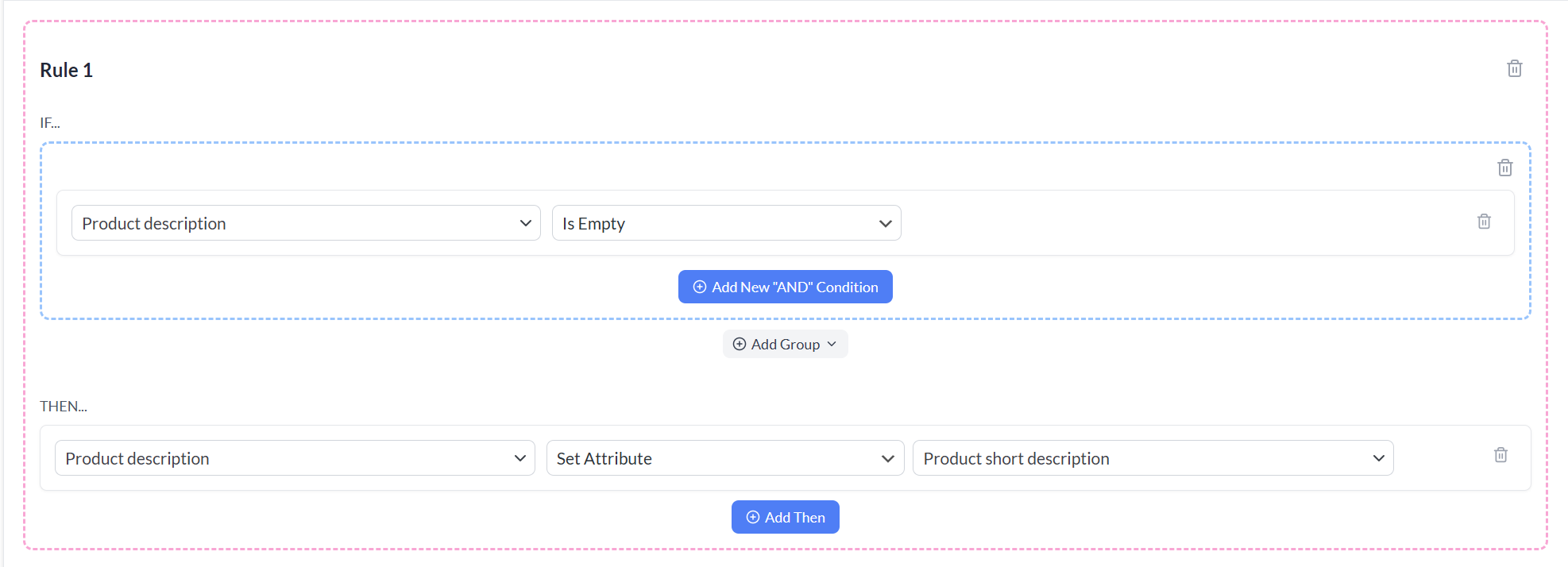
Po zapisaniu, ponownym wygenerowaniu lub odświeżeniu kanału, reguła zostanie zastosowana przy następnym budowaniu.
Jak działa „Ustaw atrybut”
Gdy warunki JEŚLI reguły są prawdziwe dla produktu, wtyczka aktualizuje wiersz kanału w pamięci dla tego produktu. Najpierw rozważ, co robi każda kolumna:
- Atrybut docelowy otrzymuje bieżącą wartość atrybutu źródłowego z danych kanału tego samego produktu w danym momencie przetwarzania.
- Jeśli atrybut źródłowy nie ma wartości (brak lub pusty), cel jest ustawiany na pustą wartość dla tego produktu.
Co ważne, wpływa to tylko na wynik w pliku kanału. Twoje dane produktów WooCommerce w panelu administracyjnym nie są modyfikowane. Podobnie, inne kanały na Twojej stronie pozostają niezmienione, chyba że używają tej samej konfiguracji reguł.
Ustaw Atrybut vs Ustaw Wartość
| Akcja | Co wybierasz w kolumnie wartości | Wynik |
|---|---|---|
| Ustaw Wartość | Wpisujesz stały ciąg znaków (lub tekst zastępczy) | Atrybut docelowy jest zastępowany tym dosłownym tekstem (ze zwykłą obsługą pola przez wtyczkę). |
| Ustaw Atrybut | Wybierasz inny atrybut z listy rozwijanej | Atrybut docelowy jest zastępowany przez wartość atrybutu źródłowego dla tego produktu w potoku feedu. |
Użyj Ustaw wartość, gdy każdy pasujący produkt powinien otrzymać ten sam tekst (na przykład, statyczną etykietę niestandardową). Użyj Ustaw atrybut, gdy prawidłowy wynik powinien odzwierciedlać inne pole (na przykład, skopiuj swoją zmapowaną Markę do pola specyficznego dla kanału, gdy obowiązuje reguła).
Kolejność reguł
Reguły są oceniane po kolei. Jeśli wiele reguł zmienia ten sam atrybut docelowy, późniejsza reguła może nadpisać wynik wcześniejszej. Jeśli reguła A kopiuje pole X do Y, a reguła B później zmienia X, Y nie zaktualizuje się automatycznie, chyba że uruchomiona zostanie inna reguła, która ponownie ustawi Y — zaplanuj sekwencję odpowiednio.
Typowe przypadki użycia
- Dopasowanie specyficzne dla kanału – Niektóre kanały oczekują dedykowanej kolumny, podczas gdy Twój sklep przechowuje tę samą ideę pod innym atrybutem. Na przykład, gdy warunek pasuje (taki jak kategoria lub marka), skopiuj zmapowane źródło do wymaganego celu.
- Warunkowe nadpisywanie – Połącz logikę JEŻELI z Ustaw atrybut, aby tylko niektóre produkty miały pole wypełnione z innego atrybutu, podczas gdy inne zachowają swoje normalne mapowanie.
- Optymalizacja feedu bez edycji katalogu – Dostosuj sposób wyświetlania danych na kanał bez edycji tysięcy produktów w WooCommerce.
- Obejście brakujących dedykowanych metadanych – Jeśli jedno pole jest niezawodnie wypełnione, a inne powinno wyświetlać te same informacje pod określonymi warunkami, Ustaw atrybut pozwala uniknąć podwójnego ręcznego wprowadzania danych w katalogu.
Pomysły na wypełnianie luk, gdy pole jest puste, znajdziesz w Jak utworzyć regułę „Jeśli pole Y jest puste, zrób X”?. W kwestii mapowania, kategoria Pola i mapowanie w bazie wiedzy jest pomocnym uzupełnieniem.
Wskazówki i rozwiązywanie problemów
- Oba atrybuty muszą istnieć w danych feedu – Źródło musi być obecne w danych produktu, gdy reguły są uruchamiane. Jednakże, jeśli źródło nigdy nie jest wypełnione dla danego produktu, cel otrzyma pustą wartość po zastosowaniu reguły.
- Listy atrybutów i wydajność – Jeśli listy rozwijane atrybutów są bardzo długie, opcja Pokaż tylko podstawowe atrybuty (w Ustawienia → Ogólne) zmienia, które atrybuty niestandardowe są wyświetlane; upewnij się, że wszystkie atrybuty potrzebne do reguł są nadal widoczne na tych listach.
- Testuj z podglądem lub małą partią – Po zapisaniu reguł wygeneruj feed. Następnie sprawdź kilka SKU, aby potwierdzić, że kolumna docelowa pokazuje oczekiwane skopiowane wartości.
- Pro vs Elite – W Product Feed Pro, Ustaw atrybut jest funkcją Elite; aktywacja Elite włącza akcję i zmienia jej nazwę na Ustaw atrybut w interfejsie użytkownika.
Potrzebujesz dalszej pomocy?
Jeśli potrzebujesz pomocy z regułami lub konfiguracją kanału, prosimy o utworzenie nowego zgłoszenia, aby skontaktować się z naszym zespołem wsparcia.
Proszę pamiętać, że system wsparcia biletowego jest dostępny wyłącznie dla użytkowników Product Feed Elite.
Jeśli używasz tylko wtyczki Product Feed Pro, możesz otworzyć nowy temat na forum WordPress.org.

