
Snapchat product catalog feeds connect your WooCommerce store to Snapchat Ads Manager so you can run Dynamic Ads, Collection Ads, and other shopping formats that pull live product data directly from your store. A well-mapped feed helps Snapchat match your products to the right audiences and avoids catalog review errors.
By the end, you’ll have a live Snapchat Product Catalog feed URL wired up to Snapchat Ads Manager, with accurate brand, GTIN, and MPN data ready for Dynamic Ads. Both Product Feed Pro and Product Feed Elite support the Snapchat channel — this guide covers everything from channel selection through field mapping to Ads Manager setup. For Snapchat’s official field requirements, see the Snapchat Product Catalog specification.
What you need before you start
Before you begin, make sure you have the following in place:
- A WooCommerce store with live product pages and images.
- Product Feed Pro or Product Feed Elite is installed and activated.
- A Snapchat Business account with access to Snapchat Ads Manager and permission to manage catalogs.
- A catalog created in Snapchat (or permission to create one) where you’ll attach the product feed.
Also, prepare accurate brand, GTIN, and MPN data ahead of time. Snapchat treats these as required identifiers, and missing values can cause catalog errors or rejected products.
Step-by-step instructions
Create a new feed
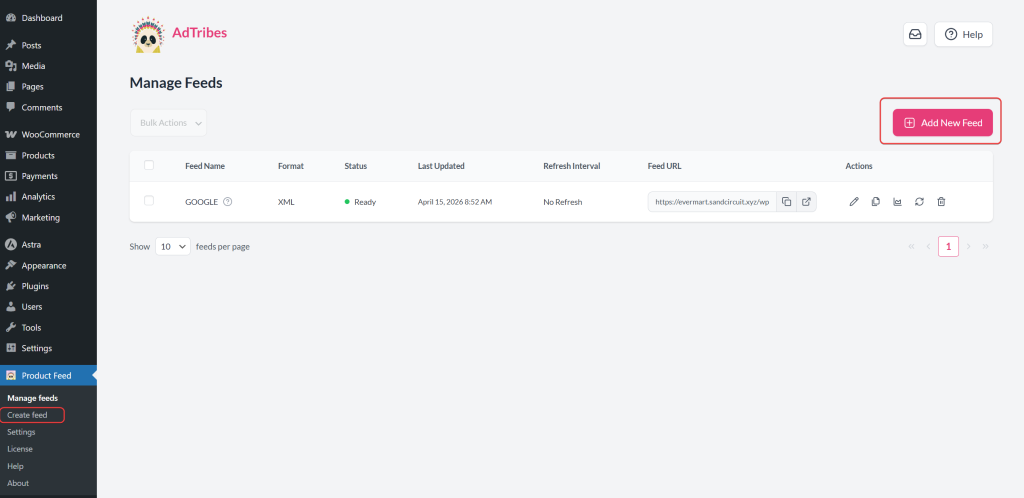
- Log in to WordPress and open Product Feed from the admin menu.
- Click Add New Feed to start the feed creation wizard.
- The wizard opens directly at the General settings step.
Configure general settings
The General step is where you choose your channel and configure the core feed settings. Start with the channel, then fill in the remaining fields.
Find the Channel field, type Snapchat Product Catalog, and select it from the results. This template is built for Snapchat’s product catalog format and uses the Google product taxonomy for category mapping — the same approach as Pinterest, TikTok, and other catalog-style channels in the plugin.
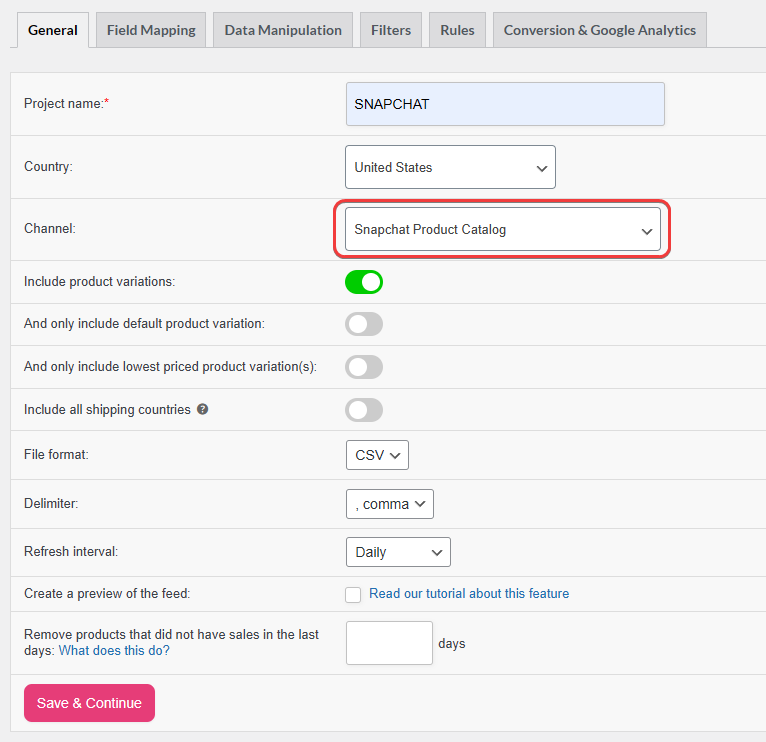
Then fill in the remaining settings:
| Setting | Description |
|---|---|
| Project name | Enter a clear, descriptive name (for example, Snapchat Catalog – AU) so the feed is easy to identify in your feed list. |
| Country | Select the target country for your catalog. This determines how the feed is formatted and which currency Snapchat expects. |
| File format | Select CSV; this is the most reliable format for Snapchat catalog data sources. |
| Refresh interval | Set to Daily as a baseline. Switch to Hourly if your prices or inventory change throughout the day. |
| Include variations | Enable this if you sell variable products. Each purchasable variant appears as its own row in the feed with its own ID, price, and attributes. |
| Create a preview | Keep this enabled during setup. It generates a small sample batch so you can catch mapping errors before the full feed runs. |
Click Save & Continue to proceed to the Field Mapping step.
Map required attributes
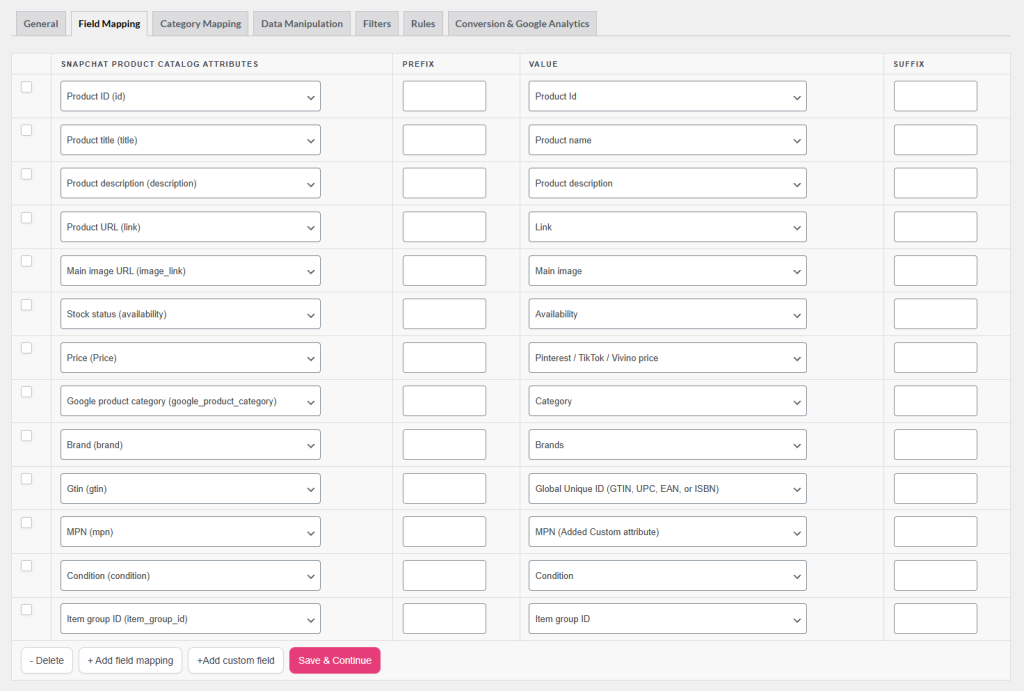
Open the Field Mapping step and review every required field. The Snapchat template pre-fills many mappings automatically, but always verify them against your actual store data.
Required fields
| Output field | Suggested WooCommerce mapping | Notes |
|---|---|---|
id | Product ID | Must stay stable over time — this is the unique row identifier in your feed. |
title | Product title | Avoid all-caps text or promotional language in the title. |
description | Description | Use plain, factual copy. Snapchat displays this in product detail views. |
link | Product URL | Must resolve with HTTP 200 and match the advertised product exactly. |
image_link | Main image | Use publicly accessible HTTPS image URLs. Aim for at least 500 × 500 px. |
availability | Stock status | Maps to values such as in stock, out of stock, or on backorder. |
price | Price | Map to the standard Price attribute. Add your store’s currency code in the Suffix field for this row to output it in ISO-4217 format — see the price tip below. |
google_product_category | Google category | Complete this in the Category Mapping step using the Google taxonomy. |
brand | Brand | Use your real, consistent brand name across all products. |
gtin | GTIN / EAN / UPC | Use manufacturer-issued codes only. Required where available. |
mpn | MPN | Important as a fallback when GTIN is unavailable. |
condition | Condition | Usually new for most WooCommerce stores. |
item_group_id | Item group ID | Required. For variable products, all variants must share the same group ID; for simple products, the plugin auto-fills it from the product ID. |
Optional but valuable fields
| Field | Purpose |
|---|---|
additional_image_link | Extra product images for richer listings in Dynamic Ads. |
sale_price | Promotional price displayed alongside the regular price. |
sale_price_effective_date | Schedule when a sale price is active — useful for timed promotions. |
product_type | Your store’s own category path — helps Snapchat classify products. |
color, size, gender, age_group | Descriptive attributes that improve targeting and product filtering. |
custom_label_0 – custom_label_4 | Custom segmentation labels for campaign targeting in Ads Manager. |
address | Store or pickup address, if relevant to your product type. |
If a required field is missing for some products, use Rules to fall back to a static value or pull from another attribute. For detailed instructions, see How to create product feed rules.
Map app metadata (optional)
If you have a mobile app and want to enable deep linking from Snapchat ads into your app, the plugin supports the following optional fields under App product metadata:
| Field | Purpose |
|---|---|
ios_app_name | Name of your iOS app. |
ios_app_store_id | Your app’s Apple App Store ID. |
ios_url | Deep link URL for iOS. |
android_app_name | Name of your Android app. |
android_package | Your Android app’s package name. |
android_url | Deep link URL for Android. |
mobile_link | General mobile deep link as a fallback. |
Most WooCommerce store owners can skip this section unless they’re running a dedicated mobile app alongside their store. For the mobile app side of deep-link setup, see Snapchat’s App Deep Linking documentation in the Snapchat Business Help Center.
Map categories to Google Product Categories
The Snapchat channel uses the Google Shopping taxonomy. Open the Category Mapping step and assign each WooCommerce category to the closest Google Product Category.
Accurate category mapping helps Snapchat place your products in the right contexts. If no exact match exists, choose the nearest parent category rather than leaving rows blank.
Add filters and rules (optional)
Use Filters to exclude products you don’t want in your Snapchat catalog — for example, products without images, digital goods, or items currently out of stock. Use Rules to normalize titles, fill in missing brand values, or enforce consistent formatting across your catalog.
For detailed instructions, see How to create filters for your product feed and How to create product feed rules.
Save, generate, and copy the feed URL
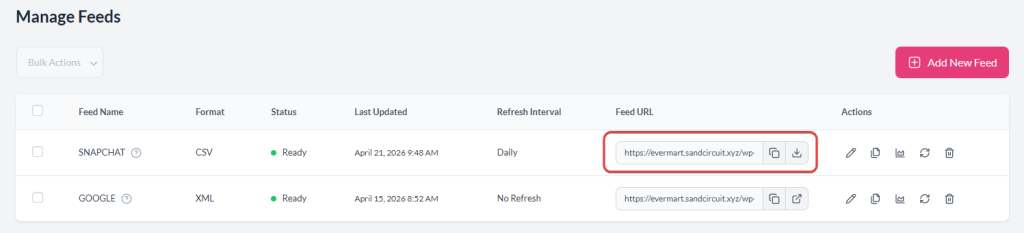
Click Generate Product Feed and wait until the feed status shows Ready. Then open Manage feeds, find your Snapchat feed, and copy the public feed URL.
Test the URL in a private browser window: it should download or display the feed without needing to be logged in to WordPress.
Connect the feed in Snapchat Ads Manager
With your feed URL ready, sign in to Snapchat Ads Manager and connect it to your catalog. For the full walkthrough from Snapchat, see the official guide on Adding a data source to your catalog in the Snapchat Business Help Center.
The flow typically looks like this:
- Open the Catalogs section (usually under Business Manager or the main menu).
- Select your existing catalog or create a new one. If you haven’t set one up yet, see Set up a product catalog for instructions.
- Add a Product Feed (or Data Source) and choose Scheduled Fetch so Snapchat automatically pulls updates on a schedule.
- Paste the feed URL from the plugin.
- Set the file format to match what you configured in the plugin (CSV if you followed the recommendation above), and match the refresh schedule to your feed settings.
- Save and run an initial sync. Fix any errors Snapchat reports in the catalog diagnostics view.
After a successful sync, your products are available for Dynamic Ads, Collection Ads, and any other formats that use your catalog.
Troubleshooting
29.99 USD). Add your store’s currency code in the Suffix field for the Price row in field mapping — for example, enter USD (with a leading space). Regenerate the feed after making any changes.id value so they can still be individually tracked.google_product_category as required, so blank values can cause products to be rejected.Frequently asked questions
ios_url, android_url, etc.) are optional and only relevant if you have a mobile app with deep linking set up. Most WooCommerce store owners can leave these blank.Need further assistance?
If you need any further assistance with the Snapchat Product Catalog feed, feel free to open a support ticket to reach out to our support team.
Please note that the ticket support system is exclusive to Product Feed Elite users.
If you’re using only the Product Feed Pro plugin, feel free to open a new topic in the WordPress.org forum.
Meta description: Set up a Snapchat Product Catalog feed from your WooCommerce store with Product Feed Pro or Elite. Map required attributes, connect to Ads Manager, and go live fast.

