
Selling on Amazon alongside your WooCommerce store means keeping your inventory, pricing, and product data in sync across two platforms. Without a structured export, that means copying and pasting hundreds of rows by hand every time a price changes or a product sells out. The Amazon channel in Product Feed Pro generates a tab-separated flat-file inventory loader you can upload directly to Amazon Seller Central, so your products stay current without the manual effort.
Prerequisites
Before you set up your Amazon feed, make sure you have:
| Requirement | Details |
|---|---|
| Plugin version | Product Feed Pro 13.5.5 or later. Amazon feed support was added in this release. |
| WooCommerce store | Products must be published and have stock, price, SKU, and an image set |
| Amazon Seller account | An active account on Amazon Seller Central is required to upload and submit a feed |
| Product identifiers | Each product needs a barcode (UPC, EAN, or ISBN) or an existing ASIN for Amazon to match it in its catalog |
How to create an Amazon product feed
Step 1: Open the feed setup page
In your WordPress admin sidebar, go to Product Feed → Create feed.
Step 2: Name your feed and select the Amazon channel
On the General tab:
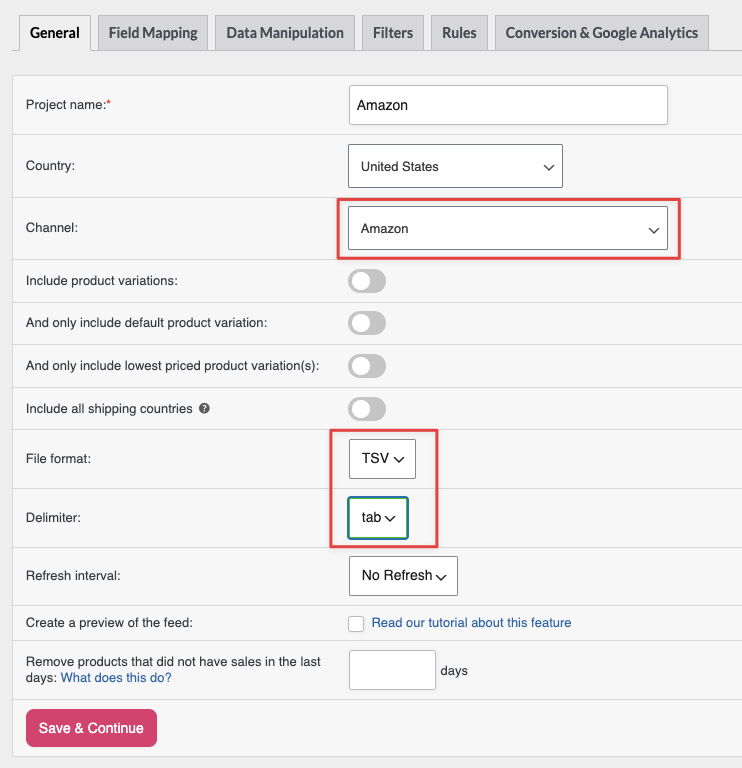
- Enter a name for your feed in the Project name field, for example
Amazon Inventory Feed. - Open the Channel dropdown and select Amazon.
- In the File format dropdown, select TSV (tab-separated values). TSV is the recommended format for Amazon Seller Central. The dropdown also offers TXT and CSV. Choose TSV unless your Amazon category template specifies otherwise.
- Choose your target country from the Country dropdown.
- Click Save & Continue to move to the Field Mapping tab.
Step 3: Map required Amazon attributes
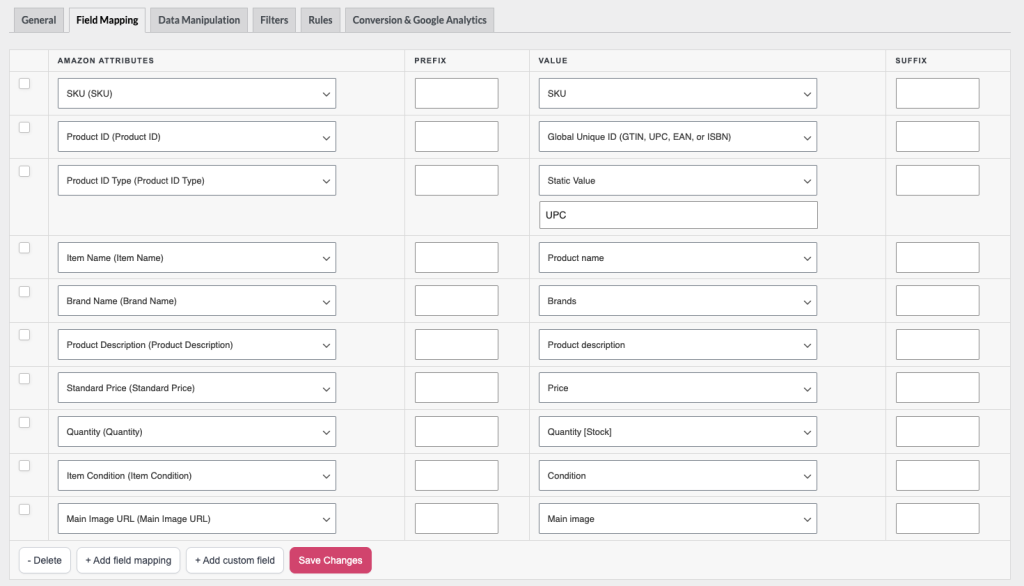
On the Field Mapping tab, you’ll see the Amazon attributes column listing Amazon’s required and optional fields, and the Value column where you map each field to a WooCommerce source.
Product Feed Pro pre-fills several required fields automatically. Confirm each mapping is set correctly before saving.
Required attributes
| Amazon attribute | Feed field | Pre-filled with | What to check |
|---|---|---|---|
| Item Name | item-name | Product name | Confirm this maps to your product title |
| Brand Name | brand-name | (no default) | Set to a static value or a custom attribute holding your brand name |
| Product ID | product-id | Product Id | Defaults to the WooCommerce internal product ID. This must be changed to a real product identifier (see below) |
| Product ID Type | product-id-type | (no default) | Must match whatever identifier you put in Product ID. See accepted values below. |
| SKU | sku | SKU | Confirm your WooCommerce products have a SKU set |
| Standard Price | standard-price | Price | Change this to Regular price. Amazon expects the list price here, not the active price. If a product is on sale and you leave this mapped to Price, Amazon receives the sale price as the standard price and won’t recognise your promotion |
| Quantity | quantity | Quantity [Stock] | Maps to the current stock quantity. Enable stock management in WooCommerce for this to work. |
| Item Condition | item-condition | Condition | Enter a static value such as New. See the Amazon Seller Central help for accepted condition values. |
| Product Description | product-description | Product description | Maps to the full WooCommerce product description |
| Main Image URL | main-image-url | Main image | Confirm each product has a main image set |
Setting up Product ID and Product ID Type
These two fields work as a pair, and both need to be set correctly. An error in either one will cause Amazon to reject the upload.
Product ID is the actual identifier value for each product (for example, a 13-digit EAN barcode or an Amazon ASIN string). The plugin defaults this to the WooCommerce internal product ID (a simple integer like 42). Amazon cannot use that internal ID to match or create listings in its catalog, so you must remap it to a real identifier.
Product ID Type tells Amazon what kind of identifier you are supplying. Amazon accepts four values:
| Value | Identifier | When to use |
|---|---|---|
ASIN | Amazon Standard Identification Number | You are adding to an existing Amazon listing and have the ASIN stored in a product field |
UPC | Universal Product Code (12 digits) | Your products have a UPC barcode, common for products sold in North America |
EAN | European Article Number (13 digits) | Your products have an EAN barcode, common for products sold in Europe and internationally |
ISBN | International Standard Book Number | Your products are books |
How to remap Product ID to the right field:
- In the Field Mapping tab, find the Product ID row and open the value dropdown.
- Select the attribute that holds your real identifier, for example, a GTIN field added by a plugin such as Yoast WooCommerce SEO, a custom product attribute named
asinorbarcode, or any other field where you store the identifier. - In the Product ID Type row, enter the static value that matches your identifier:
ASIN,UPC,EAN, orISBN.
If your products don’t have barcodes or ASINs yet, you have two options:
- Obtain the correct identifier from your product supplier or your own barcode registrar (such as GS1).
- Apply for a GTIN exemption in Amazon Seller Central. This lets you list certain products without a standard barcode, but eligibility depends on your product category and brand.
Step 4: Map optional attributes
The following attributes are optional but recommended. They improve your listing quality and can help your products rank better in Amazon search.
| Amazon attribute | Feed field | Pre-filled with | When to use |
|---|---|---|---|
| Sale Price | sale-price | Sale price | Map this when you run promotions. Amazon displays it as a discounted price alongside the Standard Price. Requires Sale From Date and Sale End Date to be set |
| Sale From Date | sale-from-date | (no default) | Start date for the sale window, required when the Sale Price is set |
| Sale End Date | sale-end-date | (no default) | End date for the sale window, required when Sale Price is set |
| Manufacturer | manufacturer | (no default) | Add if your brand name and manufacturer differ |
| Bullet Point 1–5 | bullet-point1 – bullet-point5 | (no default) | Map to product attributes or short description highlights. These appear as product feature bullets on the Amazon listing. |
| Other Image URL 1–8 | other-image-url1 – other-image-url8 | (no default) | Map to your WooCommerce gallery images |
| Recommended Browse Nodes | recommended-browse-nodes | Category | Maps to the WooCommerce product category and helps Amazon place your product in the right browse node. |
| Merchant Shipping Group Name | merchant-shipping-group-name | (no default) | Required only if you have multiple shipping templates in Seller Central and want to assign a specific one |
| Currency | currency | (no default) | Amazon determines currency from your marketplace. You do not need to include a currency code in the price value itself. Only map this field if a specific Amazon template you’re using requires a separate currency column |
| Condition Note | condition-note | (no default) | Required when Item Condition is anything other than New |
For instructions on mapping fields, using static values, or writing custom attribute logic, see How To Add Fixed Value To Your Product Feed?.
Step 5: Apply filters and rules (optional)
Use the Filters tab to exclude products you don’t want in the Amazon feed, for example, products that are out of stock or below a minimum price. Use the Rules tab to transform values before they appear in the feed, such as prepending your brand name to every product title.
For detailed instructions, see How To Create Filters For Your Product Feed? and How to Create Product Feed Rules.
Step 6: Generate the feed
Click Save & Continue to progress through any remaining tabs. On the Conversion & Google Analytics tab, click Generate Product Feed to start feed generation. Product Feed Pro processes your WooCommerce catalog and produces the feed file in your chosen format.
Once the feed finishes processing, copy the feed URL from the Manage Feeds page. You’ll use this URL to download the file for Amazon.

Step 7: Submit the feed to Amazon Seller Central
- Open Amazon Seller Central and log in to your account.
- Go to Catalog → Add Products via Upload.
- Select the Upload your inventory file tab.
- Download your feed file: open the feed URL from Step 6 in your browser, then save the file to your computer.
- Choose the downloaded feed file using the Browse button and click Upload.
- Amazon processes the file and sends a status report to your registered email address, typically within 30 minutes.
- Check the Monitor Upload Status section to review any processing errors before your listing changes go live.
Troubleshooting
product-id field doesn’t match what you specified in product-id-type. If you’re supplying a UPC barcode, make sure product-id-type is set to UPC. If you’re supplying an Amazon ASIN, set it to ASIN. Open the Field Mapping tab and correct the Product ID Type field.*.local, localhost, or similar), Amazon won’t be able to reach it.FAQ
Need more help?
If you’re using Product Feed Elite and need hands-on help with your Amazon feed setup, open a support ticket from your account.
If you’re on Product Feed Pro, post your question in the WordPress.org support forum.

