
If you’re running Facebook or Instagram ads and want to track what customers do after clicking through to your store, you need the Meta (Facebook) Pixel set up correctly. The Pixel tracks actions such as product views, add-to-cart events, and purchases, giving your ad campaigns the data they need to optimize performance.
This guide shows you how to enable Facebook Pixel tracking in Product Feed Pro, connect it to your Meta catalog, and verify that events are firing correctly — so your store fires Pixel events on every key page with Content IDs aligned to your catalog, and dynamic ads work correctly.
For regional or language-specific Facebook feeds, see How to Create Facebook Country or Language Override Feed in the AdTribes knowledge base.
Prerequisites
| Requirement | What this means |
|---|---|
| WooCommerce | Your WooCommerce store must be installed and running with products added. The main shop pages (Shop, Cart, and Checkout) should already be working. |
| Product Feed Pro | The Product Feed Pro plugin must be installed and activated. You can find the Pixel settings in Product Feed → Settings → General in your WordPress dashboard. This plugin enables the Meta Pixel integration used in this guide. |
| Meta Pixel ID | You need a Pixel ID from Meta Events Manager. This ID connects your store to Meta so it can track visitor activity from your ads. |
| (Optional) Conversions API Token | If you plan to enable Meta Conversions API (CAPI) for more reliable tracking, you also need a CAPI access token from Meta Events Manager. |
If you don’t yet have a Pixel ID, follow the steps below to create or find your Facebook Pixel ID in Meta.
Create or Find your Facebook Pixel ID in Meta
Meta does not generate the Pixel ID inside WordPress. Instead, you create a Facebook Pixel (sometimes labeled as a web dataset) in Meta Events Manager, then copy the numeric ID into Product Feed → Settings. The plugin expects a plain number (no spaces or letters).
If you already have a Pixel
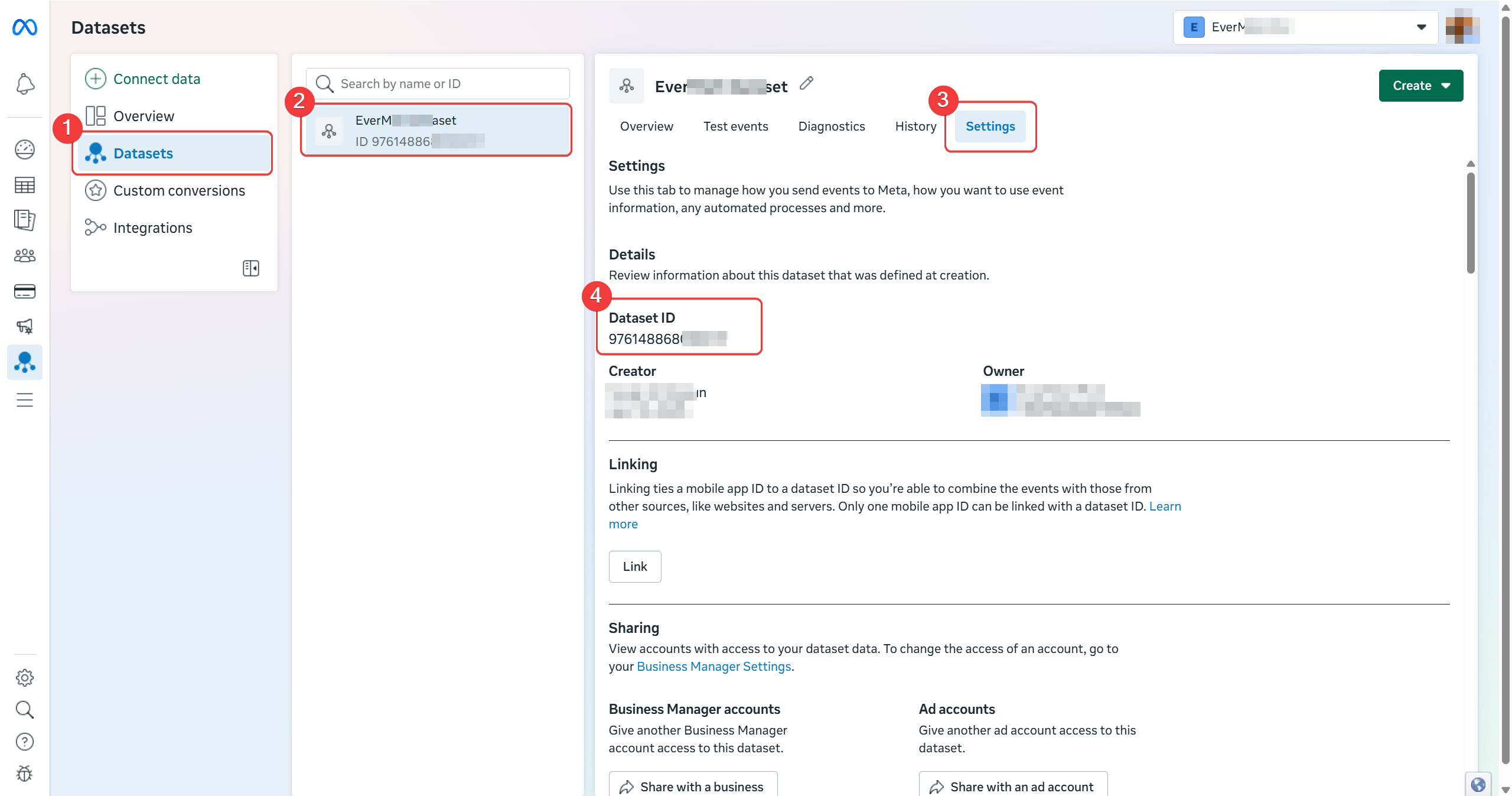
- Open Meta Events Manager.
- In the left sidebar, under Data sources (or Datasets), click the Pixel you use for this store.
- Open the Settings tab (or the overview header, depending on Meta’s layout).
- Copy the Pixel ID (a long number, often 15–16 digits). This is the value you paste into Insert your Facebook Pixel ID in Product Feed Pro.
If you need to create a new Pixel
- Open Meta Events Manager while logged into a Meta account that can manage your Business Portfolio (or the business that will own ads and catalogs).
- Click Connect data sources (or Add / + near data sources—wording varies by account).
- Choose Web, then continue until you can select Facebook Pixel (Meta may present this as connecting a website or Pixel).
- Enter a name for the Pixel (for example, your store name), then finish the short setup wizard.
- After Meta creates the Pixel, open its Settings (or overview) and copy the Pixel ID shown there.
Tips: If you do not see ‘Connect data sources’ or ‘Create Pixel’, your user may lack Business permissions. Ask a Business admin to create the Pixel or invite you with a role that can manage Events Manager. Moreover, you can use one Pixel per store; avoid creating duplicates unless you intentionally split brands or regions.
For the official walkthrough on how to update the UI when Meta changes it, refer to Meta’s documentation: Get started with the Meta Pixel (use their current steps as the source of truth).
Enable the Facebook Pixel and enter your Pixel ID
Follow these steps to connect your store with Meta (Facebook) tracking.
- Go to WP Admin → Product Feed → Settings.
- Open the General tab.
- Toggle on Add Facebook Pixel. This activates the Pixel on your website.
- In the Insert your Facebook Pixel ID field, paste your Pixel ID from Meta Events Manager.
- Click Save Changes.
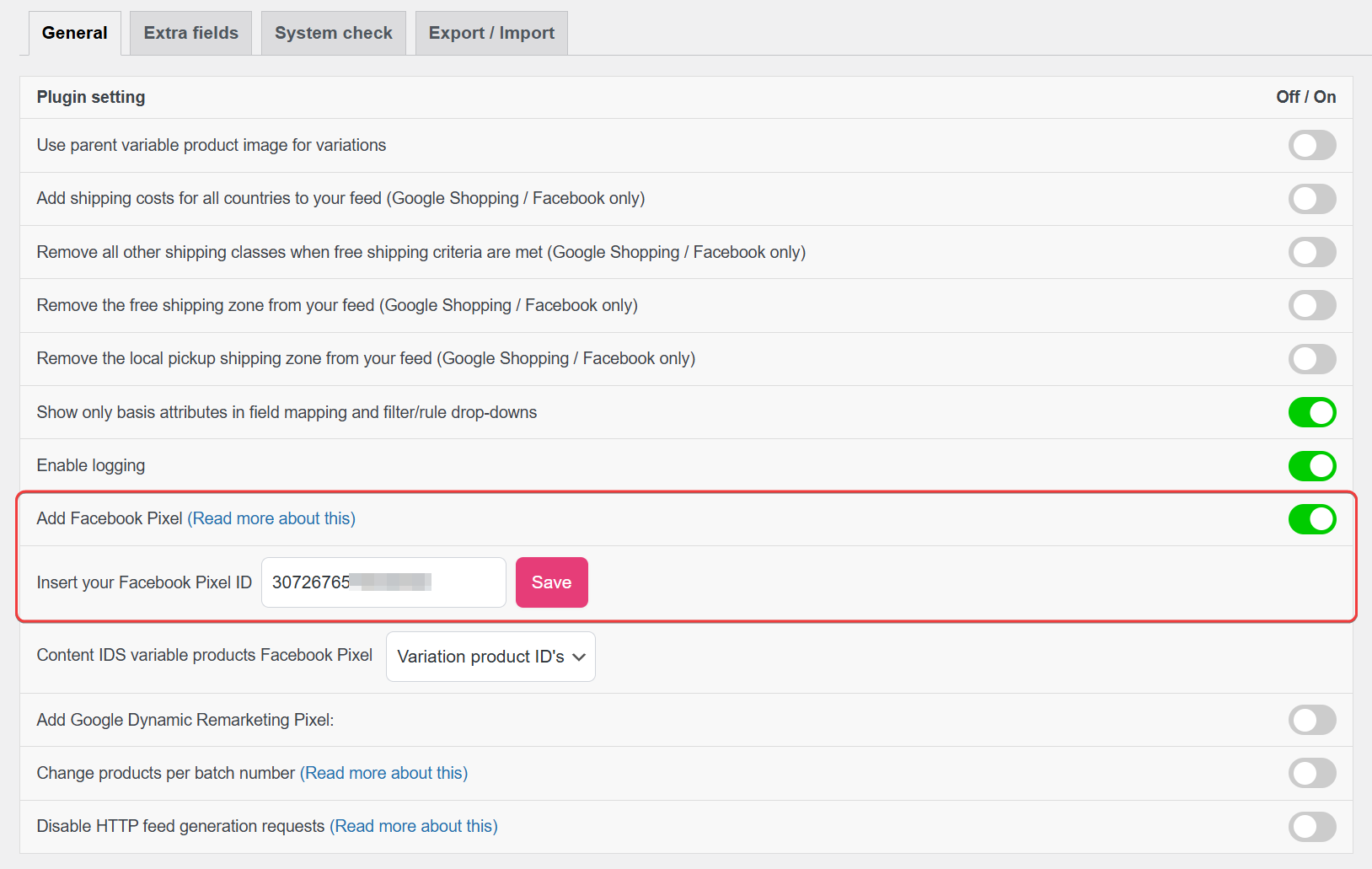
You can also click the Read more link next to Add Facebook Pixel if you want to learn more about this feature.
Match Variable Products to your Meta Catalog
For variable products (products with options like size or color), the Content IDs sent by the Facebook Pixel must match the product IDs used in your Meta catalog feed.
If these IDs don’t match, Meta may not correctly connect website events with products in your catalog.
Choose how Product IDs are sent to Meta
Use the Content IDs variable product Facebook Pixel setting to select how product IDs are sent.
| Setting | Label in Settings | What it does |
|---|---|---|
| Variation (recommended) | Variation product ID’s (default) | Sends the variation ID of the selected product option (for example: a specific size or color). If the customer hasn’t selected an option yet, the IDs of the available variations are used. |
| Variable | Variable product ID | Sends the main product ID instead of the individual variation IDs. |
Rule of thumb
Your Meta catalog feed and your Facebook Pixel must use the same ID type:
- If your catalog uses variation IDs, select Variation.
- If your catalog uses parent (variable) product IDs, select Variable.
Using different ID types can prevent Meta from matching events with products, which may reduce the effectiveness of dynamic ads and tracking.
Simple products
For simple products (products without variations), the Pixel automatically sends the product’s WooCommerce product ID, which usually matches the default catalog feed setup.
Enable Facebook Conversion API (CAPI) (Optional)
The Facebook Conversion API (CAPI) lets your website send tracking events directly from your server to Meta.
This can improve tracking accuracy, especially when browsers block cookies or JavaScript.
How to enable Conversion API
- In Product Feed → Settings → General, turn on Enable Facebook Conversion API.
- Copy your Facebook Conversion API Token from Meta Events Manager.
- Paste the token into the Insert your Facebook Conversion API token field.
- Click Save Changes.
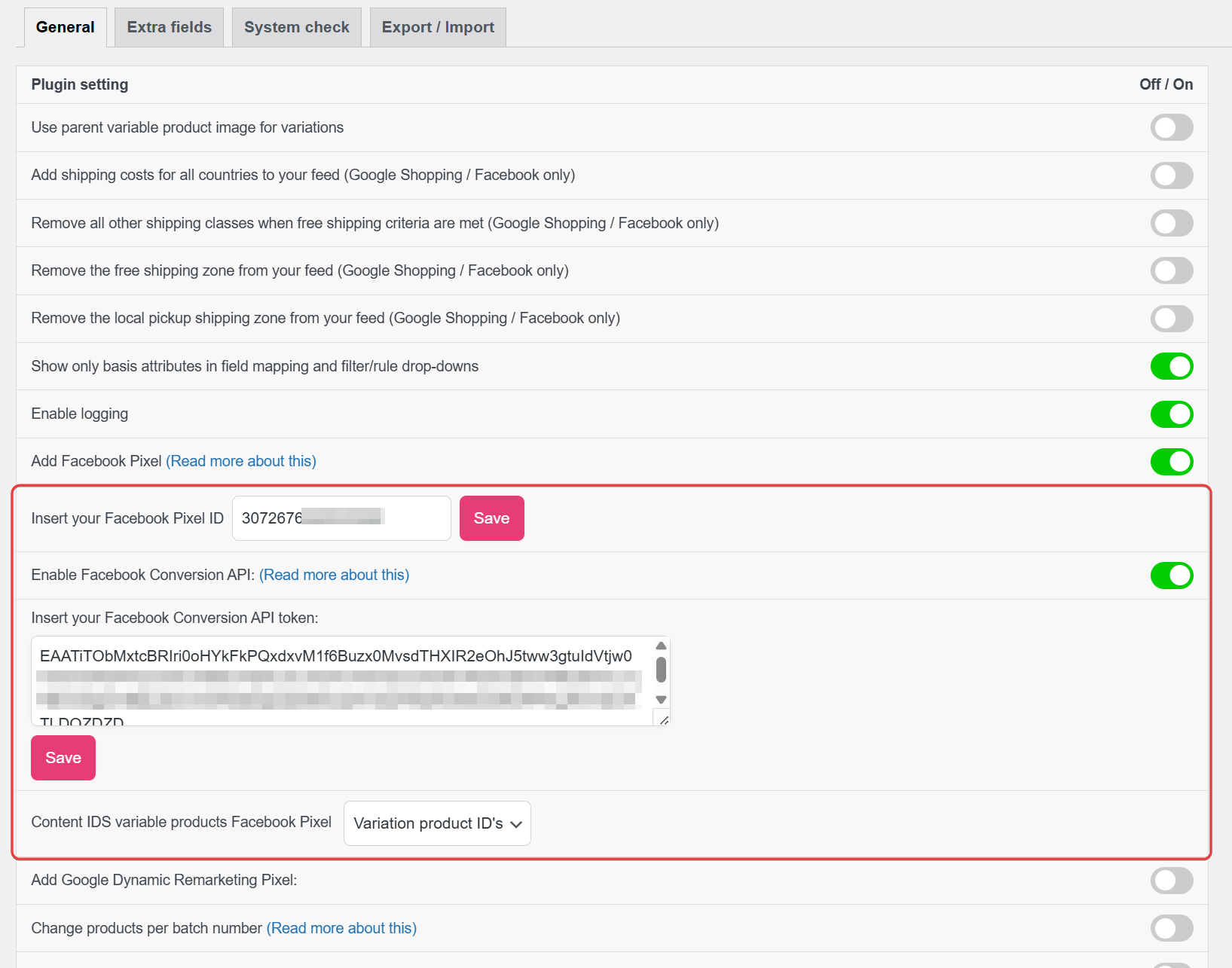
Once enabled, your store will send conversion events to Meta from both the browser (Pixel) and the server (CAPI). Meta automatically combines these events to avoid duplicates and improve tracking reliability.
If you need help creating your Conversion API token, refer to the guide on setting up Facebook Conversion API with Product Feed Elite.
How Pixel events relate to WooCommerce and your feeds
The Facebook Pixel tracks what visitors do on your store, such as viewing products or making purchases. These actions are sent to Meta as events.
Product Feed Pro automatically connects these events to your WooCommerce products so Meta can match user activity with items in your product catalog.
Events in your store
Different pages in your store trigger different events:
- Product page →
ViewContent(when a customer views a product) - Cart page →
AddToCart - Checkout page →
InitiateCheckout - Order confirmation page →
Purchase - Category pages →
ViewCategory - Search results →
Search
These events include Content IDs, which identify the product that the visitor interacted with.
How the product feed and Pixel work together
Your product feed and your Facebook Pixel serve different purposes but must work together:
Product feed → sends your catalog data to Meta (product titles, prices, images, and IDs).
Facebook Pixel → sends customer activity related to those products (views, add-to-cart actions, purchases).
For this to work correctly, the product IDs in the feed must match the Content IDs sent by the Pixel. This allows Meta to connect user actions with the correct products in your catalog.
Multilingual stores
If you use a multilingual plugin such as WPML, make sure your product feed language settings match the language used on your store pages so the correct products are tracked.
Verify that tracking works
After enabling the Facebook Pixel, it’s important to confirm that events are being tracked correctly.
Check a product page
Open one of your product pages and make sure the page loads normally. Product views should trigger the ViewContent event.
Use the Meta Pixel Helper
Install the Meta Pixel Helper Chrome extension and visit your store. It should show events such as:
- PageView
- ViewContent
You can also check the cart and checkout pages to confirm events like AddToCart and InitiateCheckout.
Check Meta Events Manager
Open Meta Events Manager and use Test Events or the live event stream to confirm that events are arriving from your website.
Check your product catalog
In Meta Commerce Manager, confirm that:
- Your products are active in the catalog.
- The product IDs match the Content IDs sent by the Pixel.
If the IDs don’t match, Meta may not be able to connect events with products, which can reduce the effectiveness of dynamic product ads.
Troubleshooting
If the Facebook Pixel or Conversion API isn’t working as expected, check the common issues below.
Frequently Asked Questions
g:id as variation SKUs while the Pixel sends parent IDs (or the reverse), depending on the Content IDS variable products Facebook Pixel and how you mapped id in the feed. Similarly, WPML or other multilingual setups can shift which post ID the Pixel uses versus what the feed exports. Therefore, compare one product in Commerce Manager (catalog id) with Test events (content_ids) for the same URL, then align field mapping and Pixel settings. For a focused checklist, see Facebook Pixel and Facebook Catalog Aligned.event_id for browser and server events where the code supports it, so Meta can merge them into one conversion. If you use another Pixel or CAPI plugin that sends duplicate event names without matching IDs, Meta may show inflated numbers; disable overlapping tools or align IDs per Meta’s guidance.Need More Help?
If you need any further assistance with setting up the Facebook Pixel, feel free to create a new ticket to reach out to our support team.
Please note that the ticket support system is exclusive to Product Feed Eliteusers.
If you’re using only the Product Feed Pro plugin, feel free to open a new topic in the WordPress.org forum.

