Reviewed by
Shoppers are starting to search in a different way. Instead of opening a search engine and comparing ten tabs, they can now ask ChatGPT for product recommendations and get a short list of options with prices, images, and links to buy.
That shift matters for WooCommerce stores. If someone asks ChatGPT for a product you sell, your catalog needs to be easy for OpenAI to understand. A ChatGPT product feed helps make that possible by turning your WooCommerce product data into a structured file built for AI shopping discovery.
In this guide, we’ll walk through what a ChatGPT product feed is, why it matters for WooCommerce stores, and how to create one with AdTribes Product Feed Pro so your products are ready for OpenAI’s merchant upload process.
What Is A ChatGPT Product Feed?
A ChatGPT product feed is a structured file that lists your store’s products in a machine-readable format OpenAI can read, so your items can appear in ChatGPT’s shopping results and recommendations. Think of it as a digital catalog written specifically for AI shopping tools.
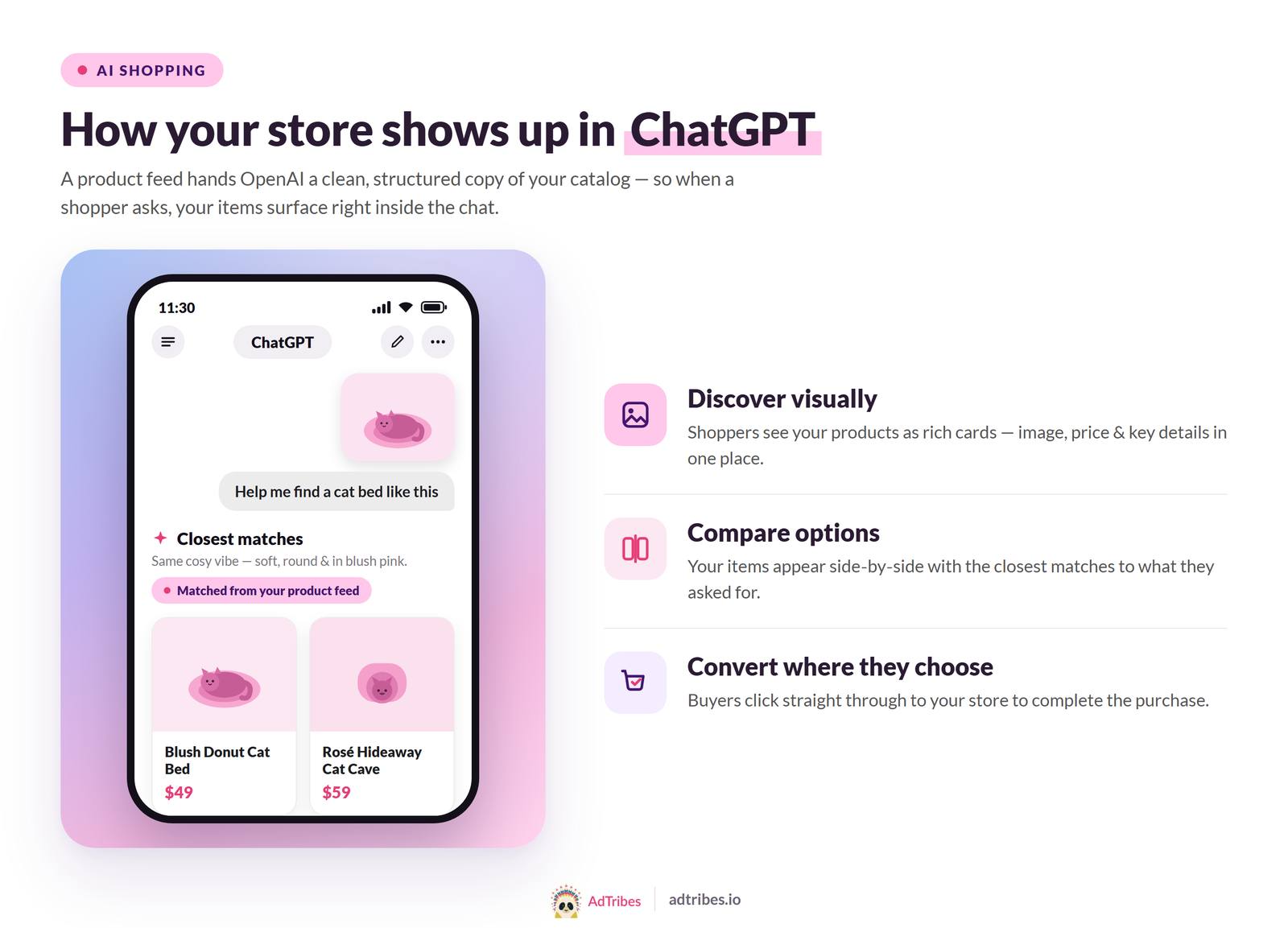
The feed carries the details OpenAI needs to understand each product: its ID, title, description, price, availability, image, and brand. OpenAI ingests and indexes that product data, then uses it to surface matching items when someone asks ChatGPT for a buying recommendation.
This is part of a broader shift often called agentic commerce, where AI assistants help people discover and compare products inside the chat instead of sending them off to a search engine first. Your feed is the bridge between your WooCommerce catalog and that experience.
Why ChatGPT Shopping Matters For WooCommerce Stores
AI-assisted shopping has moved from novelty to mainstream buying behavior, and the traffic numbers back that up. According to Adobe Analytics, visits to U.S. retail websites from generative AI sources jumped more than 1,200% between July 2024 and February 2025.
The momentum kept building through the year. Digital Commerce 360 reported that generative-AI-powered shopping traffic rose roughly 4,700% in July 2025 compared with the year before. And looking ahead, Adobe’s consumer survey found that 52% of shoppers planned to use generative AI tools to help them shop in 2025.
For a WooCommerce store, the takeaway is simple. Shoppers are asking AI tools for recommendations at the start of their buying journey, and a product feed is how you earn a place in those answers. It’s the same logic behind getting your catalog into Google Shopping, just pointed at a new and fast-growing channel. If you want a deeper look at the discovery side, our guide on how to help ChatGPT discover your products covers it in more detail.
What You Need Before You Start
Before you build your ChatGPT product feed, get these basics in place. Complete, accurate product data gives OpenAI a clearer file to review and helps reduce avoidable feed issues.
- Published WooCommerce products with complete data: Each product needs a title, description, image, and price. Thin or empty product data can make it harder for AI shopping tools to understand and match your items.
- A brand value on every product: OpenAI requires a brand attribute for each item. If you haven’t set brand data yet, add it before generating the feed.
- The free Product Feed Pro plugin (version 13.4.9 or later): The OpenAI channel was added in 13.4.9, so older versions won’t have it. Both the free plugin and Product Feed Elite include the channel.
- An OpenAI merchant account: You’ll register your feed through OpenAI’s merchant portal at chatgpt.com/merchants. Approval is required before you can upload, so it’s worth applying early.
How To Create Your ChatGPT Product Feed In WooCommerce
Once the basics are ready, the build itself happens inside WordPress through a visual interface. AdTribes Product Feed Pro has a dedicated OpenAI product feed channel that pre-maps your store data to the fields OpenAI expects, generates the file, and keeps it updated on a schedule. That means you’re configuring a template, not writing one from scratch.
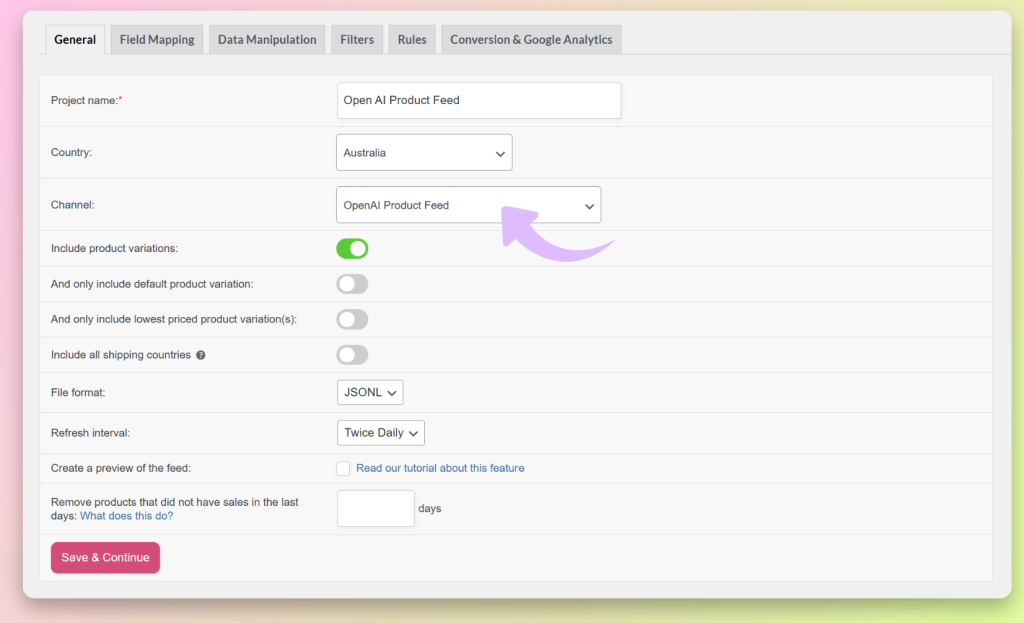
Here’s the step-by-step guide:
- Create a new feed. In your WordPress dashboard, go to AdTribes Product Feed Pro and start a new feed. Give it a clear name like “OpenAI Feed – US” and choose your target country to match your merchant account.
- Select the OpenAI channel. In the channel dropdown, choose “OpenAI Product Feed.” The plugin loads the OpenAI field template automatically, so the required attributes are mapped for you.
- Pick a supported file format. OpenAI supports Parquet, JSONL.GZ, CSV.GZ, and TSV.GZ for product feed uploads. In AdTribes Product Feed Pro, choose one of the compressed formats available for the OpenAI channel: JSONL.GZ, CSV.GZ, or TSV.GZ.
- Set your refresh interval. Hourly, twice daily, or daily works for most stores. Choose hourly if your stock or prices change often. Custom intervals are available in Product Feed Elite.
- Review the field mapping. The template fills in the required fields, but check that your brand, GTIN or MPN, and image fields are mapped to real product data. Add filters or rules if you only want certain products in the feed.
- Generate the feed file. Generate your OpenAI feed in Product Feed Pro so your product data is ready for OpenAI’s upload process.
- Submit it to OpenAI. Apply at chatgpt.com/merchants. Once approved, use OpenAI’s merchant upload process to provide your feed file.
If you want the click-by-click version with screenshots, follow the full step-by-step OpenAI feed setup guide in the knowledge base.
OpenAI Product Feed Fields To Review
The OpenAI channel template includes the key product attributes you’ll need to review before submitting your feed. Many are mapped from your existing WooCommerce data, but it helps to know what each one does so you can spot gaps before your feed is generated.
| Field | What it is | Notes |
|---|---|---|
| id | Unique product identifier | Pulled from WooCommerce automatically |
| title | Product name | Keep it clear and specific |
| description | Product description | Plain text, no leftover HTML |
| link | Product page URL | Must point to a live page |
| price | Current price | Include currency |
| availability | In stock / out of stock | Reflects your live inventory |
| image_link | Main product image | Required for the product to display |
| brand | Product brand | Required for every item |
| gtin or mpn | Global or manufacturer ID | Use accurate manufacturer identifiers when available |
| item_group_id | Groups product variants | Maps variations together |
One field that can trip people up is material. The AdTribes OpenAI template includes material in the field mapping, even though many stores do not track it for every product. If you don’t have material data, map the field to a static value of “Unknown.” That keeps the feed complete without forcing you to edit every product.
Tips To Get Your Products Picked Up By ChatGPT
Generating a valid ChatGPT product feed is step one. Getting your products to actually show up takes a little optimization, the same care you’d give a Google Shopping feed.
- Fill in brand, GTIN, and clear titles. These help OpenAI match your products to the right queries. Sparse data means weaker matching.
- Keep the feed fresh. Set a refresh interval that matches how often your prices and stock change, so your generated feed reflects your latest catalog data.
- Use current product data. Your feed should reflect live prices, stock, images, and product links before you submit it.
- Write descriptions for humans first. Specific, benefit-focused descriptions give AI tools the context they need to recommend you accurately.
A common mistake is assuming products will appear in ChatGPT immediately after submission. In practice, OpenAI reviews and indexes product feeds on its own schedule, and visibility can depend on product relevance, feed quality, and OpenAI’s content policies. Treat it more like organic discovery than flipping a switch. For more on tuning your data, see our guide on optimizing your product feed for AI.
Because AI shopping is still a newer discovery channel, it’s worth reviewing your product data carefully before every submission. A complete, accurate feed gives OpenAI cleaner information to work with and gives your products a better chance of being matched to relevant shopping queries.
Frequently Asked Questions
Do I need a paid plan to create a ChatGPT product feed?
No. The OpenAI channel is included in the free AdTribes Product Feed Pro plugin, so you can create and submit a ChatGPT product feed at no cost. Product Feed Elite adds extra product attribute fields and custom refresh intervals, which make it easier to populate fields like brand and GTIN accurately, but they aren’t required to get started.
What file format does OpenAI accept?
OpenAI supports Parquet, JSONL.GZ, CSV.GZ, and TSV.GZ for product feed uploads. AdTribes Product Feed Pro generates the compressed formats available in its OpenAI channel, including JSONL.GZ, CSV.GZ, and TSV.GZ.
Why is “material” a required field if my products don’t have one?
The AdTribes OpenAI template includes material in the field mapping. If you don’t track material data for every product, you can map the material field to a static value of “Unknown” in the feed setup. This keeps the feed complete without requiring manual edits to every product.
How long until my products appear in ChatGPT?
Not immediately. After you submit your feed, OpenAI still needs to review and index the product data, and timing can vary. Whether products appear also depends on relevance, feed quality, and OpenAI’s content policies, so a clean, complete feed gives you the best chance.
Can I use the same feed for Google Shopping and ChatGPT?
You’ll create a separate feed for each channel because the required fields and format differ, but AdTribes Product Feed Pro lets you run unlimited feeds from the same WooCommerce catalog. So you can keep your Google Shopping feed and add an OpenAI feed alongside it.
Get Your WooCommerce Store Into ChatGPT Shopping
AI shopping is becoming a real discovery channel, and a clean, complete product feed gives OpenAI better product data to work with. With AdTribes Product Feed Pro, you can create the OpenAI feed your WooCommerce catalog needs without building the file manually.
Here’s what to do next:
- Check your product data so every item has a brand, image, and price.
- Create your feed and select the OpenAI channel in AdTribes Product Feed Pro.
- Map the required fields, including the material workaround.
- Optimize and keep the feed fresh so your products stay matchable.
Ready to prepare your products for AI shopping discovery? Create an OpenAI product feed with the free AdTribes Product Feed Pro plugin and make your WooCommerce catalog easier for ChatGPT to understand.