
Google Merchant Center and the Facebook (Meta) catalog both reject product images smaller than 500×500 pixels for most categories. So if your images are too small, those products get disapproved and stop showing in ads. That means lost sales and a long list of errors to fix in each platform.
Product Feed Pro can catch this for you before the feed ever reaches Google or Facebook. When you turn the check on, the plugin looks at each product’s image and either swaps in a larger one or leaves the product out of the feed. So you avoid the disapprovals instead of cleaning them up afterwards.
This guide explains what the check does, how to turn it on, and what to do when a product disappears from your feed.
Prerequisites
| Requirement | Details |
|---|---|
| Plugin version | Product Feed Pro 13.5.5 or later (the check also works on Product Feed Elite) |
| Feed channel | The feed must use the Google Shopping or Facebook Catalog channel. The check does not apply to other channels. |
| Setting enabled | The check is off by default. You turn it on in Product Feed → Settings → General (see below). |
| Product images | Each product needs at least one image of 500×500 pixels or larger, in the main image or the product gallery. |
How the check works
When the setting is on, the plugin checks every product as it builds your Google Shopping or Facebook Catalog feed. It looks at the product’s main image first. If that image is at least 500×500 pixels, the product goes into the feed as usual. If the main image is too small, the plugin searches the product’s gallery images (and, for variations, the parent product’s images) for the first one that meets 500×500. If it finds a larger image, it swaps that in automatically. If no image meets the minimum, the plugin leaves that product out of the feed, so the small image never reaches Google or Facebook.
How to turn the check on
- In your WordPress admin menu, go to Product Feed.
- Click Settings.
- Open the General tab.
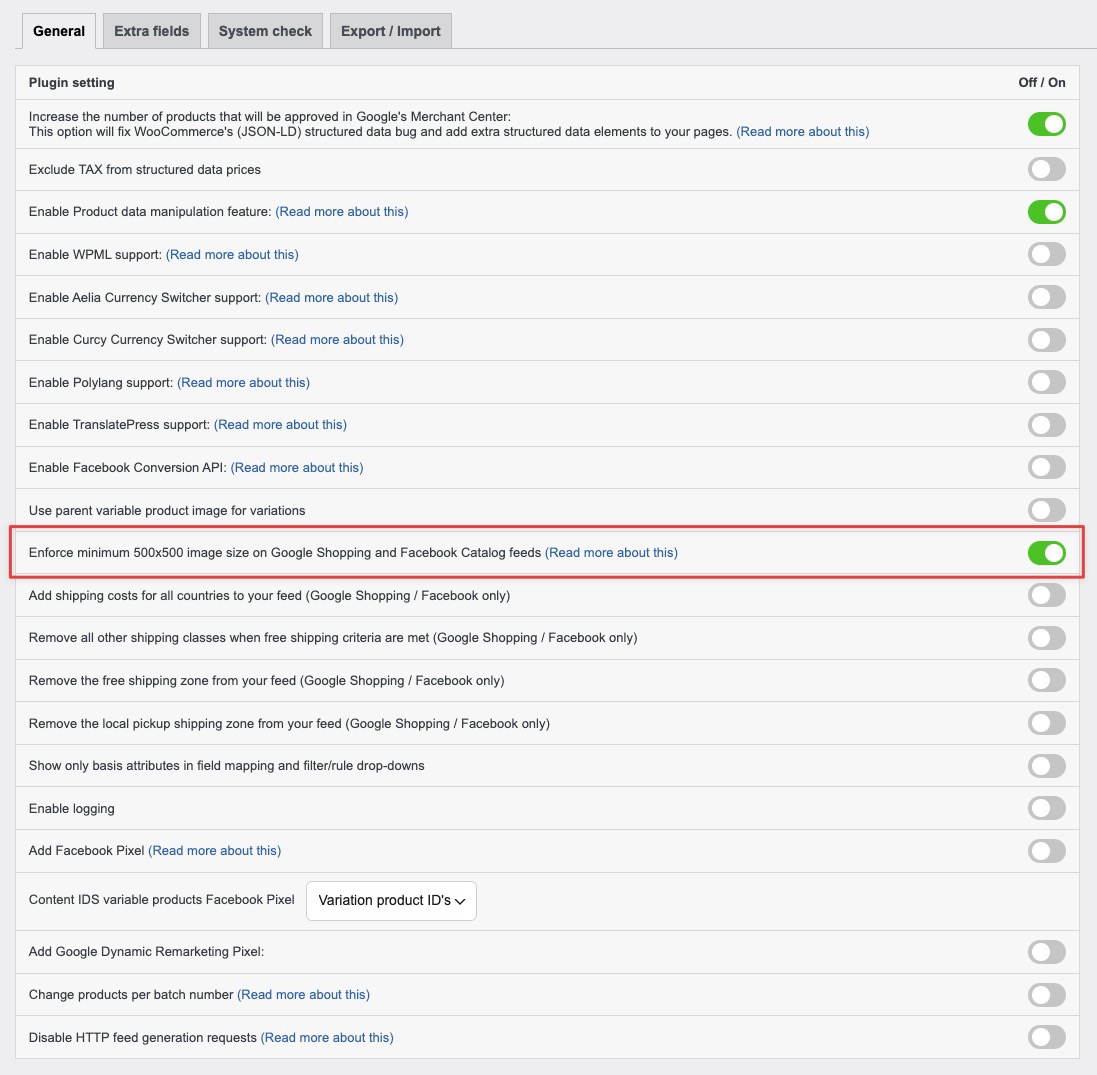
- Tick Enforce minimum 500×500 image size on Google Shopping and Facebook Catalog feeds.
- Click Save.
- Regenerate your Google Shopping or Facebook feed so the check applies to the latest products.
What happens to undersized products
The plugin handles small images in two ways, depending on what other images the product has.
A larger image is available: If the main image is too small but a gallery image (or, for a variation, one of the parent product’s images) meets 500×500, the plugin uses that larger image for the product instead. The product stays in your feed with a valid image.
No image meets the minimum: If neither the main image nor any gallery image reaches 500×500, the plugin removes that product from the feed. The product still exists in your store. It just won’t appear in this feed until you give it a larger image.
The product has no image at all: Products with no image are not affected by this check. Google and Facebook reject products without an image on their own, so the plugin leaves that case alone.
How to fix a product that dropped out
You have a few ways to get a skipped product back into your feed. Pick whichever is easiest for that product.
- Upload a larger main image: Edit the product, replace the main product image with one that’s at least 500×500 pixels, and save. Square images of 800×800 or larger work well for both platforms.
- Add a larger image to the product gallery: If you can’t change the main image, add a 500×500-or-larger image to the product gallery. The plugin picks up the first qualifying gallery image automatically.
- Map the image attribute to a larger source: In the feed’s Field Mapping tab, you can point an image attribute at a different image. The image attributes are Main image, Main image simple and variations, Featured image, and Additional image 1 through Additional image 10.
After you update an image, regenerate the feed so the change takes effect.
Troubleshooting
FAQ
Need more help?
Product Feed Elite customers get priority help from our team. Open a support ticket from your account, and we’ll look into your feed directly.
Using the free Product Feed Pro plugin? Start a new topic on the WordPress.org support forum, and we’ll help you there.
For setting up the feeds themselves, see How to Set Up a Google Shopping Product Feed and Create a Facebook product feed with AdTribes.

