
You removed or renamed a custom product field, but it still turns up in your feed setup. It’s still listed in the Field Mapping picker, it still appears in the Filters and Rules attribute dropdowns, and it may still show in your feed output. Nothing you change seems to make it disappear.
This happens because Product Feed Pro caches the list of your custom attributes. The fix is a single button: Clear custom attributes cache. This guide shows you where it is, what it does, and how to confirm the attribute is gone afterward.
Why this happens
Your store’s custom product fields (custom meta keys and variation attributes) feed a list that the plugin reuses across Field Mapping, Filters, and Rules. Building that list on every page load would be slow, so the plugin saves it for 24 hours and reads from the saved copy instead.
That means a change you make to your custom fields won’t show up right away. A field you removed keeps appearing in the pickers until the cache refreshes. So if it’s still mapped to a feed attribute, it can still end up in your feed output. Clearing the cache forces the plugin to rebuild the list immediately from your current products.
Prerequisites
| Requirement | Details |
|---|---|
| Plugin | Product Feed Pro (the free or Pro core plugin). The button is also available to Product Feed Elite users. |
| Access | A WordPress admin account that can manage Product Feed settings. |
| Before you start | You’ve already added, removed, or renamed the custom product field. Clearing the cache reflects the change you made. It doesn’t make the change for you. |
How to clear the custom attributes cache
- In your WordPress admin menu, go to Product Feed → Settings.
- Open the General tab. This is the tab that opens by default.
- Scroll down to the Other settings section.
- Click Clear custom attributes cache.
- Confirm the prompt that asks “Are you sure you want to delete the custom attributes product meta keys cache?”
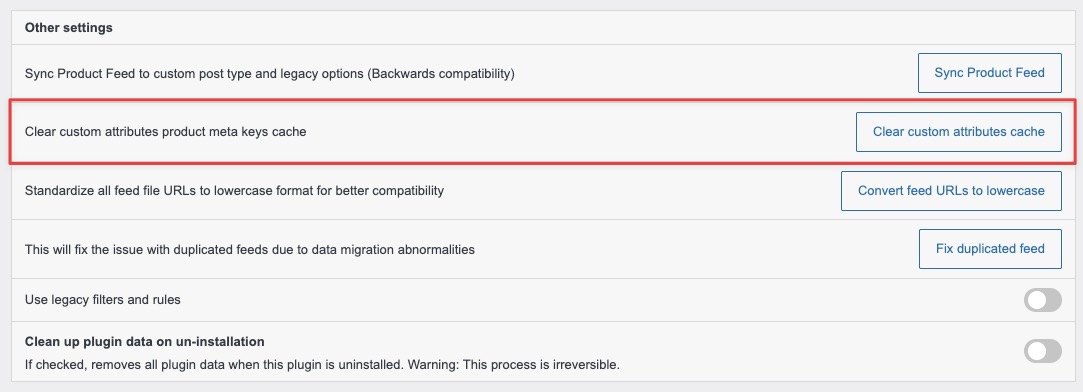
Once it finishes, you’ll see a Custom attributes cache cleared. message. The plugin rebuilds the list the next time it reads your custom attributes, so no further action is needed on the settings page.
Confirm the attribute is gone
Clearing the cache updates the attribute list, but it doesn’t change a mapping you set up earlier. Follow these steps to confirm your feed is clean:
- Open the feed you’re troubleshooting and go to the Field Mapping tab.
- Check that the removed attribute no longer appears in the attribute picker. If it’s still mapped to a feed field, remove that mapping now.
- If you used the attribute in a filter, open the Filters tab and confirm it’s gone from the attribute dropdown. For detailed instructions, see How to create filters for your product feed.
- If you used it in a rule, open the Rules tab and check the dropdown there as well. For detailed instructions, see How to create rules.
- Regenerate the feed, then open the feed file and confirm the attribute no longer appears in the output.
Troubleshooting
FAQ
Need more help?
If you’re on Product Feed Elite, open a support ticket from your account, and our team will help you directly.
If you’re on the free Product Feed Pro plugin, post your question on the WordPress.org support forum, and we’ll take a look.

