
If you sell WooCommerce Product Bundles, you might worry they’ll need special setup before they show up in your feed, or that shopping channels will see the wrong price. The good news is that Product Feed handles bundles for you automatically.
Below covers how bundle products appear in your feeds, how their price is calculated, and what happens to the individual items inside a bundle, with the Product Feed Pro plugin working alongside the WooCommerce Product Bundles extension.
Prerequisites
Before you start, make sure you have these in place.
| Requirement | Details |
|---|---|
| Product Feed plugin | Product Feed Pro (free or Elite) is active on your store. Bundle handling is the same on both. |
| Product Bundles extension | The official WooCommerce Product Bundles extension is active on your store. This is what supplies the bundle price. |
| A bundle product | At least one product of the Product bundle type, with a price set. |
How bundles appear in your feed
Bundles are included automatically: You don’t need to turn on a setting to add bundle products to a feed. Product Feed treats a bundle like any other product, so as long as the bundle isn’t excluded by one of your filters, it shows up in the feed on its own.
Each bundle is one product in the feed: The feed lists the bundle as a single item. So Product Feed doesn’t add the individual products packed inside the bundle as their own separate feed entries. This matches how shoppers buy the bundle: as one purchase, at one price. (Variable products behave differently, because each variation is a separately purchasable item. For that case, see How to add variable products to your product feeds.)
The bundle’s own price is used, not the sum of its parts: Product Feed reads the price you set on the bundle itself and sends that to the channel. It does not add up the prices of the items inside. That means the price in your feed matches the price a shopper sees and pays on your store. The price sent to channels includes tax.
Sale prices are handled too: If your bundle is on sale, the feed sends both the regular price and the sale price. If the bundle isn’t discounted, Product Feed sends only the regular price.
The “Is bundle” attribute (optional)
Some channels, such as Google Shopping, Pinterest, and TikTok, support an Is bundle attribute. This is a separate, channel-specific field. It is not the same as the WooCommerce Product Bundles product type.
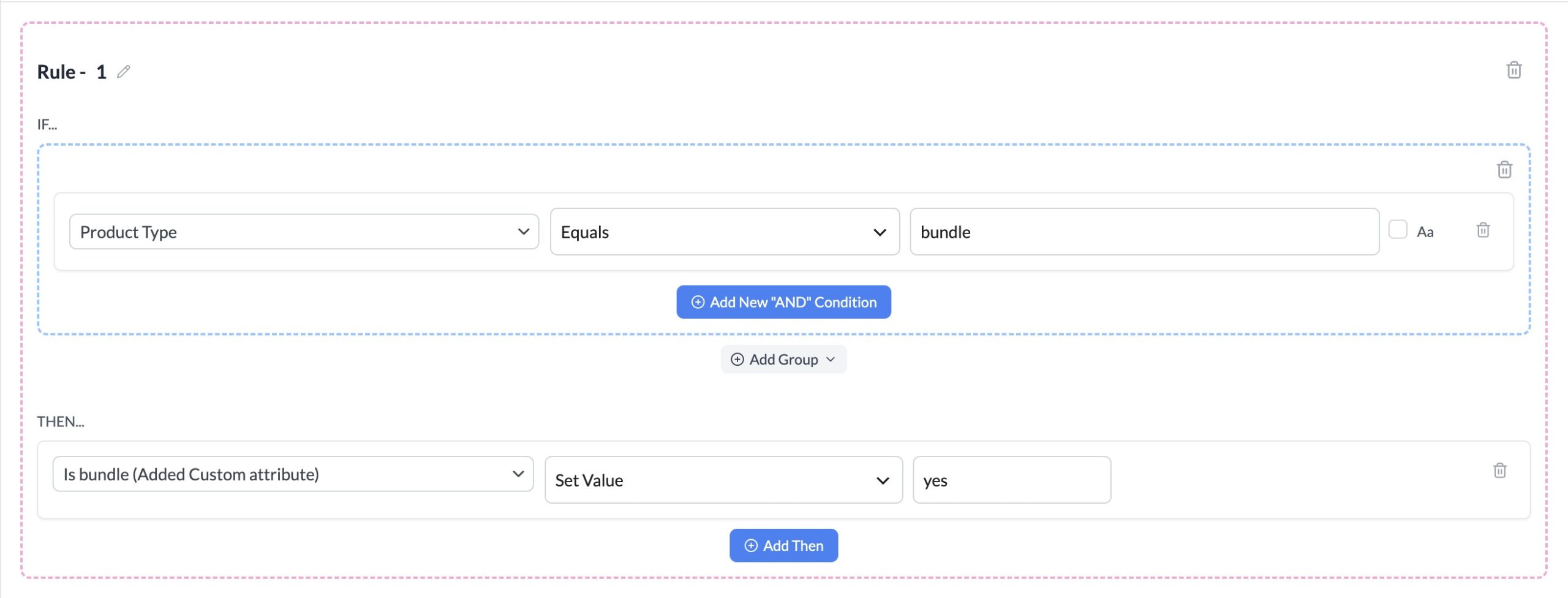
In the Google Shopping sense, a bundle means one main product you sell together with accessories for a single price. Product Feed does not fill this attribute in automatically from your bundle products, so you set it yourself when a channel needs it. The usual way is to add a rule that sets the Is bundle value for the products you choose.
Before the rule has any effect, add Is bundle to your feed’s Field Mapping tab. The rule writes the value into your product data; Field Mapping controls which attributes are included in the feed output. If Is bundle is not in your field mapping, the rule’s value will not appear in the feed.
To set this up:
- Open the feed you want to edit.
- Click the Field Mapping tab and add Is bundle as a mapped attribute.
- Click the Rules tab.
- Click Add New Rule.
- In the IF section, select Product Type from the attribute picker, set the condition to is equal to, and enter
bundleas the value. - In the THEN section, select Is bundle from the attribute picker, set the action to Set Value, and enter
yes. - Click Save Rules.
For a full walkthrough of the rules builder, see How to create rules.
Troubleshooting
FAQ
Need more help?
If you’re on Product Feed Elite, you can open a support ticket, and our team will help you directly.
If you’re using the free Product Feed Pro plugin, post your question on the WordPress.org support forum, and we’ll be glad to help.

