
If your store uses a caching plugin to speed up page loads, it’s worth knowing whether that same plugin could interfere with your product feeds. It generally doesn’t. Product Feed Pro generates feeds as static files, so most caching plugins never touch them. On top of that, Product Feed Pro automatically registers exclusions with several popular caching plugins, so their own cache or CDN rules don’t catch your feed files by accident.
How feed files work with caching plugins
Product Feed Pro builds your feeds as static XML, CSV, or text files and stores them in your site’s uploads folder, at wp-content/uploads/woo-product-feed-pro/. Feed schedules run in the background through Action Scheduler, so refreshes happen independently of any page request a visitor or a caching plugin might be handling. When a channel like Google Shopping or Facebook Catalog fetches your feed, your web server delivers that file directly. No WordPress page render is involved, so a page-caching plugin has nothing to cache in that request.
Caching plugins with automatic exclusions
Product Feed Pro detects the following caching plugins when they’re active and automatically excludes your feed files from their cache or CDN rules. You don’t need to configure anything for these. The exclusion is written the next time a feed generates (manually, through Refresh, or on its normal schedule) rather than the moment you activate the caching plugin, so give it one feed generation cycle to take effect on a new setup.
| Caching plugin | What Product Feed Pro excludes |
|---|---|
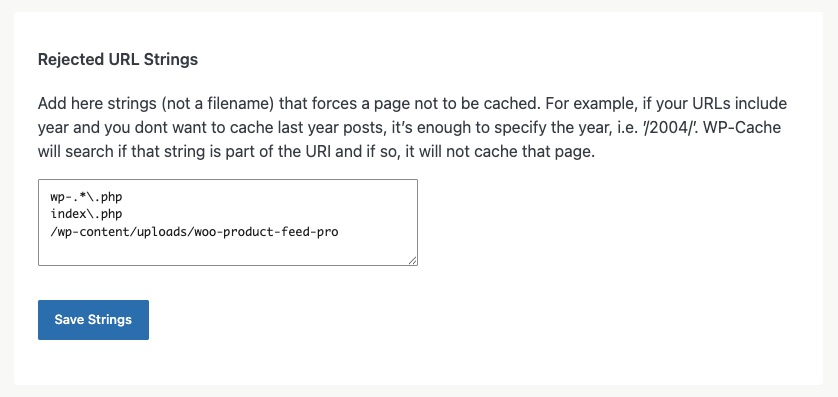
| WP Super Cache | Adds the feed folder to the plugin’s page-cache rejection list |
| LiteSpeed Cache | Adds the feed folder to the CDN exclusion setting |
| WP Fastest Cache | Adds the feed folder to the plugin’s exclude list |
| Breeze | Adds feed file extensions to the CDN integration exclude list |
| WP-Optimize | Adds the feed folder to the cache configuration |
| Cache Enabler | Adds the feed folder to the cache configuration |
| Swift Performance | Adds the feed folder to the plugin’s options |
| Comet Cache | Adds the feed folder to the plugin’s options |
| Hyper Cache | Adds the feed folder to the plugin’s options |
WP Super Cache needs version 13.5.7 or later
If you use WP Super Cache, update to Product Feed Pro 13.5.7 or later to get a working exclusion. Earlier versions had a bug where the integration wrote to the wrong WP Super Cache option, so feed files were never actually kept out of the page cache.
WP Rocket
WP Rocket uses a separate integration from the caching plugins listed above, since it doesn’t rely on a rejected-URI list the way WP Super Cache does. For detailed instructions, see How WP Rocket works with Product Feed Pro.
Troubleshooting
/wp-content/uploads/woo-product-feed-pro/ folder (or your feed URLs directly) from that plugin’s cache rules.FAQ
Need more help?
If a caching plugin is still causing feed issues after trying the steps above and you’re on Product Feed Elite, our support team can dig into your specific setup. Open a support ticket and let us know which caching plugin you’re using and what you’re seeing.
Running the free Product Feed Pro instead? Post your question in the WordPress.org support forum and our team will get back to you there.

