Reviewed by
AdTribes Product Feed Elite now gives you two new ways to shape the values your product feeds send. You can combine product feed fields using product attributes and static text or shorten values that exceed the character limit you set.
Combine Fields helps you build more descriptive titles, descriptions, and other feed values, while Truncate to Character Limit keeps longer values under control. Here’s how to set up both actions in the Rules Builder and where each one can help.
How To Combine Product Feed Fields
Combine Fields is a new Rules Builder action that creates one feed value from multiple segments. Each segment can pull from a product attribute or contain static text that you enter yourself. Arrange the segments in the order you want, and Product Feed Elite combines them when the feed generates.
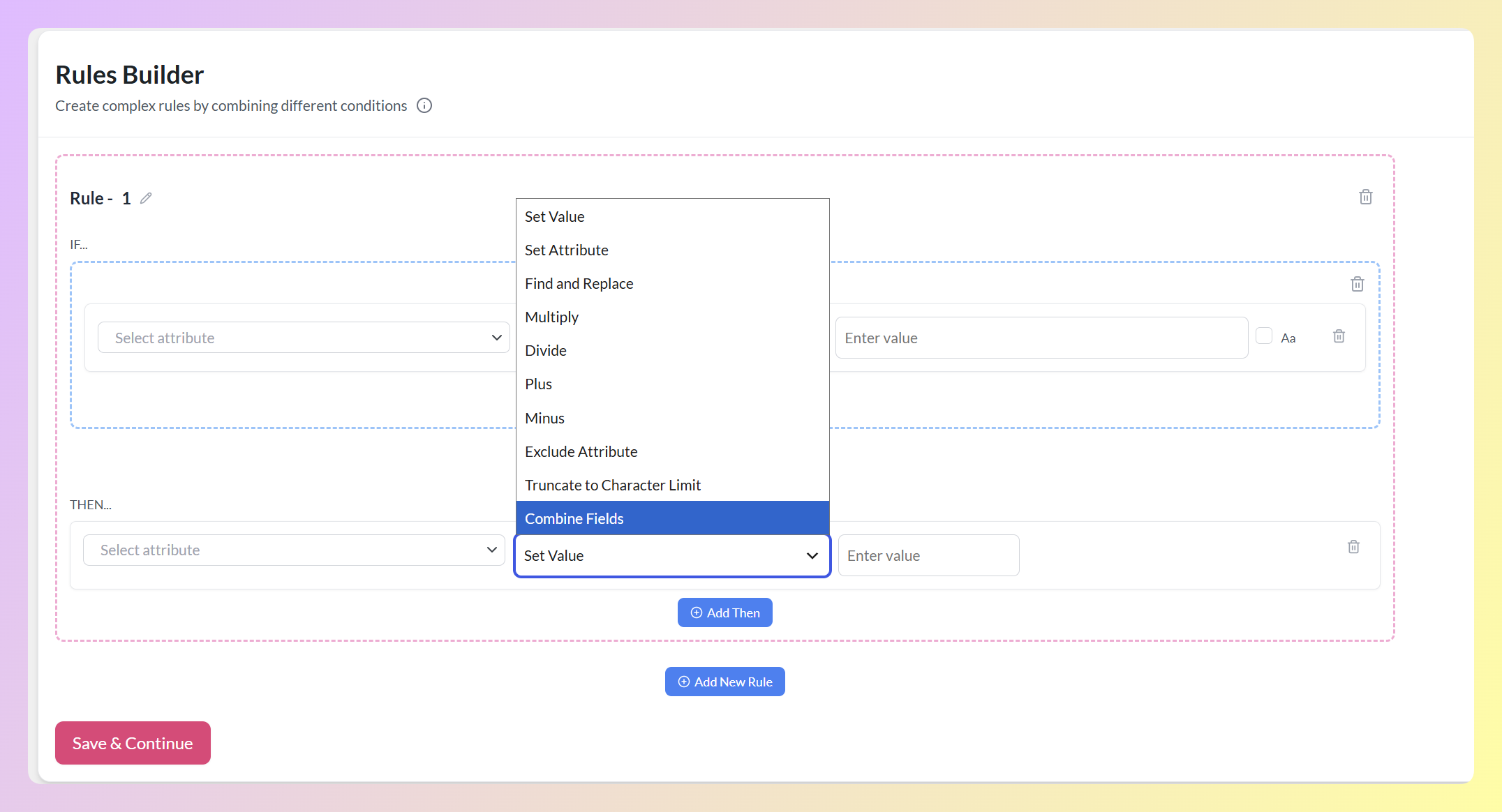
Instead of replacing a field with one fixed value, you can keep the product data already stored in WooCommerce and add other attributes or text around it.
How to build a Combine Fields rule
Head to your WordPress dashboard > Product Feed, then click Edit on the feed you want to update. Open the Rules tab to access the Rules Builder.
Every rule has an IF section and a THEN section. The IF section determines which products the rule applies to. For this simple example, we selected Quantity [Stock], chose Less Than, and entered 10. This targets products with fewer than 10 units in stock.
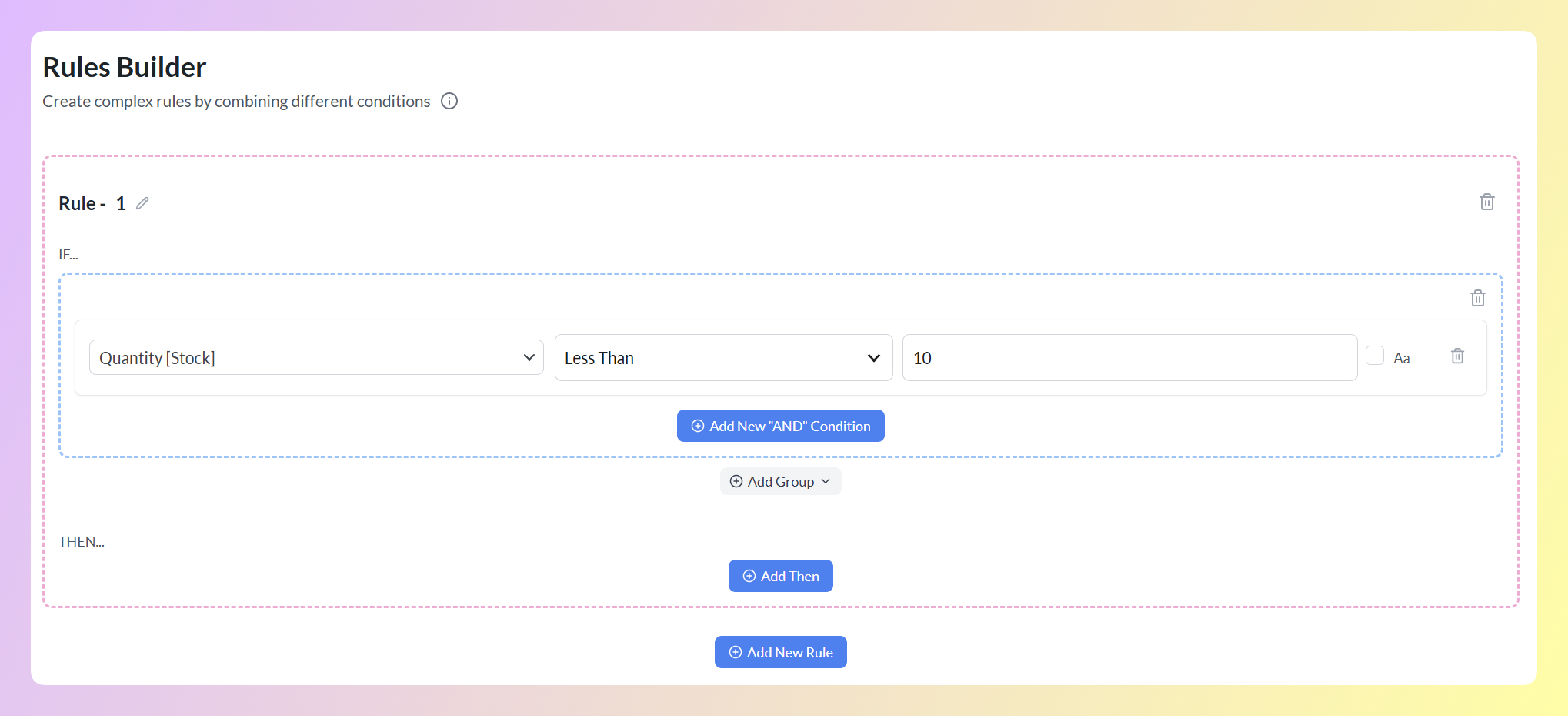
Next, click Add Then to choose what happens to those products. Select Product name as the field you want to update, then choose Combine Fields from the action dropdown.
Each segment can be an Attribute or Static text. Attribute pulls the current value from the product, while Static text adds wording that stays the same for every matching product. Click Add segment whenever you need another row.
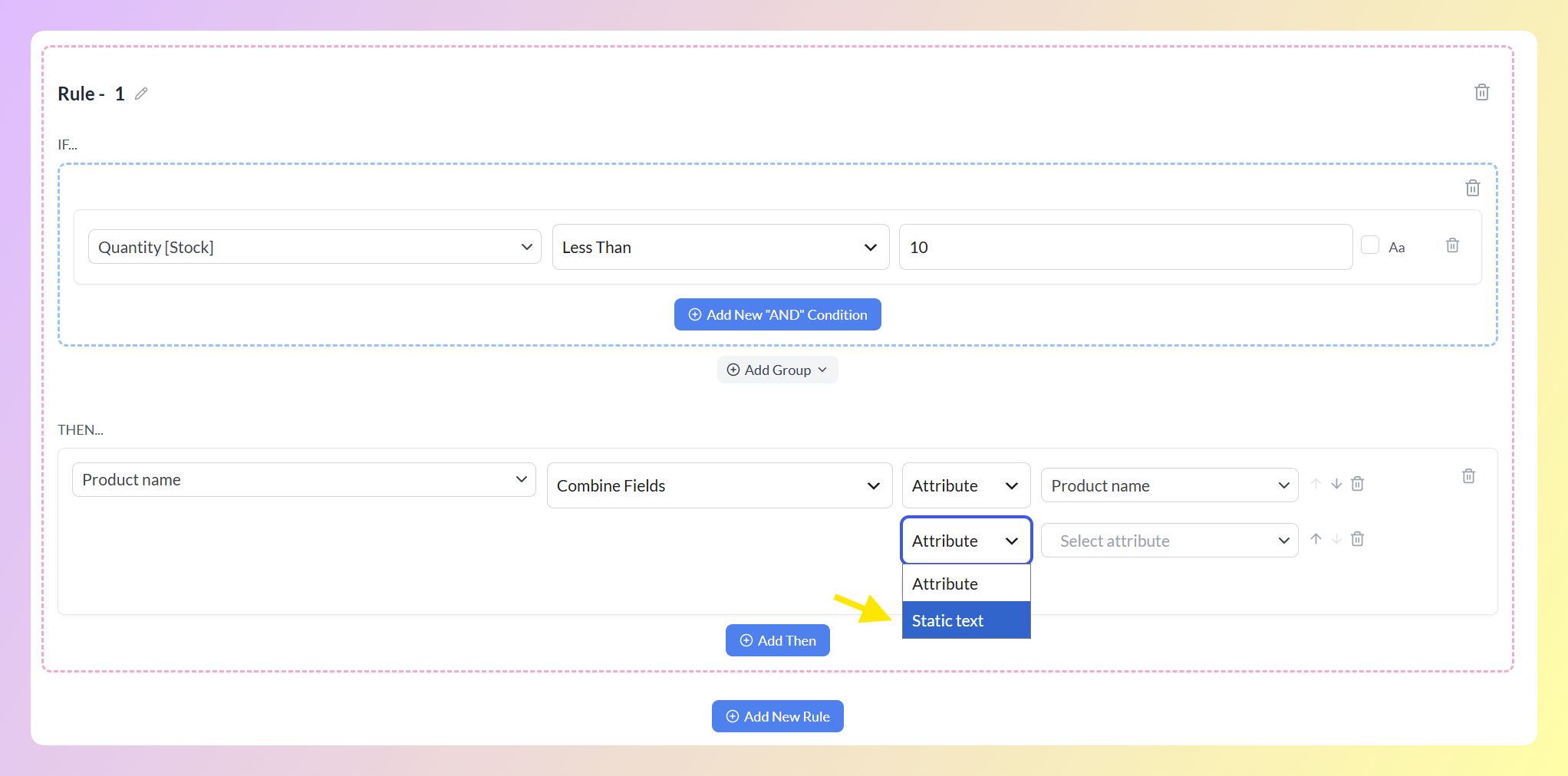
For this example, the first segment uses the existing Product name attribute. The second uses Static text to add | Low Stock after it. Include the space before the vertical line so the finished product name does not run together.
You can use the up and down arrows to rearrange the segments or the delete icon to remove one. The segments are combined from top to bottom in the order shown.
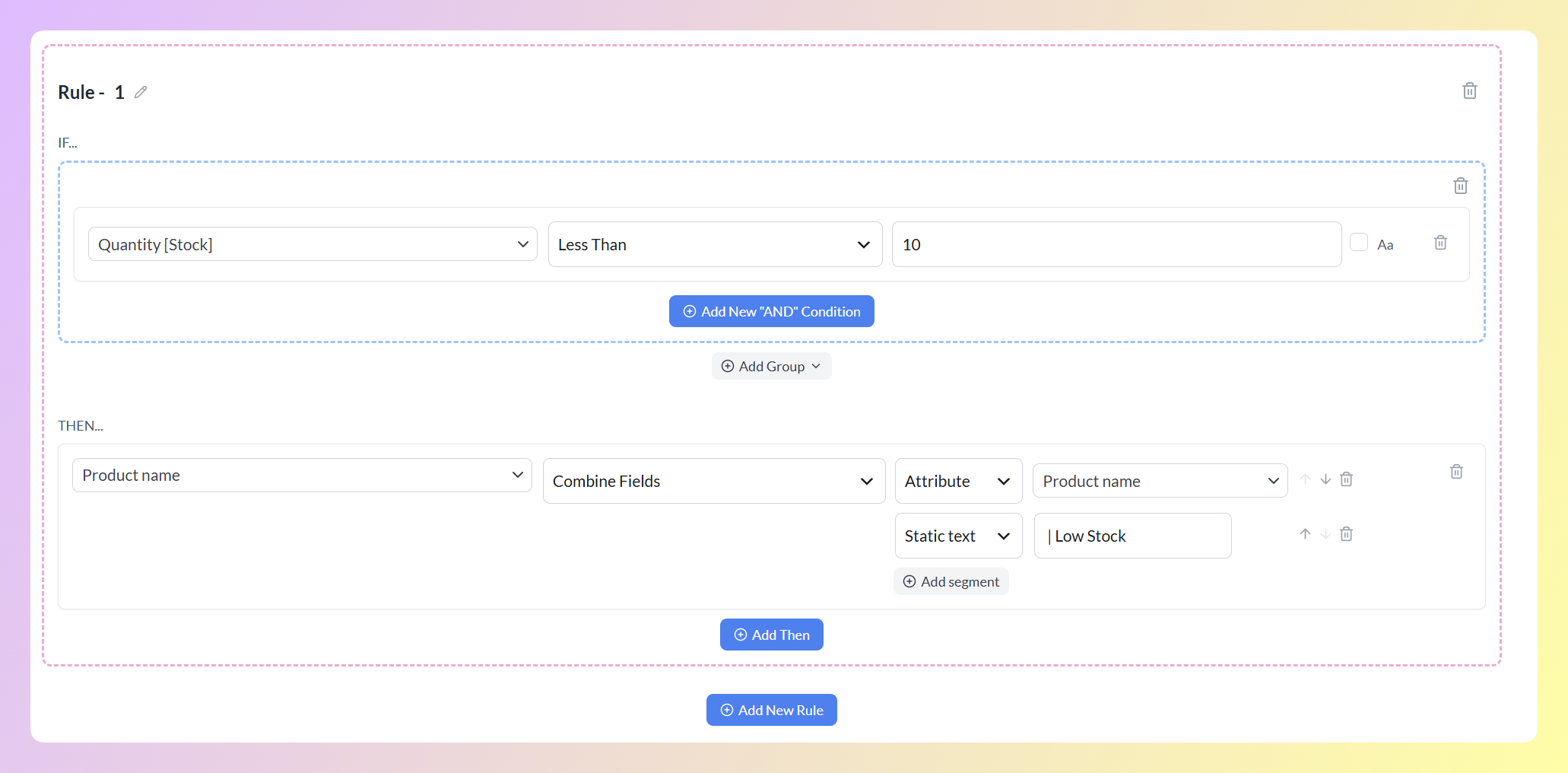
When the feed generates, a matching product keeps its current name and adds the static text at the end. For example, Blue Cotton T-Shirt becomes Blue Cotton T-Shirt | Low Stock in this feed. The product name stored in WooCommerce stays unchanged.
💡 SETUP TIP: Add spaces, dashes, and other separators as their own Static text segments. Static text remains in the finished value even when a nearby attribute is empty, so use Combine Fields with attributes you know are filled in for the products your rule targets.
If a product has no value for an attribute segment, Combine Fields skips that attribute. If none of the segments produces a value, the original field value is left unchanged.
Both Combine Fields and Truncate to Character Limit are available in Product Feed Elite across its Growth, Plus, and Business plans.
How To Truncate A Product Feed Field
Truncate to Character Limit shortens a feed value to the maximum number of characters you choose. It is useful when a channel limits the length of product titles, descriptions, or other fields.
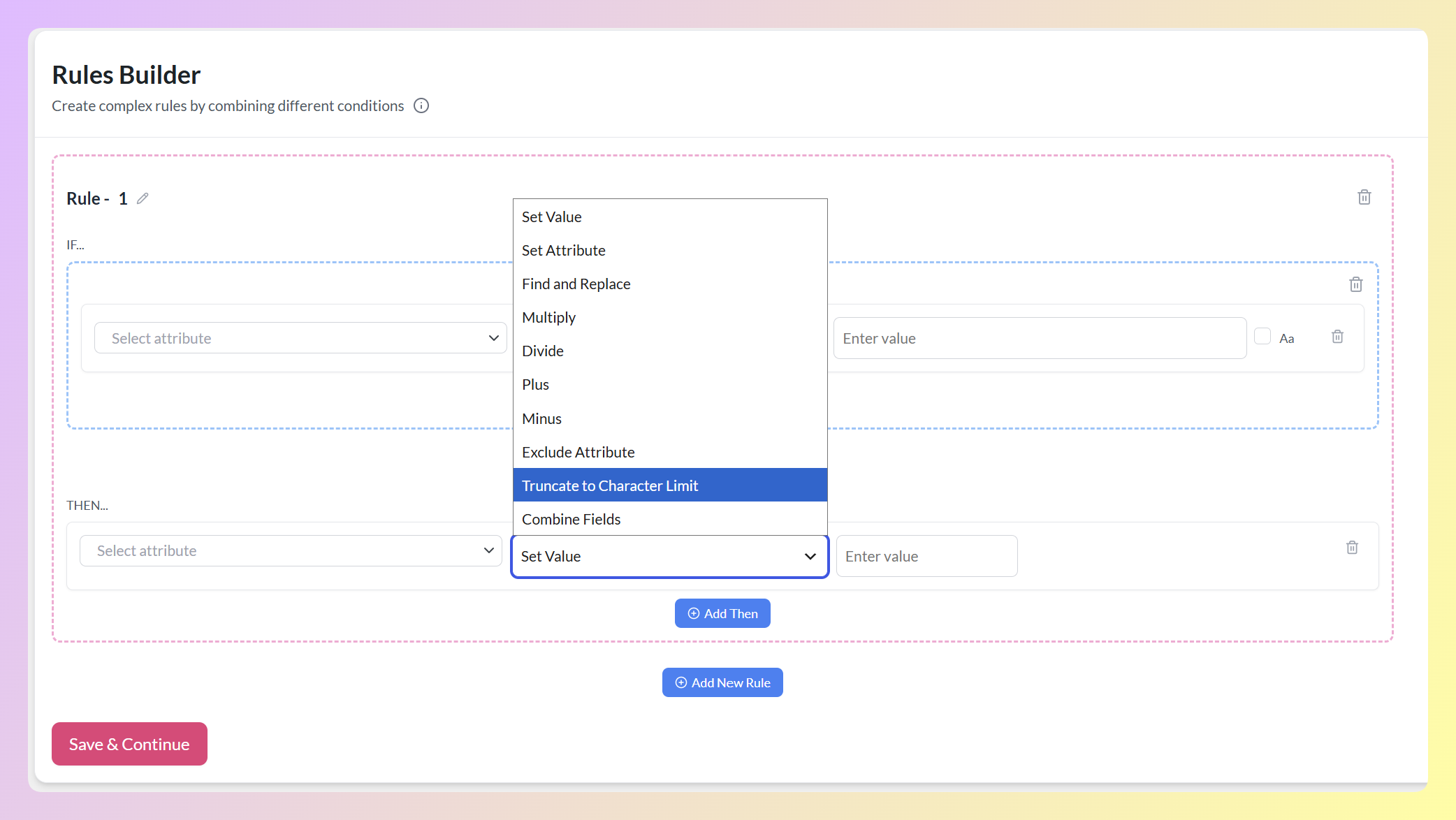
How to build a Truncate rule
Start by using the IF section to identify the values you want to shorten. In this example, we selected Product name, chose Character Count Greater Than, and entered 30. This targets products whose names contain more than 30 characters.
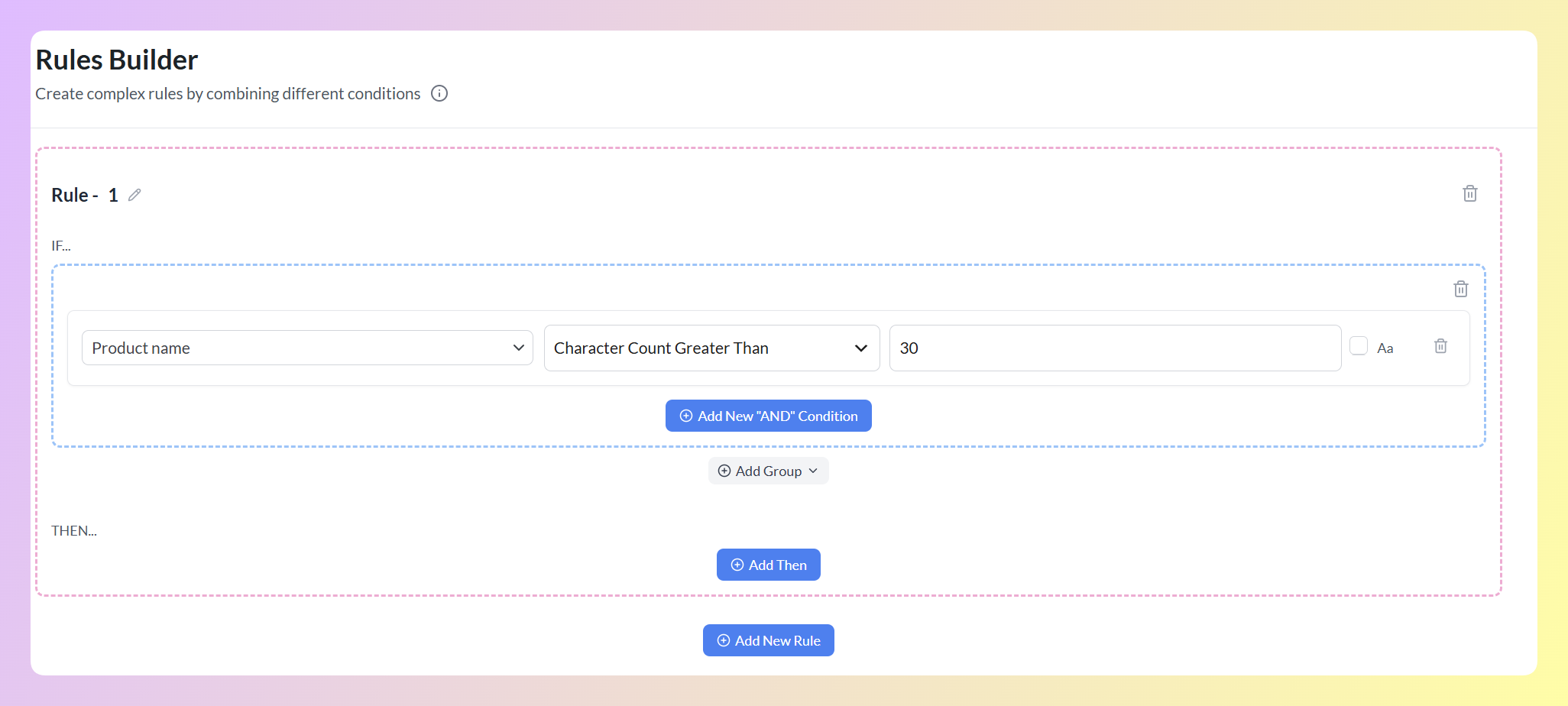
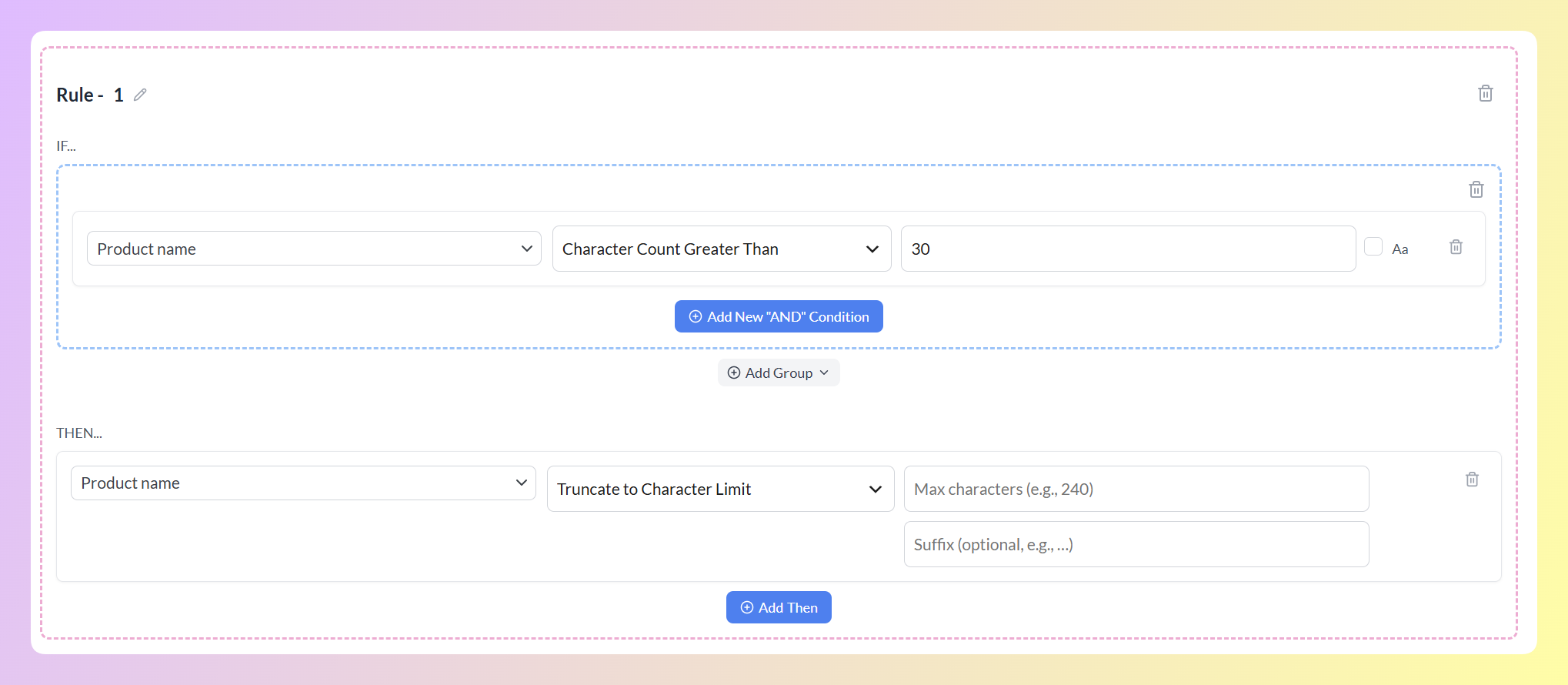
Next, click Add Then. Select Product name as the field you want to update, then choose Truncate to Character Limit from the action dropdown.
Two inputs will appear. Max characters sets the maximum length and is required. Suffix is optional and lets you add text after the shortened value, such as an ellipsis.
For this example, we entered 30 as the maximum and added … as the suffix. Product names that meet the IF condition will be shortened when the feed generates.
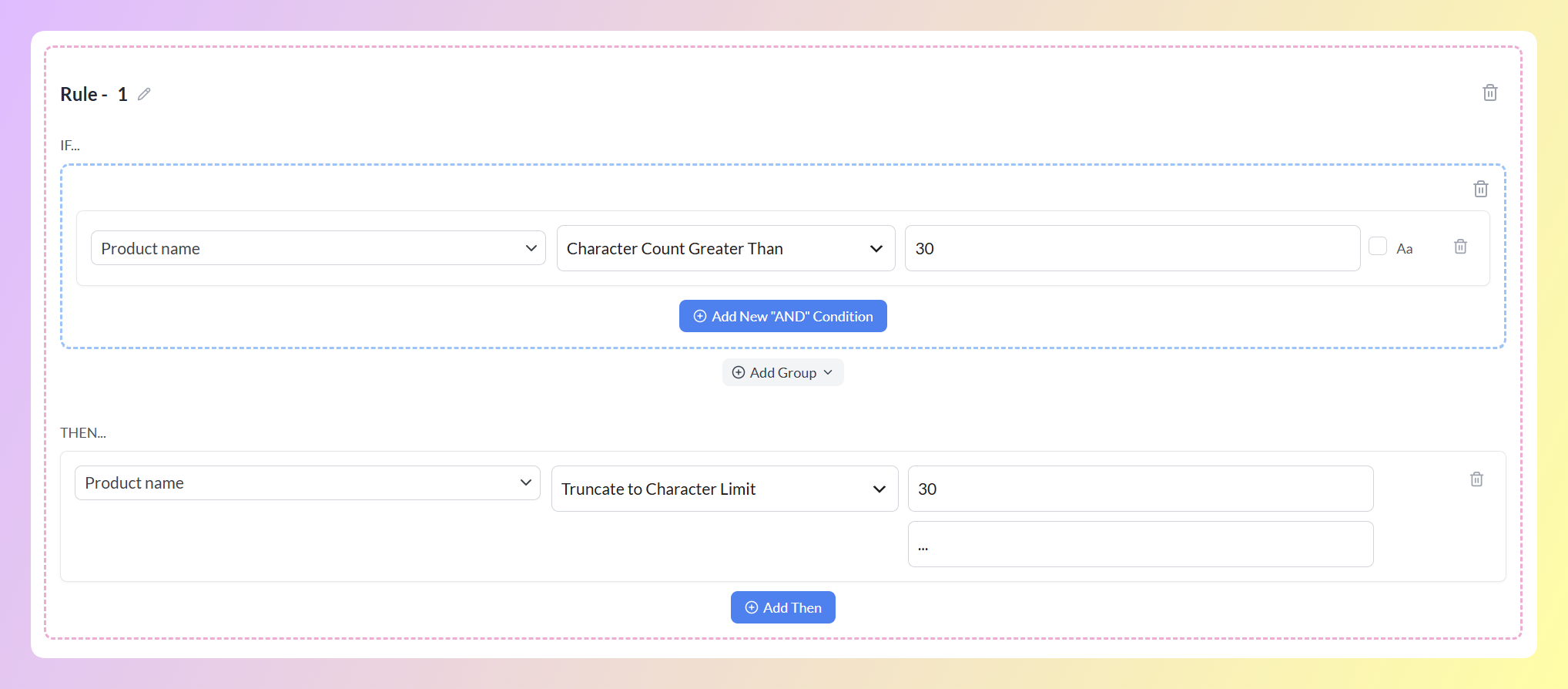
For example, a product name such as Blue Cotton T-Shirt With Breathable Everyday Fit would become Blue Cotton T-Shirt With… in the feed. The original product name stored in WooCommerce stays unchanged.
Fields that are already within the maximum are left unchanged. When possible, Truncate shortens a longer value at the nearest word boundary before the limit, helping avoid words being cut in half.
The suffix is added after the value is shortened and does not count toward the maximum. In this example, the shortened content can contain up to 30 characters, followed by the three-character suffix …. Keep the added suffix length in mind when a channel has a strict overall limit.
Character counting also handles accented and non-Latin text correctly, helping the limit remain accurate across different feed languages.
You can also use Truncate without a condition if you want the action available across the full feed. Delete the condition row from the IF section completely rather than leaving it blank, since an empty condition row will prevent the rule from running.
💡 SETUP TIP: Use the same number in the Character Count condition and the Truncate action when you want to shorten only the values that exceed a specific limit. After saving the rule, review the generated feed to confirm that the shortened values and suffix fit your channel’s requirements.
Five Ways To Use The New Rule Actions
Here are five practical ways to use these actions in your product feeds.
1. Build a more descriptive product name
A more descriptive product name can help shoppers understand what makes one item or variation different from another. With Combine Fields, you can add details such as brand, product type, color, and size to the Product name field without rewriting the product title in WooCommerce.
Choose only the attributes that are useful for that channel, then check the generated title to make sure it stays clear and easy to scan.
2. Fill in a description that’s missing
If a description field is empty, you can build a short replacement value from the product details you already have.
Pair an Is Empty condition in the IF half with Combine Fields in the THEN half, and the rule will apply only to products with an empty description.
3. Bring an oversized description under a channel’s cap
If a product description exceeds your preferred length, Truncate shortens the feed value during generation. Set the maximum, add an optional suffix, and the original WooCommerce description stays unchanged on your site.
4. Populate a custom label for campaign segmentation
For channels that support custom labels, you can use them to organize products for campaign management and reporting. Combine Fields lets you build a label from several attributes instead of relying on one fixed value.
One thing to set up first: the custom label needs to exist in your feed’s Field Mapping before a rule can target it. Once it’s there, it shows up in the rule’s field list under Feed output fields, and you can build it like any other field.
5. Build a shorter replacement for an oversized field
Sometimes you may prefer to replace a long description instead of shortening the original. Use a Character Count condition to identify values over the channel’s limit, then use Combine Fields to build a shorter replacement from selected product attributes and static text.
RELATED READ: 10 Must-Try Google Shopping Feed Optimization Tips
Frequently Asked Questions
Do these new actions change my WooCommerce product data?
No. Feed rules act on your feed as it’s generated, so they change what your channel receives, not the products stored in your store. Rules are also set per feed, so a rule on your Google Shopping feed won’t affect your other feeds.
Do I need a condition for these actions to work?
Not necessarily. A condition is how you narrow a rule down to particular products, and a rule with no conditions at all applies to every product in the feed. If that’s what you want, delete the condition row from the IF half rather than leaving it empty, because an unfilled condition row will stop the rule from running.
Does the suffix count toward my character limit?
No. The suffix is added after the field is shortened, so it is not included in the maximum you set. For example, a value shortened to 240 characters and followed by the three-character suffix “…” can produce up to 243 characters.
What happens if one of my attributes is empty?
The empty attribute segment is skipped. Since spaces and separators are separate static text segments, check the output when some product data is missing to make sure the finished value still reads naturally. If none of the segments produces a value, the original field stays unchanged.
How many attributes can I combine into one field?
As many as you need. Click Add segment for each one and use the up and down arrows to set the order they appear in, so you can build anything from a two-part title to a full spec summary.
Will Truncate cut a word in half?
When possible, Truncate uses the nearest word boundary before your limit, helping the value end on a complete word. If there is no suitable word break, it may cut at the character limit instead.
Can I use Truncate on a field that contains HTML?
Truncate does not remove HTML before counting or shortening a value. It is best suited to plain-text feed fields, so check the generated output carefully if the source field contains markup.
Which other actions can I use in the Rules Builder?
Alongside the two new ones, you can set a field to a fixed value, find and replace text, run math on a numeric field, copy the value of another field, or drop a field from the feed entirely. Set Value, Find and Replace, and the math options come with the free AdTribes Product Feed Pro, while Set Attribute, Exclude Attribute, Combine Fields, and Truncate to Character Limit are part of Product Feed Elite.
Wrapping Up
These two actions give you more control over the values your feed sends. Combine Fields builds a value from the product data you already have, while Truncate to Character Limit shortens values that exceed the maximum you set. Together, they help you improve sparse or oversized feed fields without changing the product data stored in WooCommerce.
In this guide, we learned:
- How Combine Fields builds a field value from your attributes
- How Truncate to Character Limit shortens an oversized field
- Five ways to put both actions to work in your feed
You’ll find both actions in the Rules tab when editing a feed in Product Feed Elite. Set up your rule, review the generated output, and adjust the segments or character limit until the feed value looks right for your channel.
Do you have any questions about this update? Let us know in the comments. Happy to help!