
When you first activate Product Feed Pro, it’s not always obvious what to do next. A setup checklist appears on the Manage Feeds page to walk new sites through the essentials: confirming your store meets the plugin’s requirements, creating your first feed, and submitting it to a shopping channel.
The checklist tracks your progress automatically as you complete each step, so you always know what’s left before your first feed goes live.
Prerequisites
| Requirement | Details |
|---|---|
| Product Feed Pro version 13.5.7 or newer | The checklist ships in this version. Older versions don’t show it. |
| A fresh install | The checklist appears only on sites where Product Feed Pro was first activated on version 13.5.7 or later. If you’re upgrading an existing site to 13.5.7 or later, you won’t see it. |
| Admin access | You need the capability to manage WordPress options (the same access level as any other Product Feed Pro settings screen). |
Where to find it
Go to Product Feed → Manage Feeds. If you’re eligible to see it, the checklist card appears above the page title under the heading Finish setting up Product Feed PRO, with a progress bar showing how many of the 3 essential steps you’ve completed (for example, 1 of 3 essential steps done).
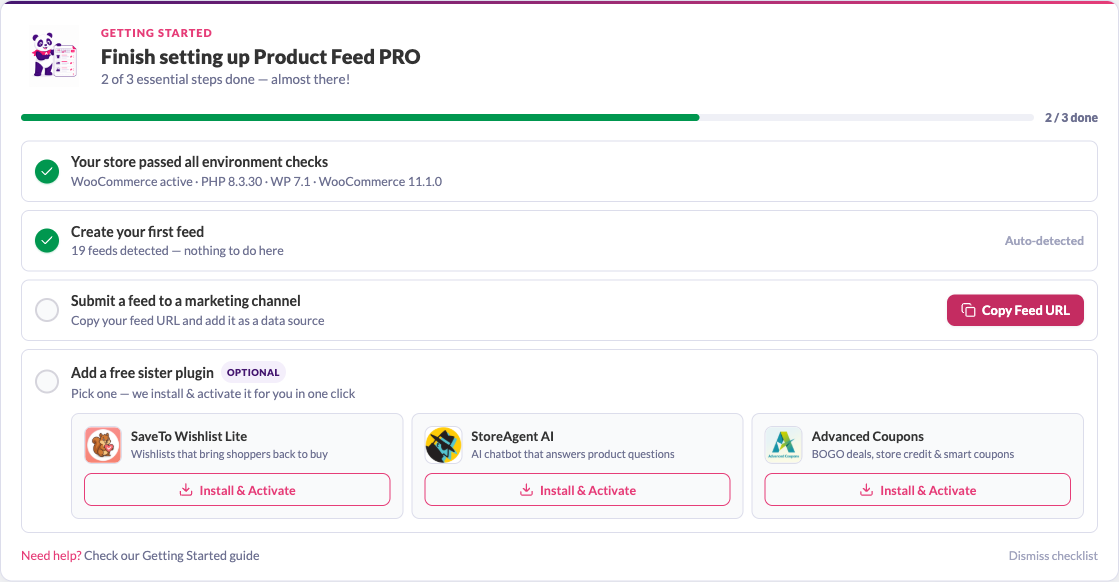
Work through the five checklist steps
The checklist has five steps. The first three are essential and count toward your progress bar. The last two are optional extras.
Environment check
This step confirms your store meets the plugin’s basic requirements: WooCommerce is active, and your PHP, WordPress, and WooCommerce versions meet the minimum supported versions. It’s marked complete automatically once your store passes, and the step title changes to Your store passed all environment checks.
Create your first feed
This step is marked complete automatically as soon as you create one product feed. If you haven’t set one up yet, use the Add New Feed button on the Manage Feeds page. For a full walkthrough of the General tab settings every feed shares, see The complete guide to a feed’s general settings.
Submit a feed to a marketing channel
Unlike the first two steps, this one isn’t detected automatically, since Product Feed Pro can’t see what happens on the channel’s side. Instead:
- Publish your feed. The Copy Feed URL button stays disabled until your feed is published. A draft feed has no public URL yet, so the checklist can’t detect it.
- Click Copy Feed URL to copy your feed’s URL.
- Paste the URL into the shopping channel where you’re submitting your feed (for example, Google Merchant Center or Meta Commerce Manager).
- Come back to the checklist and click I’ve submitted it, which appears once you’ve copied the URL, to mark the step complete.

Add a free sister plugin
This optional step lets you install and activate a free companion plugin: SaveTo Wishlist Lite, StoreAgent AI, or Advanced Coupons. Click Install & Activate next to any plugin in the list, and Product Feed Pro installs and activates it for you without leaving the page. Once a sister plugin is active, its card shows Installed & Active instead of the install button.
Upgrade to unlock Elite features and addons
This optional step links to Product Feed Elite and its addons. It only appears if you don’t already have a paid AdTribes plugin active. Once you activate any paid AdTribes plugin, this step no longer shows.
Managing the checklist
Dismiss it: Click Dismiss checklist to hide the card. As long as you haven’t finished all three essential steps yet, a Show setup checklist link appears next to the Manage Feeds page title so you can bring it back whenever you want.

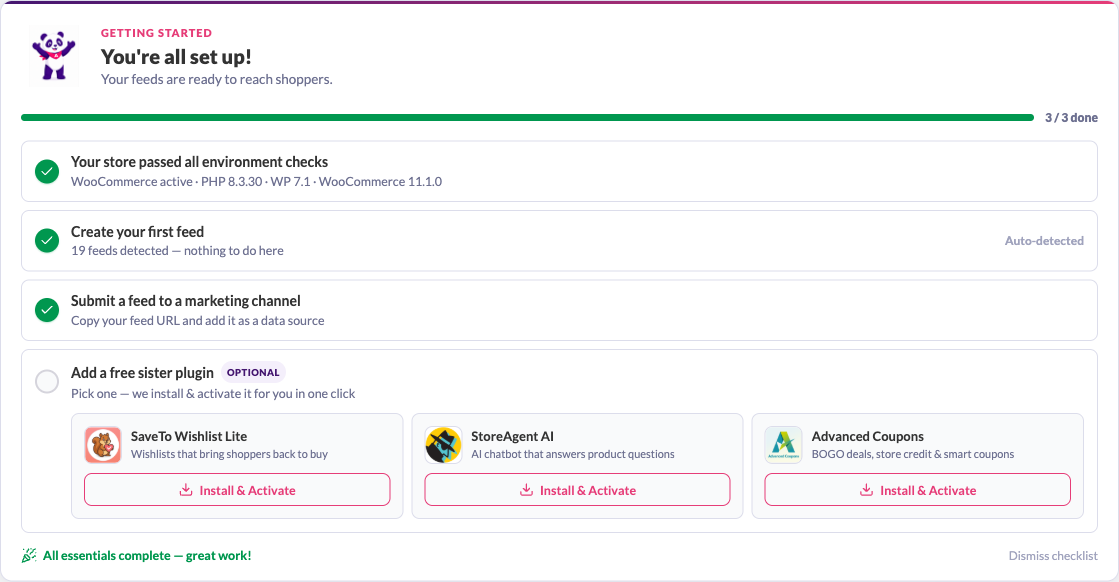
Automatic completion: Once you finish all three essential steps, the card’s headline changes to You’re all set up! and the footer confirms all essentials are complete, in place of the usual Need help? link. This confirmation shows once. After that, the checklist is retired for good, so dismissing it no longer applies and the Show setup checklist link won’t appear either, since there’s nothing left to track.
Troubleshooting
FAQ
Need more help?
If you’re on a premium AdTribes plan, open a support ticket and our team will help you sort it out.
If you’re using the free version of Product Feed Pro, head to the WordPress.org support forum and post your question there. Our team and the community regularly check in to help.

