Reviewed by
Expanding Google Shopping to a second country can look simple at first. But once currency, language, or shipping changes, a feed that works in one market can create mismatched data in another.
Google Shopping for multiple countries works best when your product data matches each market’s language, currency, and shipping setup. In many WooCommerce stores, that means creating a separate localized feed when a market needs different data, while some countries can share the same Google data source when the setup is compatible.
Below, we’ll look at when one data source can cover multiple countries and when a separate localized feed makes more sense in WooCommerce. If you’re just starting to sell internationally from WooCommerce, this gives you a practical way to organize your Google Shopping feeds as you expand.
How Google Shopping Across Multiple Countries Works
To sell on Google Shopping in multiple countries, make sure the product data you submit fits each target market. When currency, language, or shipping needs differ, a separate localized feed gives you clearer control over those market-specific details. Then add the relevant countries and product data sources in Google Merchant Center.
In Merchant Center, one product data source can target one or more countries. The key is making sure your product data and landing-page setup work for the markets you add. Google Merchant Center Help explains how to add countries to your product data sources. Because Google can change platform labels and navigation over time, check the Help Center for the current setup flow.
When you can reuse one feed
Google can use one product data source for multiple target countries. Reusing one makes the most sense when the same product data, language, pricing setup, and shipping information work across those markets. If you want different localized prices, translated product data, or market-specific shipping, separate feeds are usually easier to manage.
4 Things To Check For Each Market
These four areas are worth checking for each market before you submit the feed.
- Target country: The market you’re building that AdTribes feed for. Set the country per feed so it’s configured for that market before you submit it to Merchant Center.
- Currency: The price and currency in your feed should match what shoppers see on the landing page for that setup. If you’re submitting localized prices yourself, use the currency you’ve set for that market. A mismatch between the feed and landing page can lead to disapprovals.
- Language: Titles, descriptions, and other text should match the language used for that market and its landing pages.
- Per-country shipping: Shipping costs need to reflect the destination market and use the same currency as the prices in that feed.
Here’s what this looks like in practice (example data):
| Market | Feed | Target country | Currency | Language | Shipping |
|---|---|---|---|---|---|
| Home | US feed | United States | USD | English | US rates |
| Expansion 1 | DE feed | Germany | EUR | German | DE rates (EUR) |
| Expansion 2 | FR feed | France | EUR | French | FR rates (EUR) |
Set Up A Per-Country Feed In AdTribes
AdTribes Product Feed Pro lets you build and manage product feeds directly from WooCommerce. If you’re comparing WooCommerce product feed plugins for international feeds, AdTribes gives you per-feed target country settings and can output shipping rates configured for that market. Product Feed Elite addons then add per-feed currency and language when you need more localized control.
Set the target country
For a market that needs its own localized feed, create a separate feed and set its target country in the feed’s General settings. For a German market feed, you’d select Germany; for a French market feed, France. This keeps each localized AdTribes feed configured for the market you’re building it for.
Set the currency
Set the feed’s currency with the AdTribes Product Feed Multi-Currency Addon, which uses the exchange rates from your multi-currency switcher. It works with Aelia Currency Switcher, CURCY (WooCommerce Multi Currency), and WPML’s WooCommerce Multilingual & Multicurrency (WCML). The addon is available on the Plus and Business plans of Product Feed Elite.
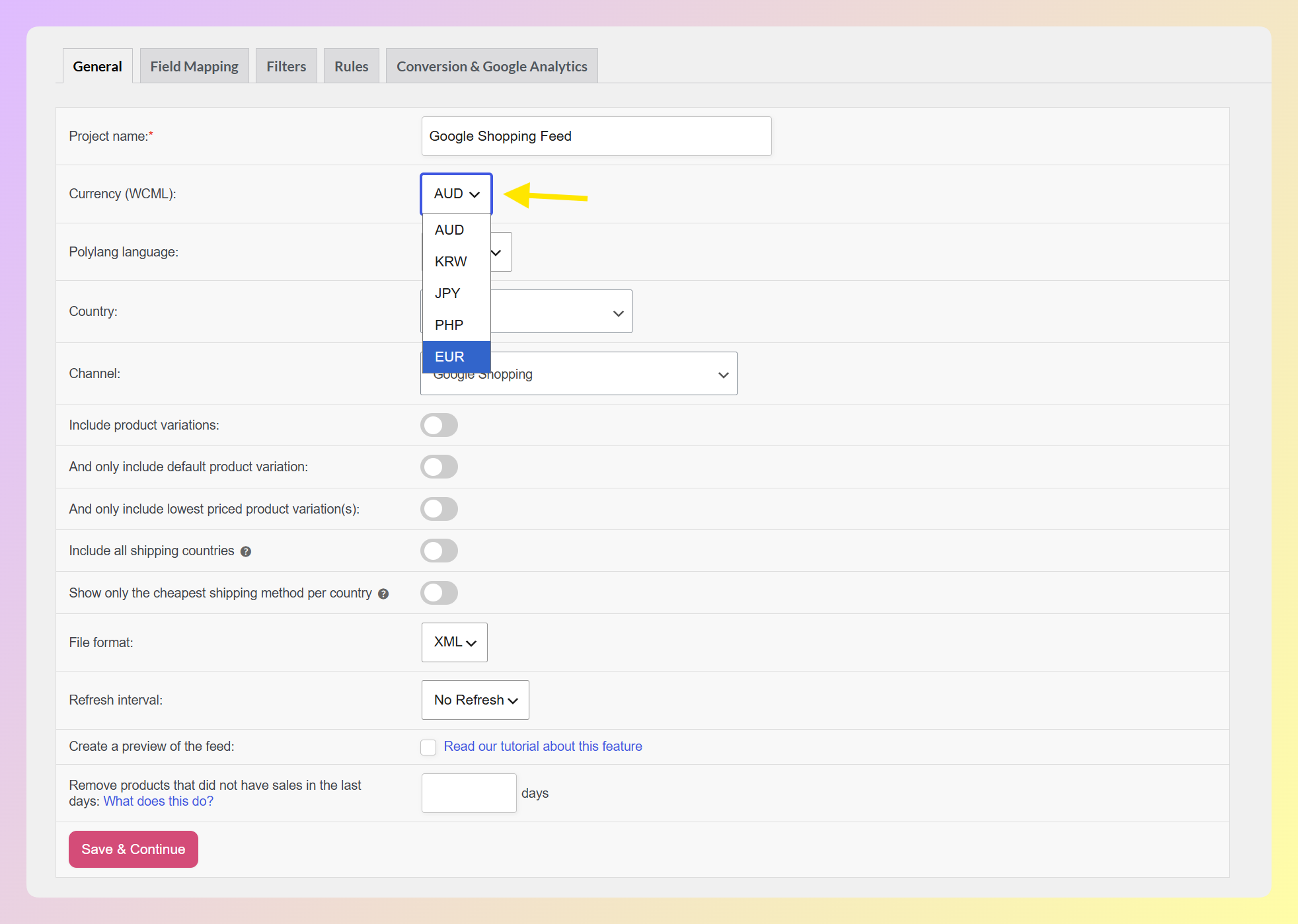
One easy mistake is duplicating a feed for a new country and leaving the old currency in place. That can create a mismatch between the feed and landing-page price and lead to disapprovals. Before submitting the new feed, double-check the per-feed currency.
Handle language
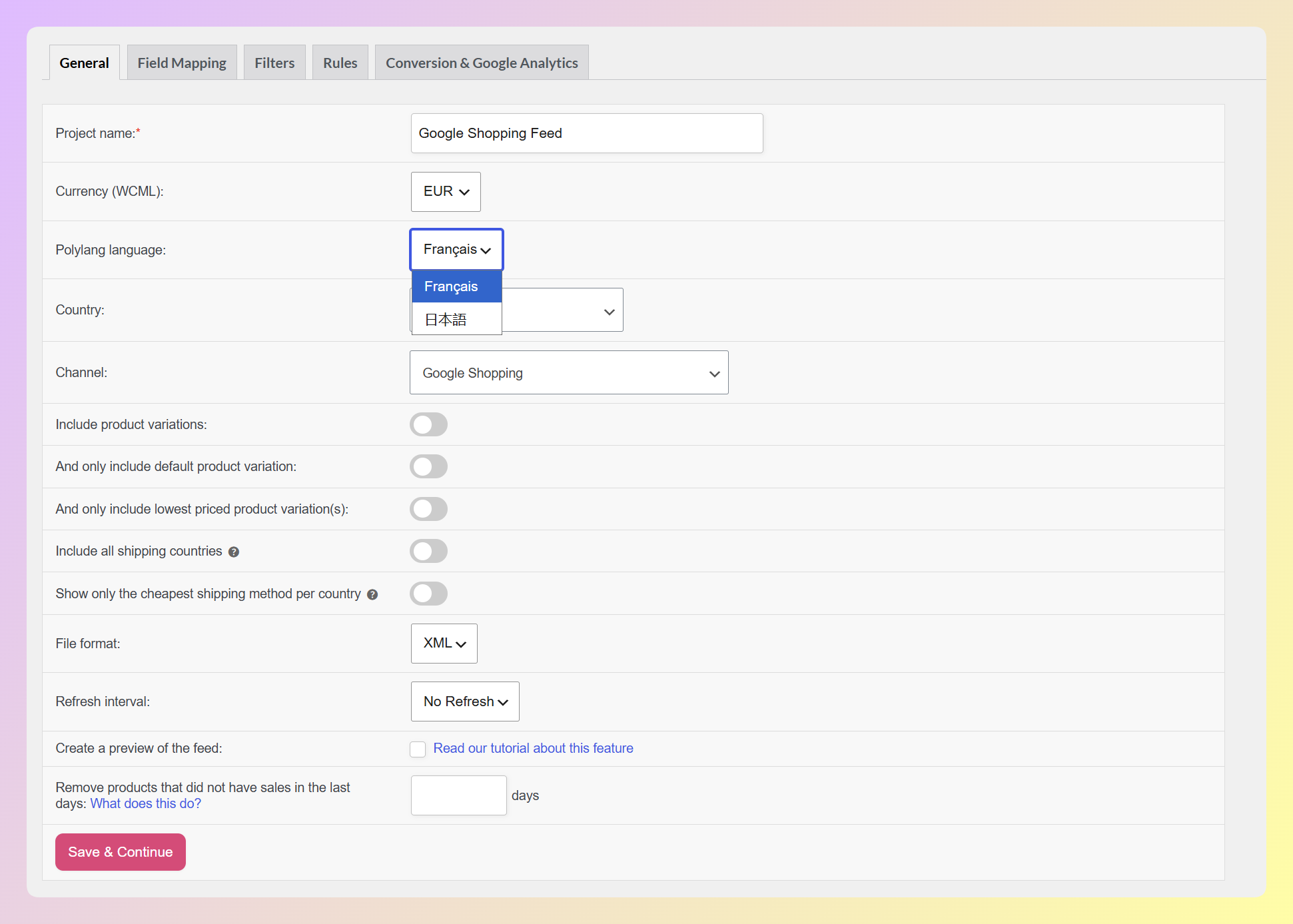
Localize the feed’s text with the AdTribes Feed Translation Addon, available on the Plus and Business plans of Product Feed Elite. It works with WPML, Polylang, and TranslatePress and adds a language field to the feed’s General settings, so titles, descriptions, and other product text can come from the translated version for the language you select.
Per-country shipping
Each feed outputs the shipping rates you’ve set up for its target country. With the Product Feed Multi-Currency Addon, shipping can convert using the feed’s selected currency, so a German feed can output shipping in euros alongside euro product prices. If you’ve set shipping costs manually per currency in your switcher, the feed uses those rates instead.
Register Each Feed In Merchant Center
Add the countries you want to target in Google Merchant Center, then add them to the relevant product data source. If several countries can use the same product data, they can share that source. If a market needs its own localized AdTribes feed, submit that feed as a separate source.
When you use separate AdTribes feeds, submit the relevant feed URL to Merchant Center and make sure each product data source targets the intended market or markets. Because Google can change platform labels and navigation over time, follow the current Merchant Center Help flow rather than relying on a fixed set of clicks.
Frequently Asked Questions
How do I set up Google Shopping for multiple countries?
Make sure your product data fits each target market, then add those countries in Google Merchant Center and submit the relevant AdTribes feed or feeds. When a market needs different currency, language, or shipping data, a separate localized feed gives you clearer control. AdTribes Product Feed Pro lets you set the target country and output shipping rates configured for that market, while Product Feed Elite addons add per-feed currency and language.
Can one Google Shopping feed cover multiple countries?
Yes. Google lets one product data source target multiple countries. Reusing one works best when the same product data and language can serve those markets and your pricing and shipping setup is compatible. If a market needs localized prices, translated product data, or different shipping, a separate feed is usually easier to manage.
Why do my products get disapproved in a new country?
Common reasons include the wrong currency, prices that don’t match your landing page, or missing localized data. Google expects your submitted price and currency to stay consistent with the pricing setup on your product page.
Do I need a separate feed for each currency?
Not always. Google supports currency conversion in some multi-country setups. If you want to submit your store’s own localized prices instead, you can create a separate AdTribes feed for each currency and set it with the Product Feed Multi-Currency Addon.
How does AdTribes handle currency for different countries?
The Product Feed Multi-Currency Addon sets each feed’s currency using Aelia, CURCY, or WCML exchange rates, and shipping converts with that currency. It’s available on the Plus and Business plans of Product Feed Elite.
What about language for international feeds?
Localize your product text with the AdTribes Feed Translation Addon (WPML, Polylang, or TranslatePress), available on the Plus and Business plans of Product Feed Elite. Set each country feed’s language so titles and descriptions match the market.
Does shipping need to change per country?
Shipping should reflect the destination market, which may mean different rates or currencies. With the Product Feed Multi-Currency Addon, shipping can convert with the feed’s selected currency. If you’ve set manual shipping costs per currency in your supported switcher, the feed uses those instead.
Take Your WooCommerce Store Global On Google Shopping
Expanding Google Shopping across countries comes down to matching your product data to each market. Some countries can share a data source, while others are easier to manage with separate localized feeds for currency, language, or shipping. With AdTribes, you can build those market-specific feeds from WooCommerce when you need them.
Here’s the playbook in short:
- Learn the model: reuse one data source when the setup works across markets, and create separate localized feeds when it doesn’t.
- Cover the four settings: target country, currency, language, and per-country shipping.
- Build it in AdTribes: country and shipping in Product Feed Pro, currency and language via the Elite addons, then register every country in Merchant Center.
Ready to go global? Use the Product Feed Multi-Currency Addon to set the currency for your localized AdTribes feeds, then submit the relevant feed data to Merchant Center for the markets you want to reach.