
If you run WooCommerce and want Pinterest Catalogs so your products show as shoppable Product Pins and can back Shopping or Collections campaigns, you need a hosted product file (usually XML) and a URL Pinterest can pull on a schedule. AdTribes Product Feed Pro or Product Feed Elite builds that feed from your catalog.
Below you’ll choose the right channel, confirm field mapping, generate the Feed URL, and add it under Catalogs in Pinterest Business Hub. When a row fails, or Pinterest updates its rules, use their retail catalog article as the checklist: Get started with retail catalogs. A grouped list of every official link we reference in the official Pinterest documentation.
Pick the template that matches what you’re trying to do:
| Template | Use Case | Output Format |
|---|---|---|
| Shopping catalog & ads via Pinterest Catalogs | XML | |
| Pinterest RSS Board | Populating a Pinterest board via RSS | RSS (XML) |
This guide is for the Pinterest catalog template. For the RSS board workflow, see How to Set Up a Pinterest RSS Board Feed.
What You Need Before You Start
Before creating your Pinterest Product Catalog feed, make sure you have:
- A Pinterest Business account
- Your website is claimed on Pinterest (required for catalog ingestion). See Claim your website.
Step-by-Step Instructions
1. Create a New Product Feed
- Log in to your WordPress dashboard.
- From the admin menu, open Product Feed.
- Click Add New Feed to start the feed wizard.
2. Choose the Pinterest Template
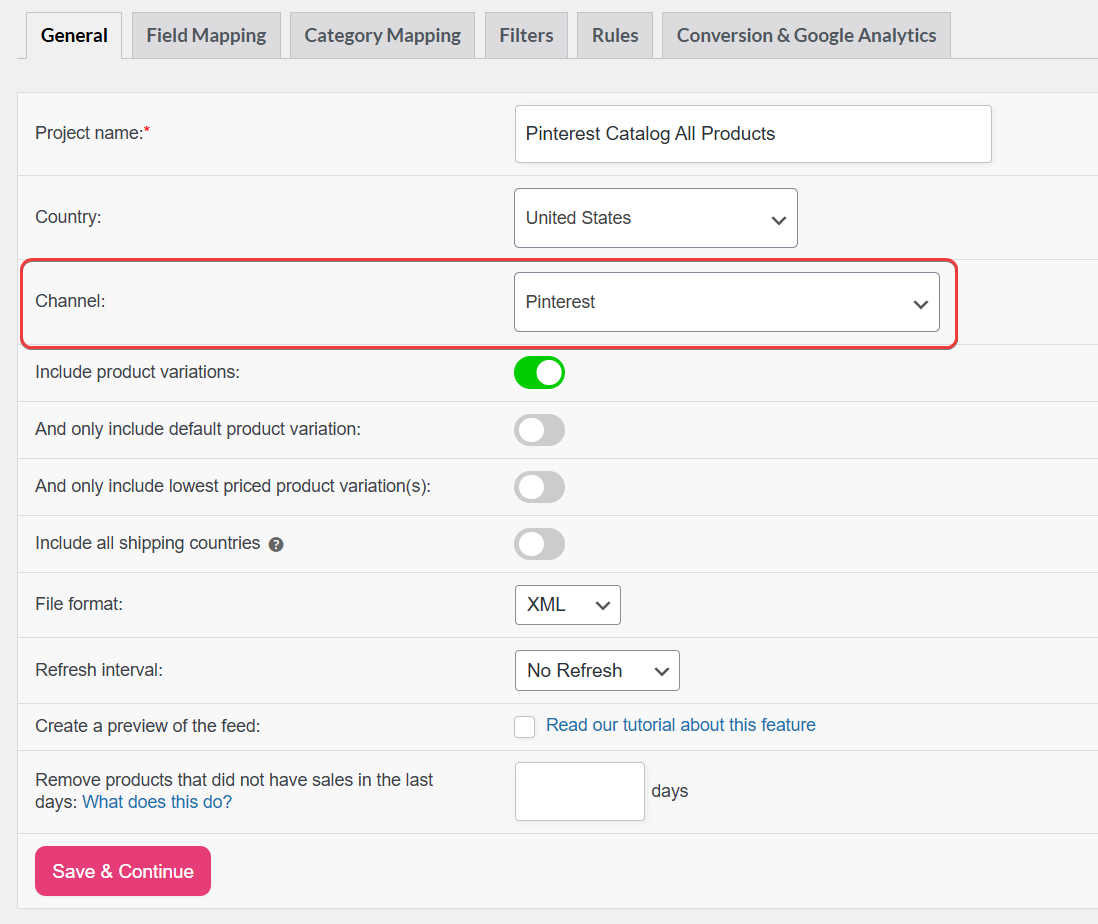
In the Channel step, use the search box to find and select Pinterest. Because this template is pre-built for Pinterest’s ingestion requirements, it already includes the most important attribute mappings out of the box.
Note: Make sure you select Pinterest (the catalog template), not Pinterest RSS Board. They serve different purposes.
3. Configure General Settings
Give your feed a meaningful name (e.g., Pinterest Catalog All Products). Then configure the following:
- File format: Select XML. Pinterest supports XML (alongside CSV, TSV, and other options) for hosted catalogs—see Data source formatting options in Get started with retail catalogs.
- Refresh interval: Choose Daily or Hourly to keep your stock levels, prices, and availability synchronized with Pinterest automatically.
4. Review and Complete Attribute Mappings
The Pinterest template pre-maps the most common attributes. However, you should open the Field mapping step and verify that all required fields are correctly mapped for your store’s data.
Required Attributes
| Pinterest Attribute | Recommended WooCommerce Mapping | Notes |
|---|---|---|
id | Product ID | Must be unique and stable. |
title | Product Title | Automatically truncated to 150 characters. |
description | Product Description | HTML is automatically stripped to plain text. |
link | Product URL | Full canonical product page URL. |
image_link | Main Image URL | Pinterest’s retail catalog article specifies a minimum size for the main image (see Required fields in Get started with retail catalogs); use high-resolution, accessible URLs with no placeholders. |
availability | Stock Status | Values: in stock, out of stock, preorder. |
price | Pinterest / TikTok / Vivino price | See the price tip below. |
google_product_category | Category | Uses the Google product taxonomy (required by Pinterest). |
condition | Condition | Usually new. |
brand | Brand | Required for most product types. |
item_group_id | Item Group ID | Required for variable products with variants. |
Pro Tip – Prices: Pinterest strictly requires prices in ISO-4217 format (e.g.,
29.99 USD). The plugin handles this automatically when you map the price field to the Pinterest / TikTok / Vivino price attribute. This attribute appends the correct ISO-4217 currency code and ensures two decimal places are always present. Don’t use the standard WooCommerce price attribute for Pinterest, as it may include currency symbols or incorrect formatting.
Optional but Recommended Attributes
Providing these additional attributes improves your product visibility and ad performance on Pinterest:
| Pinterest Attribute | Recommended Mapping | Notes |
|---|---|---|
sale_price | Pinterest / TikTok / Vivino sale price | Triggers Pinterest’s strikethrough pricing display. |
additional_image_link | Additional Image URL | Add up to 10 extra product images. |
product_type | Product Type | Your store’s own category path. |
mpn | MPN | Manufacturer Part Number. |
gtin | GTIN/EAN/UPC | Strongly recommended for brand-name products. |
age_group | Age Group | Required for apparel: newborn, infant, toddler, kids, adult. |
gender | Gender | Required for apparel: male, female, unisex. |
size | Size | Required for apparel and shoes. |
color | Color | Required for apparel; strongly recommended for all. |
material | Material | Recommended for apparel and home goods. |
pattern | Pattern | Recommended for textile products. |
shipping | Shipping | Include if required by your country’s Pinterest setup. |
tax | Tax | Include for US-based stores. |
Variant Products: For variable products, ensure
item_group_idis mapped so Pinterest can group all variations (e.g., different sizes and colors of the same shirt) under a single parent listing. Each variation is submitted as a separate row with the sameitem_group_id.
5. Map Your Product Categories
In the category mapping step, match each of your WooCommerce categories to the most specific applicable Google category. Pinterest documents this in Get started with retail catalogs; Google’s taxonomy files are linked from About Google’s product categories (also listed in the official Pinterest documentation).
If a category isn’t an exact match, select the closest parent category. You can refine mappings at any time by editing the feed.
6. (Optional) Filters, Rules, and Analytics
Use Filters to control which products appear in the feed (for example, limiting the feed to a specific category or only in-stock products). See the documentation: How to Create Filters for Your Product Feed.
Use Rules to modify product data before export, such as shortening titles or descriptions so they display better in Pinterest Pins. See: How to Use Rules in Product Feed Pro.
You can also enable Analytics to add tracking parameters to product links and track traffic from Pinterest. See: How to Use Analytics in Product Feed Pro.
These features work the same way as they do for other channels in the plugin.
7. Save and Generate the Feed
Click Generate Product Feed (or complete the wizard and run the generation step) to create the feed file.
Wait until the feed status changes to Ready.
8. Copy the Feed URL
From Manage Feeds, locate your Pinterest feed, and copy the Feed URL. You will need this URL in the next step.
9. Submit the Feed to Pinterest
- Log in to your Pinterest Business Hub
- Navigate to Ads > Catalogs (or Catalogs from the left menu).
- Click Get Started or Add data source.
- Choose Scheduled fetch as your data source type.
- Paste the Feed URL copied from the plugin.
- Set the File format to XML.
- Select your Country and Currency.
- Configure an ingestion schedule (daily is recommended).
- Click Submit.
Pinterest will perform an initial crawl of your feed. Once approved, your products will be available in your catalog and can be used to create Shopping Ads and Collections Ads. If ingestion fails or items show warnings, use Catalog diagnostics in Pinterest Business together with Add your data source.
Automatic Processing Behaviors
The plugin handles several Pinterest-specific requirements automatically, so you don’t have to:
| Behavior | Detail |
|---|---|
| ISO-4217 price formatting | The plugin formats prices as 29.99 USD (numeric value + space + currency code). |
| Title truncation | The plugin automatically truncates product titles longer than 150 characters. |
| HTML stripping | The plugin removes HTML tags and entities from descriptions so Pinterest receives clean plain text. |
| ISO-8601 dates | The plugin formats date fields (e.g., sale_price_effective_date) as 2024-12-31T23:59:59+00:00. |
Pinterest RSS Board Feed
The Pinterest RSS Board channel outputs RSS-style XML for a board RSS workflow (pins pulled into a board). It is not a replacement for the Pinterest catalog feed used in Catalogs and Shopping-style ads. Step-by-step setup: How to Set Up a Pinterest RSS Board Feed
Troubleshooting
Products are rejected with a price formatting error. Ensure the price field is mapped to the Pinterest / TikTok / Vivino price attribute rather than the standard WooCommerce price attribute. This attribute automatically formats the value to the required amount ISO-code format (e.g., 25.00 GBP).
Variant products aren’t grouped correctly. Verify that the item_group_id field is mapped to an attribute that shares a common value across all variations of the same parent product. The plugin maps this automatically in most configurations, but check the mapping if variants are not grouped.
Images are being rejected by Pinterest. Check the current image_link requirements in Get started with retail catalogs (required fields section). Use direct image URLs that Pinterest’s user-agent can fetch, avoid template or placeholder images, and follow Pinterest’s guidance for additional images in the same article. The additional_image_link field can be used for extra angles or lifestyle shots.
The feed URL returns a 404 or is not accessible. Make sure the feed status is Ready (not Processing or Error) before submitting the URL to Pinterest. Also, confirm that your WordPress permalink settings are not blocking access to feed files in the plugin’s output directory.
The catalog shows an ingestion error on Pinterest. Follow Add your data source to validate your URL and review errors. Then open Catalog diagnostics for row-level issues. You can also run a general XML validator on the downloaded feed. Common causes include special characters in titles (the plugin automatically converts these) or missing or misformatted required fields per Get started with retail catalogs.
FAQ
Official Pinterest documentation
Use these alongside the steps above. Pinterest may update articles without notice—open the link if something in your account no longer matches this guide.
Business Help (feeds and catalogs)
| Resource | What it covers |
|---|---|
| Get started with retail catalogs | Hosted feed URL (scheduled fetch), validation, ingestion schedule, and failed fetches. |
| Add your data source | Upload status, errors, and warnings after processing. |
| Catalog diagnostics | Upload status, errors, warnings after processing. |
| Claim your website | Domain verification (HTML tag, HTML file, DNS TXT). |
| Install the Pinterest tag | Pinterest tag (often listed in catalog onboarding). |
| Import content to Pinterest | Add a catalog vs RSS, bulk upload, and other import options. |
| Verified Merchant Program | Optional verified merchant program (separate from basic catalog approval). |
Policy (merchant and product rules)
| Resource | What it covers |
|---|---|
| Merchant guidelines | Site quality, product eligibility, prohibited categories, feed or Pin restrictions. |
| Advertising guidelines | Prohibited products and services for ads. |
Google product taxonomy (used by Pinterest)
Pinterest expects google_product_category values from Google’s product taxonomy. For the official category list and IDs, use Google’s merchant documentation. For example, about Google’s product categories and the taxonomy files linked from that page, then mirror those values in the plugin’s Category mapping step.
Pinterest Developers (Catalogs API)
If your team integrates via API instead of a static file URL, see the Pinterest API v5: Catalogs section on Pinterest Developers. That path is optional for WooCommerce stores that only use a hosted XML/CSV feed from the plugin.
Need Further Assistance?
If you need any further assistance with the Pinterest Product Catalog Feed, feel free to create a new ticket to reach out to our support team.
Please note that the ticket support system is exclusive to Product Feed ELITE users.
If you’re using only the Product Feed Pro plugin, feel free to open a new topic in the WordPress.org forum.

