
Product Feed Pro and Elite help you generate optimized product feeds for advertising platforms, comparison engines, and marketplaces. This guide walks through the settings available in Product Feed Pro and Product Feed Elite for WooCommerce. It explains what each option does, when to use it, and how to configure your setup for platforms like Google Shopping, Facebook, and other marketing channels.
Whether you’re optimizing structured data, managing multilingual feeds, or configuring tracking pixels, this article covers everything step by step.
Accessing Plugin Settings
- Log in to your WordPress dashboard.
- Navigate to Product Feed → Settings.
- Open the General tab.
- Review additional sections like Extra Fields, System Check, and Export / Import if needed.
Plugin Settings Overview (Free)
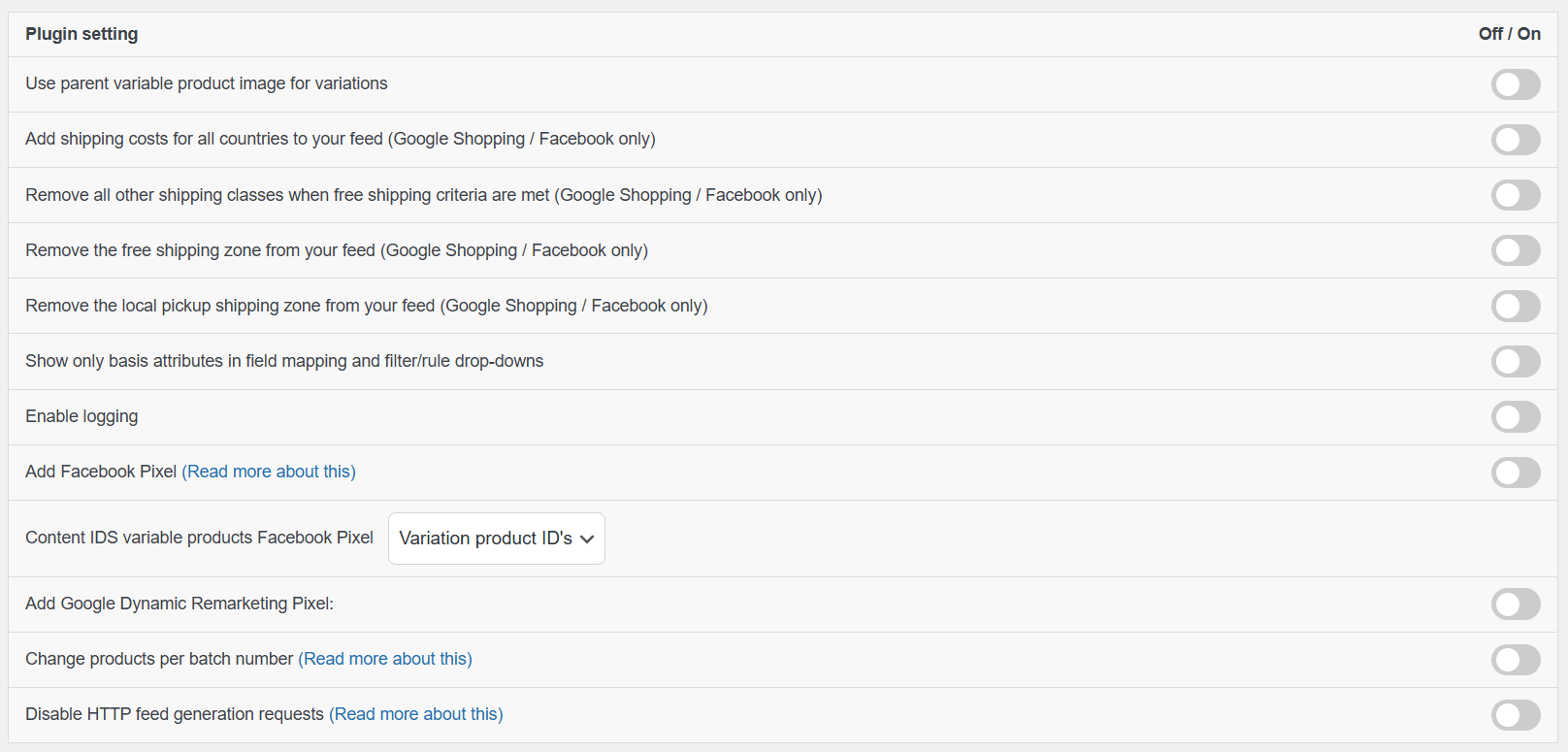
Use parent variable product image for variations
This setting replaces each variation’s image in the feed with the parent product’s main (featured) image.
Use it if variations share the same appearance or do not have individual images. Keep it disabled if each variation needs to display its own unique image in the feed.
Add shipping costs for all countries to your feed
Adds shipping methods from all shipping zones to every feed automatically.
If you only want to include all shipping methods in a specific feed, leave this disabled and enable “Include all shipping countries” in the General step while configuring that feed.
Choose this option when you want global shipping data applied across all feeds by default.
Remove all other shipping classes when free shipping criteria are met
If a product qualifies for free shipping, all other shipping methods are removed from the feed for that product.
This ensures only the free shipping option is submitted, avoiding conflicting or unnecessary shipping costs.
Remove the free shipping zone from your feed
Excludes free shipping method from being included in the feed output.
Use this if you do not want free shipping details submitted to marketing channels or if free shipping is managed separately within the platform.
Remove the local pickup shipping zone from your feed
Prevents local pickup methods from being added to the feed.
This is helpful if local pickup is only available in-store and should not be advertised in external shopping feeds.
Show only basic attributes in field mapping and filter/rule drop-downs
Limits the available attributes in mapping, filters, and rules to essential fields.
This keeps the interface cleaner and easier to navigate, especially for smaller catalogs or users who do not need advanced attribute options.
Enable Logging
Records feed generation activity and errors in log files.
Turn this on when troubleshooting issues, and disable it once debugging is complete to avoid unnecessary log data.
Add Facebook Pixel
Integrates the Facebook Pixel directly into your store for tracking visitor activity and conversions.
Content IDs for Variable Products (Facebook Pixel)
Choose how product IDs are passed to Facebook:
- Parent product ID – Sends the main variable product ID
- Variation product IDs – Sends each variation’s unique ID
If you sell variations separately, select Variation product IDs to ensure accurate tracking and ad matching.
Add Google Dynamic Remarketing Pixel
Adds Google Ads dynamic remarketing tracking to your store.
Enable this if you run Google Ads remarketing campaigns and want to show personalized ads based on products users viewed or added to cart.
Change products per batch number
Defines how many products are processed in each batch during feed generation.
Increase the number if your server can handle higher loads or if feed generation is slow.
Decrease it if you experience timeouts or your hosting environment has limited resources.
Adjusting this setting can help balance performance and stability.
Disable HTTP feed generation requests
Stops the plugin from triggering automatic HTTP requests to generate feeds.
This should only be used if you manually generate feeds or if your hosting provider blocks or restricts external HTTP requests.
For a detailed explanation of how this works and when to use it, see:
https://adtribes.io/knowledge-base/what-does-disable-http-feed-generation-requests-do/
Plugin Settings Overview (Premium)
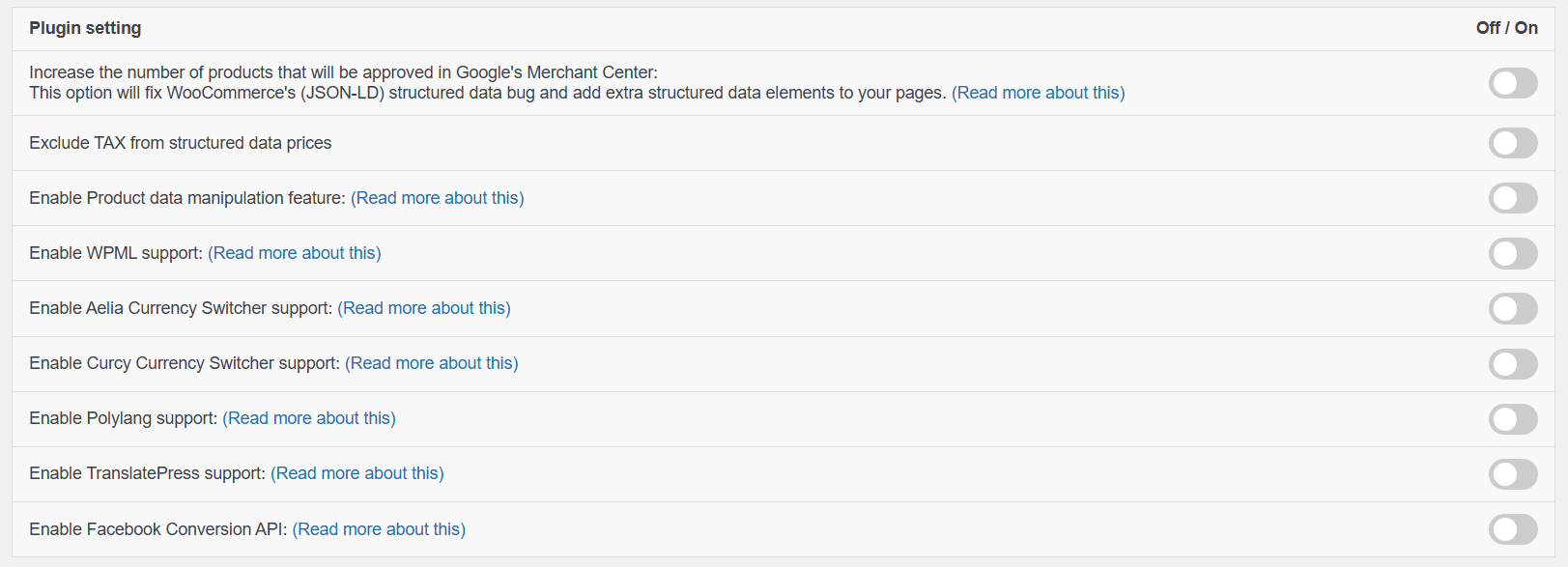
Structured Data & Merchant Center Fixes
Increase the Number of Products Approved in Google Merchant Center
Improves WooCommerce structured data output to help reduce disapprovals in Google Merchant Center.
This option:
- Fixes known WooCommerce JSON-LD structured data issues
- Adds missing or enhanced structured data fields
- Helps improve product approval rates
Recommended for stores running Google Shopping campaigns.
Learn more: https://adtribes.io/woocommerce-structured-data-bug/
Exclude TAX from structured data prices
Removes tax from the price shown in structured data.
Use this if your Merchant Center account requires tax-exclusive pricing or if you operate in regions where base prices must be submitted without tax.
Enable Product Data Manipulation Feature
Unlocks advanced feed customization tools that allow you to:
- Modify product attributes before export
- Create custom rules
- Dynamically adjust field values
Best suited for advanced feed optimization and complex requirements.
Learn more: https://adtribes.io/feature-product-data-manipulation/
WPML Support
Ensures feeds pull the correct translated product titles, descriptions, URLs, and categories created with WPML.
Enable this if your store uses WPML to manage multiple languages and you generate separate feeds per language.
More details: https://adtribes.io/wpml-support/
Polylang Support
Allows the plugin to retrieve translated product data created with Polylang.
Use this if your catalog is translated with Polylang and you need feeds in different languages.
More details: https://adtribes.io/polylang-support/
TranslatePress Support
Ensures product data translated through TranslatePress is correctly reflected in the feed output.
Enable this if TranslatePress handles your multilingual setup and you want feeds that match the selected language.
More details: https://adtribes.io/translatepress-support/
Aelia Currency Switcher Support
Adds compatibility with Aelia’s currency switcher so feed prices reflect the correct converted currency.
Use this if you generate feeds in multiple currencies or need currency-specific feeds for different regions.
More details: https://adtribes.io/aelia-currency-switcher-feature/
Curcy Currency Switcher Support
Ensures feed prices align with the currency selected through the Curcy currency switcher.
Enable this if Curcy manages your multi-currency pricing and you require an accurate currency-based feed output.
More details: https://adtribes.io/curcy-currency-switcher-feature/
Tip: Activate only the integration you actually use. Enabling multiple multilingual or currency integrations at the same time may cause conflicts.
Other Settings Overview
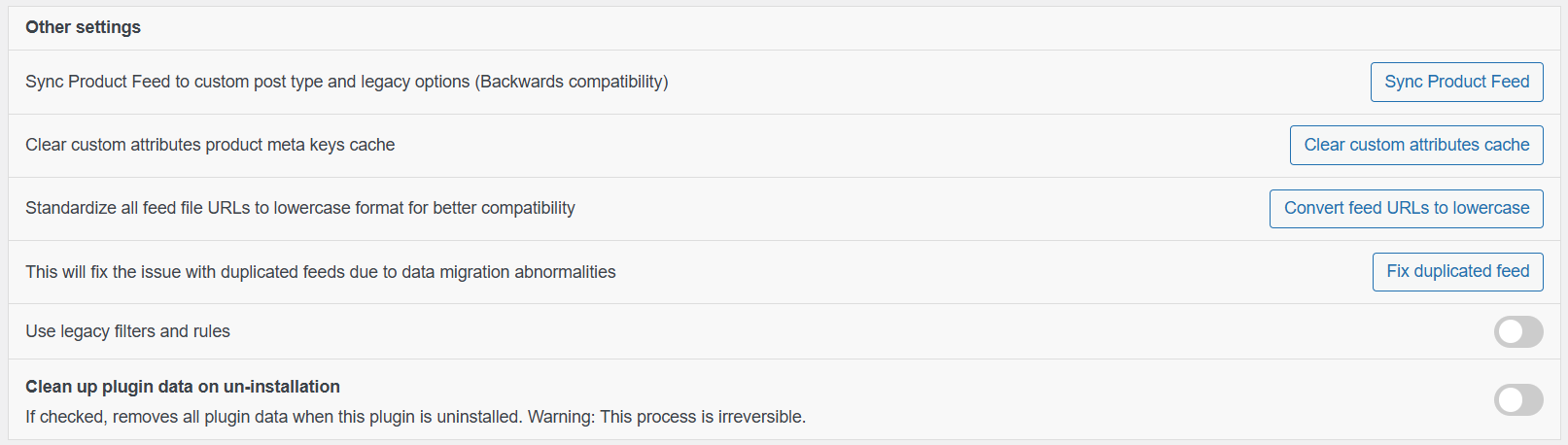
Sync Product Feed to custom post type and legacy options
Used to maintain compatibility with older plugin versions.
If you’ve upgraded from a previous version and notice missing or inconsistent feeds, click Sync Product Feed to migrate and align existing data with the current structure.
Clear custom attributes product meta keys cache
Clears the cached list of custom product attributes.
Use this after adding new custom fields or attributes to ensure they appear correctly in field mapping and feed configuration.
Standardize all feed file URLs to lowercase
Feed URLs by default contain a mix of uppercase and lowercase characters, but on some servers, feed files are stored using lowercase filenames. This mismatch can lead to duplicate feeds or inconsistent access due to case sensitivity.
This option converts all feed URLs to lowercase to ensure consistency between the stored file name and the public URL.
Click Convert feed URLs to lowercase if you notice inconsistent URL behavior.
Fix duplicated feed
In some cases, the system may generate empty or duplicate feeds, as shown in the screenshot below.
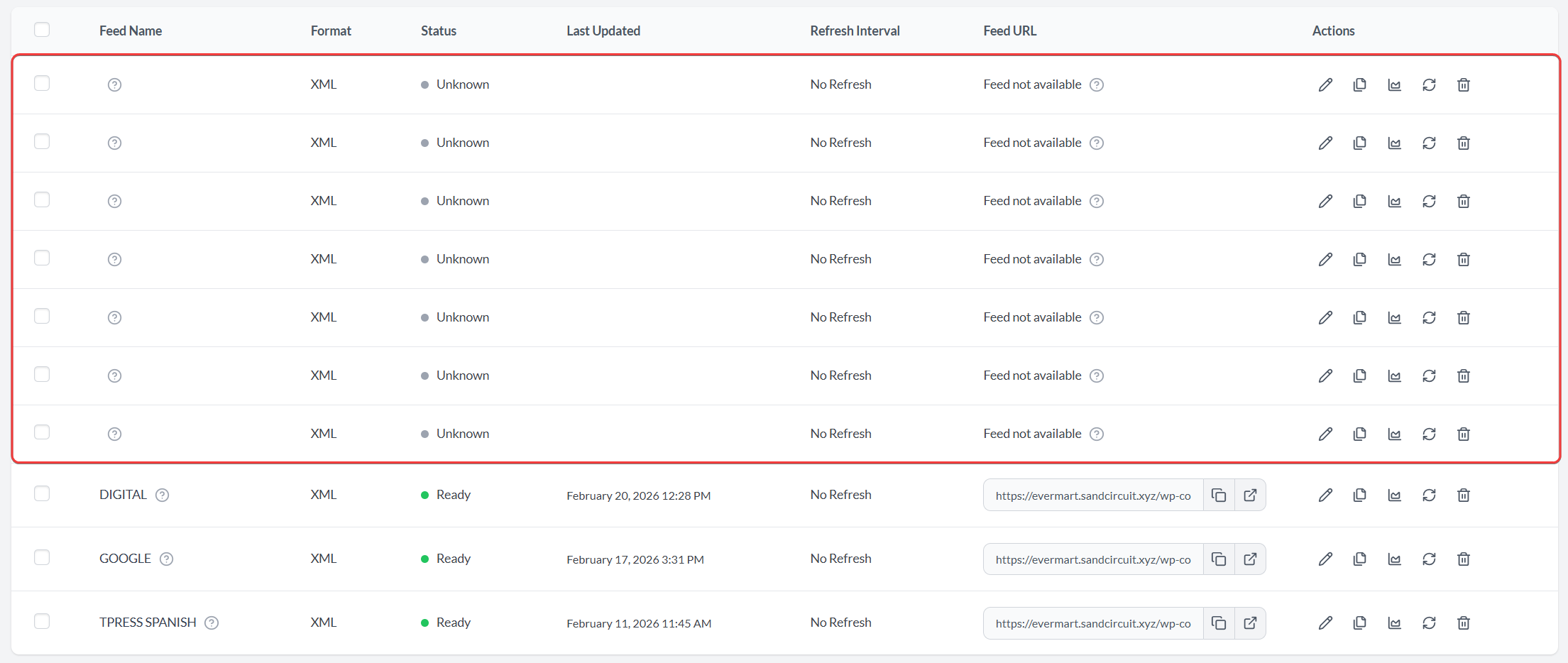
If you notice multiple feeds with no data or a “Feed not available” status, you can quickly remove them.
To clean them up, click the “Fix Duplicate Feed” button. This will automatically remove the empty or duplicated entries and keep only the valid feeds.
Clean up plugin data on uninstallation
Removes all plugin-related data from your database when the plugin is uninstalled.
Enable this only if you want a complete removal with no leftover settings or feed data.
⚠ This action cannot be undone.