Reviewed by
Pinterest is a natural fit for visual WooCommerce products. If you sell fashion, home decor, jewelry, DIY supplies, or lifestyle products, your customers may already be using Pinterest to search for ideas, compare options, and plan future purchases.
Pinterest Shopping Ads help you show your products in those discovery moments, but they depend on one important piece first: a properly formatted product feed. If your feed is missing required fields or uses messy product data, your items may run into catalog errors before your ads ever go live.
In this guide, we’ll walk through how to set up Pinterest Shopping Ads for WooCommerce using AdTribes Product Feed Pro. You’ll learn what Pinterest requires, how to generate a Pinterest-ready product feed, and how to prepare your first Shopping Ads campaign.
What Are Pinterest Shopping Ads
Pinterest Shopping Ads are paid product placements that show items from your product catalog across Pinterest. They can appear in places like search results and home feeds, and they include product details such as pricing, availability, and a direct link to your product page.
Unlike standard Pinterest ads where you upload a creative and write copy, Shopping Ads pull product data automatically from your catalog feed. Pinterest matches your products to relevant searches based on the product titles, descriptions, categories, and images in your feed. This makes them especially effective for visually driven categories like fashion, jewelry, home goods, and DIY supplies.
According to Pinterest’s own business data, people who use Pinterest weekly are 7x more likely to say it is the most influential platform in their purchase journey, compared to other social media platforms. That buying intent is what makes Shopping Ads worth setting up for WooCommerce stores with visual products.
Requirements For Pinterest Shopping Ads
Before you create a feed, you need a few things in place. Pinterest has specific account and feed requirements that must be met before your products can appear.
Account requirements
- Pinterest Business account: You need a business account, not a personal one. You can convert an existing personal account or create a new one at business.pinterest.com.
- Claimed website: Your WooCommerce store domain must be claimed and verified in your Pinterest Business account settings.
- Pinterest tag installed: The Pinterest tag (their tracking pixel) should be installed on your WooCommerce store to track conversions and enable remarketing.
Feed requirements
Pinterest product feeds follow a format similar to other shopping feeds, but you still need to match Pinterest’s own catalog requirements. The required fields include:
- id: A unique product identifier
- title: The product name, including variant details when relevant
- description: A plain-text product description
- link: The direct URL to the matching product page on your store
- image_link: A high-quality product image URL that Pinterest can access
- price: The product price, formatted with the correct currency details
- availability: Whether the product is in stock, out of stock, or on preorder
- item_group_id: Required only when you submit multiple variants of the same product
Optional but recommended fields include google_product_category, product_type, additional_image_link, sale_price, and color. Including these fields improves how well Pinterest matches your products to relevant searches.
💡 Quick tip: Because Pinterest is such a visual platform, your product images matter as much as your feed formatting. Avoid tiny, low-quality, placeholder, or hard-to-crop images. If you have multiple strong product photos, you can use your main image for
image_linkand add supporting visuals throughadditional_image_link.
How To Create A Pinterest Product Feed With AdTribes Product Feed Pro
Product Feed Pro makes it straightforward to generate a WooCommerce Pinterest product feed that matches Pinterest’s catalog requirements. Here’s how to set it up step by step.
Step 1: Install and activate AdTribes Product Feed Pro
If you haven’t already, download and install Product Feed Pro from the WordPress plugin repository. After activation, you’ll find the plugin under “Product Feed Pro” in your WordPress dashboard menu.
Step 2: Create a new product feed
Navigate to the Product Feed Pro menu and click “Create feed.” From the channel dropdown, select “Pinterest.” The plugin includes a pre-built Pinterest template that maps your WooCommerce product data to Pinterest’s required fields automatically.
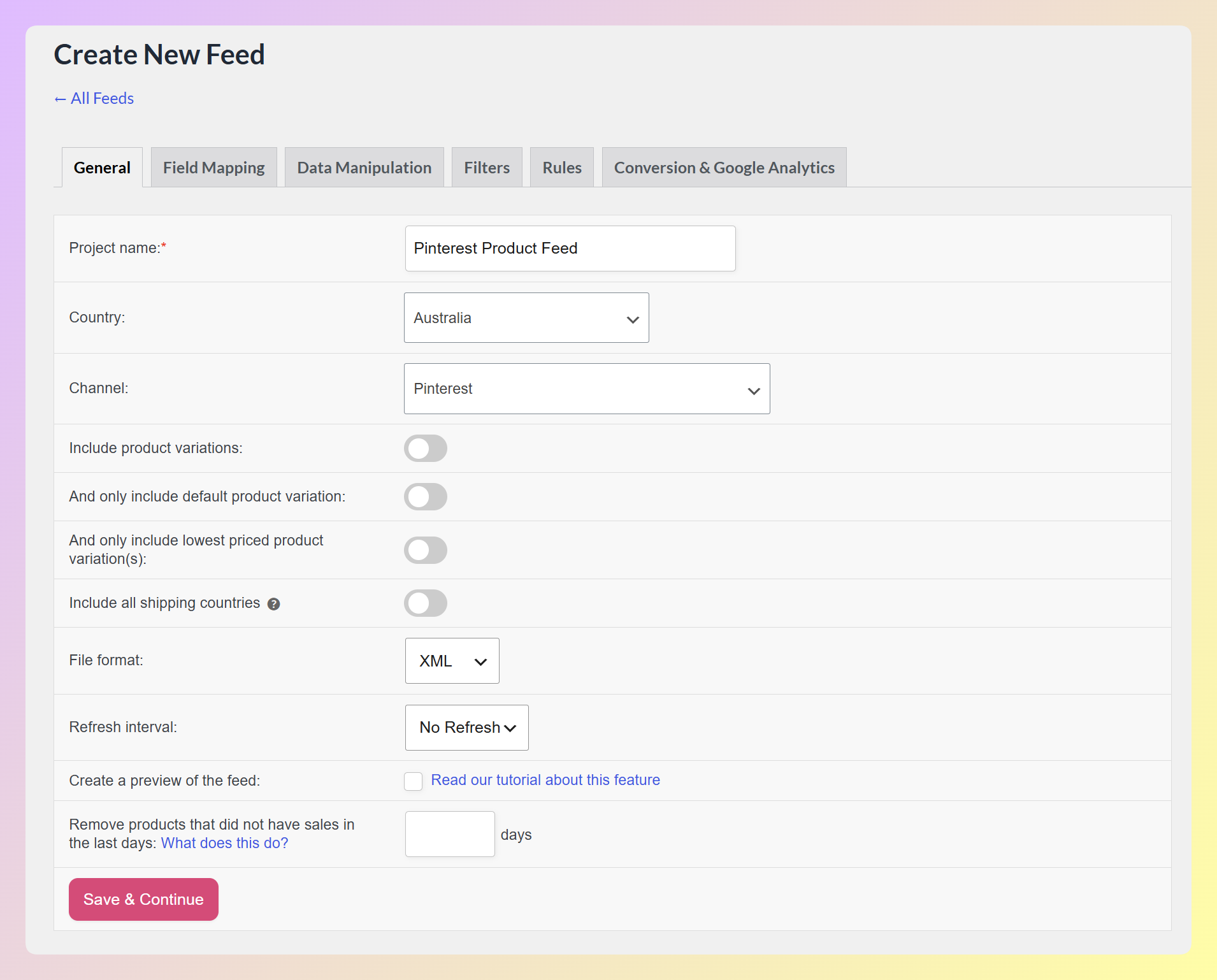
Give your feed a recognizable name like “Pinterest Shopping Feed” so you can identify it later.
Step 3: Map your product fields
With the Pinterest template selected, Product Feed Pro pre-fills the required field mappings. Review them to confirm:
- id maps to your WooCommerce product SKU or product ID
- title maps to your product name
- description maps to your product description (short or long, depending on your preference)
- link maps to your product URL
- image_link maps to your main product image
- price maps to your regular price with currency
- availability maps to your stock status
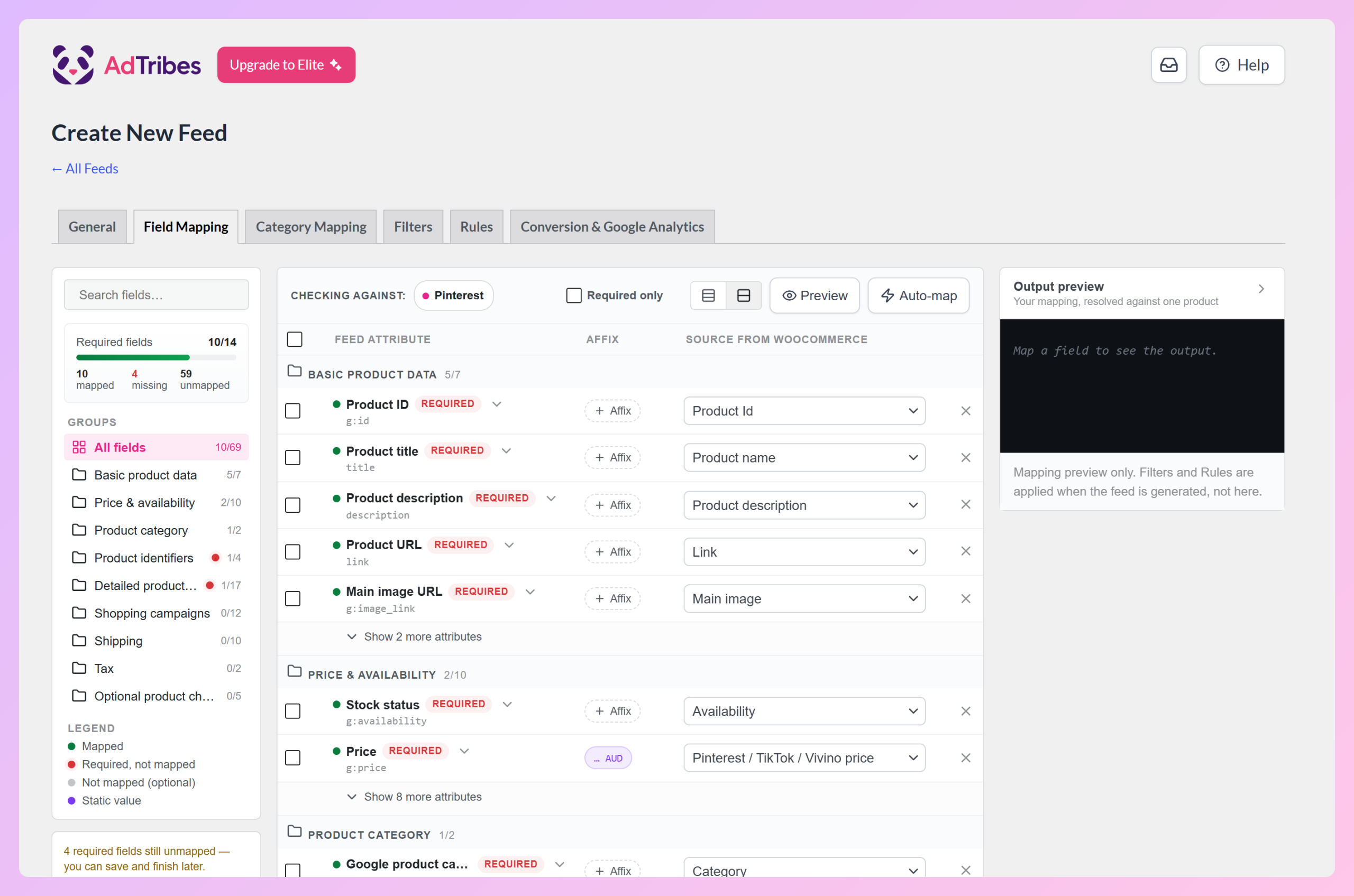
The Required fields counter shows how many of Pinterest’s required attributes are mapped, and the red dots in the Groups sidebar point to anything still missing. Click “Auto-map” to match unmapped fields to WooCommerce sources where it can, or change any mapping using the source dropdown next to each attribute. Click “+ Add field mapping” to add optional fields like google_product_category or sale_price.
Step 4: Apply feed rules and filters
This is where you fine-tune which products go to Pinterest. Use the filter options to:
- Exclude out-of-stock products
- Exclude products without usable images, since Pinterest requires an accessible
image_link - Filter by category if you only want certain product lines in your Pinterest feed
Feed rules let you modify data before it’s sent. For example, you can set a rule to append your brand name to every product title, which helps with search visibility on Pinterest.
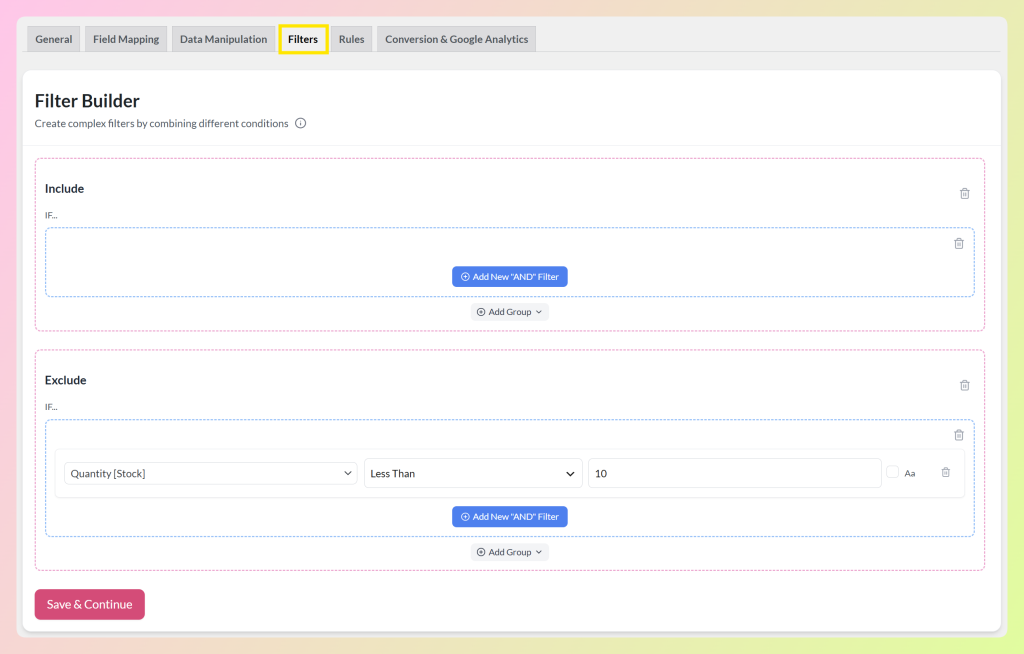
A practical way to approach this is to keep your Pinterest feed focused on products that are visually strong, in stock, and worth promoting. If certain low-margin or low-priority items are not a good fit for your ad budget, you can filter them out before sending your feed to Pinterest.
Step 5: Generate and copy your feed URL
Click “Generate feed” and Product Feed Pro will create your Pinterest product feed. Once generated, you’ll get a hosted feed URL that updates automatically based on your selected refresh schedule.
Copy this feed URL. You’ll need it in the next step when you connect your catalog to Pinterest.
How To Launch Your First Pinterest Shopping Ads Campaign
With your feed ready, it’s time to get your products live on Pinterest and set up your first Shopping campaign.
Connect your catalog to Pinterest
- Log in to your Pinterest Business account.
- Go to “Ads” and then “Catalogs” in the top menu.
- Click “Add data source” and paste the feed URL that Product Feed Pro generated.
- Pinterest will process your data source and notify you about its status.
- Check your catalog diagnostics for any feed errors or warnings, then fix any issues Pinterest flags.
Create a Shopping campaign
After Pinterest has ingested your feed and your products are approved:
- Go to “Create campaign” in your Pinterest Ads Manager.
- Select “Catalog sales” as your campaign objective.
- Set your daily or lifetime budget based on how much you’re comfortable testing while Pinterest gathers performance data.
- Choose your targeting details. For catalog sales campaigns, keyword or interest targeting is not always necessary, so focus on the audience and delivery settings that best fit your campaign goal.
- Select which product groups from your catalog to promote. You can promote all products or create product groups based on categories, brands, or custom labels from your feed.
- Set your bid strategy. Pinterest recommends Performance+ bidding as a starting point for shopping ads.
- Review and launch.
Monitor your results
After launching, give your campaign enough time to collect meaningful data before making major adjustments. Check early for feed or tracking issues, but avoid changing budgets, targeting, or product groups too quickly before you can see clear performance patterns.
Track key metrics like impressions, clicks, click-through rate (CTR), and cost per click (CPC) in your Pinterest Ads Manager. Compare these against your WooCommerce conversion data to understand actual return on ad spend.
Tips To Optimize Pinterest Product Listings
Getting your feed live is just the first step. Optimizing your product listings helps you get more impressions, clicks, and conversions from Pinterest Shopping.
Write Pinterest-optimized titles
Pinterest search works differently from Google. Users search with more descriptive, aspirational terms. Instead of “blue dress,” someone might search “summer wedding guest outfit blue.” Add descriptive keywords to your product titles using Product Feed Pro’s feed rules so they match how people actually search on Pinterest.
For more on crafting effective Pinterest product content, see our Pinterest marketing tips.
Use high-quality vertical images
Pinterest recommends a 2:3 aspect ratio, such as 1000×1500 pixels, for standard Pins. If your WooCommerce product images are square, consider creating Pinterest-specific images for your top-selling or most visual products so they fit the platform’s vertical browsing experience better.
Keep your feed fresh
Product Feed Pro lets you set automatic feed refresh schedules. For Pinterest, a daily refresh is a practical starting point because Pinterest generally accesses hosted data sources daily. This helps keep your source file aligned with your latest pricing, availability, and product updates before Pinterest pulls it again.
Use product groups strategically
Don’t promote your entire catalog with the same budget. Create separate product groups for your best sellers, seasonal items, and high-margin products. This lets you allocate more budget to the products most likely to convert.
Segmenting your product catalog into targeted ad groups, rather than running one campaign for everything, lets you bid according to each group’s performance, which is a well-established way to improve return on ad spend.
Frequently Asked Questions
Do I need a paid version of Product Feed Pro for Pinterest feeds?
No, the free version of Product Feed Pro can generate Pinterest feeds and includes the core tools most WooCommerce stores need, including field mapping, filters, rules, scheduled refreshes, multiple feeds, and product variations. Product Feed Elite is better suited for stores that need more advanced tools, such as custom refresh intervals, product data manipulation, extra product fields, multi-currency support, broader integrations, or feed import/export.
How often should I update my Pinterest product feed?
For Pinterest, a daily refresh is a practical starting point because Pinterest generally accesses hosted data sources daily. Product Feed Pro can generate your feed on a schedule, so your source file stays updated with your latest product data before Pinterest pulls it again.
Why are my Pinterest Shopping products getting disapproved?
The most common reasons are missing required fields, image issues, price mismatches between your feed and landing page, or broken product URLs. Check the Diagnostics tab in your Pinterest Catalogs dashboard for specific error details so you can see exactly what Pinterest wants you to fix.
Can I run Pinterest Shopping Ads for variable products?
Yes. Product Feed Pro can include product variations in your Pinterest feed, sending each variant (different sizes, colors, etc.) as a separate line item with its own image, price, and availability. This gives Pinterest more products to match against user searches.
Start Selling On Pinterest With Your WooCommerce Product Feed
Pinterest Shopping Ads give WooCommerce store owners a direct channel to reach high-intent buyers who are already in a discovery and planning mindset. The key is getting your product feed right, and keeping it updated so Pinterest can consistently match your products to relevant searches.
Here’s a quick recap of what to do:
- Set up your Pinterest Business account and verify your domain
- Generate a Pinterest product feed with Product Feed Pro
- Launch your first Shopping Ads campaign with proper targeting
- Optimize your titles, images, and feed refresh schedule
If Pinterest is a good fit for your products, the next step is getting your feed in order. Get Product Feed Pro for free and start building a Pinterest-ready product feed for your WooCommerce store.