Reviewed by
Product identifiers are one of the most confusing parts of WooCommerce product feeds. You may know you need details like GTIN, MPN, UPC, or EAN in your Google Shopping feed, but figuring out what they mean, which ones apply to your products, and where to find them can feel unnecessarily complicated.
It gets even trickier when you sell products that don’t have manufacturer-assigned identifiers at all. Custom-made items, white-label products, handmade goods, and vintage items can all fall into gray areas where it is not immediately obvious what your feed should include.
This guide explains every product identifier type, when Google requires them, what to do when your products don’t have them, and how to add them to your WooCommerce product feed using AdTribes.
What Are Product Identifiers And Why Do They Matter
Product identifiers are standardized codes that uniquely identify a specific product across retailers, manufacturers, and platforms worldwide. They act like a product’s fingerprint, letting Google, Meta, and other channels confirm exactly which product you’re selling.
When you include accurate product identifiers in your feed, several things improve:
- Better ad matching: Google can match your product to relevant search queries more accurately because it knows exactly what the product is, not just what you call it.
- Competitive pricing visibility: With a GTIN, Google can compare your price against other retailers selling the exact same product, and display your listing in price comparison features.
- Stronger product data: Accurate identifiers help Google understand exactly what you sell, which can support better matching across ads, free listings, and product surfaces.
- Fewer feed issues: Missing, incorrect, or mismatched identifiers can lead to warnings, limited visibility, or disapprovals in Merchant Center. Getting them right from the start helps prevent avoidable feed problems.
For WooCommerce store owners running product feeds, identifiers aren’t optional for most product types. Google expects them for any product that has a manufacturer-assigned identifier, and submitting feeds without them limits your reach.
GTIN Explained
GTIN stands for Global Trade Item Number, and it’s the umbrella term for several barcode numbering systems used around the world. When Google asks for a “GTIN,” they’re asking for whichever standard barcode number applies to your product based on its type and region.
What falls under GTIN
The GTIN family includes several specific formats:
- UPC (Universal Product Code): 12 digits. The standard barcode system in the United States and Canada. You’ll find UPCs on nearly every retail product sold in North America. The barcode on the back of a cereal box or a pair of jeans is a UPC.
- EAN (European Article Number): 13 digits. The standard barcode system in Europe and most of the rest of the world. Functionally identical to UPC but with an extra digit. Most products sold internationally carry an EAN.
- ISBN (International Standard Book Number): 13 digits. Used exclusively for books. If you sell books through WooCommerce, the ISBN is your GTIN.
- JAN (Japanese Article Number): 13 digits. The Japanese equivalent of EAN. Structurally identical to EAN-13.
- ITF-14: 14 digits. Used for multipacks and case-level packaging, not individual retail units. You’ll typically only encounter this if you sell bulk or wholesale quantities.
All of these are valid GTIN formats that Google accepts. You don’t need to convert between them. If your product has a UPC, submit the UPC. If it has an EAN, submit the EAN. Google recognizes all formats in the gtin feed attribute.
Where to find GTINs for your products
Finding GTINs depends on your role in the supply chain:
- Reselling manufactured products: The GTIN is usually printed on the product packaging as a barcode. You can also find it in the manufacturer’s product catalog, on their website, or by asking your wholesale supplier. Many distributors include GTINs in their product data sheets.
- Manufacturing your own products: If you manufacture products and want GTINs, you need to purchase them from GS1, the global organization that issues GTIN numbers. In the US, you apply through GS1 US (gs1us.org). You buy a company prefix and then assign individual GTINs to each product.
- Private label or white-label products: If you rebrand someone else’s product, you typically need your own GTINs from GS1 rather than using the original manufacturer’s codes.
Important note: Do not make up a GTIN or use a random number. GTINs should be assigned by the manufacturer or issued through the correct standards body. If the number is invalid, mismatched, or fabricated, Google may flag the product and limit or disapprove the listing.
MPN Explained
MPN stands for Manufacturer Part Number. It’s a unique code assigned by the manufacturer to identify a specific product. Unlike GTINs, which are globally standardized, MPNs are manufacturer-specific and don’t follow a universal format.
How MPNs differ from GTINs
The key difference is scope and standardization:
- GTIN is a globally standardized barcode number that uniquely identifies a product across all retailers worldwide. Two retailers selling the same phone case will use the same GTIN.
- MPN is the manufacturer’s own internal part number. It’s unique within that manufacturer’s catalog but has no global standard for format or length. One manufacturer might use “ABC-1234” while another uses “7890XYZ.”
Google uses MPNs as a secondary identifier when paired with the brand name. The combination of brand + mpn can uniquely identify a product even when a GTIN isn’t available.
Where to find MPNs
MPNs are typically found:
- On the product packaging or label
- In the manufacturer’s product catalog or data sheet
- On the manufacturer’s website under product specifications
- In your wholesale supplier’s inventory or order system
For WooCommerce store owners, the MPN is whatever the manufacturer calls their own part number, model number, or product code. If you’re buying a phone case from a manufacturer and their catalog lists it as “Model: PC-BLK-13PRO,” that’s the MPN.
When to use MPN vs GTIN
Google accepts either GTIN or the combination of brand + MPN to identify a product. Their preference hierarchy is:
- GTIN (always preferred when available)
- Brand + MPN (acceptable when no GTIN exists)
- Neither (only for products that genuinely lack identifiers; see the section below)
If your product has both a GTIN and an MPN, submit both. More identifier data helps Google match your product accurately.
When Do You Need Identifiers
Google’s requirements for product identifiers have evolved over the years. Here’s where things stand as of current Merchant Center guidelines.
Products that require identifiers
Google requires product identifiers for any product that has a manufacturer-assigned GTIN, MPN, or brand name. In practice, this covers the vast majority of retail products:
- All products from known manufacturers: Electronics, clothing, beauty products, home goods, sporting goods, toys, and other mass-produced items from established brands all have GTINs and/or MPNs.
- Books: ISBN is required.
- Media (DVDs, CDs, video games): GTIN is typically required.
If a product has valid identifiers, Google expects you to include them. Omitting identifiers for products that have them can lead to warnings, limited visibility, or other Merchant Center issues.
Products that may not have identifiers
Some product types legitimately lack manufacturer-assigned identifiers:
- Handmade or artisan products: Items you make yourself typically don’t have GTINs.
- Custom or one-of-a-kind items: Personalized products, custom furniture, or unique art pieces.
- Vintage and antique products: Items produced before barcode systems were widely adopted.
- Unbranded goods: Generic products without a specific brand or manufacturer.
- Store-brand products: Items you manufacture and sell under your own brand that haven’t been registered with GS1.
- Parts and components: Some spare parts or components lack GTINs, though they often have MPNs.
For these products, Google provides a way to indicate that identifiers don’t exist, which we’ll cover in the next section.
Category-specific requirements
Google’s product data requirements can vary by category. Apparel and accessories, for example, often need detailed attributes like color, size, gender, and age group. For identifiers, the safest approach is to provide accurate GTIN, MPN, and brand data whenever those values exist for the product.
For WooCommerce stores selling across multiple categories, the safest approach is to include identifiers whenever you have them. AdTribes Product Feed Pro can map existing identifier data into your feed, while Product Feed Elite adds dedicated extra fields for entering GTIN, MPN, UPC, EAN, and brand values directly in WooCommerce.
What To Do When Your Products Do Not Have GTINs
If your products genuinely do not have manufacturer-assigned identifiers, you need to handle that clearly in your feed. For Google Shopping, this usually means using the identifier_exists attribute correctly rather than leaving the issue ambiguous or filling the field with a placeholder value.
The identifier_exists attribute
The identifier_exists attribute tells Google whether unique product identifiers are available for a product. These identifiers include GTIN, MPN, and brand.
Set identifier_exists to no or false only when you are sure the product does not have assigned identifiers. This can apply to products such as custom-made items, one-of-a-kind products, handmade goods, vintage products, or older products created before modern barcode systems were widely used.
If the product does have assigned identifiers, include the correct values whenever possible. Google recommends providing accurate GTIN, MPN, and brand data because these details help identify the product more clearly and may improve visibility in ads and listings.
Important warnings
- Do not use identifier_exists=false as a shortcut. If your product has a valid identifier, setting
identifier_existstofalsecan create warnings or visibility issues in Merchant Center. - Do not fabricate identifiers. A made-up GTIN, copied barcode, internal SKU, or random number can cause more problems than leaving the field blank when the identifier is genuinely unavailable.
- Use the best available identifier data. If a product has a GTIN, submit it. If it does not have a GTIN but has a brand and MPN, submit those instead.
For mixed catalogs, this is where careful feed mapping becomes important. Products with valid identifiers should include them, while products that genuinely lack identifiers should be handled with the correct identifier_exists value.
How To Add Product Identifiers In AdTribes
There are two practical ways to add GTIN, MPN, and other product identifiers to your WooCommerce feed with AdTribes: enter them in dedicated product fields when available, or map existing WooCommerce fields and attributes in your feed setup.
Method 1: Use Product Feed Elite extra fields
If you use Product Feed Elite, you can enable extra fields for WooCommerce product identifiers such as GTIN, MPN, UPC, EAN, and brand. Once those fields are enabled in the plugin settings, they can appear in the WooCommerce product editor so you can add identifier values directly to your products.
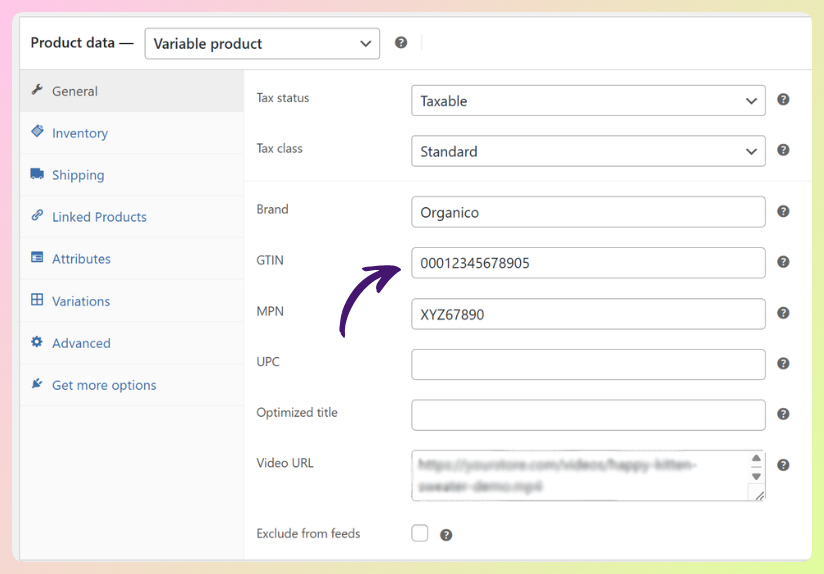
To use this method:
- Enable the extra identifier fields you want to use in the Product Feed Elite settings.
- Open the WooCommerce product you want to edit.
- Enter the correct GTIN, MPN, UPC, EAN, or brand value in the relevant field.
- Save the product, then map those fields in your feed configuration.
For variable products, check each variation separately. Different sizes, colors, or versions of the same product often need their own identifiers because Google treats each variation as a distinct purchasable item.
Method 2: Map existing identifier fields in your feed
If your identifier data is already stored in WooCommerce, a product attribute, a custom field, or another plugin’s field, you can map it directly in your AdTribes feed configuration without re-entering it on every product.
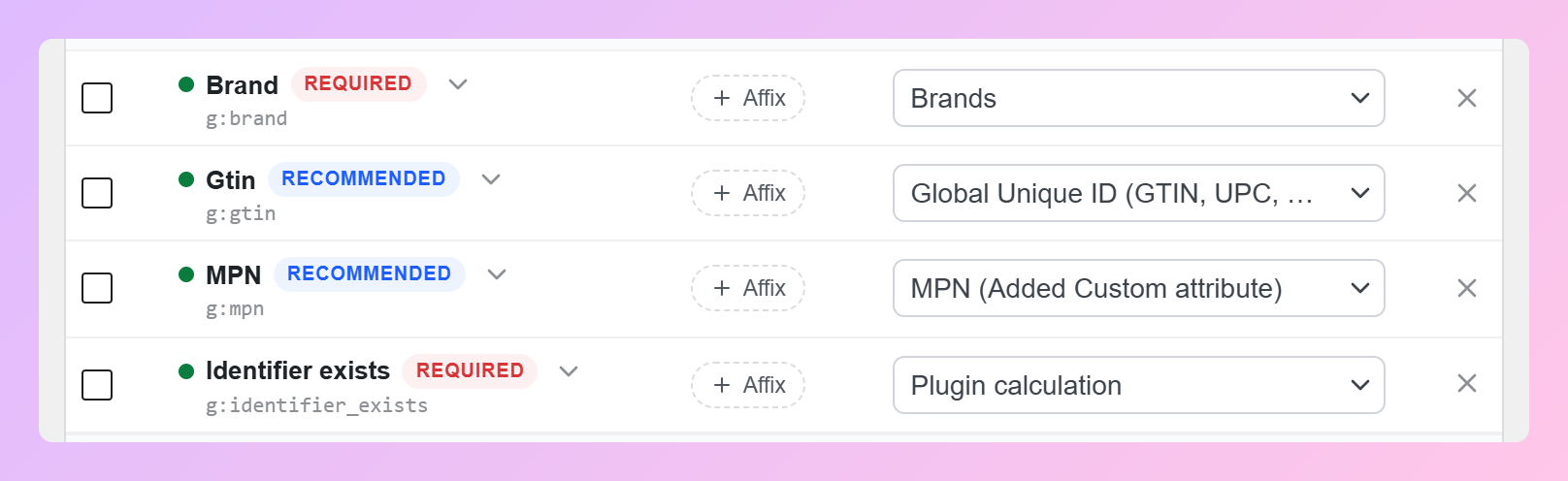
In your feed settings, map the gtin, mpn, or brand feed attribute to the WooCommerce field that contains the correct data. Common sources include:
- A custom field like
_gtinor_barcode - A product attribute you created in WooCommerce
- WooCommerce’s built-in Global Unique ID field for GTIN, UPC, EAN, or ISBN values, if your store uses a WooCommerce version that supports it (available in Product Feed Elite)
- Fields from another plugin that stores product identifier data
Method 3: Use Plugin Calculation for identifier_exists
For products that do not have unique product identifiers, you can add the identifier_exists attribute to your feed and map it to Plugin Calculation. This lets the plugin automatically return yes or no based on the identifier data available for each product.
This is usually cleaner than manually creating feed rules for every identifier scenario. Manual rules are still useful for advanced cases, such as forcing a specific value for certain categories, but Plugin Calculation should be the default starting point for most stores.
Verifying your identifiers
After generating your feed, review the output to confirm:
- Products with GTINs have the
gtinfield populated with valid values - Products with MPNs have the
mpnfield mapped correctly - The
brandfield is populated where a brand genuinely applies - Products without identifiers use
identifier_existscorrectly instead of fake or placeholder values
For a complete overview of all required and recommended fields for Google Shopping, check our Google Shopping feed requirements guide.
Frequently Asked Questions
What is the difference between GTIN, UPC, EAN, and ISBN?
They are all types of GTIN. UPC is the 12-digit barcode standard used in North America. EAN is the 13-digit standard used in Europe and most other regions. ISBN is the 13-digit standard for books specifically. Google accepts any of these formats in the gtin feed field. You don’t need to convert between them.
Can I use the same GTIN for all variations of a product?
No. Each variation (different size, color, etc.) should have its own unique GTIN because each is a distinct purchasable item. A medium blue T-shirt and a large blue T-shirt have different UPC barcodes. However, all variations share the same item_group_id to indicate they belong to the same parent product.
Will Google disapprove my products if I don’t have a GTIN?
Not necessarily. If your products legitimately don’t have manufacturer-assigned GTINs, MPNs, or brand values, you can set identifier_exists to false in your feed. However, if your products do have assigned identifiers, include the correct values whenever possible. Incorrectly claiming that identifiers do not exist can lead to Merchant Center warnings or product visibility issues.
Where do I buy GTINs if I manufacture my own products?
Purchase GTINs from GS1, the only authorized issuer. In the US, apply at gs1us.org. In other countries, find your local GS1 office at gs1.org. You’ll buy a company prefix and then assign individual GTINs to each product in your catalog. Avoid third-party GTIN resellers since GS1 has stated that resold GTINs may not be valid and can cause issues with retailers and advertising platforms.
Start Adding Product Identifiers To Your WooCommerce Feed
Product identifiers aren’t glamorous, but they’re one of the most useful details you can add to your WooCommerce product feed. Correct GTINs and MPNs support better product matching, cleaner feed data, and fewer avoidable Merchant Center issues.
Here’s your action plan:
- Understand the identifier types and which ones apply to your products
- Determine whether Google requires identifiers for your product categories
- Handle products without GTINs using identifier_exists
- Map existing identifier data with AdTribes Product Feed Pro, or use Product Feed Elite extra fields when you need dedicated GTIN, MPN, UPC, EAN, and brand fields
If you sell products with GTINs, add them to your feed. If you sell products without them, set identifier_exists correctly. Either way, get AdTribes Product Feed Pro for free to start mapping product identifiers in your feed, or use Product Feed Elite if you need dedicated extra fields for GTIN, MPN, UPC, EAN, and brand values.