
This guide takes you from installing Product Feed Pro to a live feed URL you can submit to Google Merchant Center, Meta, Microsoft Bing or ChatGPT. It walks through each feed tab in order, the setup checklist on the Manage Feeds screen, and the plugin settings, and it reflects Product Feed Pro 13.5.8.
Key Features
- An unlimited number of products and feeds
- 250+ pre-configured feed templates
- Custom feed rules and filters
- Category mapping with Google taxonomy
- Support for variable products
- An OpenAI Product Feed for ChatGPT, exported as JSONL.GZ, CSV.GZ, TSV.GZ or Parquet
Installation and Activation
Step-by-step Instructions:
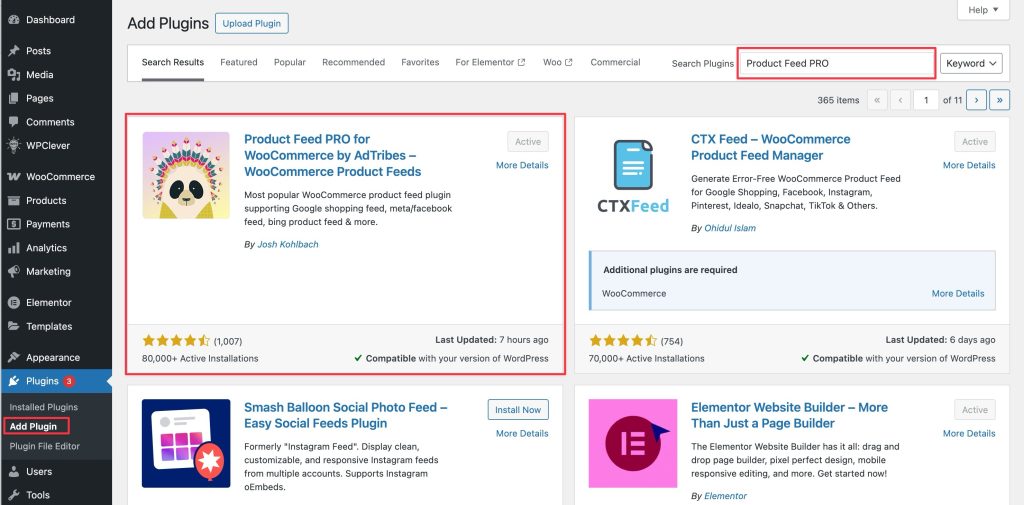
- Navigate to Plugins > Add New in your WordPress dashboard.
- Search for Product Feed Pro
- Click Install Now, then Activate.
- After activation, a new menu item, Product Feed, appears in your admin sidebar.
Use the Setup Checklist
On sites that first activated Product Feed Pro 13.5.7 or later, the Manage Feeds screen shows a setup checklist. It runs an environment check on your store, then walks you through the essentials, starting with your first feed. You can follow it alongside this guide. For details, see How to use the setup checklist in Product Feed Pro.
Create a feed
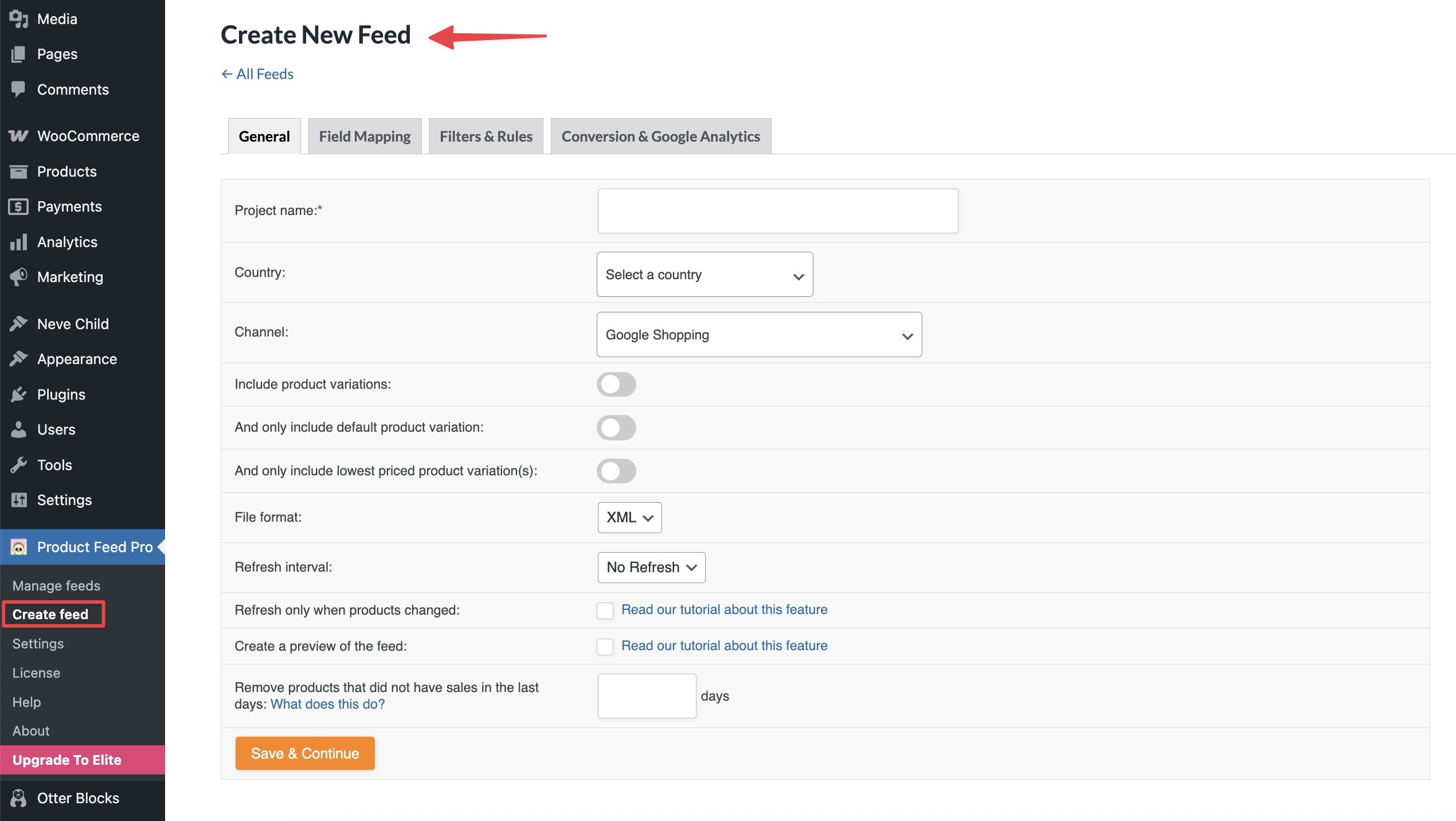
To create a feed, you can directly go to the Product Feed > Create Feed screen.
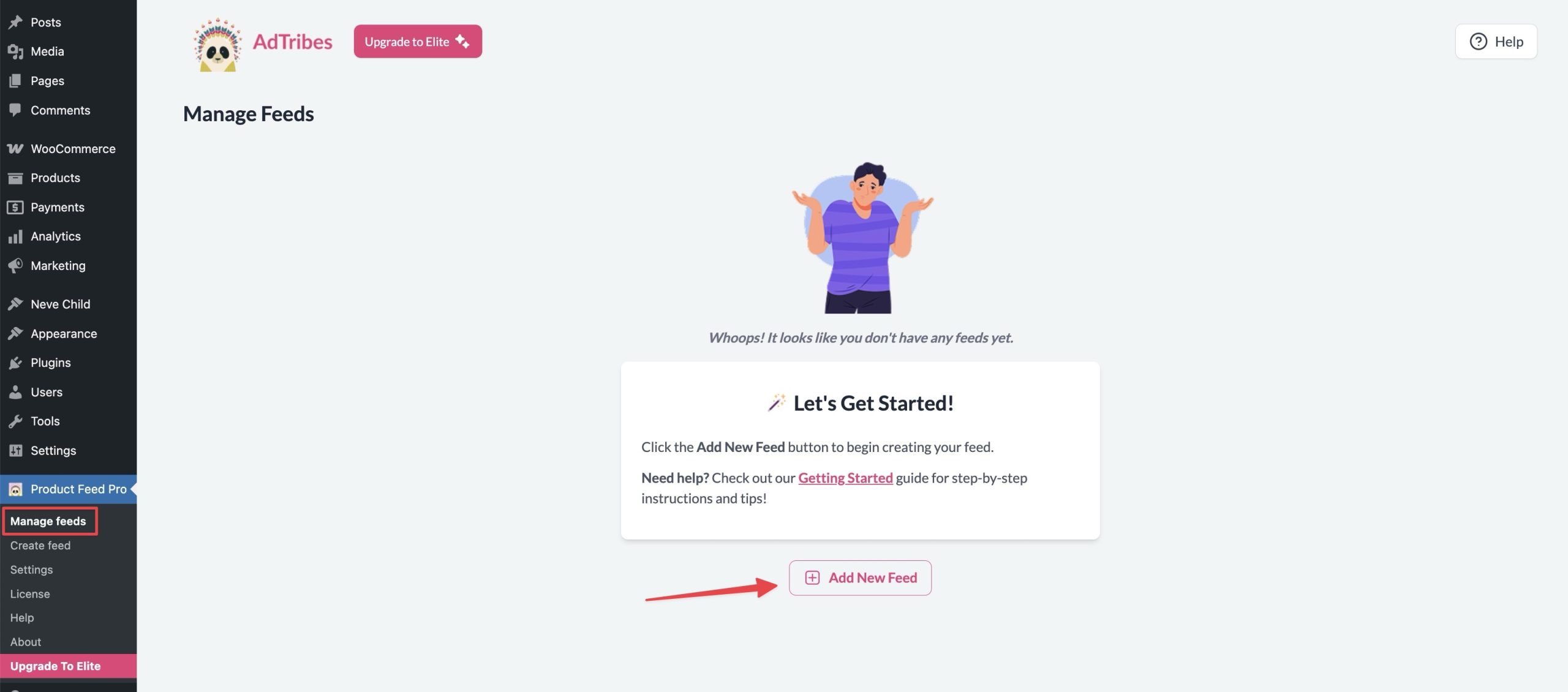
Alternatively, you can go to the Product Feed > Manage Feeds screen, then click on the Add New Feed button.
Feed Configuration – General Settings
The General settings tab is the first step in configuring your product feed. This section allows you to define the core parameters that control how your feed is built and updated.
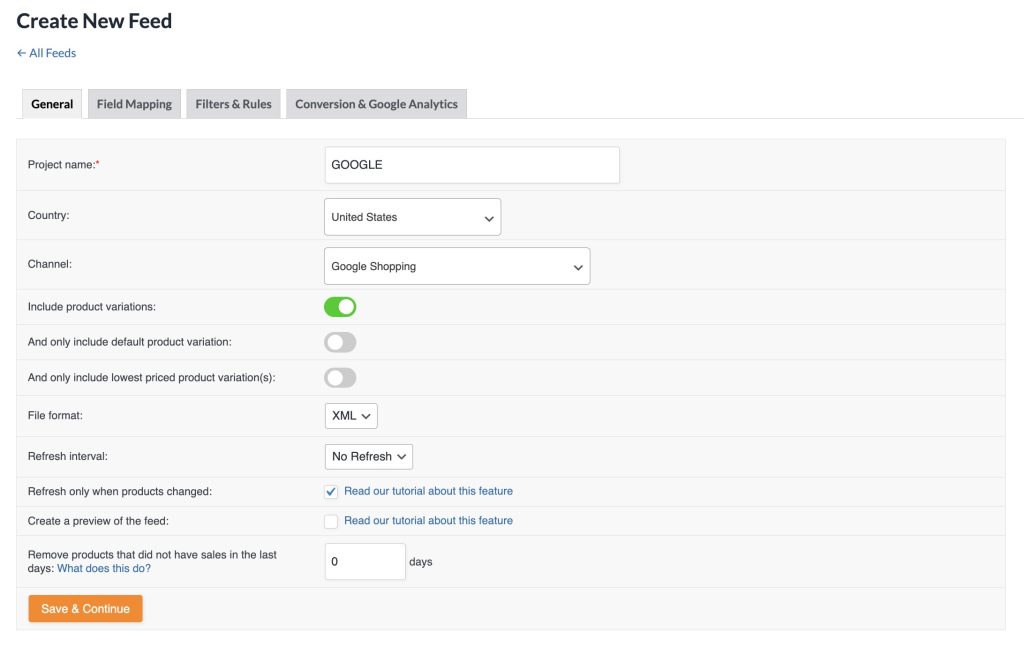
- Feed Name: Enter a clear and recognizable name for your feed.
- Target Country: Select the country where your feed will be submitted.
- Channel Selection: Choose the destination channel (e.g., Google Shopping, Facebook, Bing) where your feed will be used.
- Include Product Variations: Toggle whether to include variations of variable products in the feed.
- Only Include Default Product Variation: Enable only when you want to include only the default variation of a variable product.
- Only Include Lowest Priced Product Variation(s): If you want to offer only the lowest priced variation of a variable product, then enable this option.
- File Format: Choose the format for your feed output: XML, CSV, TSV, TXT or JSONL. The OpenAI Product Feed channel uses compressed formats (JSONL.GZ, CSV.GZ, TSV.GZ) or Parquet, which needs the bcmath and zlib PHP extensions on your server.
- Refresh Interval: Choose hourly, twice daily or daily. Product Feed Elite adds custom intervals, such as every few hours on chosen days, or weekly.
- Refresh Only When Products Changed: Enable this option if you want the feed to refresh only when product data changes, saving server resources.
- Remove products that did not have sales in the last days: Products that did not have sales in the last X days will not be on the product feed. Adjust the number of days (X) to suit your needs.
Once the above steps are completed, click on the Save & Continue button to go to the next step.
Note: only enable either “Only Include Default Product Variation” or “Only Include Lowest Priced Product Variation(s)” between these two options. Otherwise, the feed will be empty.
Feed Configuration – Field Mapping
The Field Mapping tab sits second, right after General. It lists every attribute your chosen channel accepts, grouped into sets like basic product data, price and availability, product identifiers, shipping and tax, and shows a live preview of the mapped output for a real product from your store.
Work through it in this order:
- Check the required-fields counter in the left sidebar. It shows how many of the channel’s required attributes already have a source.
- Click Auto-map to fill suggested sources for fields that are still empty. It asks you to confirm first and leaves anything you’ve already mapped alone.
- Review the output preview on the right. If a price or brand points somewhere unexpected, fix the source in the table and the preview updates.
- Use the Required only checkbox, the search box or the Groups list to find the fields that still need attention.
- Add a prefix or suffix with the Affix control on any row, or set a static value when your store doesn’t hold the data.
- Click Save Changes. You can save a partly finished mapping and come back later.
Even with Auto-map, cross-check your mapping against the official product data specification of your feed channel. Doing so helps you:
- Maximize feed approval success
- Improve product visibility
- Ensure compliance with channel guidelines
Feeds you built before version 13.5.8 move to the new builder automatically, and a notice confirms it the first time you open the tab. For a full walkthrough, see the upgraded field mapping builder.
We currently offer dedicated mapping guidance for a few popular channels. You can find those resources below:
- Setting Up Your First Google Shopping Product Feed
- How To Create A Google Local Products Inventory Feed?
- How To Create Google Product Review Feeds?
- How To Create A Product Feed for Skroutz
Feed Configuration – Category Mapping
This step is specifically for the Google Shopping channel. It allows you to map your store’s product categories to the appropriate Google Product Taxonomy. Proper category mapping helps Google better understand your products, improves visibility in search results, and enhances overall feed performance.
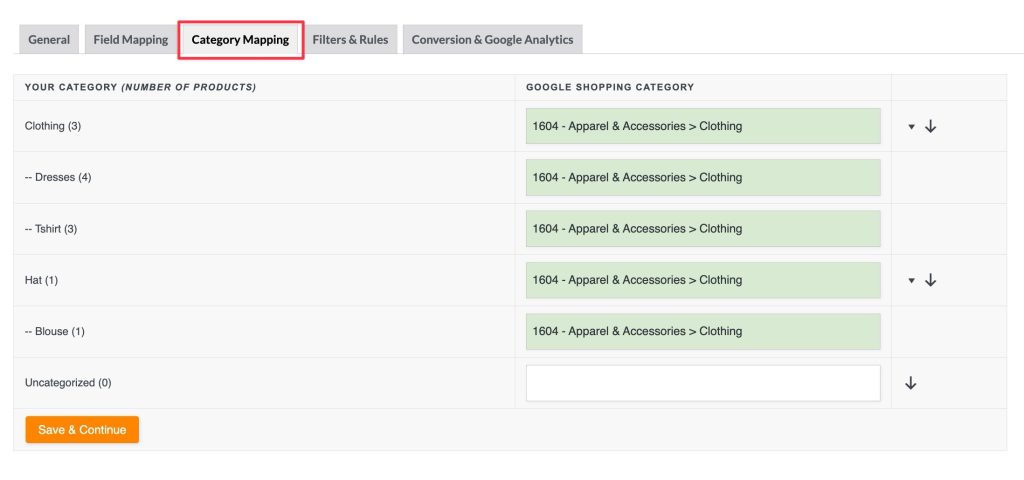
You can find a complete list of Google Product Taxonomy here: https://www.google.com/basepages/producttype/taxonomy.en-US.txt
Feed Configuration – Filters & Rules
This section is where you control which products go into your feed and how attribute values are transformed or replaced before export.

Types
- Filter: Used to include or exclude products based on defined conditions.
- Rule: Used to manipulate or transform attribute values in the feed.
IF Column
A dropdown where you choose a product attribute or custom field.
Examples:
- Product title
- Stock status
- Product type
CONDITION Column
Specifies how the IF field should be evaluated.
Common Conditions:
- equals
- contains
- greater than / less than
- is empty / is not empty
VALUE Column
This is the value to compare against the IF field using the CONDITION.
Example Use Case:
- IF = Stock status
- CONDITION = equals
- VALUE = outofstock
- THEN = Exclude
This will remove all out-of-stock products from the feed.
CS (Case Sensitive) Column
Checkbox to make the condition case-sensitive. Leave this unchecked unless you specifically want to match case (e.g., for tag-based filters like Tag contains “Sale” vs. tag contains “sale”).
THEN Column
Specifies what action to take if the condition matches:
- Filter Row: Exclude → Removes the product from the feed
- Rule Row: Options vary depending on field type: e.g., Replace, Set, Multiply, etc.
Example:
Rule: IF Product Title contains “Test”, THEN Replace with “Demo”
IS Column (for Rules only)
This is where you define the new value if the condition matches.
Example:
- IF = Brand
- CONDITION = contains
- VALUE = Nike
- THEN = Set
- IS = Nike Inc.
This replaces all “Nike” brand entries with the standardized “Nike Inc.”
You can find more details in the following articles
Feed Configuration – Conversion & Google Analytics
This tab enables automatic appending of Google Analytics UTM parameters to the product URLs in your feed. These parameters are essential for accurately tracking traffic and conversions from your campaigns in Google Analytics or GA4.
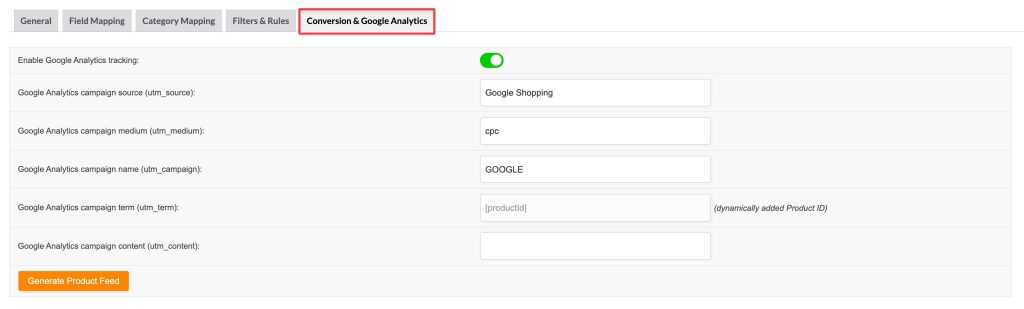
Enable Google Analytics tracking: When toggled on, UTM parameters will be automatically added to each product URL in the feed
UTM Parameter Fields Explained
| Field | UTM Parameter | Example Value | Purpose |
|---|---|---|---|
| Google Analytics campaign source | utm_source | Google Shopping | Identifies the traffic source (e.g., Google, Facebook) |
| Google Analytics campaign medium | utm_medium | cpc | Type of marketing medium (e.g., cost-per-click) |
| Google Analytics campaign name | utm_campaign | Campaign identifier to differentiate between campaigns | |
| Google Analytics campaign term | utm_term | [productId] | Typically used for paid keywords or dynamic product IDs |
| Google Analytics campaign content | utm_content | Optional | Used to distinguish variations in ads or links |
Note: The [productId] dynamic value for Google Analytics campaign term is fixed and it cannot be changed to anything else now.
Feed Management
After clicking Generate Product Feed, you’ll be redirected to the Manage Feeds screen. This is your central dashboard to view, organize, and control all your product feeds.
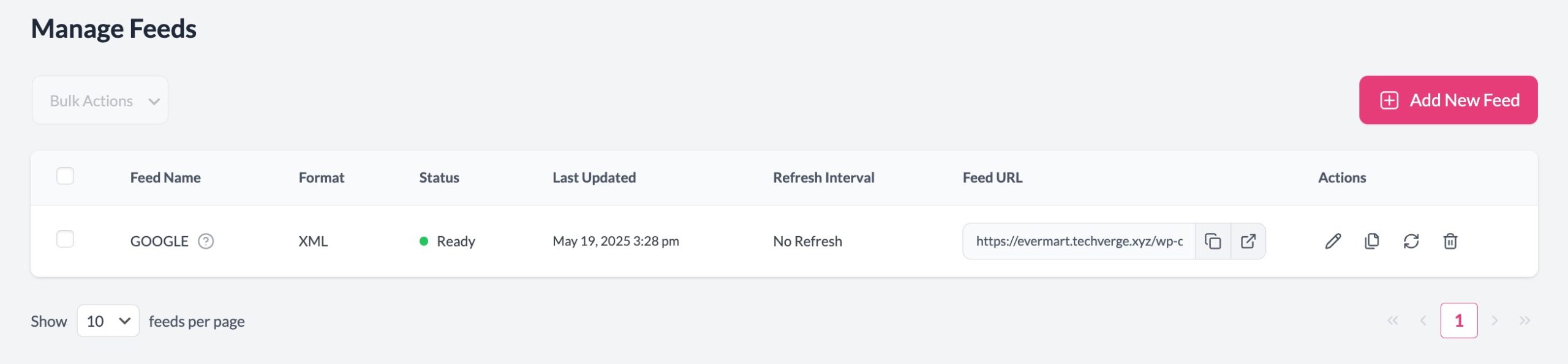
The Manage Feeds screen provides a clear overview of each feed’s status, format, last update, and associated actions.
From this screen, you can:
- ➕ Add New Feed – Start building a new feed from scratch
- ✏️ Edit – Modify feed settings such as field mapping, filters, rules, or UTM tracking
- 📋 Duplicate – Clone an existing feed configuration for reuse across other channels or locales
- 🔄 Manually Refresh – Regenerate the feed instantly with the latest product data
- 🗑️ Delete – Remove outdated or unused feeds
- 🔗 Copy Feed URL – Get the feed link for submission to platforms like Google Merchant Center, Facebook Catalog, etc.
Product Feed Pro Settings
The Plugin Settings panel offers fine-tuned control over the generation and management of your product feeds. These settings help optimize compatibility with Google Shopping, Facebook Ads, and other platforms.
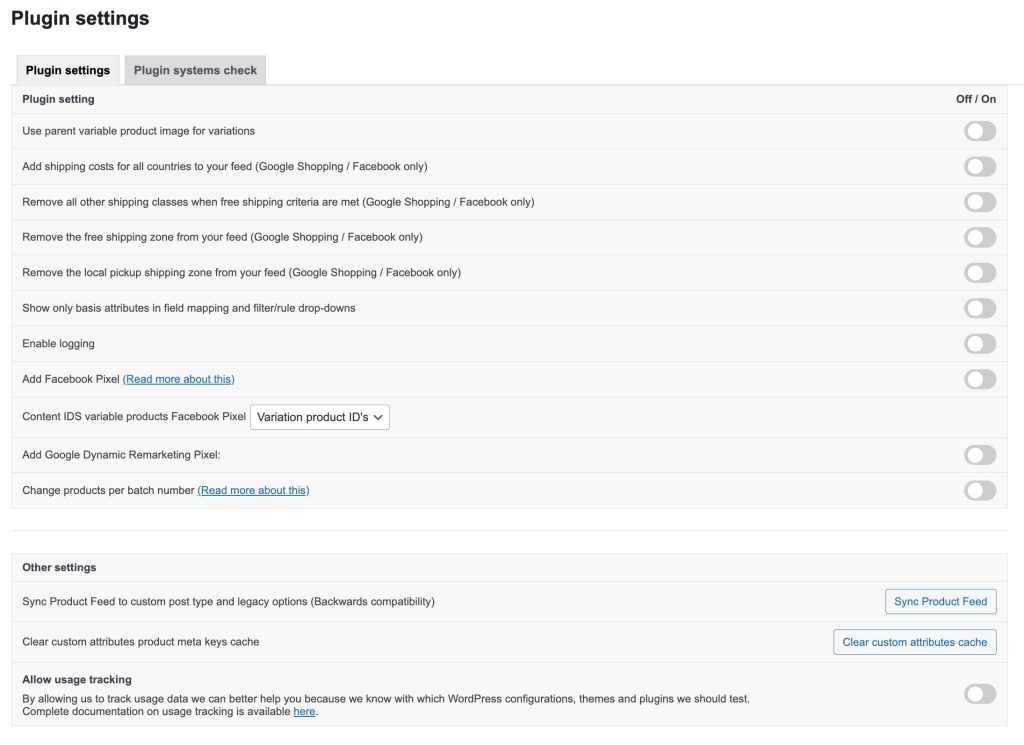
| Setting | Description |
|---|---|
| Use parent variable product image for variations | When enabled, variation products will use the main (parent) product’s image instead of their own. Useful if variations lack individual images. |
| Add shipping costs for all countries to your feed (Google Shopping / Facebook only) | Inserts shipping information for each country in your feed (if configured from WooCommerce > Settings > Shipping), helping ensure complete listing data for international platforms. |
| Remove all other shipping classes when free shipping criteria are met | If free shipping is available, this strips out other shipping methods from the feed. |
| Remove the free shipping zone from your feed | It removes free shipping methods from feed |
| Remove the local pickup shipping zone from your feed | Similar to the above, this removes “Local Pickup” shipping method that are irrelevant for most ad platforms. |
| Show only basis attributes in field mapping and filter/rule dropdowns | Limit attribute list to only those from the latest product for faster loading and less clutter |
| Add Facebook Pixel | Inserts Facebook Pixel tracking into your feed. This can help track conversions from Facebook Ads. |
| Content IDs variable products Facebook Pixel | Lets you choose between variation product ID’s or parent product ID’s for Facebook Pixel content tracking. |
| Add Google Dynamic Remarketing Pixel | Injects support for Google Dynamic Remarketing into your product feed. Helps track product-specific ad interactions |
| Change products per batch number | Lets you control how many products are processed per batch during feed generation. Useful for large catalogs or resource-limited servers. |
Advanced Features
Need more control? Product Feed Elite builds on Product Feed Pro with product data manipulation, extra fields like GTIN, MPN and EAN, and custom refresh intervals on every plan. Multilingual and multi-currency feeds come with the Feed Translation and Multi-Currency addons on the Plus and Business plans.
Explore All Elite Features here
With the PLUS or BUSINESS plans of Elite, you’ll also gain access to the Feed Validator Tool, which checks your live feed URLs on a schedule (including Google, Facebook and OpenAI feeds) and alerts you to errors before they block your listings.
Learn how to use the Feed Validator Tool
Need Help?
Our dedicated support team specializes in the Product Feed plugin, with deep knowledge of WooCommerce and the eCommerce space. They’re ready to assist you, wherever you are.
- For premium users: Please use the support ticket form to contact us directly for prioritized assistance.
- Using the free version? Submit your query via the WordPress.org support forum. We actively monitor and respond to help free users get the most out of the plugin.
Whether you’re optimizing a feed or troubleshooting an issue, we’re here to help.

