Reviewed by
Field mapping just got a much clearer workspace! With our newest update, you can see which fields still need attention and preview the mapped output for a real product while you work. Whether you’re building your first feed or revisiting an existing one, the new product feed field mapping builder gives you a clearer view of how your WooCommerce data maps to each channel.
Below, we’ll show you what’s changed and how to use the new builder step by step. Let’s get right into it!
Feature Overview: The New Product Feed Field Mapping Builder
Previously, field mapping in AdTribes Product Feed Pro used a row-based table where you added each attribute you wanted to send. That setup worked, but it gave you less visibility when working through a channel with a long attribute list or checking how your mapped data would resolve.
With our newest update, the Field Mapping tab now lists the attributes available for your chosen channel, sorted into groups, and shows you the mapped output for a real product as you work. You’re filling in a ready-made checklist instead of assembling one, and you can watch the output update alongside your mapping.
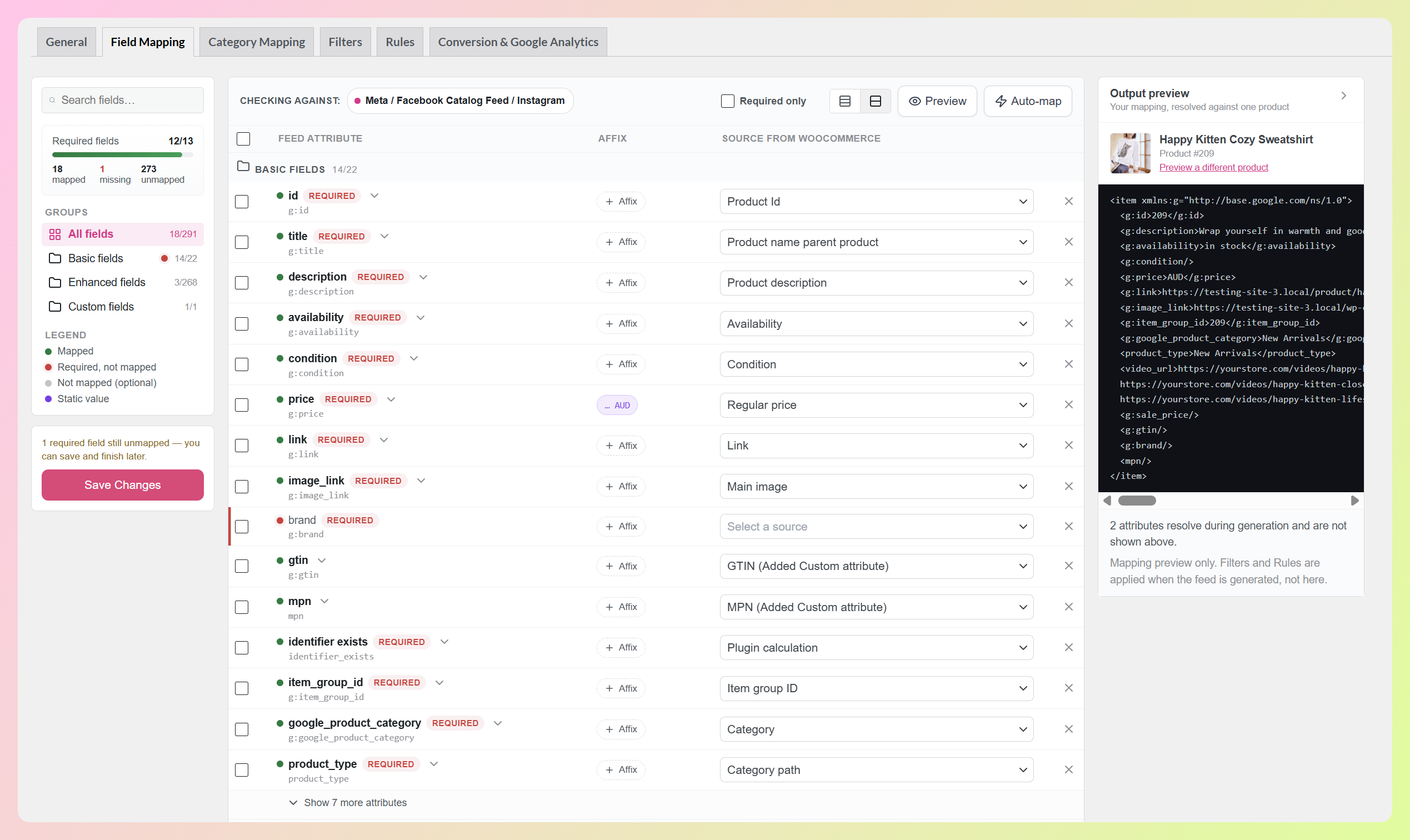
Here’s what you’ll find in the new builder:
- A live output preview that resolves your mapping against a real product from your store, so you can see the mapped output as you work.
- A required-field counter that tracks how many of your channel’s required attributes have a source, with a progress bar underneath it.
- Auto-map, which fills suggested mappings for fields that don’t have a source yet and leaves anything you’ve already mapped untouched.
- Attribute groups and search, so you can jump straight to shipping, tax, or product identifiers.
- Repeatable values, which let you send several additional image URLs from a single attribute.
- Sub-attributes for nested tags like shipping and tax on Google Shopping, which you can now expand and fill in properly. We’ll cover those in their own guide.
It’s a big update that gives you more visibility and control over your product feed data, and it’s available right now in AdTribes Product Feed Pro, our free plugin.
How To Use The New Field Mapping Builder (Tutorial)
Getting started with the new builder is quick and straightforward! Just note that you’ll need AdTribes Product Feed Pro 13.5.8 or newer installed and updated before following along with this tutorial. If you haven’t done so already, you can grab the free plugin from your WordPress dashboard.
Step 1: Open the field mapping builder
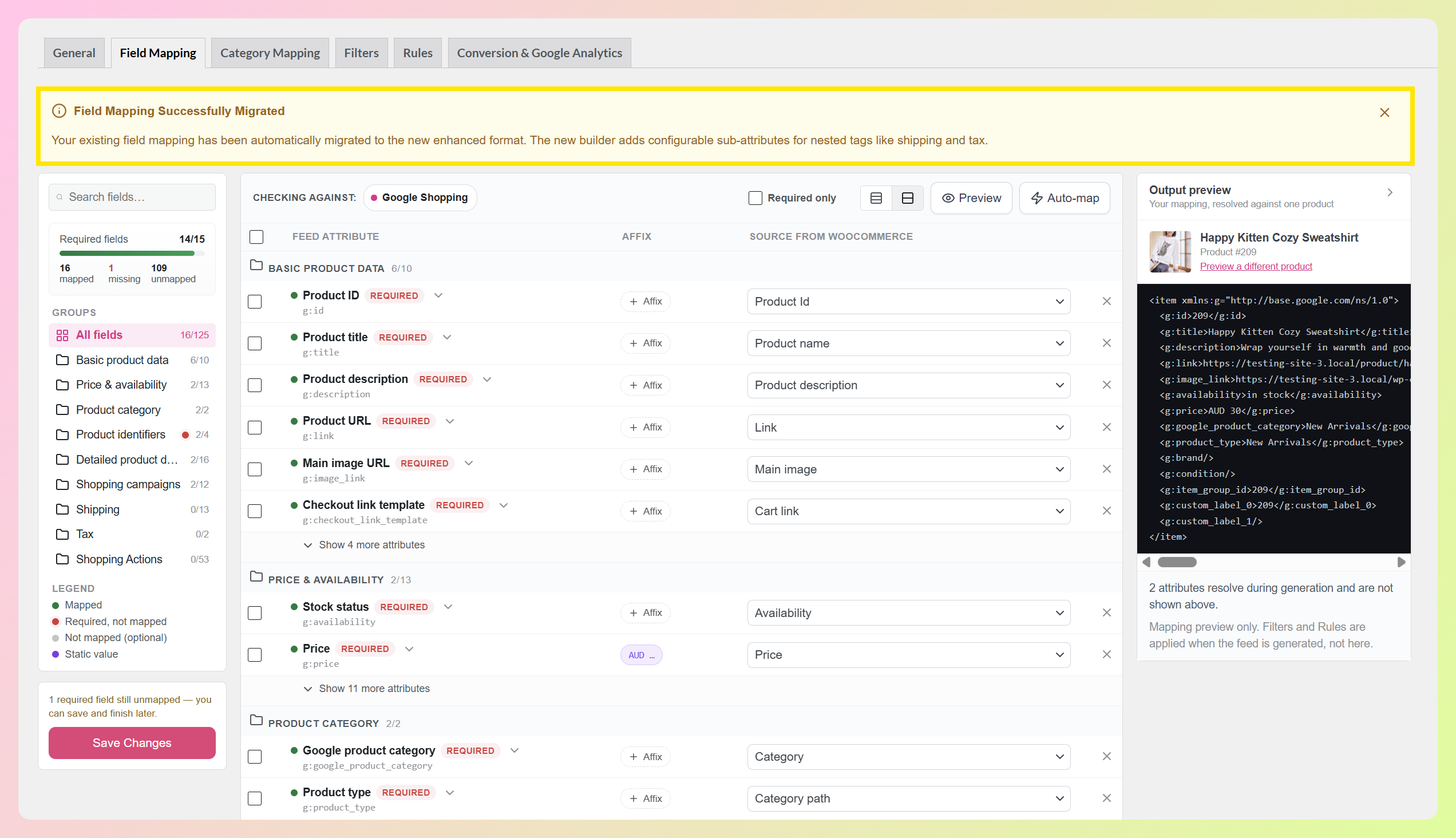
To get started, head to your WordPress dashboard > Product Feed > Manage feeds. Then click Edit on the feed you want to work on and open the Field Mapping tab, which sits second in the row, right after General.
If you built this feed before updating, you’ll see a notice at the top letting you know your field mapping was migrated to the new format for you. Your existing mapping carries across automatically, so there’s nothing to rebuild. The other feed tabs, including category mapping, continue to work as before.
Step 2: Check where your mapping stands
The sidebar on the left gives you a quick status check. A required-fields counter shows how many of the channel’s required attributes already have a source, and a progress bar sits under it. Below that, you get a three-way split of how many attributes are mapped, how many required ones still need a source, and how many optional ones are available to you.
A color legend marks every row in the table, so you can tell at a glance whether an attribute is mapped, required and waiting on you, optional, or set to a static value.
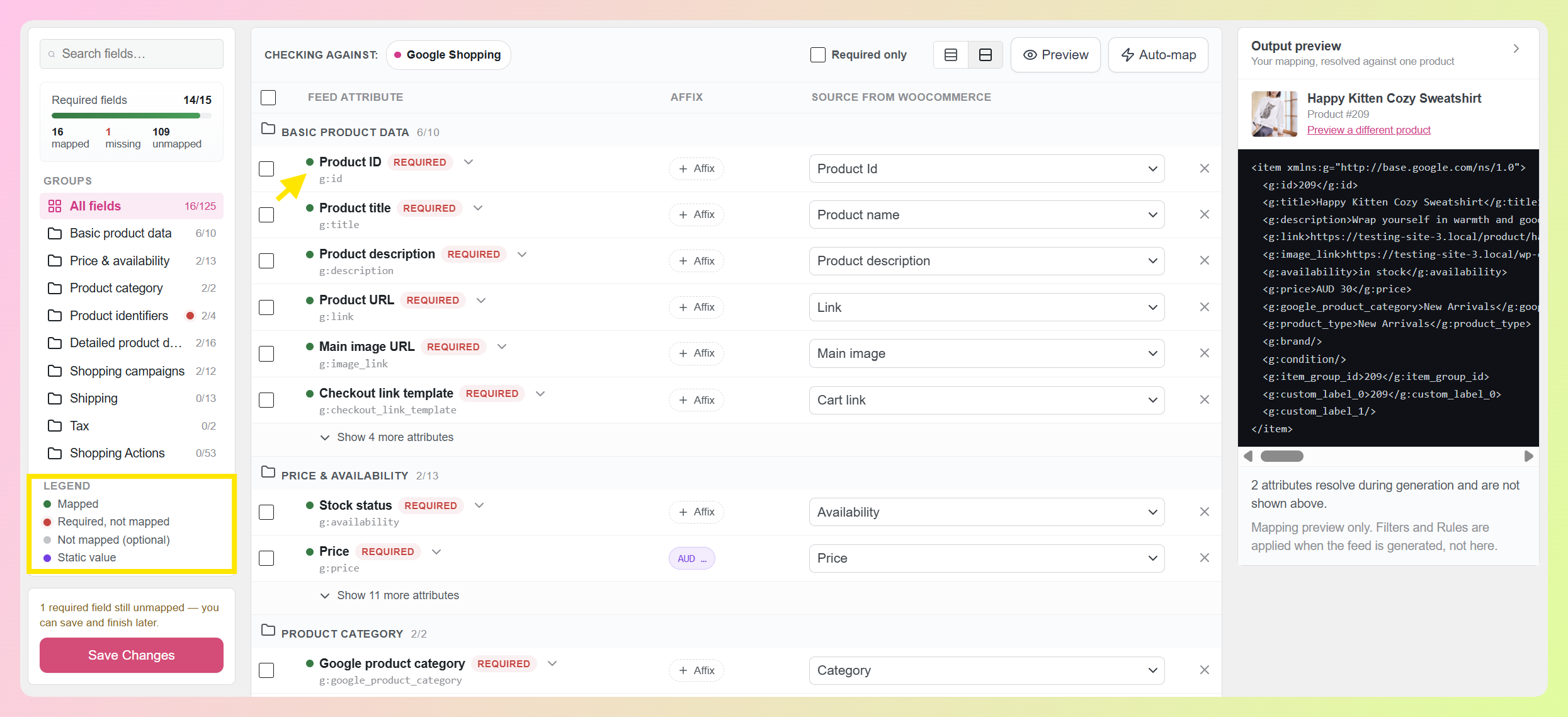
In this example, we have 14 of 15 required fields mapped, so we can immediately see that one required field still needs a source. You can also save a partly finished mapping and come back to it later, so you don’t have to finish a larger feed in one sitting.
Step 3: Fill the blanks with Auto-map
The Auto-map button in the toolbar fills suggested mappings for fields that don’t have a source yet. It tells you how many fields it’s about to fill and asks you to confirm first, while anything you’ve already mapped stays exactly as you set it.
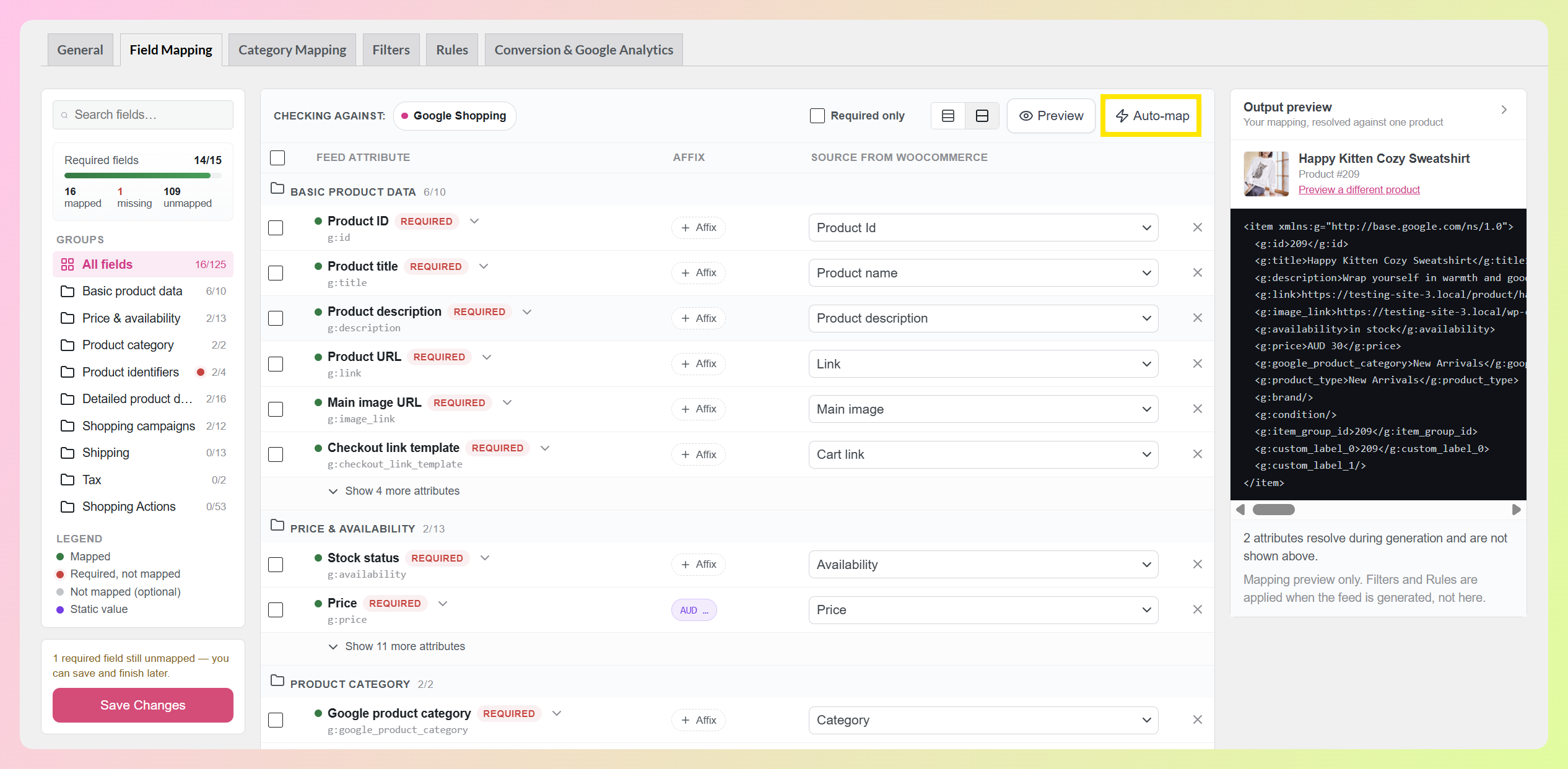
That makes it useful at any point, not just on a brand new feed. Set the mappings you want to control yourself, use Auto-map to fill the available suggestions, then review and adjust anything you’d like to change.
Step 4: Check your mapped output
Here’s the part we’re most excited about. The output preview pane on the right shows the mapped output your current setup produces for one real product in your catalog. It focuses on field mapping, while Filters and Rules are applied when the feed itself is generated.
Change a source in the table and the preview updates with it. If a price or a brand field is pointing somewhere unexpected, you’ll spot it right there in the output, before you generate anything.
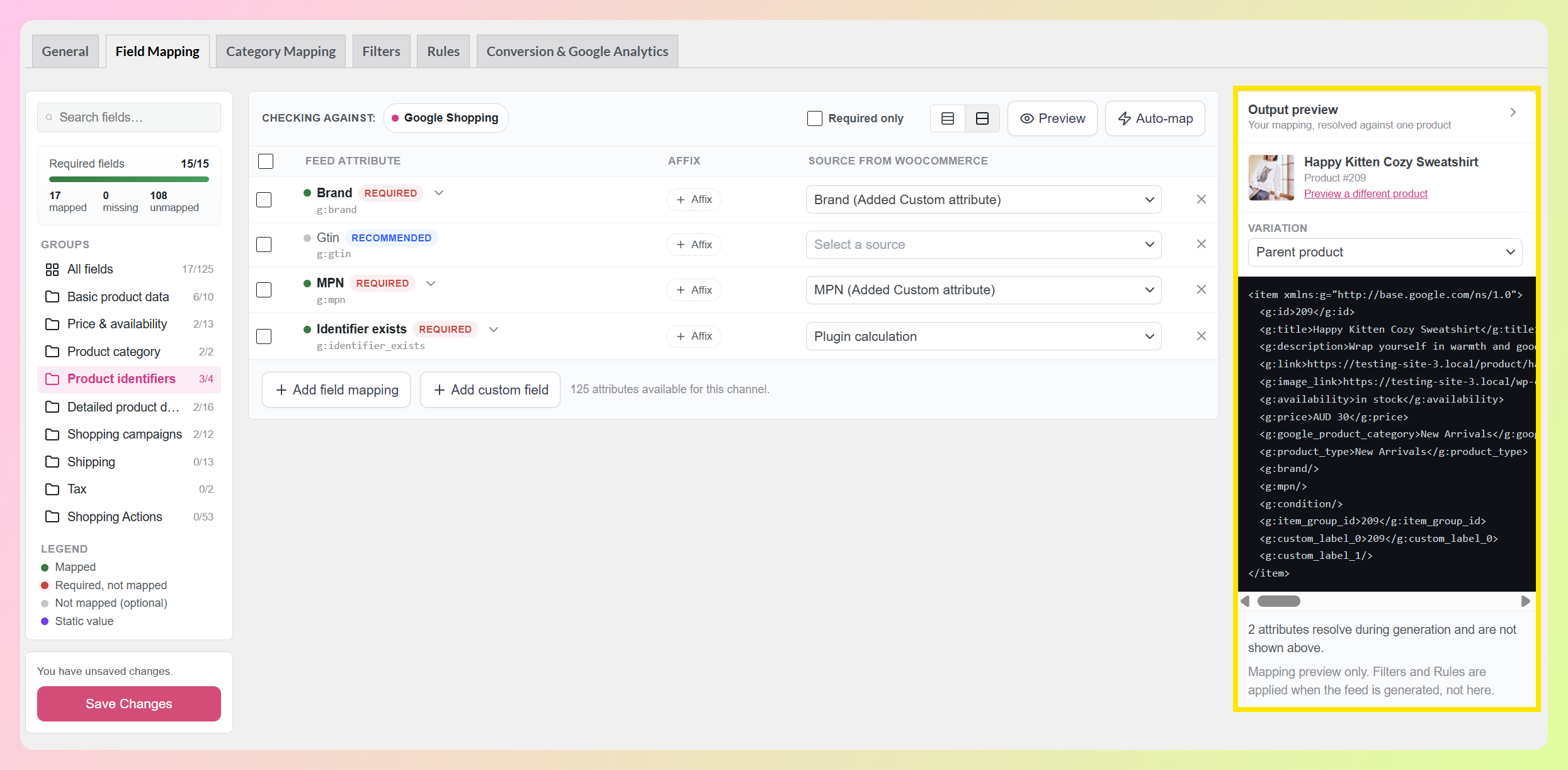
The pane names the product it’s using, and a “Preview a different product” control lets you swap to another one. This makes it easy to check how the same mapping resolves across different products in your catalog. The Preview button in the toolbar also hides and shows the pane whenever you want the full table width.
Pretty handy, right?
Step 5: Find and fine-tune your mappings
Some channels include a long list of attributes, so the builder gives you three ways to narrow things down. The Groups sidebar splits everything into named sets like basic product data, price and availability, product identifiers, shipping, and tax, and each group shows how many of its attributes you’ve mapped. The search box filters the table to matching rows. And the “Required only” checkbox in the toolbar shows just the attributes your channel needs, giving you a quick way to focus on the fields that still need attention. If you sell through WC Vendors, mapping the shipping group lets the WC Vendors per-vendor shipping integration use each vendor’s own rates in your feed.
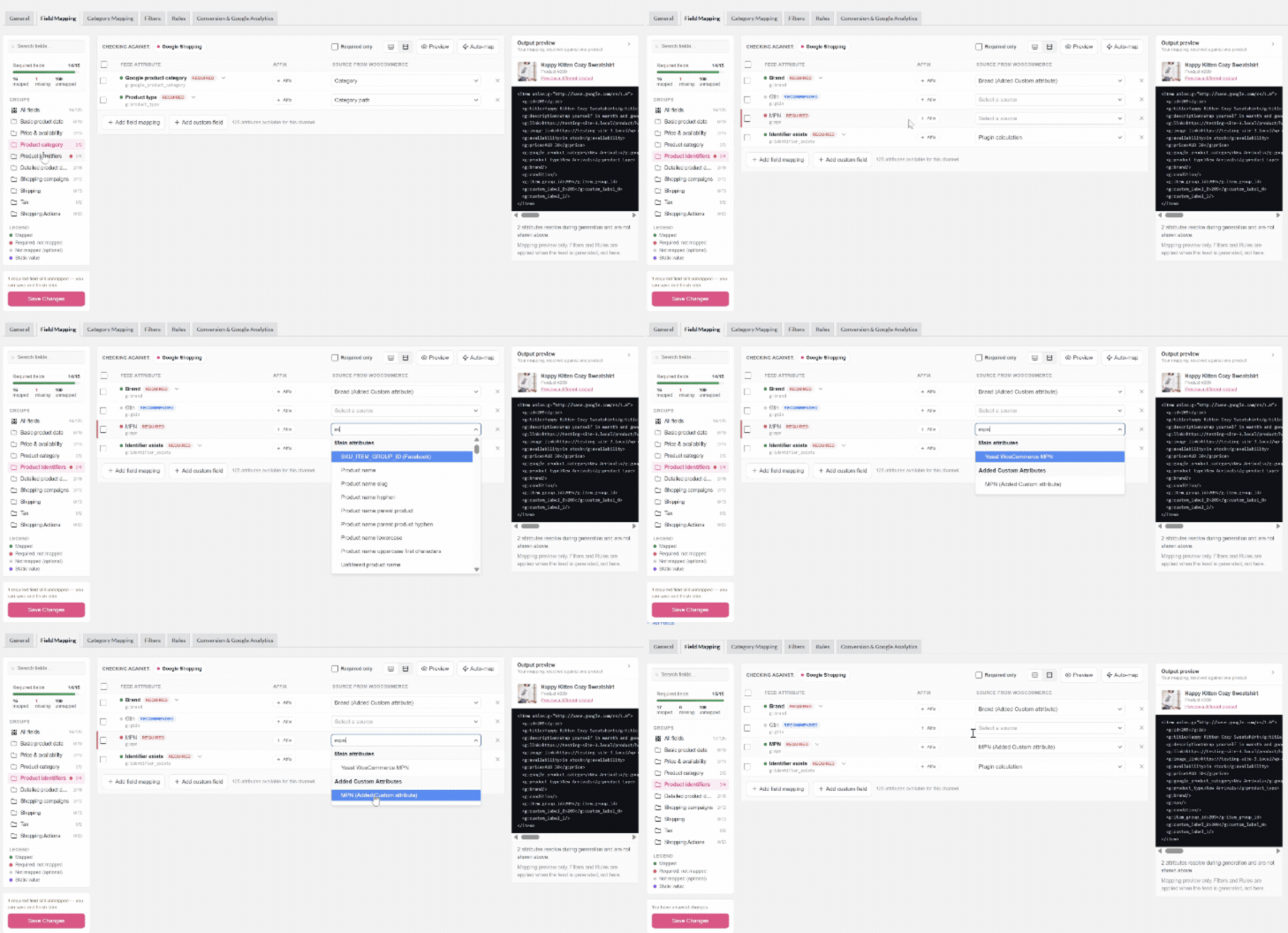
The toolbar also names the channel your mapping is being checked against, so you always know whose attribute list you’re looking at.
Each row has an Affix control for adding a prefix or suffix to the mapped value, and once you’ve set one it shows on the row itself. If you need to send a value your store doesn’t hold, you can set it by hand instead. This guide on using static values in your product feed walks you through when that’s the right choice.
Once you’re happy with everything, hit Save Changes. And that’s basically it!
🎯 POWER TIP: If you’ve had a feed running for a while, use Auto-map to fill any suggested mappings you haven’t set yet, then open the output preview and check a few products. This gives you an easy way to review older mappings without rebuilding the feed.
How This Update Benefits Your WooCommerce Store
Your field mapping controls what product data each sales channel receives. With the new builder, you can check that mapping as you set it up and preview the mapped output for a real product before generating the feed.
Here’s what that makes easier when you’re setting up and reviewing your feeds:
1. You can preview mapped product data before generating the feed
Google’s product data specification requires accurate, correctly formatted product data. Incorrect, missing, or conflicting information can lead to disapprovals, limited eligibility, or display issues.
The output preview lets you inspect how your current mapping resolves while you’re still setting it up. You can check whether values such as price and product identifiers appear where you expect for a real product from your catalog.
2. You can see which required mappings still need attention
Different channels ask for different required attributes, and the list changes as platforms evolve. Our Google product feed specification reference covers what each field expects, and the required-fields counter now gives you a straight answer about where your own mapping stands against the channel you picked. The legend points you at the exact rows that still need attention.
For stores running feeds to several channels, this makes it easier to see which mappings still need work. Open a feed, check the required-field counter, and focus on any missing required sources.
3. Your existing mappings carry over automatically
Your existing field mappings are migrated to the new format automatically, and the builder lets you know when it’s done. Familiar controls are still there too, including row checkboxes for bulk deletion and buttons for adding a field mapping, adding a custom field, and saving.
That means you can start using the new builder without rebuilding your existing field mapping setup.
What’s more, all of this is included in AdTribes Product Feed Pro, our free plugin. The builder, output preview, Auto-map, and required-field counter don’t require a Product Feed Elite license.
RELATED READ: Google Shopping Feed Setup For WooCommerce: Step By Step
Frequently Asked Questions
Do I need to remap my existing product feeds?
No. Your existing field mapping is migrated for you the first time you open the Field Mapping tab after updating, and you’ll see a notice confirming it. Your mapping carries over to the new builder, and the familiar field-mapping controls remain available.
What does the output preview show me?
It shows the feed entry your current mapping produces for one real product from your catalog, and it updates as you change your sources. You can swap to a different product at any time to see how the same mapping resolves elsewhere in your catalog. Your Filters and Rules are applied when the feed itself is generated, so the preview is focused on your mapping.
Is the new field mapping builder free?
Yes! The product feed field mapping builder is included in AdTribes Product Feed Pro, our free plugin. That includes the output preview, Auto-map, the required-field counter, and the attribute groups. You’ll need version 13.5.8 or newer.
Does Auto-map overwrite the fields I set myself?
No, Auto-map only fills suggested mappings for fields that have no source yet. It tells you how many fields it’s going to fill and asks you to confirm before it runs, so the mappings you’ve already set stay untouched. That means you can use it partway through building a feed without overwriting your work.
Does the builder work for channels other than Google Shopping?
Yes, the builder loads the attribute list for whichever channel your feed uses, and the toolbar names the one it’s checking against. AdTribes Product Feed Pro supports 250+ channels, so your groups, required counts, and suggested mappings will reflect the channel you picked.
Wrapping Up
Our newest update gives you a clearer way to review your product feed mapping as you work. By listing the attributes available for your channel, tracking the required ones, and previewing the mapped output for a real product, the new product feed field mapping builder makes it easier to see what still needs your attention.
In this guide, we learned:
- What the new field mapping builder includes
- How to use it, step by step
- Why this update matters for your store
We’re excited to give you a clearer way to build and review your mappings. ❤️ Head to one of your feeds and try out the new field mapping builder today!
Do you have any questions about this update? Let us know in the comments. Happy to help!