
If you want to run TikTok shopping campaigns or dynamic ads powered by your WooCommerce catalog, you need a product feed that keeps TikTok in sync with your store. Product Feed Pro for WooCommerce (and Product Feed Elite) generates that feed and provides a stable URL so TikTok Ads Manager can fetch updates automatically on a schedule.
By the end, you’ll have a live TikTok Product Catalog feed URL, fetched by TikTok Ads Manager on your chosen schedule. For a general tour of the plugin, start with the Product Feed Pro Getting Started Guide.
What you need before you start
Before you create the feed, make sure you have the following in place:
- WooCommerce with published products, images, and correct prices.
- Product Feed Pro or Elite is installed and activated.
- A TikTok For Business account and access to TikTok Ads Manager.
- A catalog in Ads Manager (or permission to create one) where you will attach the feed.
Also, review TikTok’s current product data rules in their help center (for example, catalog overview), so your listings match any region or industry-specific requirements.
Create a new feed
- Open your WordPress dashboard.
- Go to Product Feed → Manage feeds.
- Click Add new feed. Alternatively, use Product Feed → Create feed.
- In the Channel dropdown on the General tab, select TikTok Product Catalog. The plugin loads a field template tailored to catalog-style channels and enables Google product category mapping for your store categories.
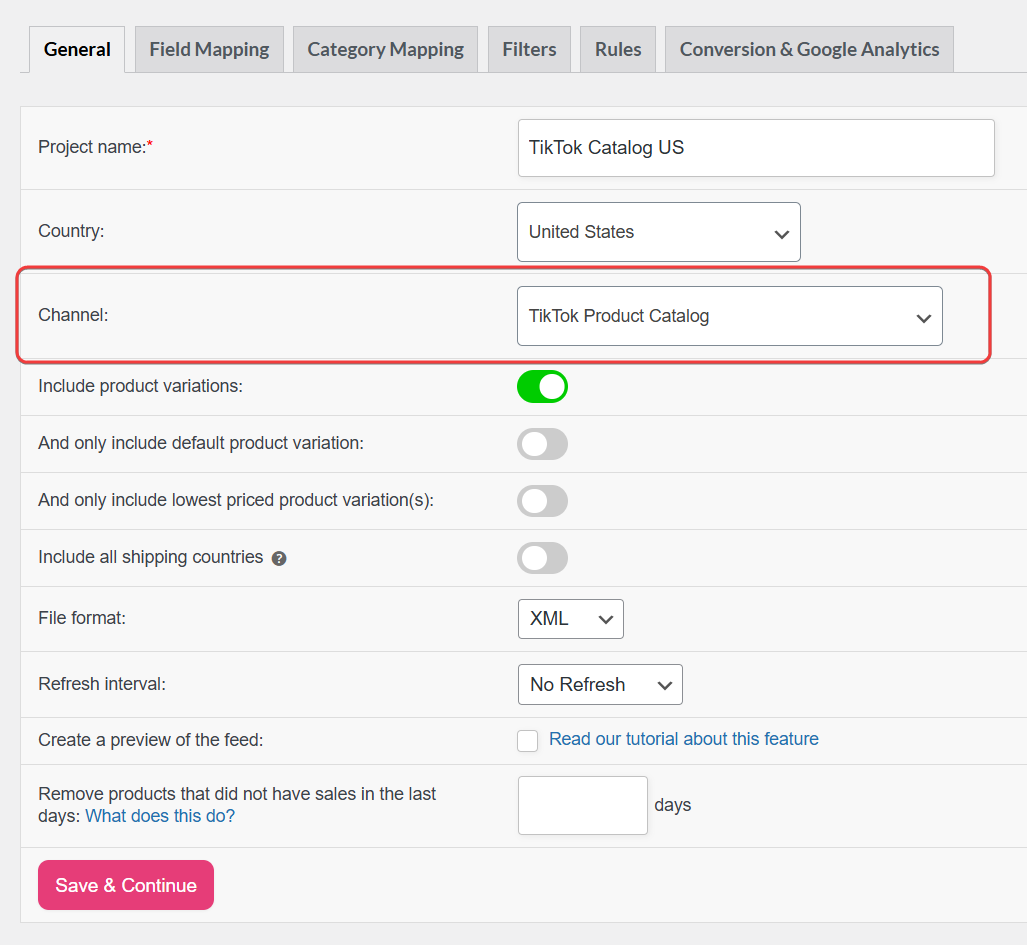
General settings
On the General tab, configure the following settings:
| Setting | Recommendation |
|---|---|
| Project name | Use a clear name (e.g. TikTok Catalog US). |
| Country | Match the market you target in TikTok. |
| Include product variations | Enable “include variations” if you sell variable products and want each variant in the catalog. |
| File format | XML or CSV are both supported; confirm the format TikTok accepts for your catalog setup. |
| Refresh interval | How often the feed is regenerated; daily is fine for most stores; use hourly if prices or stock change frequently. |
For a quick sanity check before going live, use How to Create A Product Feed Preview?
Click Save & Continue to move on to field mapping.
Map required and recommended attributes
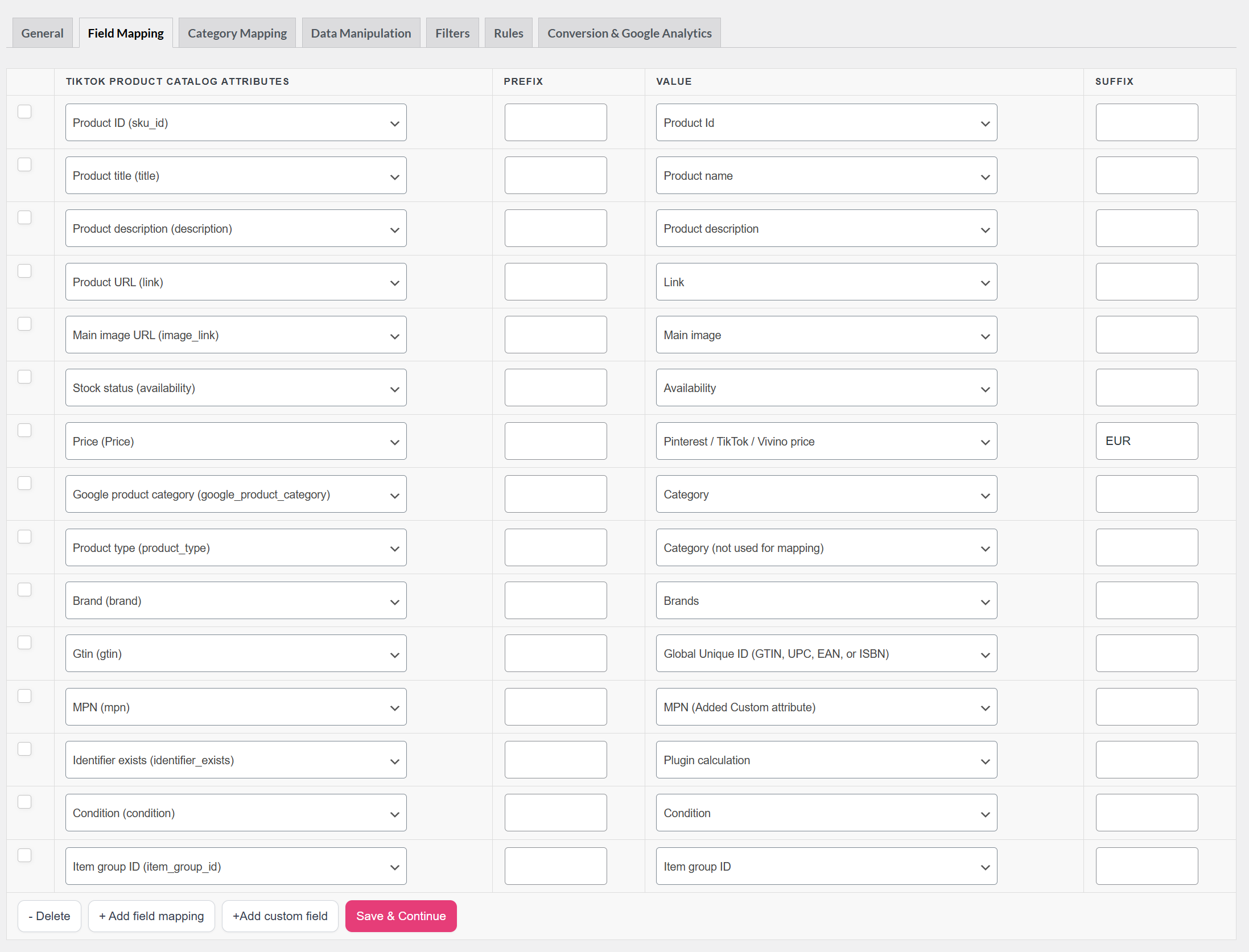
Make sure you fill in all required attributes in the template. Review each field and map it to actual store data, or use a static value when needed.
For complete and up-to-date requirements, including field definitions, required attributes, and category or region-specific rules, refer to TikTok’s official documentation.
| Catalog attribute | Recommended mapping | Notes |
|---|---|---|
sku_id | Product ID | Must stay stable over time for the same product. |
title | Product title | Should match the landing page; avoid all-caps. |
description | Product description | Clear, accurate text; follow TikTok content policies. |
link | Product URL | Must resolve to the correct product page. |
image_link | Main image | Use high-resolution images; TikTok requires at least 500 × 500 px for catalog images. |
availability | Stock status | The plugin outputs in stock / out of stock; if TikTok flags format issues, check their latest parameter docs. |
price | Pinterest / TikTok / Vivino price | Use the dedicated Pinterest / TikTok / Vivino price attribute from the picker. This outputs the price in ISO 4217 format (e.g. 10.00 USD) as TikTok requires. |
google_product_category | Category (mapped) | Populated after you complete category mapping to Google’s taxonomy. |
product_type | Category path / product type | Required; map to your WooCommerce category path or product type. |
brand | Brand | TikTok is strict about missing brands for many offer types. |
gtin | Global unique ID (EAN, UPC, etc.) | Required; use real GTINs from the manufacturer. |
mpn | MPN | Required; Manufacturer Part Number — use real MPNs from the manufacturer. |
identifier_exists | Plugin Calculation | The row appears pre-mapped to Plugin Calculation in the template — no custom field needed. Plugin Calculation works correctly for XML-format TikTok feeds. For CSV-format feeds, Plugin Calculation is silently skipped; switch the mapping to a Static Value of yes (products have a GTIN, MPN, or brand) or no (handmade or custom items) |
condition | Condition | Usually new; map used/refurbished accurately. |
item_group_id | Item group ID | Groups all variations of the same configurable product. Every variant row must share the same value — the plugin auto-fills this from the parent product ID. |
If you need help with GTIN, MPN, brand, or condition fields, see How to Add Optional Product Attributes. Elite unlocks extra product fields and attributes on product edit screens that Pro does not include, making advanced identifier setup easier.
To limit which products appear in TikTok, use filters or rules after the main mapping steps.
Category mapping
TikTok relies on Google’s product taxonomy for google_product_category. In the Category Mapping tab, map each WooCommerce category to the best-matching Google category.
Complete as many categories as you can — partial mapping often causes weak performance or your products being disapproved by TikTok.
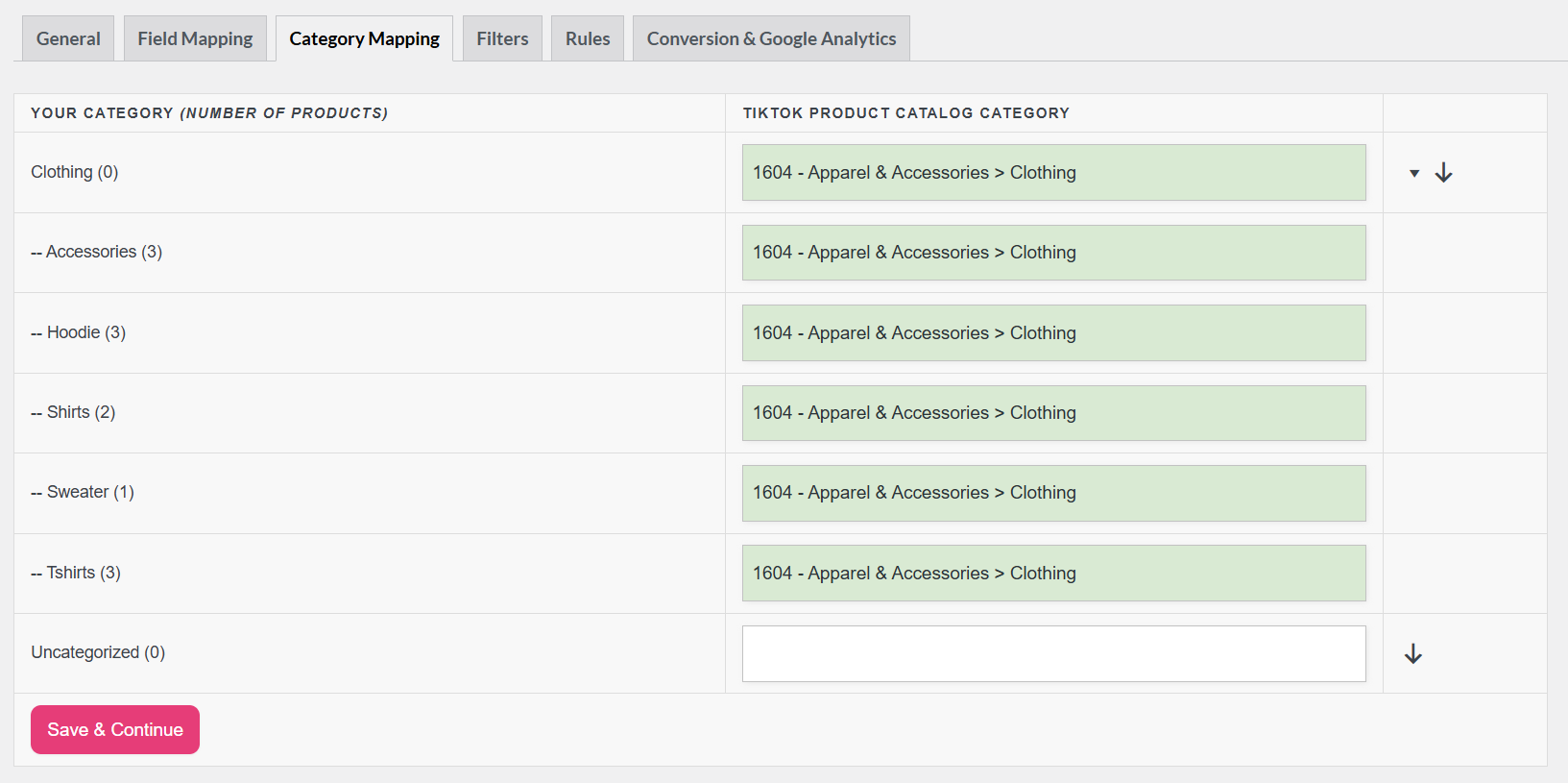
Click Save & Continue when you’re done.
Filters and rules (optional)
Similar to other channels, you can exclude out-of-stock items, low-margin SKUs, or entire categories. This step is optional, but it keeps your catalog aligned with what you actually want to advertise. See the filters guide and rules guide for step-by-step instructions.
Generate the feed and copy the URL
- Click Generate Product Feed to start feed processing.
- Wait for processing to complete; larger catalogs may take a few minutes.
- Go to Product Feed → Manage feeds — the Feed URL column shows the URL for your completed feed.
- Click the Copy URL button next to your feed to copy the URL to your clipboard.
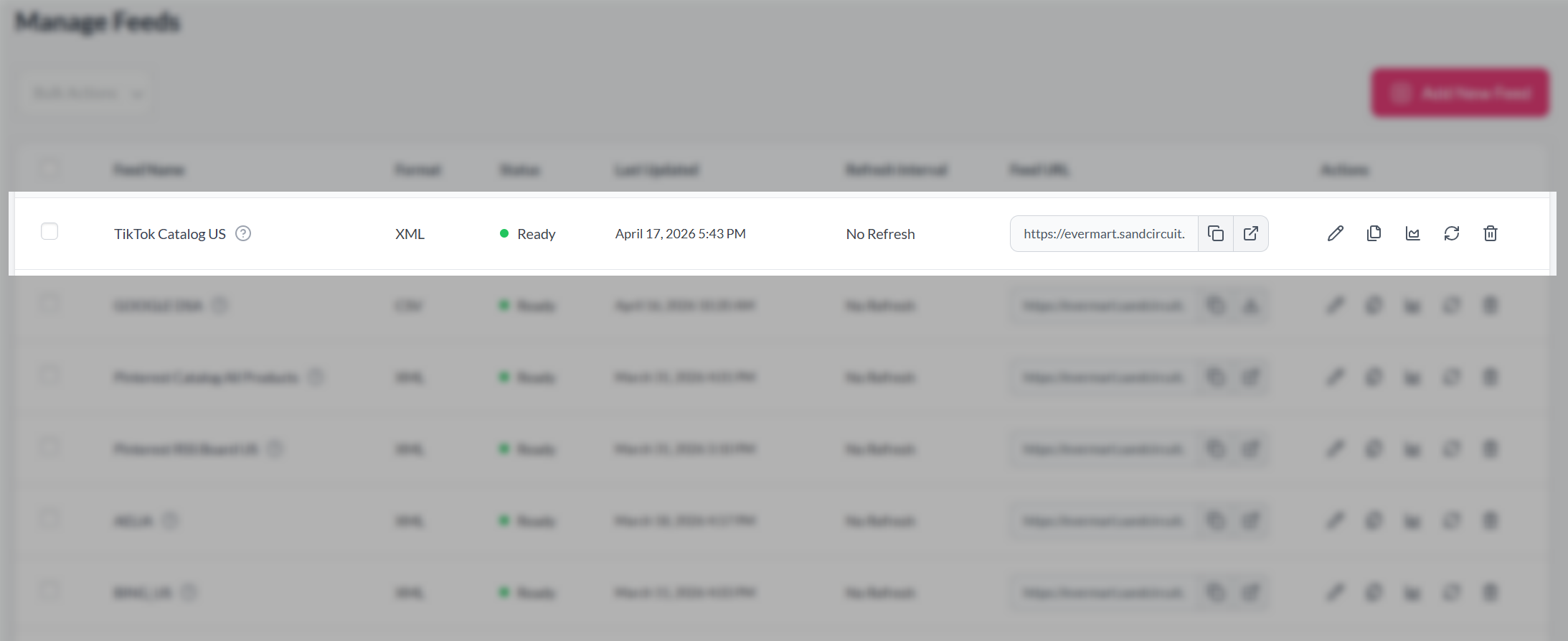
Keep the feed URL HTTPS and avoid blocking TikTok’s fetchers with firewall rules or members-only page restrictions.
Connect the feed in TikTok Ads Manager
Attach the feed to your catalog:
- Sign in to TikTok Ads Manager.
- Go to Assets → Catalog.
- Open the catalog you want to update.
- Open Product sources to access data feed settings.
- Click Add a data feed (or Scheduled feed) to add a new source.
- Paste the feed URL from the plugin.
- Set the fetch schedule (for example, daily) so the catalog stays in sync with WooCommerce.
TikTok’s interface labels can change; use their in-product help if a menu name differs slightly.
Troubleshooting
item_group_id: every variation of the same configurable product should share one group ID. Verify that sku_id is unique per variation row.Frequently asked questions
Need more help?
Product Feed Elite users: open a support ticket and our team will take a look.
Product Feed Pro users: post a new topic on the WordPress.org forum.

