
Pinterest lets you attach an RSS feed to a board so new items from your store can appear as pins automatically. This workflow is ideal when you want a board to stay fresh with your latest products without manually pinning each one. Product Feed Pro and Product Feed Elite generate this RSS file from your WooCommerce catalog. However, it is not the same as a Pinterest catalog feed: the RSS Board option does not connect to Pinterest Catalogs or enable Shopping Ads. For full catalog and ads setup, see How to Set Up a Pinterest Product Feed.
What You Need Before You Start
Before creating your Pinterest RSS Board feed, make sure the following requirements are in place:
- A Pinterest Business account and a board where your product Pins will be published (or permission to create one).
- A publicly accessible feed URL after generating the RSS feed. Pinterest must be able to fetch the feed via HTTPS.
- Your store domain is claimed on Pinterest if the workflow requires links to your verified domain (see Auto-publish Pins from your RSS feed).
Step-by-Step Instructions
Create a New Product Feed
- Log in to your WordPress dashboard.
- From the admin menu, open Product Feed.
- Click Add New Feed to start the feed wizard.
Configure General Settings
Set up the basic configuration for your Pinterest RSS feed.
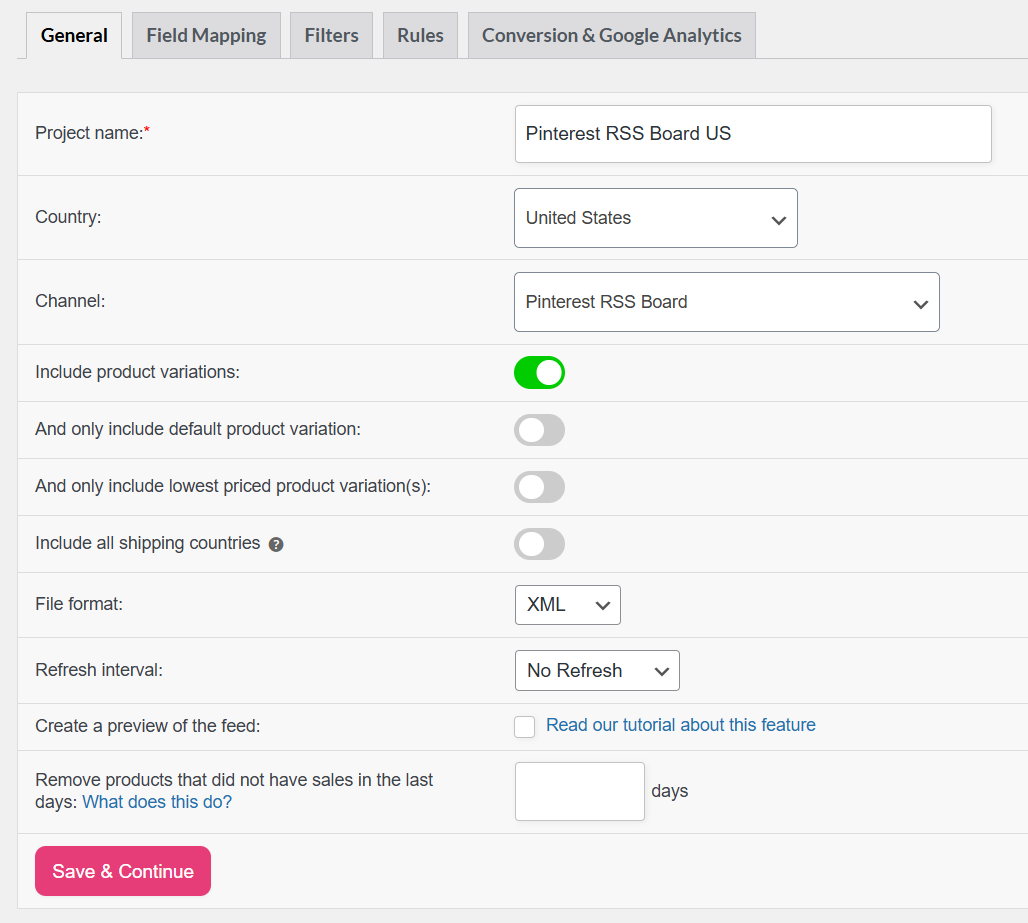
- Project Name
Enter a clear name for the feed so it is easy to identify later (for example: Pinterest RSS Board US). - Channel
Use the search field to find and select the Pinterest RSS Board. - File Format
Select XML. The Pinterest RSS Board template generates an RSS 2.0 XML (.xml) feed. - Refresh Interval
Choose Daily or Hourly to control how often the feed updates when products change.
Pinterest will fetch the feed on its own schedule, but keeping your feed updated helps ensure your Pins stay current. - a root
<rss version="2.0">element - a
<channel>section with a title and link - multiple
<item>entries containingtitle,link,description,guid, andmedia:contentfor images - Add your feed URL in the Pinterest RSS auto-publish settings.
- Select the board where new Pins should be saved.
- RSS feed in unknown format
- Links in the RSS feed are not under the claimed domain
Map the Required RSS Fields
Open the Field Mapping step. The Pinterest RSS Board template includes five required attributes.
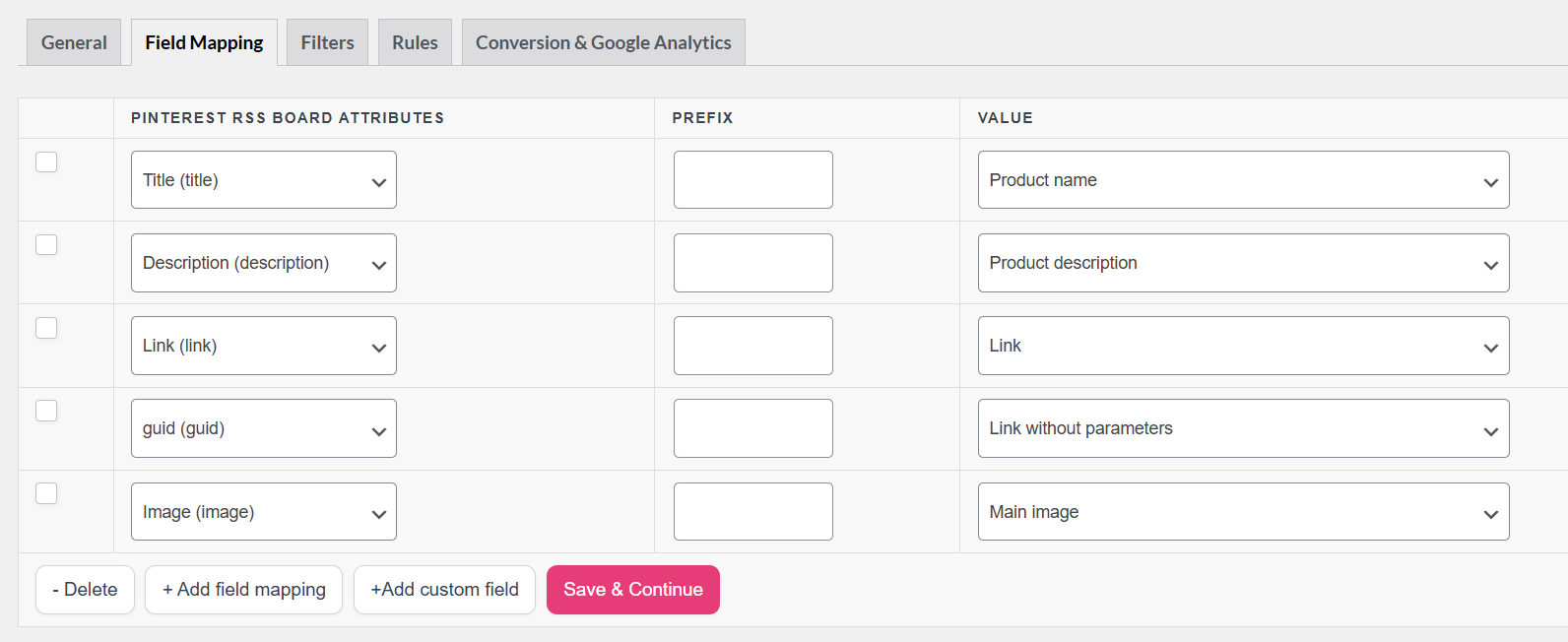
Make sure each attribute is mapped so every product entry generates a complete <item> in the RSS feed.
| RSS / MRSS Role | Attribute | Recommended Mapping | Notes |
|---|---|---|---|
| Item Title | title | Product name | Used as the Pin title on Pinterest. |
| Item Description | description | Product description | Plain text descriptions typically work best for readability. |
| Product Page URL | link | Link | Must be the canonical product URL. |
| Stable Unique ID | guid | Link without tracking (default) | The plugin outputs the guid with isPermaLink="true" to maintain a consistent identifier. |
| Pin Image | image | Main image | The feed outputs media:content (Media RSS) using the product image URL. |
The template’s default configuration maps guid to a clean product link without tracking parameters. This helps maintain a stable identifier for each product.
If your product URLs include UTM parameters or other tracking values, keep the guid mapping to the clean permalink to ensure Pinterest still recognizes the product consistently.
Tip: If a product does not have an image, the feed item may be incomplete. You can filter out products without images using product feed filters.
Filters, Rules, and Analytics (Optional)
Use Filters to control which products appear in the feed (for example, limiting the feed to a specific category or only in-stock products). See the documentation: How to Create Filters for Your Product Feed.
Use Rules to modify product data before export, such as shortening titles or descriptions so they display better in Pinterest Pins. See: How to Use Rules in Product Feed Pro.
You can also enable Analytics to add tracking parameters to product links and track traffic from Pinterest. See: How to Use Analytics in Product Feed Pro.
These features work the same way as they do for other channels in the plugin.
Save and Generate the Feed
Click Generate Product Feed (or complete the wizard and run the generation step) to create the feed file.
Wait until the feed status changes to Ready.
Copy the Feed URL
From Manage Feeds, locate your Pinterest RSS Board feed, and copy the Feed URL.
Open the URL in your browser to confirm the feed loads correctly. You should see an RSS document containing:
Connect the Feed URL in Pinterest
Follow Pinterest’s guide: Auto-publish Pins from your RSS feed.
This setup must be completed on a desktop.
In summary, you will:
Pinterest will validate the feed after you add it. If there are issues, you may see errors such as:
If this happens, refer to Pinterest’s troubleshooting steps or the troubleshooting section below.
Troubleshooting
Pinterest shows “Links in the RSS feed are not under the claimed domain.”
Ensure product URLs use the same domain you verified in Pinterest. Also, review Claim your website and the error table in Auto-publish Pins from your RSS feed.
The board does not show new pins after I added the RSS URL.
First, confirm the feed URL loads in an incognito window and returns valid XML. Next, wait for Pinterest’s next processing cycle (official help notes new content can take up to about 24 hours). Finally, ensure new products appear as new <item> rows in the feed.
Pins show wrong titles or descriptions.
Review the Field mapping for title and description. Also, check the Rules that might alter those fields.
Images are missing on pins.
Verify the image is mapped to a field that always returns a full HTTPS URL for each product. Also, exclude products without featured images via a filter if needed.
I need Shopping Ads or catalog features.
The RSS Board feed is not a substitute for a Pinterest catalog feed. So, create a Pinterest (catalog) feed and submit it under Catalogs in Pinterest Business. See Get started with retail catalogs.
Feed processing is stuck, or the URL returns an error.
See Help, my feed won’t update or is stuck processing! and confirm permalink and security rules allow access to the plugin’s feed files.
FAQ
Pinterest Documentation
Pinterest documents RSS auto-publishing separately from retail catalogs. Use these pages to confirm format rules, domain requirements, and where to connect a feed in your account.
| Resource | What it covers |
|---|---|
| Auto-publish Pins from your RSS feed | Domain verification: Pinterest typically requires a claimed site before RSS auto-publish works with your store URLs. |
| Import content to Pinterest | Overview of import options, including Connect your RSS feed and Add a catalog, in one place. |
| Claim your website | Domain verification; Pinterest typically requires a claimed site before RSS auto-publish works with your store URLs. |
For shopping catalogs, product specs, and hosted data sources, see Get started with retail catalogs and the catalog setup article linked above.
Need Further Assistance?
If you need any further assistance with the Pinterest RSS Board feed, feel free to create a new ticket to reach out to our support team.
Please note that the ticket support system is exclusive to Product Feed ELITE users.
If you’re using only the Product Feed Pro plugin, feel free to open a new topic in the WordPress.org forum.

