
Running a sale, but shoppers don’t see it until they land on your site? Google Merchant Promotions lets you display deal badges — like “Special Offer” or “20% off” — directly in Google Search and Shopping results, before shoppers even click through.
Product Feed Pro includes a built-in Google Merchant Promotions Feed channel, so you can create and submit a promotions feed from WooCommerce without writing any code.
This guide walks you through creating the feed, mapping the required fields, and submitting it to Google Merchant Center.
Prerequisites
Before you start, make sure you have:
| Requirement | Details |
|---|---|
| Google Merchant Center account | Active and connected to your WooCommerce store |
| Active Google Shopping product feed | Products already submitted and approved via a standard Google Shopping feed |
| Promotions program enabled | Request access in Merchant Center under Marketing → Promotions — Google must approve your account before deal badges appear |
| Product Feed Pro | Installed and activated on your WooCommerce store |
How it works
A promotions feed is separate from your product feed. Instead of listing products, it lists your active promotions — each one defined by a unique ID, a title, dates, and deal conditions. Google uses the product_applicability and item ID fields you set to match each promotion to the right products in your catalog.
Setting up your Google Merchant Promotions feed
Step 1: Create a new feed
- In your WordPress admin, go to Product Feed → Create feed.
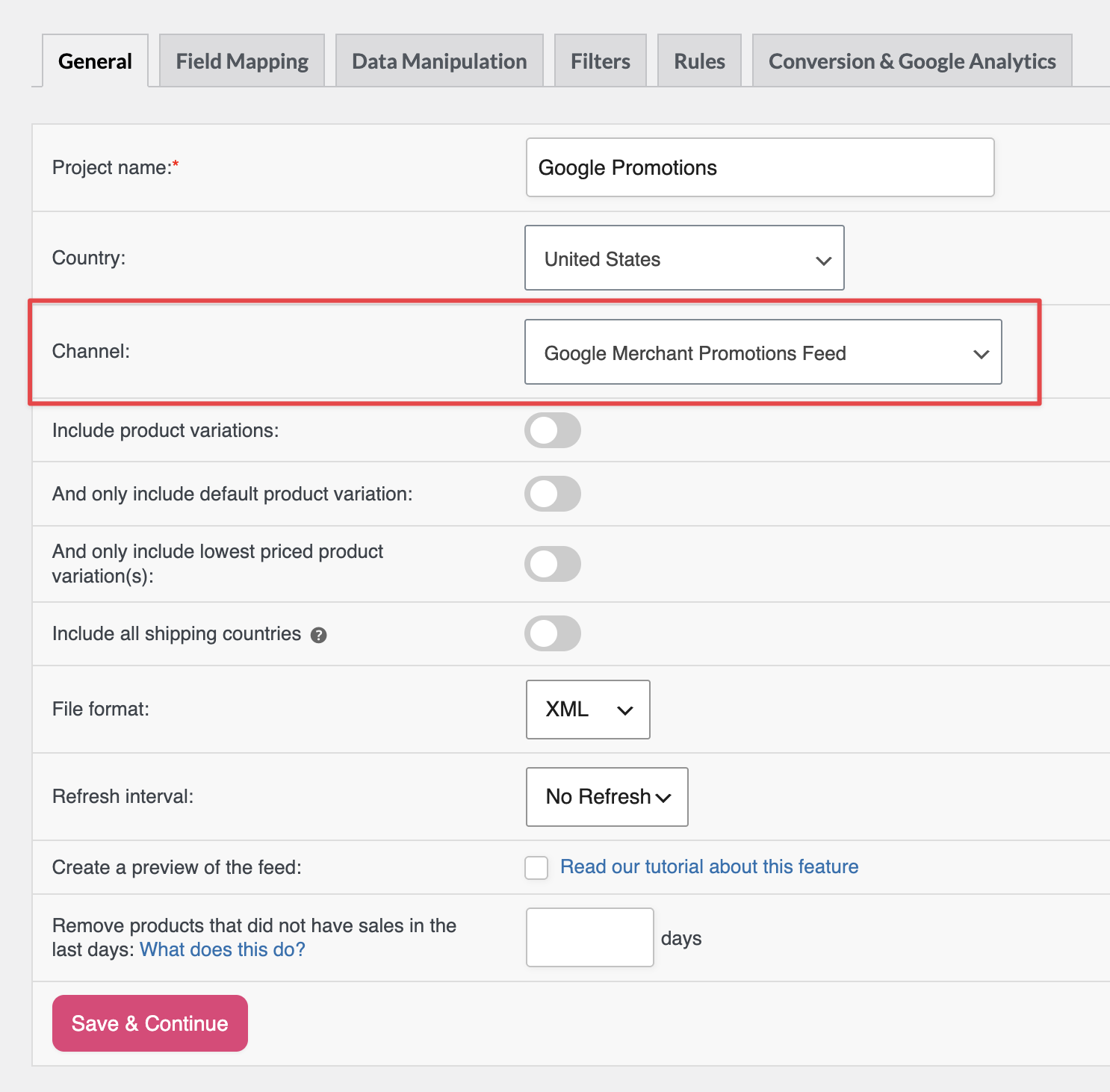
- Enter a descriptive name (e.g., “Google Promotions – Summer Sale”).
- Under Channel, select Google Merchant Promotions Feed from the dropdown.
- Click Next.
Step 2: Configure the General tab
On the General tab:
- Set File format to XML — Google recommends XML for promotions feeds.
- Set a Refresh interval that matches how often your promotions change. Daily work for most stores.
- Click Save & Continue.
Step 3: Map the required fields
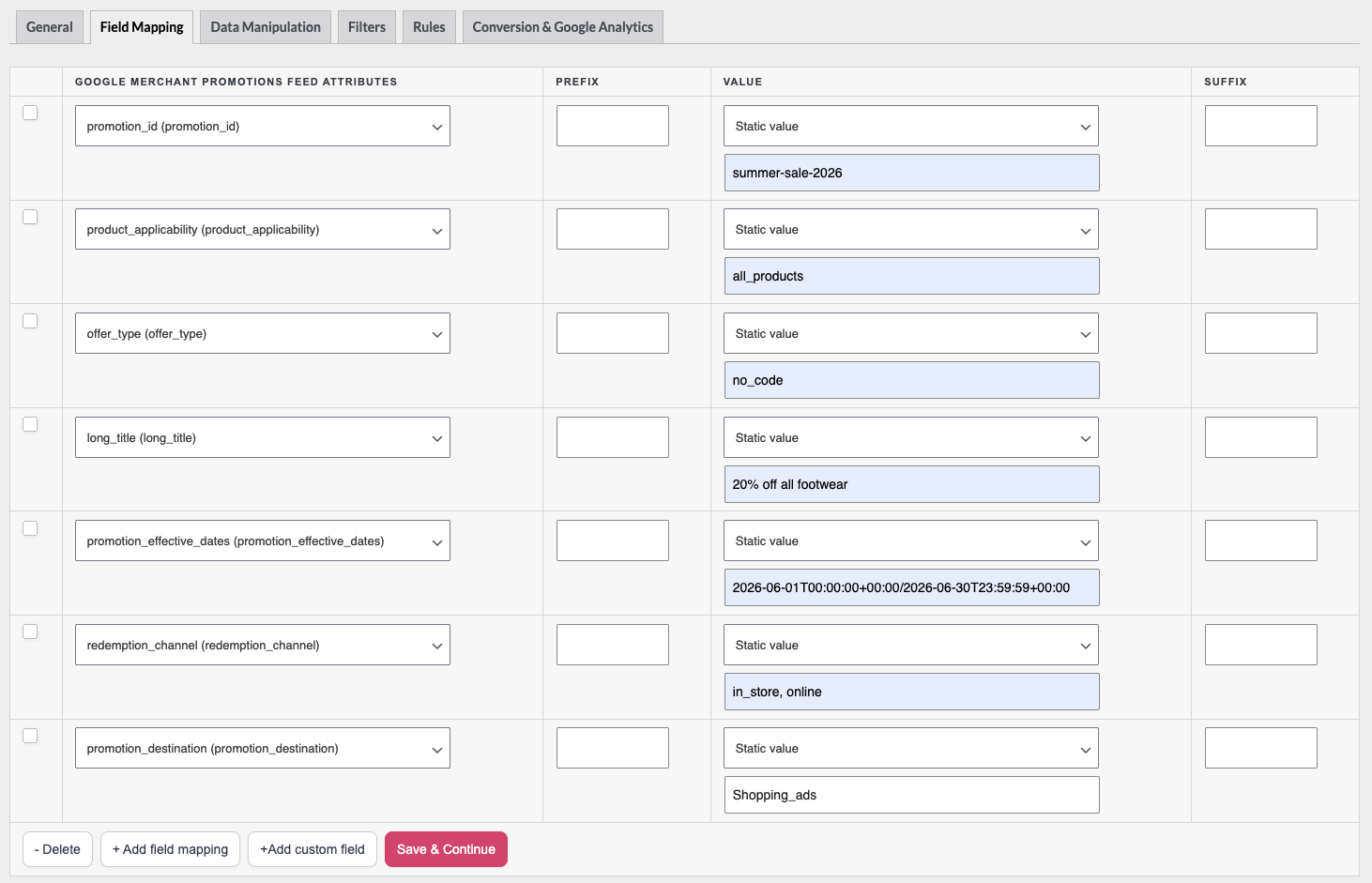
Go to the Field Mapping tab. You’ll see the promotion attributes pre-loaded. Map each required field — most stores set these to Static value since a promotion’s details don’t change per product.
Required fields:
| Field | Description | Example value |
|---|---|---|
promotion_id | Unique identifier for this promotion. Alphanumeric, no spaces or symbols, max 50 characters, case-sensitive. | summer-sale-2026 |
product_applicability | Whether the promotion applies to all products or specific items. | all_products or specific_products |
offer_type | Whether a coupon code is needed to redeem the deal. | no_code or generic_code |
long_title | Human-readable promotion title shown to shoppers. Max 60 characters. | 20% off all footwear |
promotion_effective_dates | Start and end date/time for the promotion. Format: YYYY-MM-DDTHH:MM:SS±HH:MM/YYYY-MM-DDTHH:MM:SS±HH:MM | 2026-06-01T00:00:00+00:00/2026-06-30T23:59:59+00:00 |
redemption_channel | Where the promotion can be redeemed. | online, in_store, or in_store, online |
promotion_destination | Where the promotion is eligible to appear. Select it from the field mapping attribute list. | Shopping_ads, Free_listings, Buy_on_Google_listings, or Local_inventory_ads |
To set a static value for any field: click the Value dropdown next to the attribute, choose Static value, and type the value in the text box that appears.
Using specific_products
If you set product_applicability to specific_products, Google needs to know which products the promotion applies to. The feed generates one row per product, and each row carries a product identifier that Google matches against your catalog.
The most common approach is to filter by item ID:
- Go to the Filters tab. In the Include section, add a filter condition to limit the feed to only the products this promotion covers. There are a few ways to do this, depending on how your products are organised:
- By category — set the attribute to Category, the condition to Contains, and enter the category name. This is the cleanest approach for most stores.
- By tag — set the attribute to Product tags, the condition to Contains, and enter the tag name.
- By product ID range — add two conditions in the same filter group: Product Id Greater Than or Equal
[start ID]and Product Id Less Than or Equal[end ID]. Both conditions in the same group apply as AND logic. - By individual IDs — for a small non-contiguous set, assign a dedicated WooCommerce tag to those products first, then filter on Product tags Contains that tag name. This avoids adding one Equals condition per product ID.
- In the Field Mapping tab, select the
item_idattribute from the field mapping list. - In the Value dropdown, choose Product Id (the WooCommerce product ID). Each feed row then carries the correct ID for that product.
- Keep all other promotion fields —
promotion_id,long_title,promotion_effective_dates, etc. — as Static value. These repeat on every row since they describe the same promotion.
The result is one row per included product, all sharing the same promotion details but with a unique item_id per row. Google matches those IDs against your product catalog.
Alternative filter fields — use these instead of item_id when you want to match products by category, brand, or label rather than by individual ID:
| Field | Map to |
|---|---|
product_type | Product Type attribute (WooCommerce product type) |
brand | Your brand attribute or a Static value |
custom_label_0 – custom_label_4 | The matching custom label attribute or a Static value |
item_group_id | Product Id of the parent variable product (for variant groups) |
If your promotion covers every product in your store, use all_products instead, no product filter fields are needed.
Step 4: Map the optional fields
These fields improve how your promotions display and can increase click-through rates:
| Field | Description |
|---|---|
promotional_display_dates | Date range to show the deal badge — can differ from the effective dates |
minimum_purchase_amount | Minimum cart value required to use the promotion |
generic_redemption_code | The coupon code (required when offer_type is generic_code) |
Also, map one structured discount field to describe the type of deal:
| Field | When to use |
|---|---|
percent_off | For a percentage discount, e.g. 20 for 20% off |
money_off_amount | For a fixed monetary discount. Map it to a Static value with your amount (e.g. 10 USD). |
buy_this_quantity | For buy-X deals — the “buy” quantity |
get_this_quantity_discounted | For BOGO or multi-buy deals — the quantity discounted |
free_shipping | Set to 1 if the promotion includes free shipping |
free_gift_value | Monetary value of a free gift |
free_gift_description | Description of the free gift |
free_gift_item_id | Item ID of the free gift product |
Step 5: Save and generate the feed
- Click Save & Continue on the Field Mapping tab.
- Go to Product Feed → Manage feeds.
- Click Refresh Feed next to your promotions feed to generate it.
- When the status shows as complete, click the feed URL to open it and confirm the fields are present.
Step 6: Submit to Google Merchant Center
- In your Merchant Center account, go to Data sources.
- Click Add data source and select Promotions.
- Paste your feed URL and set a fetch schedule.
- Submit for review.
Google typically reviews and activates promotions within 3–5 business days. Once approved, deal badges appear on your Shopping ads and free listings.
Troubleshooting
YYYY-MM-DDTHH:MM:SS±HH:MM/YYYY-MM-DDTHH:MM:SS±HH:MM. Common mistakes: using a space instead of T between date and time, or using Z instead of +00:00 for UTC.promotion_destination is mapped. In the Field Mapping tab, find the promotion_destination attribute, set its Value to Static value, and enter your destination. For accepted values, see the required fields table in Step 3.offer_type is set to generic_code. If it’s set to no_code, Google ignores the generic_redemption_code field entirely.FAQ
promotion_effective_dates end date within that limit.redemption_channel and dates appropriately for each. If the same promotion applies everywhere, one feed is enough.Need more help?
If you’re on Product Feed Elite, open a support ticket, and the team will help you out.
If you’re on the free version of Product Feed Pro, post your question in the WordPress.org support forum.

