Reviewed by
If your WooCommerce store wants to reach younger, mobile-first shoppers, Snapchat can be a useful channel to test. The platform reached 483 million daily active users in Q1 2026, and its Dynamic Ads let you create personalized product ads from a catalog feed.
Product feeds are commonly associated with Google Shopping and Meta, but Snapchat uses a familiar workflow. You upload a product catalog, connect the Snap Pixel, and let the platform create personalized ads from your current product data.
This guide walks you through the Snapchat catalog feed requirements, how to generate the feed with AdTribes Product Feed Pro, and how to configure Dynamic Ads in Snapchat Ads Manager.
What Are Snapchat Dynamic Ads
Snapchat Dynamic Ads automatically create personalized product ads from your catalog feed. Instead of designing individual ad creatives for each product, you upload your product data and Snapchat generates ads that show relevant products to each user based on their browsing behavior and interests.
There are two main types of Dynamic Ads on Snapchat:
- Prospecting ads: Show your products to users who have not visited your store but match your target audience based on their Snapchat activity and interests. These help you reach new customers.
- Retargeting ads: Show specific products to users who have already viewed or added those items to their cart on your WooCommerce store. These re-engage shoppers who left without purchasing.
Both types use the images, titles, prices, and descriptions in your catalog feed. Clear, complete product data gives Snapchat better information to use when creating each ad.
Snapchat Dynamic Ads use your catalog and event signals to personalize product ads at scale. The available placements depend on the campaign objective and ad format you choose in Ads Manager.
If you already manage a feed for Google Shopping or Meta, the Snapchat workflow should feel familiar. AdTribes Product Feed Pro includes a dedicated Snapchat Product Catalog template, so you can build the feed from the WooCommerce data you already manage.
Snapchat Product Catalog Feed Requirements
Snapchat requires a product catalog feed in CSV or XML format that meets specific field requirements. Reviewing these fields before uploading your feed helps reduce processing errors and rejected products.
Required fields
Review these core fields before generating your feed:
- id: A stable, unique identifier for each product. You can use the WooCommerce product ID or SKU.
- title: The product name, including the details shoppers need to identify the item.
- description: A clear, factual description that puts the most useful product information first.
- link: A working, publicly accessible URL for the matching product page.
- image_link: A direct, publicly accessible URL for the main product image. Aim for an image that is at least 500 × 500 pixels.
- availability: The product’s stock status. Snapchat-supported values include “in stock,” “out of stock,” “preorder,” “discontinued,” and “available for order.”
- price: The product price followed by its currency code, such as “29.99 USD.”
- google_product_category: The closest matching category from the Google product taxonomy.
- brand: The product’s brand name. If you manufacture your own products, use your store or product brand consistently.
- gtin and mpn: Use manufacturer-issued product identifiers where available. If a product has no GTIN, make sure its MPN and brand data are mapped correctly.
- condition: The product’s condition, which will usually be “new” for most WooCommerce stores.
- item_group_id: A shared identifier that groups variants of the same product together.
AdTribes Product Feed Pro pre-maps many of these fields, but brand, GTIN, and MPN may need to be mapped manually from your WooCommerce data. If every product uses the same brand, you can also populate the brand field with a feed rule.
Optional fields to consider
These fields can add useful product details and give you more ways to organize your catalog:
- sale_price: If the product is on sale, include the discounted price. Snapchat can display both the original and sale price in your ads.
- product_type: Your store’s category path (e.g., “Clothing > Men > Shirts”). Helps Snapchat categorize and target your products.
- additional_image_link: Extra product images that give Snapchat more visual assets to use for Dynamic Ads.
- color and size: Product variant details that help Snapchat show the right product to the right shopper.
Practical tip: Include accurate sale-price and image data whenever it is available. Complete catalog data gives Snapchat more product information and visual assets to work with when creating your ads.
How To Create A Snapchat Product Feed With AdTribes Product Feed Pro
AdTribes Product Feed Pro includes a built-in Snapchat Product Catalog template that pre-maps supported WooCommerce data to the corresponding Snapchat fields. You can then review the mapping and complete any fields that need additional information.
Step 1: Install and activate Product Feed Pro
If you have not installed it yet, download Product Feed Pro from the AdTribes website. Install and activate the plugin through your WordPress dashboard under Plugins > Add New > Upload Plugin.
Step 2: Create a new feed and select Snapchat Product Catalog
In your WordPress dashboard, navigate to Product Feed Pro and click to create a new feed. From the channel list, select Snapchat Product Catalog as your target platform.
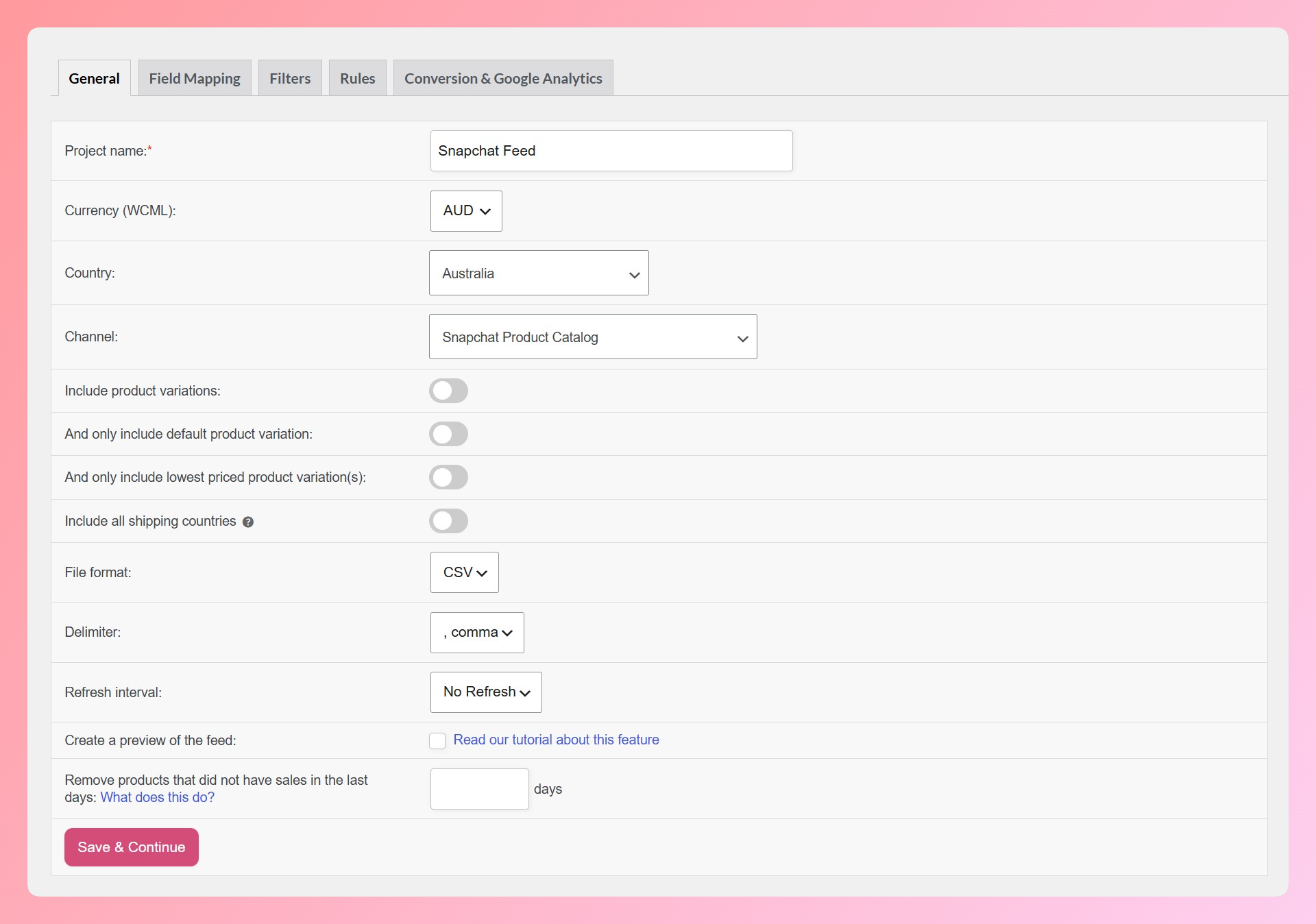
Product Feed Pro will automatically load the Snapchat Product Catalog field mapping template. This pre-maps your WooCommerce product fields (title, description, price, images, etc.) to the corresponding Snapchat catalog fields.
Step 3: Review and customize field mapping
Check the field mapping to make sure your WooCommerce data is flowing into the correct Snapchat fields. Pay attention to these fields specifically:
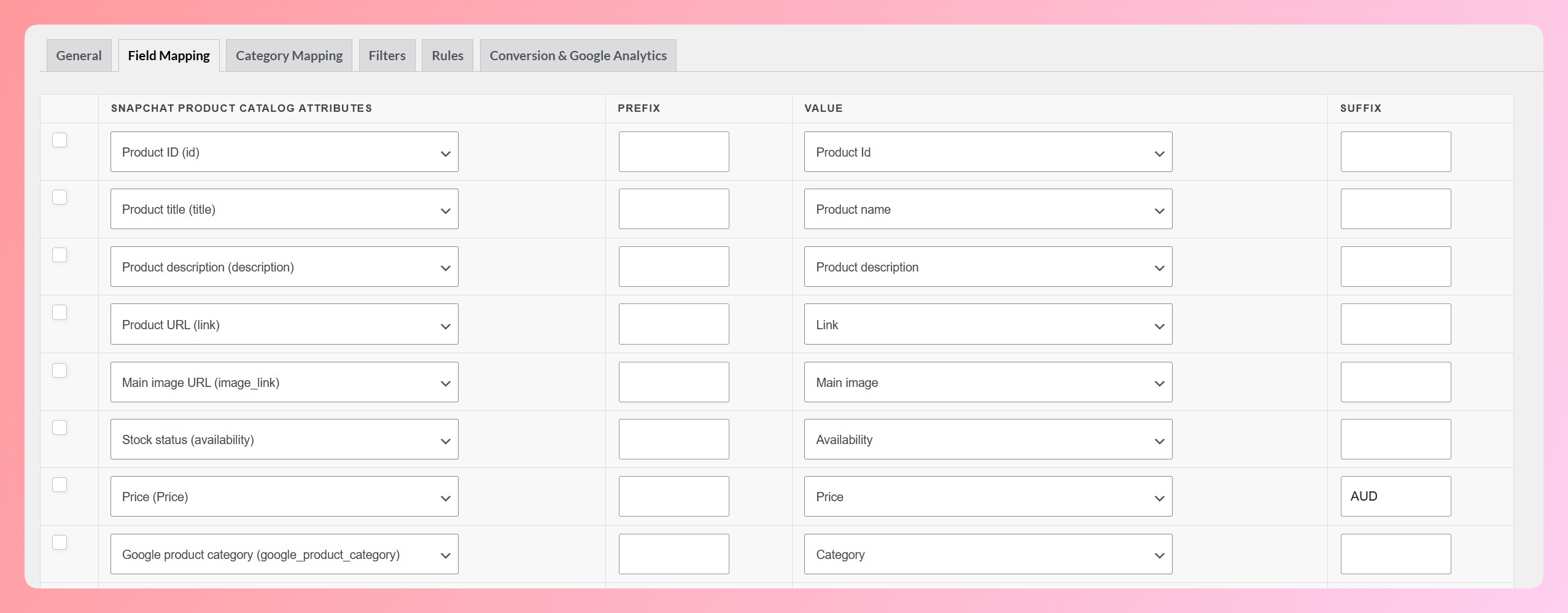
- id: Confirm this maps to your product ID or SKU, depending on which you use as a unique identifier.
- image_link: Make sure your product images meet the 500 × 500 pixel minimum. If your WooCommerce thumbnails are smaller, map this field to the full-size image URL instead.
- availability: Product Feed Pro maps WooCommerce stock status automatically. If the feed outputs “on backorder,” use a feed rule to remap it to the appropriate Snapchat-supported value before submitting the feed.
- price: Confirm the price includes the currency code. If it is not already included in the mapped value, add the code in the Suffix field.
- brand, GTIN, and MPN: These fields may not have automatic WooCommerce sources. Map them to the correct product attributes. If every product uses the same brand, you can also populate the brand field with a feed rule in Step 5.
Step 4: Map your product categories
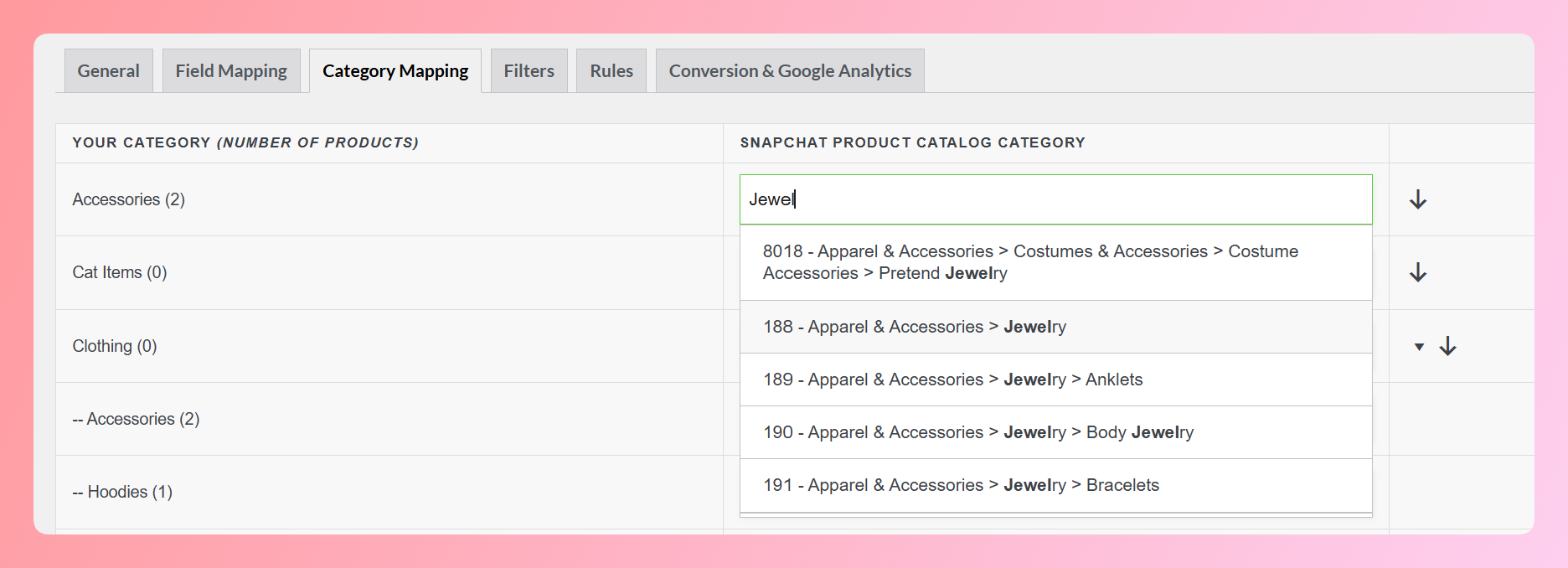
Open the Category Mapping step and assign each WooCommerce category to the closest Google Product Category. Snapchat uses this taxonomy in its catalog feed, so make sure every category included in the feed has an appropriate mapping.
Step 5: Apply filters and feed rules
Use filters to control which products appear in the feed and feed rules to adjust the data sent to Snapchat. Common examples include:
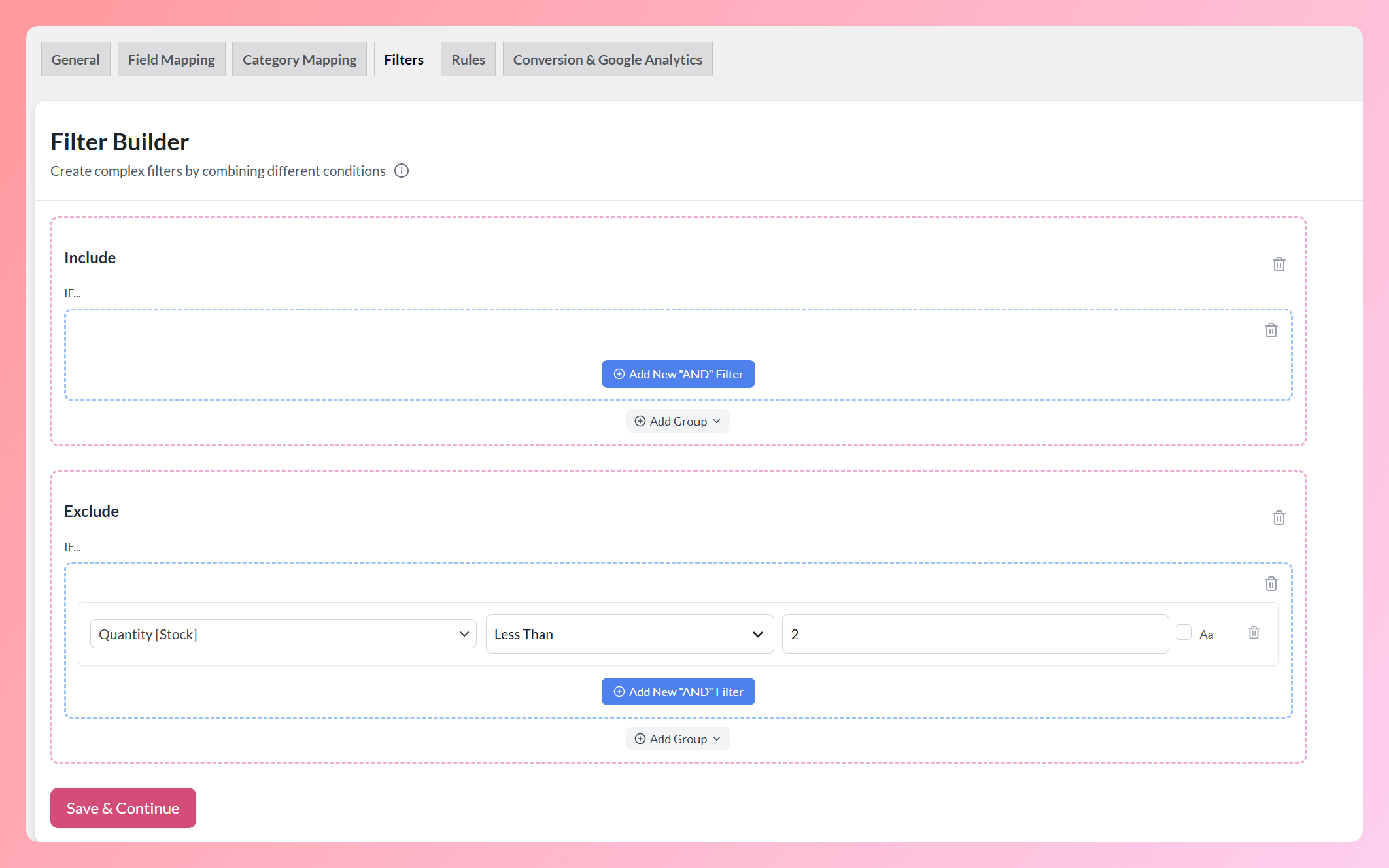
- Exclude out-of-stock products to avoid showing ads for unavailable items
- Filter by category, tag, or price to focus the feed on products you want to promote
- Add brand name to products if the brand field is empty in WooCommerce
- Prepend category keywords to titles for better targeting (e.g., changing “Classic Tee” to “Men’s Cotton Classic Tee”)
For a detailed walkthrough on creating Snapchat catalog feeds, see our Snapchat product catalog feed guide.
Step 6: Generate and host your feed
Click to generate the feed. Product Feed Pro creates a hosted feed URL that Snapchat can fetch on a schedule. Copy this URL; you will need it when setting up your product catalog in Snapchat Ads Manager.
AdTribes Product Feed Pro can refresh your feed hourly, twice daily, or daily. Daily is a practical starting point for relatively stable catalogs, while hourly suits stores whose prices or inventory change throughout the day.
How To Set Up Snapchat Dynamic Ads For WooCommerce
With your product feed URL ready, the next step is connecting it to Snapchat and configuring your Dynamic Ads campaign.
Step 1: Create a product catalog in Snapchat
Log into Snapchat Ads Manager and navigate to the Catalogs section. Create a new catalog and choose “Product” as the catalog type. Give it a name that matches your WooCommerce store.
Step 2: Add your feed URL
Select the option to add a product feed and paste the hosted feed URL from Product Feed Pro. Set the fetch schedule to match your feed refresh frequency. Snapchat will pull your latest product data at each scheduled fetch.
After adding the feed, Snapchat will process and add your products to the catalog. Processing time can vary, so check the upload summary for errors or warnings before building your campaign.
Step 3: Install the Snap Pixel on your WooCommerce store
Retargeting Dynamic Ads require the Snap Pixel, while it is optional for prospecting. Connect the pixel to your catalog and pass a unique item_id with Page View, View Content, Add to Cart, and Purchase events. Each item_id must match the corresponding product ID in your catalog.
Follow Snapchat’s current setup flow to install the base pixel, then configure the ecommerce events needed for product views, add-to-cart actions, and purchases. In WordPress, use a code-insertion method that will not be overwritten by a theme update.
Before launching, use the Snap Pixel Helper or the Test Events tool in Events Manager to confirm that the pixel is firing and sending the expected events.
Step 4: Create a Dynamic Ad campaign
In Snapchat Ads Manager, create a new campaign and select Sales as the objective. Choose your product catalog, then select all products or a specific product set for the campaign.
Configure your targeting:
- For prospecting: Use demographics, interests, and lookalike audiences to reach people who have not yet interacted with your store.
- For retargeting: Build an audience from relevant product interactions, then choose a lookback window that fits your store’s buying cycle instead of defaulting to one range.
Set your budget, bid strategy, and ad placement preferences. Launch the campaign and monitor performance in the Ads Manager dashboard.
Best Practices For Snapchat Product Ads
Connecting the feed gets your products into Snapchat. The next step is making sure your catalog and campaign choices suit the way people browse and shop on mobile.
Use high-quality square images
Snapchat is a visual-first platform, so use clean, well-lit product photos on white or simple backgrounds. Square images are a strong default for your catalog, but preview the resulting ad format in Ads Manager before launching. Keep text overlays minimal so the product remains easy to see.
Write mobile-first descriptions
Keep your descriptions easy to scan on mobile. Put the most useful product information in the opening sentence, then focus on the product’s primary benefit and one or two relevant attributes.
Segment your catalog for better targeting
Rather than defaulting to one campaign for your entire catalog, test product sets using available catalog attributes such as brand or condition. You can then compare which groupings make sense for prospecting and retargeting.
For more strategies on using social media feeds for ecommerce, see our guide on social media for ecommerce.
Refresh your feed frequently
Snapchat Dynamic Ads pull pricing and availability from your catalog feed. If your feed is stale, shoppers may see unavailable products or outdated prices. Start with a daily refresh for a relatively stable catalog, or switch to hourly when prices and stock change frequently.
Test retargeting before expanding to prospecting
Retargeting is a practical place to start because it uses signals from people who have already interacted with your products. Use the first campaign to confirm that your feed and pixel events are working, then test prospecting when you are ready to reach new audiences.
Frequently Asked Questions
Do I need a Snapchat Business account to run Dynamic Ads?
Yes. You need a Snapchat Business account with access to Snapchat Ads Manager. Creating a business account is free. You will also need to set up a product catalog and install the Snap Pixel on your WooCommerce store before launching Dynamic Ads.
Can a smaller catalog use Snapchat Dynamic Ads?
You can begin with the products you actively sell. Make sure each item includes the required data, then use product sets to organize the catalog as it grows.
Can I use the same product feed for Snapchat and Google Shopping?
The feed formats are similar but not identical. Snapchat and Google Shopping have different required fields, naming conventions, and image specifications. Product Feed Pro lets you create separate feeds for each platform from the same WooCommerce product data, with platform-specific field mapping and optimization rules applied to each.
How long does Snapchat take to process a product catalog?
Processing time varies by catalog size and feed quality. Check the upload summary for missing fields, invalid image URLs, price formatting problems, and other item-level errors. Correct the source data in AdTribes Product Feed Pro, regenerate the feed, and let Snapchat fetch the updated file.
Launch Snapchat Dynamic Ads For Your WooCommerce Store
Once your catalog, feed, and pixel events are connected, Snapchat can create product ads without requiring separate creative for every item. From there, focus on keeping your product data accurate and testing which audiences and product sets make sense for your store.
Before you launch, make sure you have:
- Reviewed the required product fields and completed your category mapping
- Generated your Snapchat feed and added its hosted URL to your product catalog
- Connected the Snap Pixel and confirmed that its item IDs match your catalog IDs
- Selected a product set and audience that give you a clear starting point for testing
AdTribes Product Feed Pro gives you a dedicated Snapchat template alongside feeds for Google Shopping, Meta, and other channels. Get Product Feed Pro for free to create and maintain your Snapchat catalog feed from WooCommerce.