
Do you sell in more than one currency with the Aelia Currency Switcher, but your product feed still shows prices in your store’s base currency? Shopping channels match feeds to local shoppers, so a feed stuck in the wrong currency can mean rejected products or lost sales.
The Product Feed Multi-Currency Addon fixes this. It connects Product Feed Pro to the Aelia Currency Switcher, letting each feed output prices and shipping costs in the currency of your choice. This guide shows you how to set the currency for a feed.
Prerequisites
Before you begin, ensure you have all the items listed in the table below.
| Requirement | Details |
|---|---|
| Product Feed Pro | Version 13.5.5 or later, and active (the core Product Feed plugin) |
| Product Feed Multi-Currency Addon | Installed and active (included in the Plus and Business plans, which is how you get the addon and its updates) |
| Aelia Currency Switcher | Active on your store, with the currencies you want to output enabled in its settings |
Set the currency for a feed
Follow these steps to pick which currency a feed uses.
- In the WordPress admin menu, click Product Feed.
- Open the feed you want to update, or create a new one to reach the feed edit screen.
- On the General tab, find the Currency (Aelia) dropdown. It sits just above the Country field.
- Choose the currency you want this feed to use.
- Finish setting up the rest of your feed, then save and generate it.
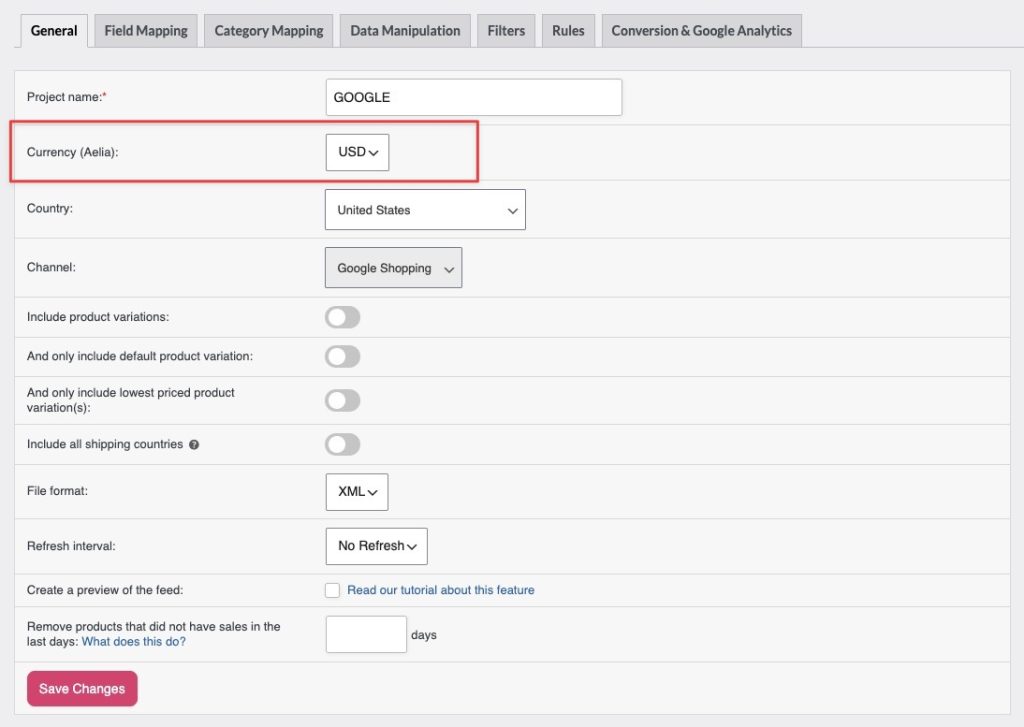
That’s it. From now on, this feed outputs prices in the currency you selected.
How the conversion works
When you pick a non-base currency, the addon converts each product’s price and shipping cost into that currency using Aelia’s own converter. If you’ve set fixed (manual) prices for a currency in Aelia (for example, on a product or shipping method), the addon uses those instead of the auto-converted amount. The currency’s own decimal and thousand separators are applied too, so the feed matches how Aelia displays prices on your store.
Troubleshooting
- The Aelia Currency Switcher is active.
- The Product Feed Multi-Currency Addon is installed and active.
- You’re running Product Feed Pro 13.5.5 or later.
FAQ
Need more help?
If you have the Multi-Currency Addon (included in the Plus and Business plans), the fastest way to reach us is to open a support ticket. Our team can check your feed and Aelia setup directly.
If you’re using the free Product Feed Pro plugin without the addon, post your question in the WordPress.org support forum. Keep in mind that multi-currency feeds need the Multi-Currency Addon.

