Reviewed by
You’ve added a sale price in WooCommerce, and the discounted price is already showing on Google Shopping. But the clickable “Special offer” tag is nowhere to be seen. That’s because sale prices and Google Shopping promotions are handled separately. The tag comes from a separate promotion that Google has reviewed and approved.
In this guide, we’ll walk through how Google Shopping promotions work, how they differ from regular sale prices, which types of offers you can run, and how to create a promotions feed in WooCommerce with AdTribes Product Feed Pro.
What Are Google Shopping Promotions?
Google Shopping promotions are special offers, such as a percentage off, an amount off, free shipping, or a free gift, that can appear as a clickable “Special offer” tag next to your product listings. They appear separately from the product price and give shoppers a clear way to open the offer details.
The tag can show on both paid Shopping ads and free listings, so you don’t have to be running ads to use it. When a shopper opens the offer, they can see its details and any redemption code. This gives the deal a clearer place on the listing without requiring a bid change.
Sale Price vs. Promotions: What’s The Difference?
A sale price is the discounted price shown on your listing, often alongside the original price with a strikethrough. A promotion is a separate offer with its own terms and, depending on the deal, a redemption code. They do different jobs, and you can use both for the same product.
Here’s how the two compare:
| Aspect | Sale price (g:sale_price) | Promotion (Merchant Promotions feed) |
|---|---|---|
| What the shopper sees | The original price alongside a lower sale price, sometimes with a sale annotation | A clickable “Special offer” tag |
| Feed it lives in | Google Shopping feed | Google Merchant Promotions feed |
| Best for | Ongoing markdowns | Coupons, free shipping, BOGO, free gift |
| Needs a promo code? | No | Depends on the offer; required for code-based and free shipping promotions |
| Can run together? | Yes | Yes |
When to use a sale price
A sale price fits ongoing markdowns, like a clearance item or a seasonal price drop. In your feed, it maps to the g:sale_price and g:sale_price_effective_date attributes on the standard Google Shopping feed. When the sale meets Google’s requirements, the reduced price can appear alongside the original price with a strikethrough.
When to use a promotion (and when to use both)
Reach for a promotion when you want an offer that reads as an offer: a coupon code, free shipping over a minimum spend, buy-one-get-one, or a free gift. You can also submit a sale price and a promotion for the same product, giving Google the option to show the lower price alongside the offer.
Promotion Types You Can Run
Google supports several promotion formats, and AdTribes Product Feed Pro includes the corresponding attributes in your promotions feed.
- Percentage off: A straight percent discount, like 15% off, mapped to the
percent_offattribute. - Amount (money) off: A fixed discount such as $10 off, mapped to
money_off_amount. - Free shipping: Uses the
free_shippingattribute. A standalone free shipping promotion needs a valid redemption code that shoppers can apply manually, although Google allows an exception when shipping is combined with another eligible promotion. - Free gift: Use the attribute that matches how you identify the gift:
free_gift_description,free_gift_value, orfree_gift_item_idwhen the gift already exists in your product feed. - Buy X, get Y: Set the quantities with
buy_this_quantityandget_this_quantity_discounted, then usepercent_offormoney_off_amountto define the discount.
Check Eligibility Before You Start
Promotions need an active product feed already in Merchant Center, and they run only in Google’s supported promotion countries. Confirm the basics before you build anything.
- An active Merchant Center account: With at least one active product and a claimed, verified website URL.
- A supported country: Promotions run in a specific list of countries, currently including Australia, Brazil, Canada, France, Germany, India, Italy, Japan, Korea, the Netherlands, Spain, the UK, and the US. Google updates this list, so check Google Merchant Center Help for your market before you build.
- Matching offer terms: The promotion details must match what a shopper sees on your landing page and at checkout.
- No marketplace connection: Stores connected to a marketplace are generally not eligible, apart from those in Google’s closed beta for marketplace promotions.
How To Build A Google Merchant Promotions Feed In AdTribes
AdTribes Product Feed Pro is a free WooCommerce plugin for creating unlimited product feeds from your store data. It includes 250+ ready-made templates for Google and 100+ other channels, including a dedicated Google Merchant Promotions feed that stays separate from your standard Shopping feed.
Once the plugin is installed, the flow looks like this:
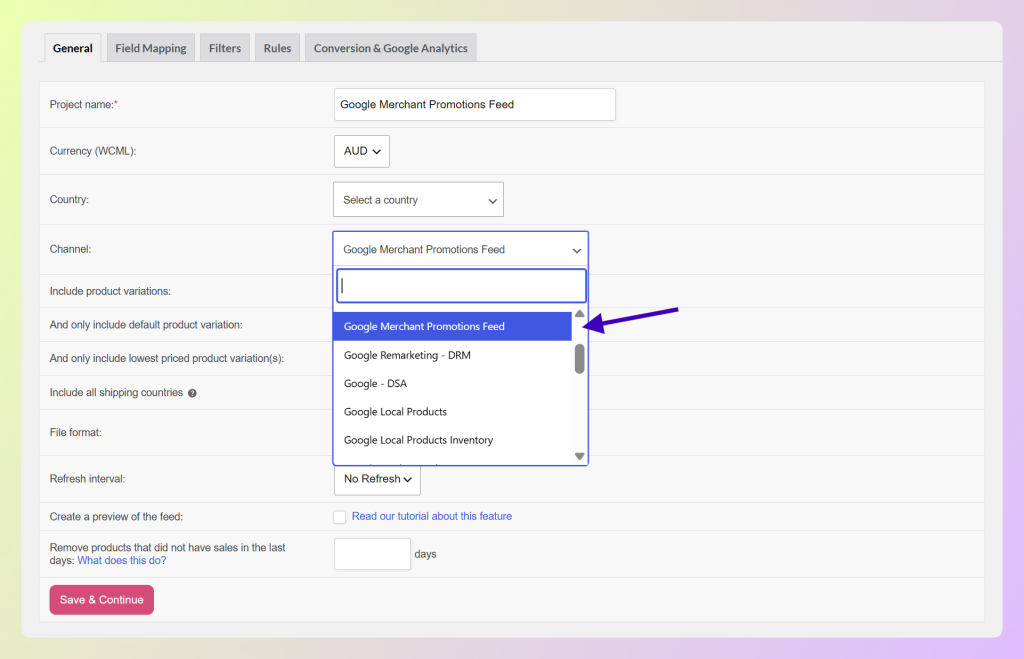
- Create a new feed and choose the Google Merchant Promotions channel.
- Map the required promotion fields:
promotion_id,product_applicability,offer_type,long_title,promotion_effective_dates,redemption_channel, andpromotion_destination. - Set the offer itself using the attribute that matches your deal, such as
percent_off,money_off_amount, orfree_shipping. - If the promotion only applies to certain items, set
product_applicabilitytospecific_products, then use the feed’s product filters to choose those products. You can filter by product type, brand, item ID, or a custom label. - Generate the feed and copy its URL for the next step.
One common mistake is leaving
product_applicabilityset toall_productswhen the deal only covers a few items. For a targeted offer, switch it tospecific_productsand add product filters, so Google only tests the promotion against eligible products.
You can grab a ready-made Google Merchant Promotions feed template to skip most of the manual mapping. AdTribes also includes a separate Bing Shopping Promotions feed, so you can reuse the same core offer details while generating the channel-specific feed Microsoft needs.
Submit Your Promotions Feed To Merchant Center
In Merchant Center, create a new promotions data source, choose the target country and language, and use the AdTribes feed URL as your source. Google will then review the promotion against its policies and the products it applies to.
Google reviews promotions before they go live, so build in some lead time. As Google Merchant Center Help notes, a promotion won’t display until the start time in your feed has been reached, and if you’re targeting a country that was recently added to the eligibility list, offers can appear gradually rather than all at once. Set your promotion_effective_dates with that in mind.
Your standard product feed also needs accurate product data because Google checks the items connected to each promotion. Our Google Shopping feed optimization tips can help you clean up the underlying listing data before you submit.
Frequently Asked Questions
What’s the difference between a sale price and a Google Shopping promotion?
A sale price is the discounted price shown on your listing, with the original price struck through. A Google Shopping promotion is a separate special-offer badge, like free shipping or a coupon, that appears alongside the product. You can use both together on the same listing.
Do I need to run paid ads to use Google Shopping promotions?
No. Promotions can appear on both paid Shopping ads and free listings, as long as your product feed and promotions feed are approved in Merchant Center. That makes them useful even if you aren’t spending on ads yet.
When will my promotion start showing?
Google reviews promotions before they go live, and a promotion won’t show until the start time you set in your feed has been reached. If you’re targeting a country recently added to Google’s eligibility list, offers may appear gradually rather than all at once. Submit ahead of your sale date rather than on the morning of it.
Can I use percentage-off and free shipping offers together?
Yes, but how you submit them matters. Google allows a combined promotion that includes both benefits, or you can submit them as separate promotions for the same products. Google shows one promotion per product at a time, so two separate offers may not appear together on the listing.
Why was my Google Shopping promotion disapproved?
A promotion can be disapproved when its terms don’t match the landing page or checkout, or when it is mapped to ineligible products. Check the reason shown in Merchant Center first. If the deal only applies to certain items, set product_applicability to specific_products, narrow it with product filters, then resubmit the promotion for review.
Do Google Shopping promotions work with Microsoft and Bing?
Yes. AdTribes Product Feed Pro includes a separate Bing Shopping Promotions feed. You can reuse the same core promotion details, then generate and submit the Bing-specific feed for Microsoft channels.
Is it free to create a promotions feed in AdTribes?
Yes. AdTribes Product Feed Pro is free and supports unlimited products and unlimited feeds, including the Google Merchant Promotions channel, so you can build and test a promotions feed at no cost.
Start Showing Promotions On Google Shopping
A standard discount can sit quietly in the price without giving shoppers a clear way to open the offer and read its terms. Google Shopping promotions turn those details into a separate, clickable offer without adding anything to your bid.
- What Are Google Shopping Promotions?: understand the tag and where it can appear.
- Sale Price vs. Promotions: What’s the Difference?: decide which option your offer needs.
- Promotion Types You Can Run: choose the attributes that match your deal.
- Check Eligibility Before You Start: confirm your account and country qualify.
- How To Build A Google Merchant Promotions Feed In AdTribes: map the fields and target eligible products.
- Submit Your Promotions Feed To Merchant Center: add the data source and send your promotion for review.
With AdTribes Product Feed Pro, you can start with a ready-made template, map your promotion fields, and use product filters to target eligible items without building the feed manually. You can also compare other WooCommerce product feed plugins before choosing the setup that fits your store.