

 Reviewed by

Thinking about switching feed plugins, but don’t want to rebuild everything from scratch? When your feeds already have their channels, field mappings, filters, and schedules set up, starting over is the last thing you want to do.
Good news! AdTribes Product Feed Pro now lets you migrate WooCommerce product feeds from CTX Feed and RexFeed without recreating them field by field. And the migration tool is included in our free plugin.
You can review the settings before importing, and each new feed starts as a draft. Your original CTX Feed or RexFeed feeds stay unchanged, so you can check the imported versions before activating them.
Which Plugins Can You Migrate From?
You can migrate feeds from two popular WooCommerce feed plugins, in both their free and Pro versions:
- CTX Feed by WebAppick
- RexFeed – Product Feed Manager for WooCommerce by RexTheme (shown as “Product Feed Manager by RexTheme” inside AdTribes Product Feed Pro)
Your old plugin only needs to be installed, not active. Even if you’ve already deactivated CTX Feed or RexFeed, AdTribes Product Feed Pro can still find and import its saved feeds.
This is different from our product feed export and import feature. That one moves AdTribes feeds between your own sites. The new migration tool brings feeds in from another plugin.
Still weighing up the switch? Our side-by-side comparisons of AdTribes vs CTX Feed and AdTribes vs Product Feed Manager walk through how the plugins differ.
How To Migrate WooCommerce Product Feeds To AdTribes (Step-by-Step)
You can bring your feeds over in four steps, with a chance to review the mappings before importing.
Step 1: Open the migration tool
After you update AdTribes Product Feed Pro, a notice appears on the plugin’s pages when it finds feeds from CTX Feed or RexFeed. It tells you how many feeds it found in each plugin. Click Import feeds to jump straight to the migration tool.
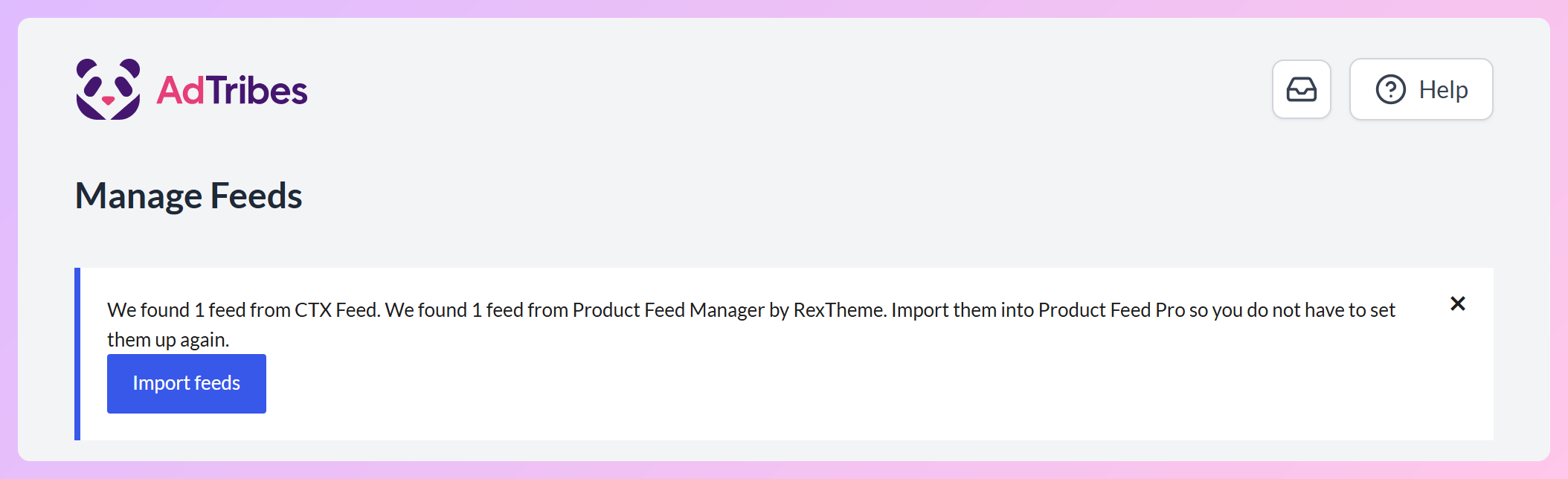
Dismissed the notice, or want to come back later? You can always find the tool in your WordPress dashboard under Product Feed → Settings → Export / Import, in the Migrate Feeds From Another Plugin section.
Step 2: Select the feeds to import
The tool lists each plugin it found, along with how many feeds it has. Tick the feeds you want to bring over, or use Select all to grab every feed from that plugin. Then click Review import.
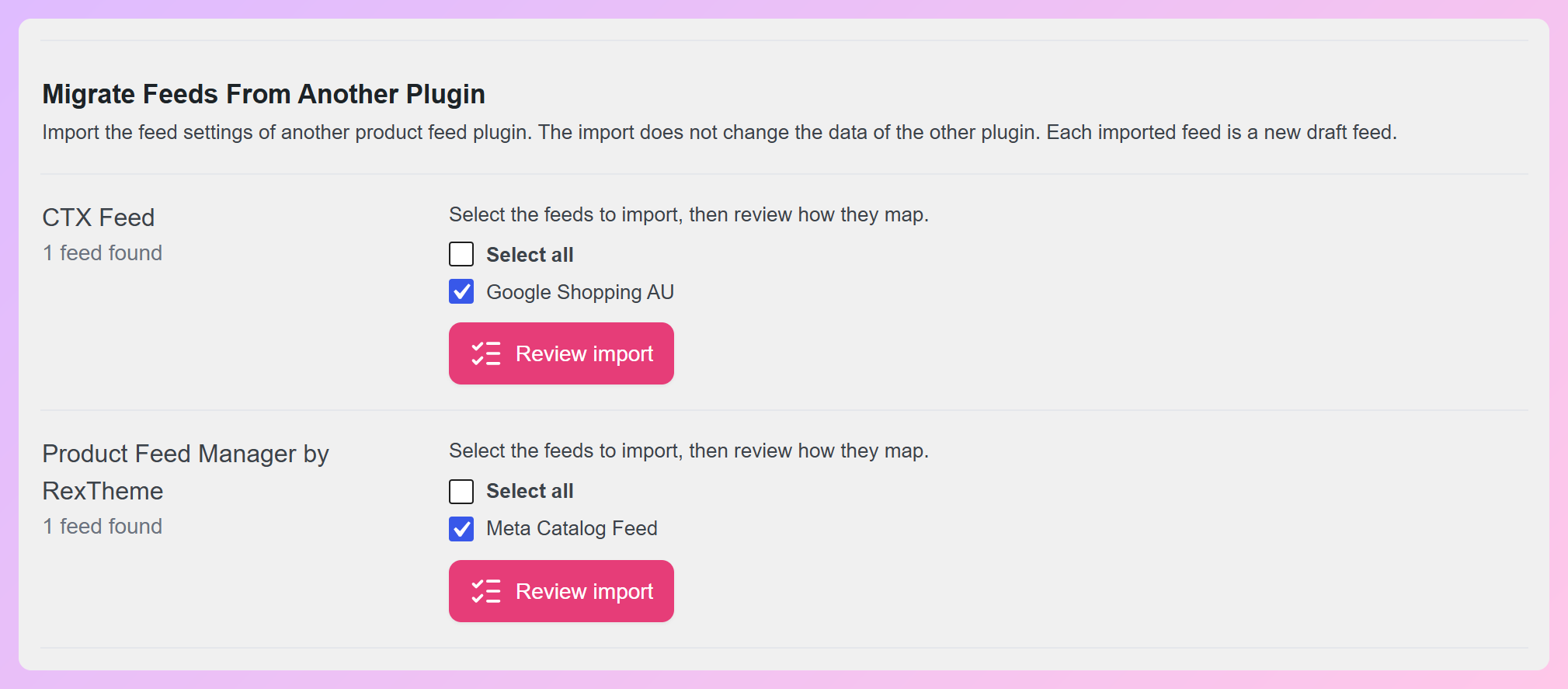
Step 3: Check how each feed maps
Before importing, you’ll see a preview of how each selected feed maps to AdTribes, including settings that need your attention. The review covers:
- Channel: the channel in your old plugin and the AdTribes channel it maps to, like Google Shopping.
- File format, refresh interval, and filters: the basics of how the feed is built and how often it updates.
- Feed attribute and Value table: every attribute in the feed and the product field it pulls from. Fixed values, like your brand name, show as “Static value.”
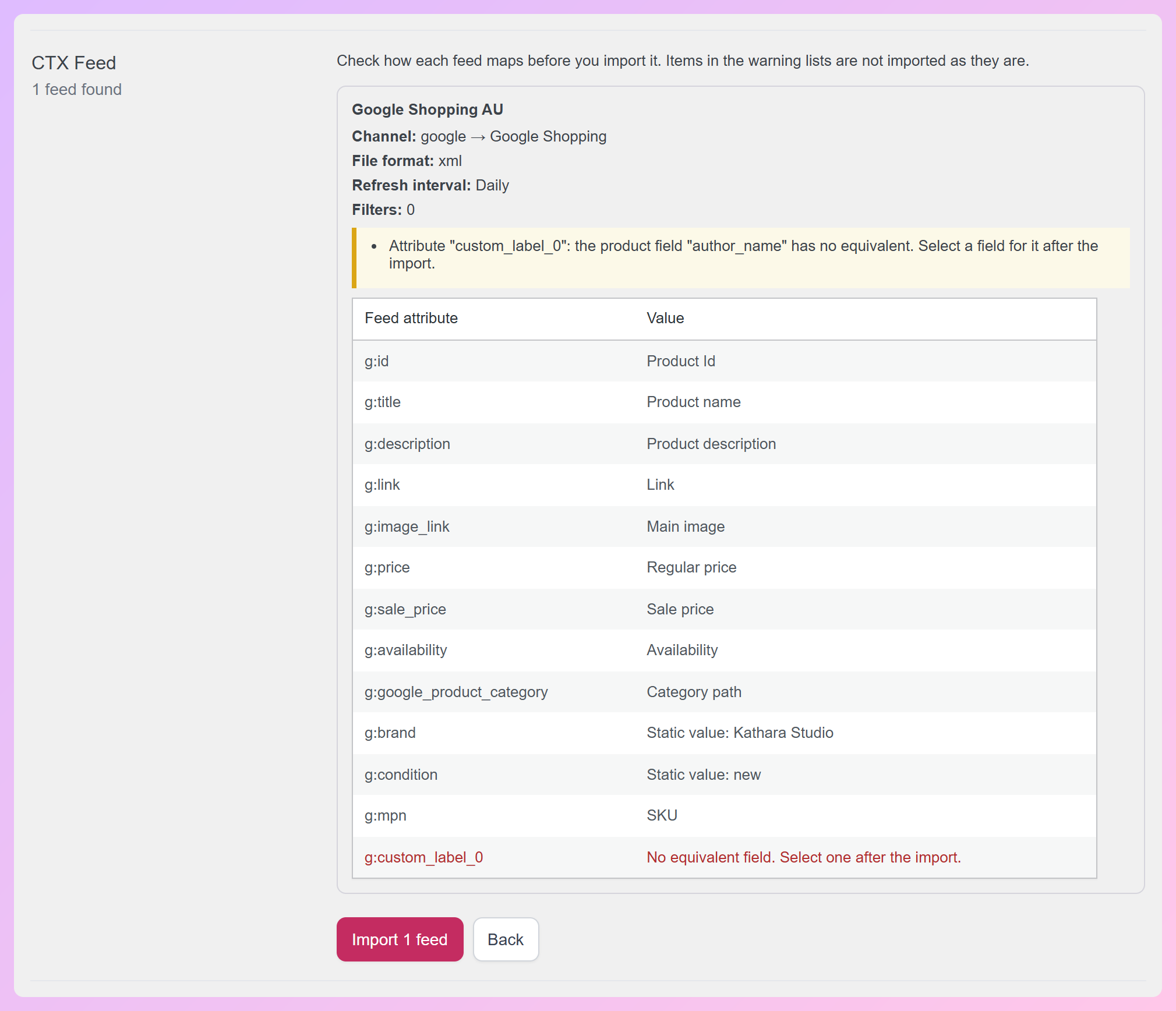
If a field from your old plugin doesn’t have a direct match in AdTribes Product Feed Pro, it’s highlighted in red with the note “No equivalent field. Select one after the import.” After importing, open the feed’s Field Mapping tab to add or correct any missing mappings.
Step 4: Import your feeds as drafts
Happy with the preview? Click Import (the button shows how many feeds you’ve selected, such as Import 1 feed). AdTribes confirms the import and creates new draft feeds you can open and review.
Your new feeds now sit under Product Feed → Manage feeds with the same names they had in your old plugin. Each one shows as Inactive until you switch it on, so you can look it over first.

You can come back to the tool any time to bring over more feeds. Anything you’ve imported before is marked “(imported before)” next to its name, so you can see at a glance what’s already done.
What carries over to AdTribes
The migration tool brings over many of the settings you’ve already configured. Here’s what it can import into AdTribes Product Feed Pro:
| Setting | What comes across |
|---|---|
| Channel | Google Shopping, Google Local Products, Meta (Facebook and Instagram), Pinterest, TikTok, Bing, Snapchat, OpenAI, X (Twitter), and more |
| Field mappings | Supported attribute-to-field mappings, including product attributes, custom fields, and extra images |
| Static values | Fixed values like your brand name or product condition |
| Prefixes and suffixes | Text you add before or after a value |
| Filters | Supported stock, empty-field, category, product, and custom filter rules |
| Feed settings | Supported file format, country, delimiter, and variation settings |
| Refresh schedule | Supported hourly, twice-daily, or daily intervals |
If a setting needs adjusting, the review screen flags it so you can check it before activating the imported feed.
Your After-Import Checklist
After importing, use these six checks to review your settings, activate the feed, and update its URL in your sales channel.
1. Fill in any flagged fields
Remember the red rows on the review screen? Open the imported feed’s Field Mapping tab and add or adjust the mappings flagged during review. If you’d like a closer look at how this works, our guide to field mapping walks you through it.
2. Map your categories
Channels like Google Shopping use their own product categories. Open the Category Mapping tab to review how your WooCommerce categories match up, and update anything that needs attention. Our guide to WooCommerce category mapping covers the setup step by step.
3. Check the refresh schedule
Check the refresh interval assigned to your imported feed. AdTribes supports hourly, twice-daily, and daily schedules here, so make sure the setting suits how often your prices, stock, or product details change.
4. Set up UTM tracking if you use it
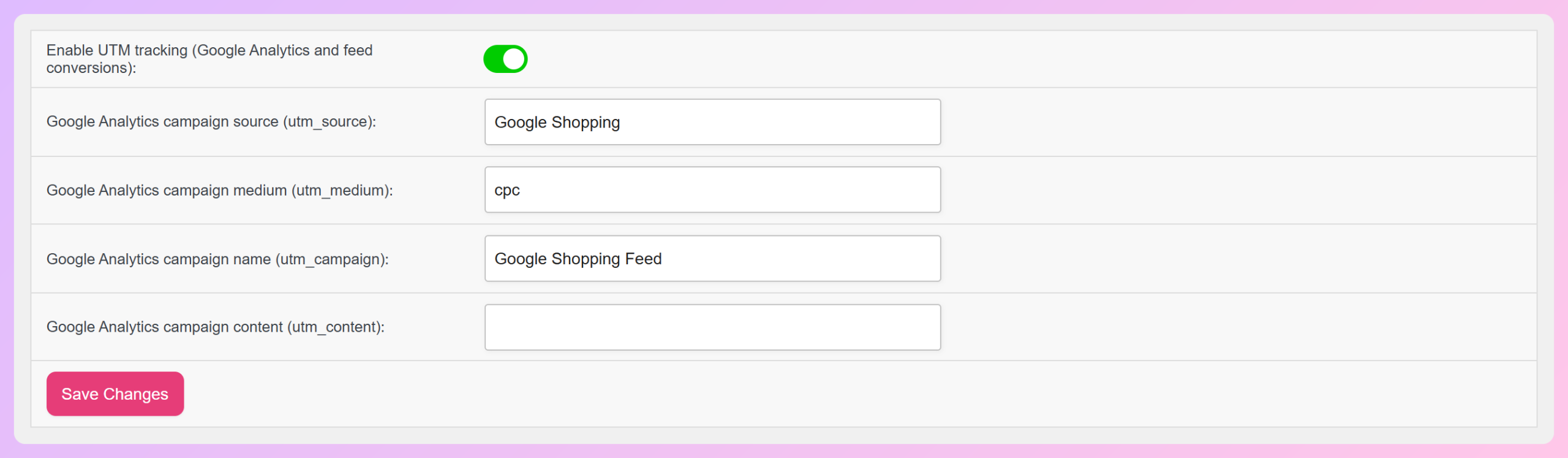
If you want to track conversions for individual feeds, open the Conversion & Google Analytics tab, enable UTM tracking, and enter a unique campaign name for this feed. AdTribes Product Feed Pro uses that campaign value to connect tracked orders to the right feed. Using the feed’s name makes it easier to recognize.
5. Switch it on and refresh
When the feed looks good, go to Product Feed → Manage feeds and click the feed’s Inactive status, then confirm to activate it. Next, refresh the feed so AdTribes Product Feed Pro builds the feed file. Once it’s done, the feed URL is ready to use.
6. Point your channel at the new feed URL
Your imported feed has its own URL, different from the one your old plugin made. Copy it from Manage feeds and update it wherever the channel fetches your products, like Google Merchant Center or Meta Commerce Manager.
After the channel picks up the new file, keep an eye on it for the first few days. For Google feeds, Google Merchant Center diagnostics will show you if any products need attention.
Frequently Asked Questions
Is the feed migration tool free?
Yes. The migration tool is part of AdTribes Product Feed Pro, the free plugin, starting with version 13.5.9. You don’t need a paid plan to import your feeds from CTX Feed or RexFeed.
Does CTX Feed or RexFeed need to be active to migrate?
No. The plugin only needs to be installed on your site. AdTribes Product Feed Pro can find and import your feeds even when CTX Feed or RexFeed is deactivated.
Will importing change my existing feeds?
No. The migration tool only reads your feed settings from the other plugin. Your CTX Feed or RexFeed feeds stay exactly as they were, and each imported feed is created as a new draft in AdTribes Product Feed Pro.
Will my feed URL stay the same after I migrate?
No. Each imported feed gets its own new URL in AdTribes Product Feed Pro. Once you’ve activated and refreshed the feed, update the URL in Google Merchant Center, Meta Commerce Manager, or whichever channel uses it.
Which plugins can I migrate WooCommerce product feeds from?
You can migrate feeds from CTX Feed by WebAppick and RexFeed – Product Feed Manager for WooCommerce (RexTheme), including feeds created with their free or Pro versions.
Wrapping Up
Moving from CTX Feed or RexFeed no longer means rebuilding every feed from scratch. You can bring over your existing configurations, review the new drafts, and activate them when you’re ready.
Here’s what to do next:
- Check that your old plugin is supported and still installed.
- Import your feeds and review how each one maps.
- Work through the after-import checklist before you switch each feed on.
Version 13.5.9 also adds per-feed conversion tracking and new Google Merchant Center attributes for AI shopping.
Ready to make the move? Update to AdTribes Product Feed Pro 13.5.9 and migrate WooCommerce product feeds from CTX Feed or RexFeed when you’re ready.