You sell a grouped product, such as a starter kit that lists three separate items on one page, and now you’re not sure what your shopping feed does with it. Product Feed Pro exports grouped products without any extra setup, but the result can surprise you. The grouped product becomes one item, and each product inside it becomes its own item as well. This article shows exactly what lands in your feed and how to keep the parent, the children, or both.
Prerequisites
| Requirement | Details |
|---|---|
| Product Feed Pro (steps verified on version 13.5.9) | Grouped products are exported by the core plugin. You don’t need Product Feed Elite for any step in this article. |
| A grouped product | A WooCommerce grouped product with at least one published child product. For more on how they work, see WooCommerce’s grouped products guide. |
| An existing feed | Any feed you’ve already created. The examples use a Google Shopping feed. |
What a grouped product is
A grouped product is a WooCommerce product type that collects several related simple products on one page. Shoppers pick the quantity of each item, and each item is added to the cart as its own product. The grouped product itself has no price to charge, because the children carry the prices.
That’s why a feed treats it a little differently from a simple product. The parent exists in WooCommerce, but its price has to come from somewhere else.
What your feed exports for a grouped product
Product Feed Pro exports the grouped parent as one item. It also exports every child product as a separate item, because each child is a normal product in your store. So a grouped product with three children adds four items to your feed.
For example, a grouped product with three children appears like this in a Google Shopping feed:
| Feed item | Price | Availability |
|---|---|---|
| Grouped product (parent) | 10.00 | in_stock |
| Child A | 10.00 | in_stock |
| Child B | 20.00 | in_stock |
| Child C | 40.00 | out_of_stock |
Each child keeps its own title, price, and stock status. The parent’s availability comes from the grouped product itself, not from its children. Here, the parent stays in stock even though Child C is out of stock.
How the parent’s price is chosen
The parent has no price of its own, so the feed uses the price WooCommerce stores for it, which is the lowest price among its children. In the table above, the children cost 10.00, 20.00, and 40.00, so the parent shows 10.00.
If a grouped product has no children, WooCommerce has no price to store, and the parent exports with a price of 0.00. Shopping channels expect a real price on every item, so a zero price can get the item flagged or rejected. Add at least one priced child to the grouped product, or exclude the parent, before you send the feed to a channel.
Exclude grouped products from your feed
If you only want the individual products in your feed, exclude the grouped parents. The children stay in the feed with their own prices. To do this, use the Filters tab.
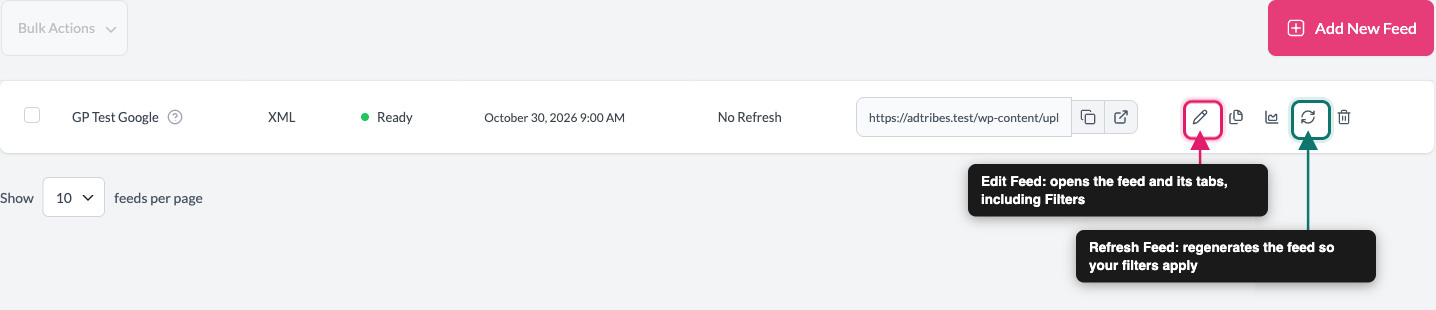
- In WordPress, go to Product Feed → Manage feeds.
- Open your feed with the edit (pencil) icon in the Actions column. Its label is Edit Feed.
- Click the Filters tab.
- In the Exclude section, click Add New “AND” Filter.
- Open the attribute dropdown and choose Product Type. You’ll find it under Main attributes.
- Open the condition dropdown and choose Equals.
- In the value field, type
grouped. - Click Save Filters.
- Go back to Product Feed → Manage feeds.
- Click the refresh (circular arrows) icon in the Actions column to regenerate the feed. Its label is Refresh Feed.
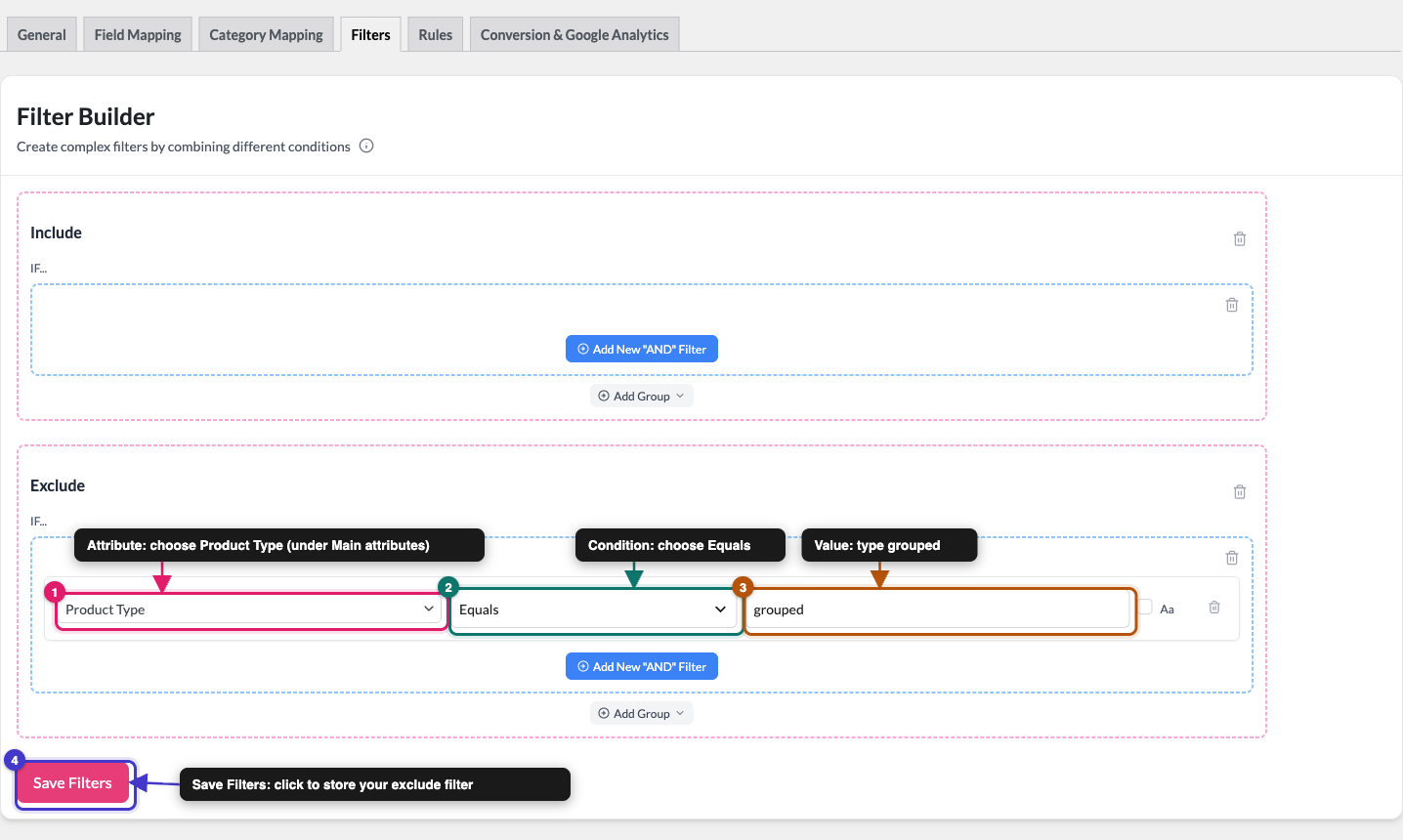
Once the feed finishes, the grouped parent is gone and its children remain. Filters apply each time the feed generates, so the next scheduled refresh keeps the parent out as well.
To keep only grouped products in your feed instead, add the same condition to the Include section. For detailed instructions, see How to create filters for your product feed.
Export only the grouped parent
Some stores want the opposite: one item for the grouped product and no separate listings for the children. The feed has no “this is a child of a grouped product” option, so you do this with each child’s visibility.
Hide each child product
- In WordPress, go to Products → All Products.
- Open one of the grouped product’s children.
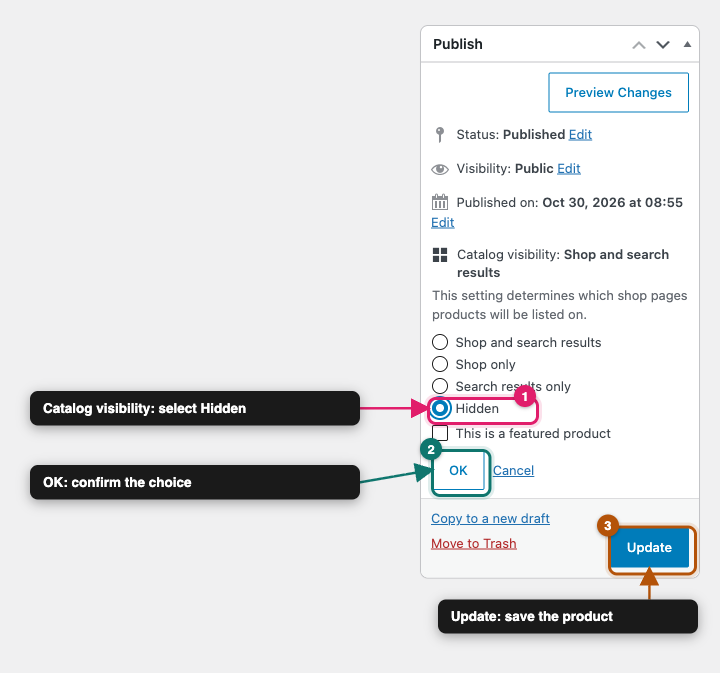
- In the Publish box, next to Catalog visibility, click Edit.
- Choose Hidden.
- Click OK.
- Click Update.
- Repeat steps 2 to 6 for each remaining child.
Exclude hidden products from your feed
- Open your feed from Product Feed → Manage feeds.
- Click the Filters tab.
- In the Exclude section, click Add New “AND” Filter.
- Open the attribute dropdown and choose Visibility. You’ll find it under Main attributes.
- Open the condition dropdown and choose Equals.
- In the value field, type
hidden. - Click Save Filters.
- On Product Feed → Manage feeds, click the refresh (circular arrows) icon in the Actions column.
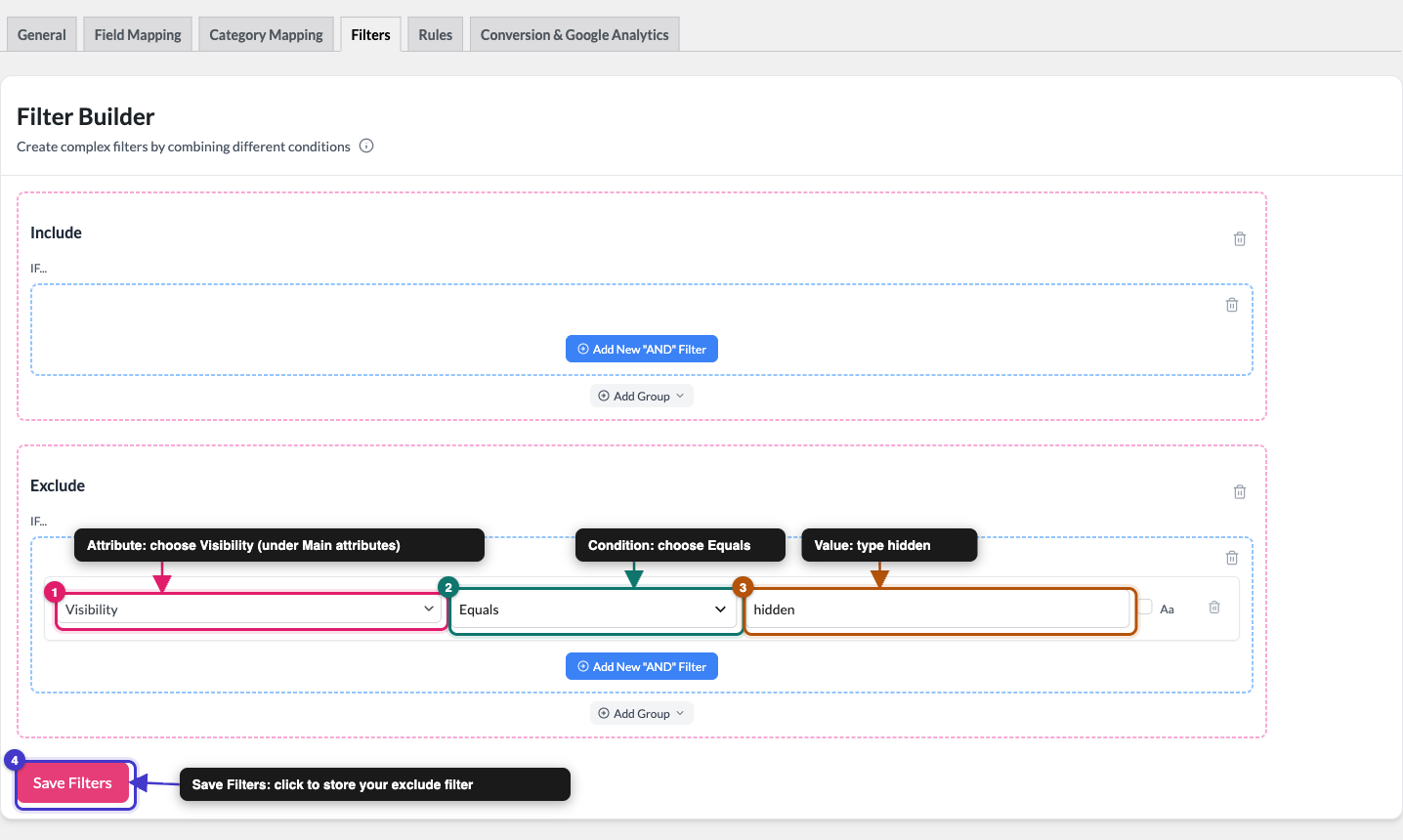
The feed now contains the grouped parent and none of the hidden children.
Use rules with grouped products
The Rules tab changes the values in your feed, such as a title or a price. It can’t remove a whole product. The Exclude Attribute action (shown as Exclude Attribute (Elite) if you only have Product Feed Pro) only removes one attribute, like the price, from an item. To keep a product out of your feed, use the Filters tab as shown above. For detailed instructions on rules, see How to create product feed rules.
Troubleshooting
hidden. Then refresh the feed.Frequently asked questions
simple, variable, or grouped. You can read more about the Product Type attribute in Complete list of Product Feed attributes for mapping.Need help?
If you’re on Product Feed Elite, open a support ticket, and our team will help you set up your filters or check your grouped products.
If you’re on the free version, post your question in the Product Feed Pro support forum on WordPress.org.