Selling products in a physical shop? Google can show them to shoppers nearby through local inventory ads and free local listings. The Google Local Products channel in Product Feed Pro builds the product details for those listings from your WooCommerce catalog. You’ll create the feed, map the attributes Google needs, and pair it with your Google Local Products Inventory feed.
How the two local feeds work together
Google uses two kinds of data for local listings. Product Feed Pro has a channel for each one.
| Feed | What it holds | How Google uses it |
|---|---|---|
| Google Local Products (this article) | Product details: ID, title, description, image, condition and price. | Your product data source for the products you sell in your shop. |
| Google Local Products Inventory | Stock for each shop: store code, availability, quantity and, if it differs, the shop price. | A supplemental source. Google links each row to a product by its ID. See How To Create A Google Local Products Inventory Feed?. |
Already send the same products to Google in a Google Shopping feed? Your inventory feed can then point to the products in that feed, because Google links each inventory row to a product by its ID. Use the Google Local Products feed for products you sell only in your shop. Google can report a conflict when a local-only product and an online product share the same ID.
Before you start
- Product Feed Pro. This channel doesn’t need Product Feed Elite.
- A Google Merchant Center account with local inventory ads or free local listings set up.
- Your shops added to your Google Business Profile, each with a store code.
How to create a Google Local Products feed
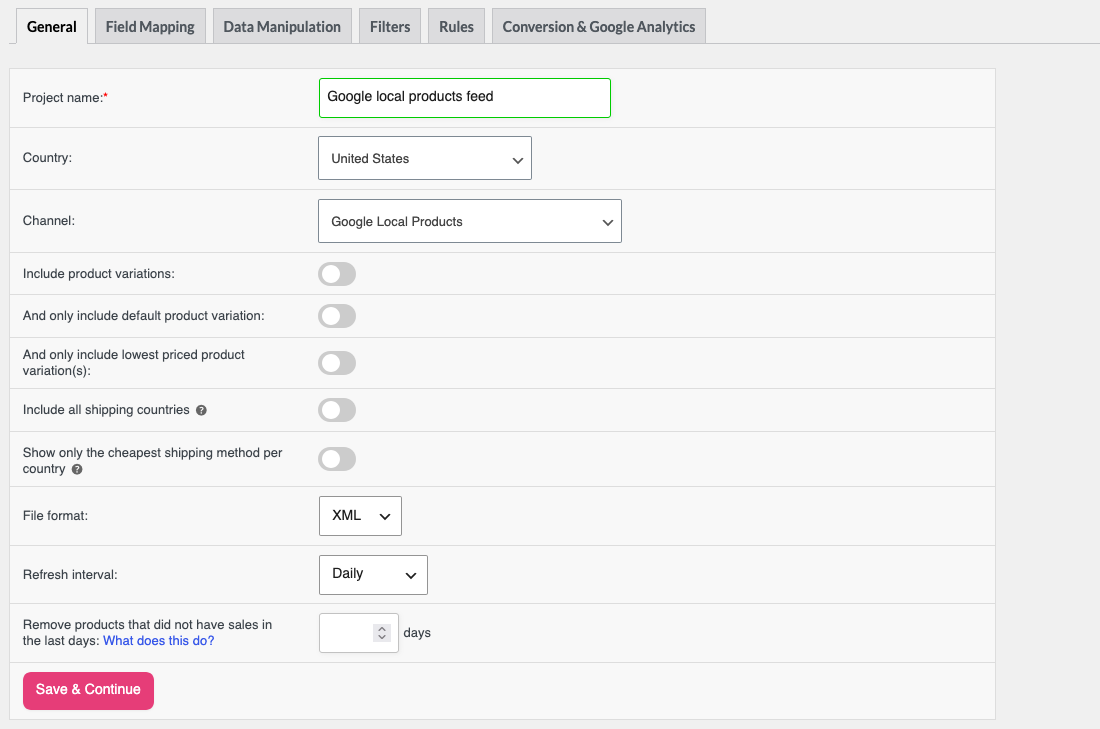
Step 1: Fill in the General tab
- Go to Product Feed > Create feed.
- Enter a name in the Project name field, for example Google local products feed.
- Select your target country in the Country dropdown. Do this before you choose a channel, because a new country reloads the channel list.
- Select Google Local Products in the Channel dropdown. You find it in the Advertising group.
- Choose whether to switch on Include product variations. Use the same choice as in your inventory feed, so the product IDs in both feeds match.
- Leave File format on XML.
- Select Daily in the Refresh interval dropdown, so Google gets fresh prices.
- Click Save & Continue.
Step 2: Map the attributes
The Field Mapping tab opens with the two required attributes already filled in: Itemid (from Product Id) and Title (from Product name).
- Click Auto-map.
- Click Confirm.
- Check each row, and change a source if your store keeps that data somewhere else.
- Click Save & Continue.
Auto-map fills seven more attributes with the suggested WooCommerce sources: Description, Image link, Condition, Google product category, Price, Sale price and Sale price effective date. It leaves rows you already mapped alone.
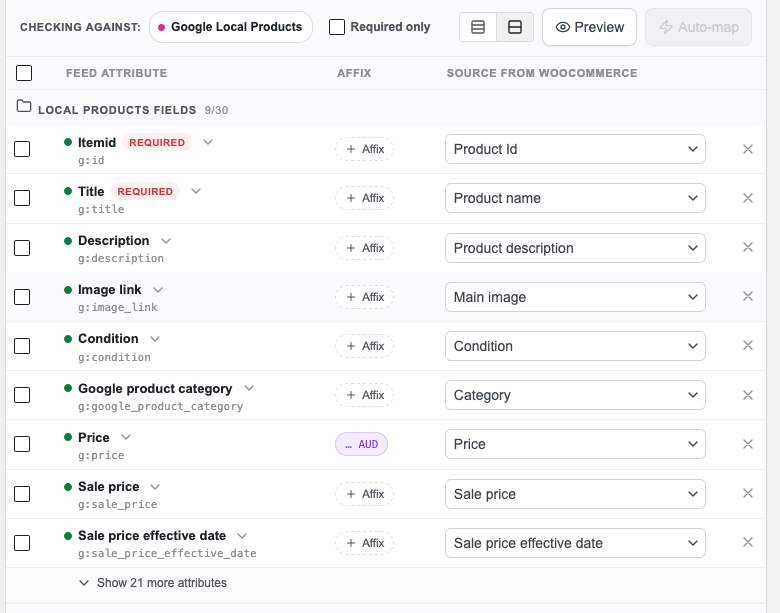
Here’s what matters most for Google:
| Attribute | Why it matters |
|---|---|
| Itemid | Google matches this ID with the ID in your inventory feed. Both channels use Product Id by default, so leave it as it is. |
| Description and Image link | Google requires both on every product sold in stores, together with Itemid and Title. |
| Price | Google recommends a price on every product, and requires it if you use product pages with in-store availability. A price in your inventory feed overrides it for that shop. |
| Brand, Gtin and MPN | Google requires Brand on new products, and Gtin when the manufacturer gave the product one. MPN is optional. Click Show 21 more attributes to find them. See How to Add Brands to Your Product Feed? and How to add GTIN, UPC, EAN, or MPN to your product feed. |
Step 3: Map your categories
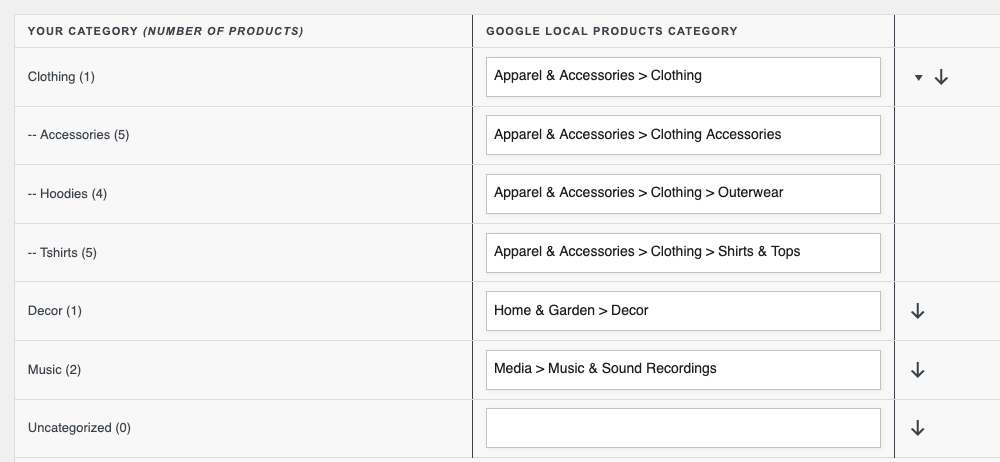
On the Category Mapping tab, match your WooCommerce categories to Google’s product categories. If you skip this, the Google product category attribute sends your own category names, such as Decor, which Google doesn’t recognize. For more detail, see Cascading parent/child category mapping for Google Shopping.
Click Save & Continue when you’re done.
Step 4: Add filters and rules
- If you use Product Feed Elite, the Data Manipulation tab shows next. Click Save Changes to go on.
- On the Filters tab, leave out products you don’t sell in your shop. Click Save & Continue.
- On the Rules tab, change values before they reach the file. Click Save & Continue.
Both tabs are optional. For details, see How to create filters for your product feed and How to create product feed rules.
Step 5: Generate the feed
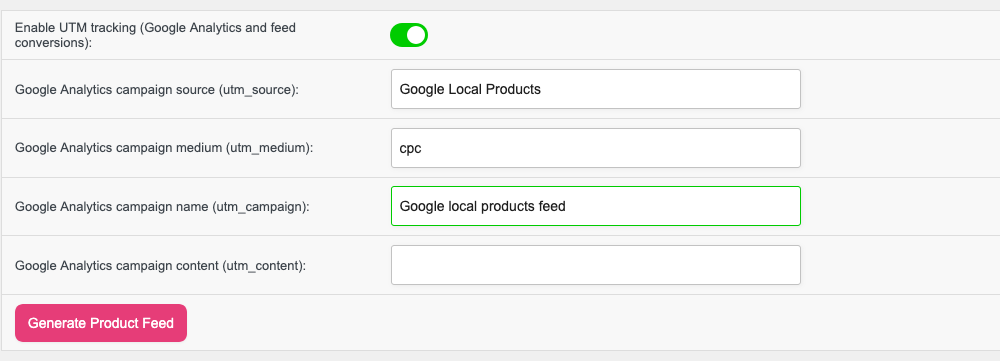
On the Conversion & Google Analytics tab, click Generate Product Feed. Product Feed Pro takes you to the Manage feeds screen while the feed builds.
Step 6: Copy the feed URL
On the Manage feeds screen, click the Copy URL icon in the Feed URL column of the feed’s row.

Step 7: Add the feeds to Google Merchant Center
- In Google Merchant Center, go to Settings > Data sources.
- On the Product sources tab, add a product source from a file, paste the feed URL, and set the fetch to daily. Make sure the source is used for local stores, as described in Google’s Local product data specification. Google explains the scheduling clicks in Update your product data source on a schedule.
- Select Supplemental sources, then Add local inventory.
- Enter the URL of your Google Local Products Inventory feed. See How To Create A Google Local Products Inventory Feed? to create it.
The local inventory source must use the same language and feed label as your product source. For the attributes Google reads, see Google’s Local inventory data specification.
Troubleshooting
Google says the product IDs in my inventory feed don’t match
Open both feeds and check the Include product variations switch on the General tab. It must be the same in both feeds. Also check that Itemid uses Product Id in both.
My products stopped showing in local listings
Check that both feeds still refresh every day. Google asks for local inventory data to be refreshed once a day, and products expire from Merchant Center 30 days after their last update.
Google rejects my product categories
Map your categories on the Category Mapping tab, as in Step 3. Without it, the feed sends your WooCommerce category names.
Frequently asked questions
Do I need Product Feed Elite for this feed?
No. The Google Local Products and Google Local Products Inventory channels are both in Product Feed Pro.
I have several shops. Do I need one product feed per shop?
No. One Google Local Products feed covers all your shops. The store codes go in your inventory feed, which lists stock for each shop.
Need help?
If you have a question or run into any issues, we’re here to help.
- Premium users: Open a support ticket
- Free users: Visit our community forum