Want to choose which pages your Google Dynamic Search Ads (DSA) use? Left on their own, Dynamic Search Ads match shoppers’ searches to pages that Google picks. A page feed hands that choice back to you: a list of your product page URLs, each with a label, that you upload to Google Ads. The Google DSA channel in Product Feed Pro builds that list from your WooCommerce catalog.
The feed is a two-column CSV file: Page URL and Custom label. Labels let you group pages (for example, “sale” or “bestsellers”) and target each group in Google Ads. Google recommends DSA for stores with a well-developed website or a large inventory. It isn’t recommended if your site changes rapidly, such as with daily deals.
Prerequisites
| Requirement | Details |
|---|---|
| Plugin | Product Feed Pro (steps verified on version 13.5.9). The Google – DSA channel doesn’t need Product Feed Elite. |
| Google Ads account | An account with a Search campaign that uses dynamic ad groups. |
| Crawlable product pages | Your product pages must load without a login, and your site must not block Google’s crawlers (AdsBot-Google and Googlebot). |
How to create a Google DSA feed
Step 1: Open the Create feed page
In your WordPress admin sidebar, go to Product Feed → Create feed.
Step 2: Name your feed and select the Google – DSA channel
On the General tab:
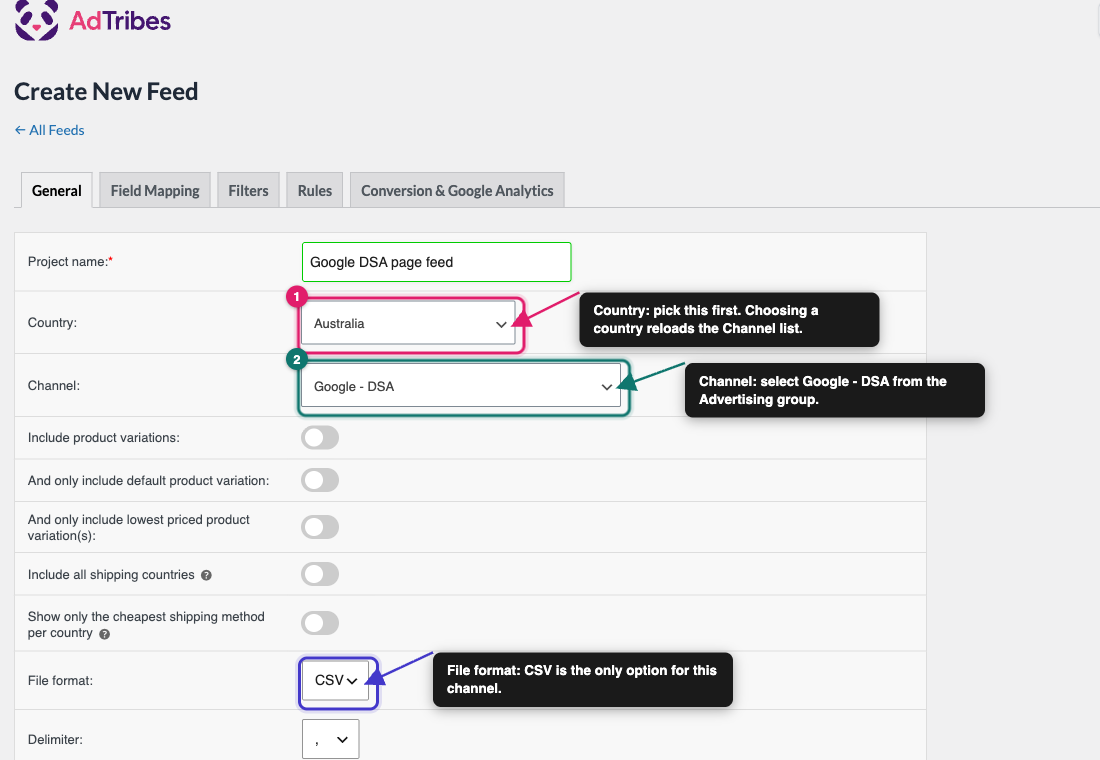
- Enter a name in the Project name field, for example
Google DSA page feed. - Open the Country dropdown and select your target country. Do this before choosing a channel, because picking a country reloads the Channel list and clears any channel you chose earlier.
- Open the Channel dropdown and select Google – DSA. You’ll find it in the Advertising group.
- Leave Include product variations switched off. Each variable product then appears once, using its main product page URL, so Google doesn’t get several addresses for the same page.
- Check the File format dropdown. It offers only CSV, so there’s nothing to choose.
- Leave Delimiter on the comma (
,), because Google reads a comma-separated file. - Click Save & Continue.
Step 3: Map the required attributes
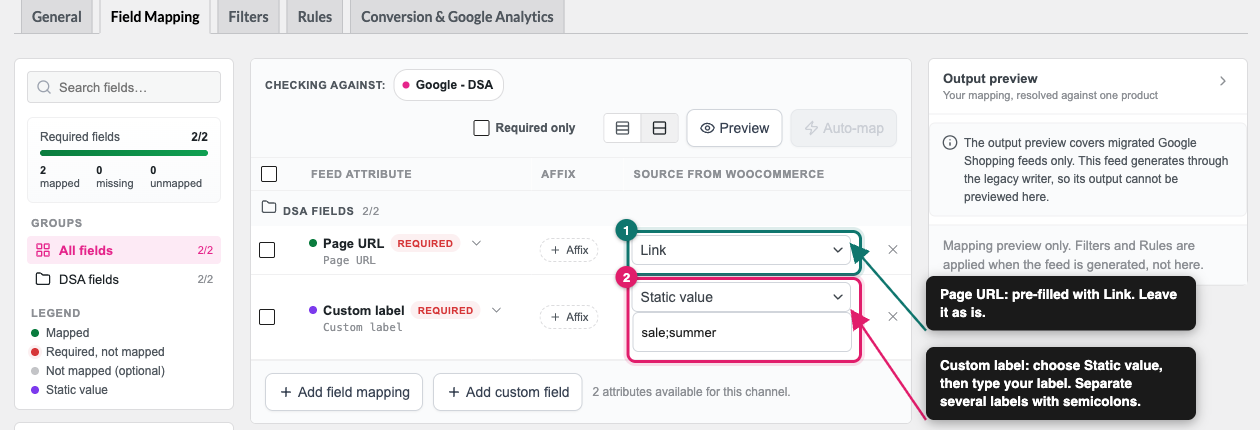
On the Field Mapping tab, the DSA fields group lists the two attributes this channel needs. The table has three columns: Feed attribute, Affix, and Source from WooCommerce.
| Feed attribute | Pre-filled with | What to do |
|---|---|---|
| Page URL | Link | Leave as is. This is the address of each product page. |
| Custom label | (no default) | Choose a source. See below. |
Google Ads uses Custom label to let you target groups of pages. The plugin needs Custom label mapped, so don’t leave it empty. A Static value is enough if you only need one group of pages.
To give every page the same label, open the Source from WooCommerce dropdown on the Custom label row, select Static value, and type your label in the Enter a fixed value box.
To give a page more than one label, separate the labels with a semicolon, for example sale;summer. Google allows up to 20 custom labels per URL.
For more on fixed values, see How To Add Fixed Value To Your Product Feed?.
Click Save & Continue when both rows are mapped.
Step 4: Apply filters and rules (optional)
Use the Filters tab to leave out pages you don’t want to advertise, for example products that are out of stock. Use the Rules tab to change values before they reach the file.
For detailed instructions, see How To Create Filters For Your Product Feed? and How to Create Product Feed Rules.
Click Save & Continue on each tab to reach the last one.
Step 5: Turn off UTM tracking
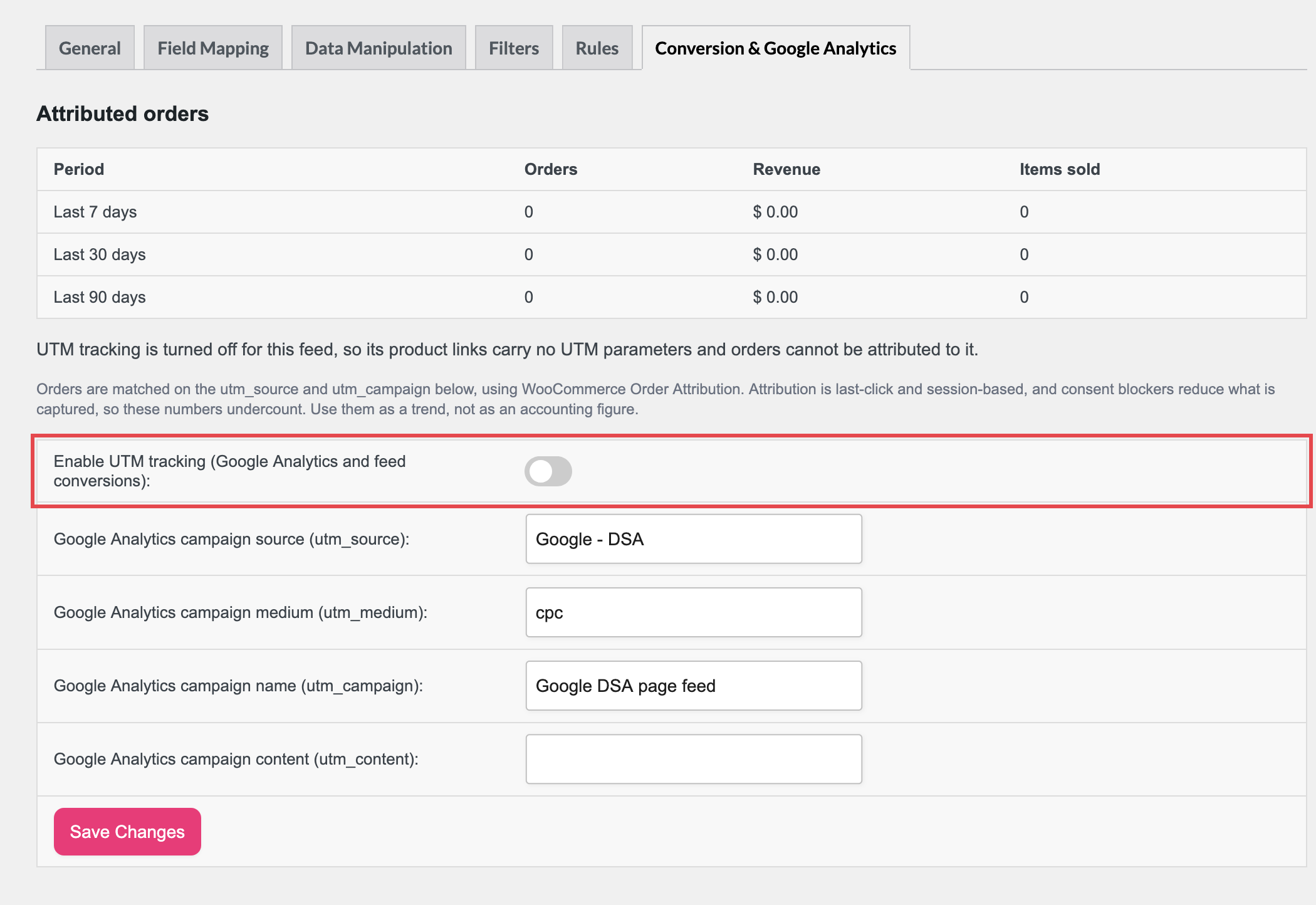
Google asks that page feed URLs don’t carry tracking parameters. Product Feed Pro adds them by default, so switch them off before you generate the file.
- On the Conversion & Google Analytics tab, find Enable UTM tracking (Google Analytics and feed conversions).
- Switch it off. It’s on by default for a new feed.
With tracking on, each Page URL ends in extra text such as ?utm_source=Google%20-%20DSA&utm_campaign=...&utm_medium=cpc. With it off, the URL is just the product page address.
In Product Feed Pro 13.5.9 and later, the Manage Feeds page can show a notice such as “1 feed has UTM tracking off”, and a UTM off badge in the Conversions (30d) column. That’s expected for a DSA feed. Click the notice’s dismiss button to hide it for 30 days. The notice only appears while WooCommerce Order Attribution is on.
Step 6: Generate the feed
Click Generate Product Feed. On a feed you’re editing, the button on this tab reads Save Changes instead. Product Feed Pro takes you to the Manage Feeds page and starts building the file. Wait for processing to finish.
Download your feed’s CSV file from the Feed URL column. The first row holds the headers Page URL and Custom label, and each following row is one product page with its label.

If you edit this feed later, click Save Changes on the tab you changed, then refresh the feed from its row on the Manage Feeds page to rebuild the file.
Step 7: Download the CSV file
Google Ads takes page feeds as an uploaded file, so download the CSV from your site first. On the Manage Feeds page, click the Download button in your feed’s Feed URL column.
Step 8: Upload the feed in Google Ads
In Google Ads:
- Click the Tools icon.
- Click Business data.
- Click the plus button, then select Page feed.
- Enter a name for the feed.
- Click Choose file and select your CSV.
- Optional: click Preview to check the rows.
- Click Apply.
Step 9: Point your campaign at the feed
Next, tell your campaign to use the feed:
- Click the Campaigns icon, then Campaigns.
- Click your Search campaign with dynamic ad groups.
- Open the Settings tab.
- Expand Dynamic Search Ads. If you can’t see it, click Additional settings at the bottom.
- Choose Use URLs from my page feed only, or Use URLs from both Google’s index of my website and my page feed.
- Select your page feed.
- Click Save.
To target by label, add a dynamic ad target and choose the custom labels option. Google explains the options in Create targets for Dynamic Search Ads.
Google’s page feed instructions use a file upload, so upload the file again whenever your products change.
Troubleshooting
robots.txt file doesn’t block AdsBot-Google or Googlebot, and that no security plugin or server rule blocks them.Frequently asked questions
Need help?
If you’re using Product Feed Elite and need hands-on help with your Google DSA feed, open a support ticket from your account.
If you’re on Product Feed Pro, post your question in the WordPress.org support forum.