Reviewed by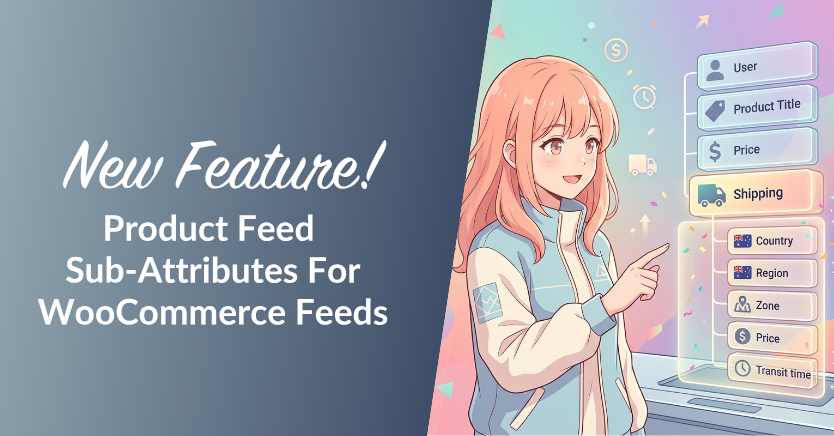
Product feed sub-attributes are now available in AdTribes Product Feed Pro! Nested attributes like shipping and tax can carry their individual parts, while Shipping can pull its values from the WooCommerce zones you already have set up.
This has been one of our most requested feed features, and we’re excited to finally share it with you. We’ll start with Shipping, then look at repeating groups and custom sub-attributes for other feed requirements.
Feature Overview: Product Feed Sub-Attributes
Some channel attributes hold more than one value. Google Shopping’s shipping attribute is a clear example: a single shipping element can carry details such as country, service, price, and transit times as separate labeled parts.
By default, each attribute in your field mapping takes one source and sends one value. While that suits the great majority of attributes, the nested ones need a little more room to describe every part properly.
With the new sub-attribute panel, you can work with each part of a nested attribute in one place. Google Shopping’s supported nested attributes come with ready-made parts, while any mapped attribute can also carry custom sub-attributes on any supported channel.
Here’s what that gives you:
- Ready-made parts for Google Shopping’s nested attributes, including shipping, tax, installment, subscription cost, loyalty program, product detail, and certification.
- Shipping parts that fill themselves from the shipping zones you’ve already set up in WooCommerce.
- Repeating groups for attributes that genuinely occur more than once, like several tax regions or multiple certifications.
- Custom sub-attributes with a name and source you choose, on any mapped attribute and any channel.
These sub-attribute tools are included in AdTribes Product Feed Pro, our free plugin.
How To Configure Product Feed Sub-Attributes (Tutorial)
Setting up sub-attributes is quick and straightforward! You’ll need AdTribes Product Feed Pro 13.5.8 or newer to follow along. If you haven’t updated yet, you can install or update the free plugin from your WordPress dashboard.
Step 1: Open the attribute you want to nest
To get started, head to your WordPress dashboard > Product Feed > Manage feeds. Click Edit on the feed you’re working on, then open the Field Mapping tab.
Built-in nested attributes such as Shipping and Tax show a small toggle beside their name. Click the toggle to expand the row and see the available sub-attribute options.
In our example, we’re working with the Shipping attribute on a Google Shopping feed because it clearly shows how nested values fit together. We mapped the parent Shipping row to the Shipping source, which automatically populated its ready-made sub-attributes.
Step 2: Configure the ready-made sub-attributes
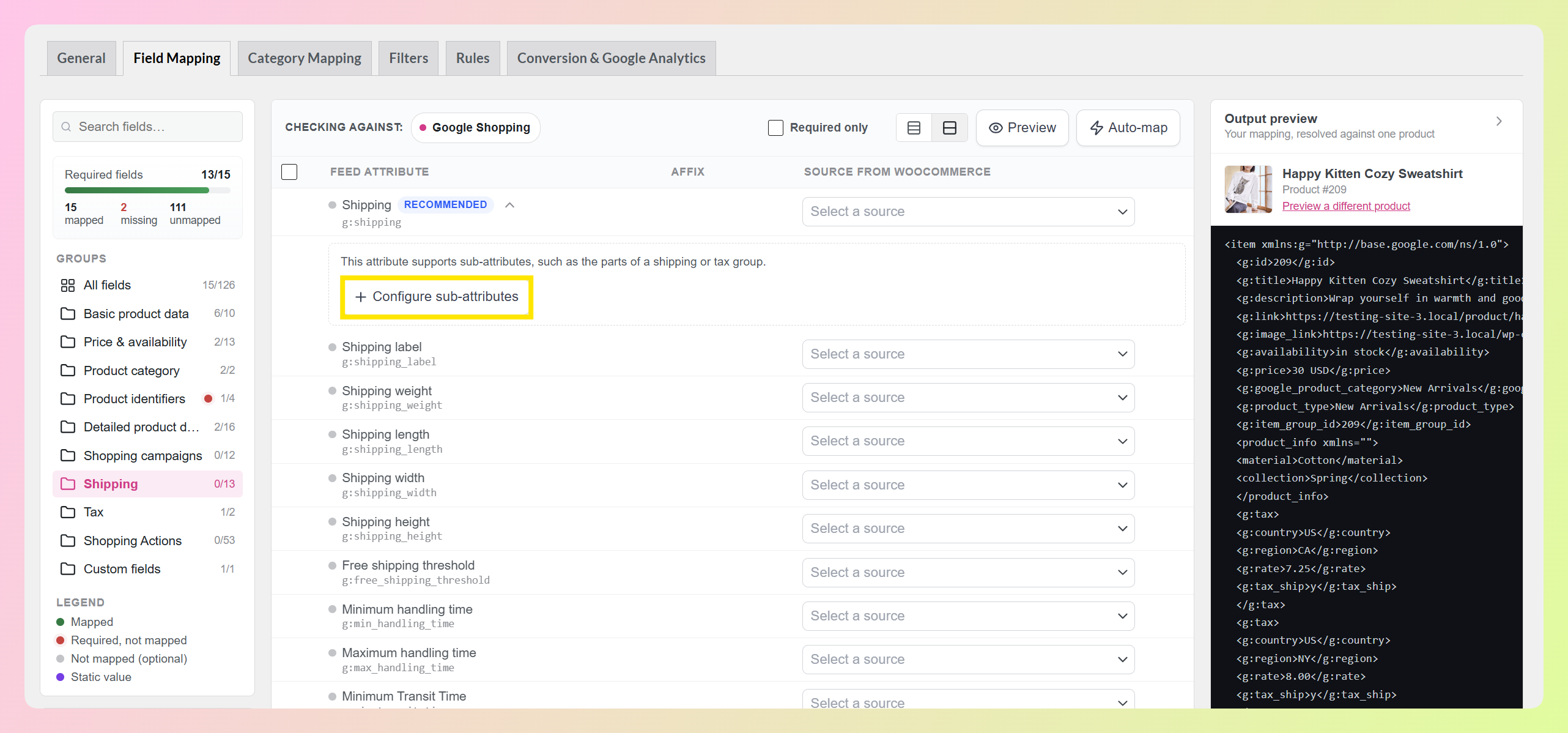
For supported nested attributes, AdTribes Product Feed Pro already knows the child fields that belong inside the parent attribute. If you expand one before mapping it, you’ll see a Configure sub-attributes button. Click it to add those ready-made parts without building the nested structure yourself.
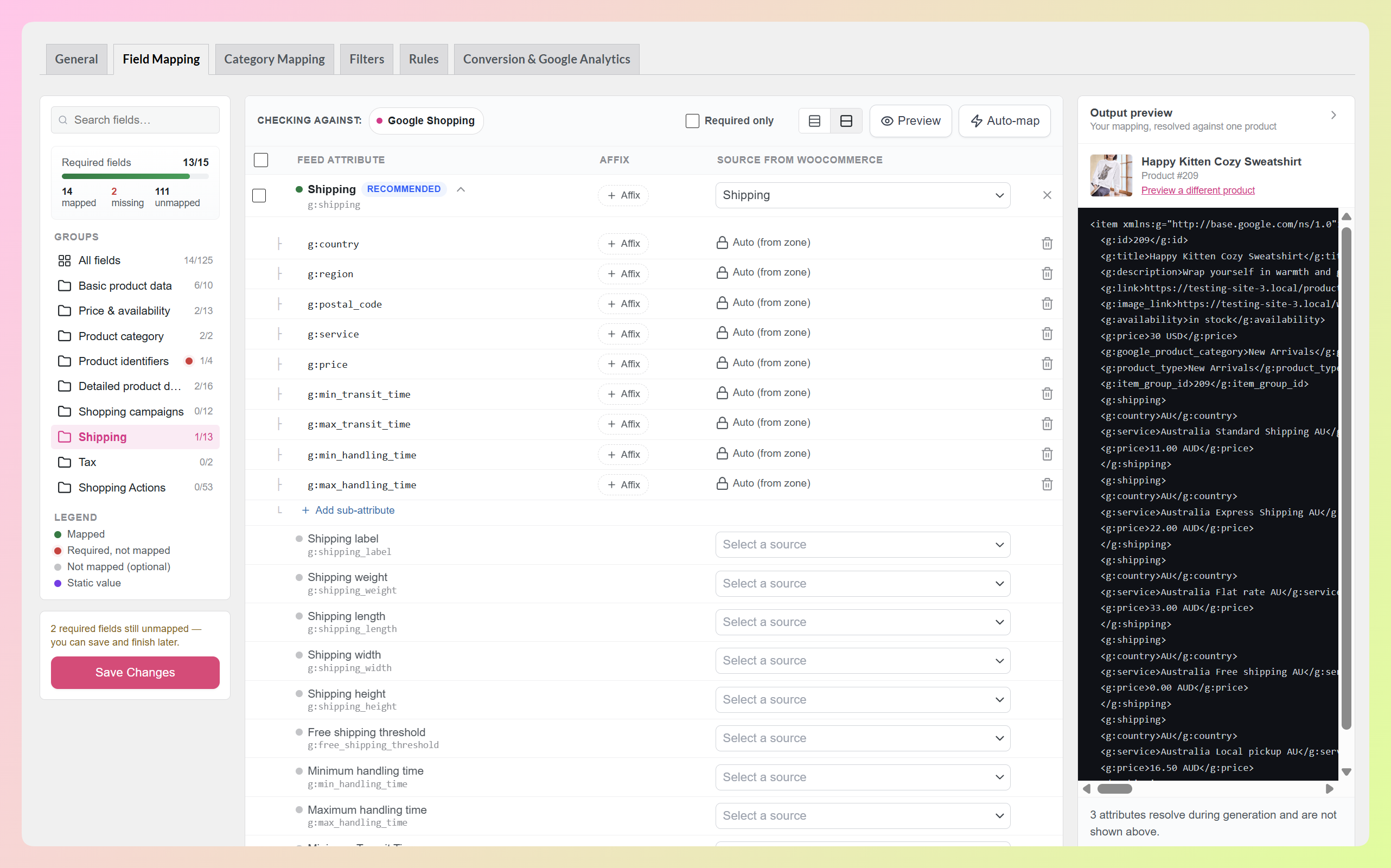
Shipping also connects to your existing WooCommerce setup. Once we mapped the Shipping parent row to the Shipping source, AdTribes filled the panel with country, region, postal code, service, price, and the minimum and maximum transit and handling times.
Each of these rows shows “Auto (from zone)” with a lock beside it. That tells you the source is being pulled from your WooCommerce shipping zones rather than mapped manually. The Affix control remains available if you need to append something such as a currency code.
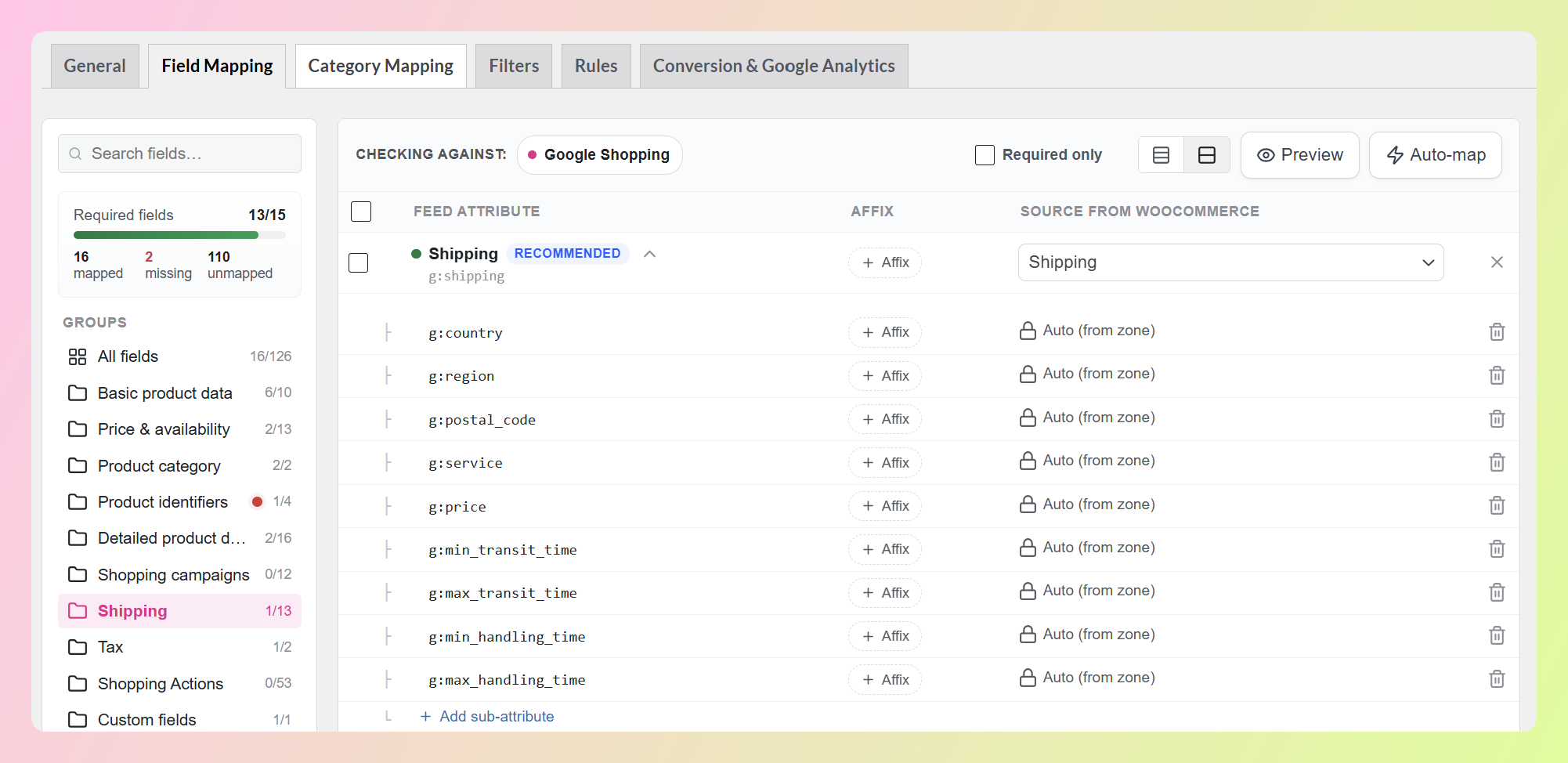
This saves you from mapping each shipping part one by one. When the feed is generated, AdTribes reads the available shipping details from the WooCommerce zones and methods you’ve already configured.
Step 3: Add a repeating group
Some nested attributes can appear more than once for the same product. For example, a feed may need separate tax groups for different regions or multiple certification groups for one product.
Once the sub-attributes are visible, look for the Add group option underneath the current group. Clicking it creates another complete set of the same child fields.
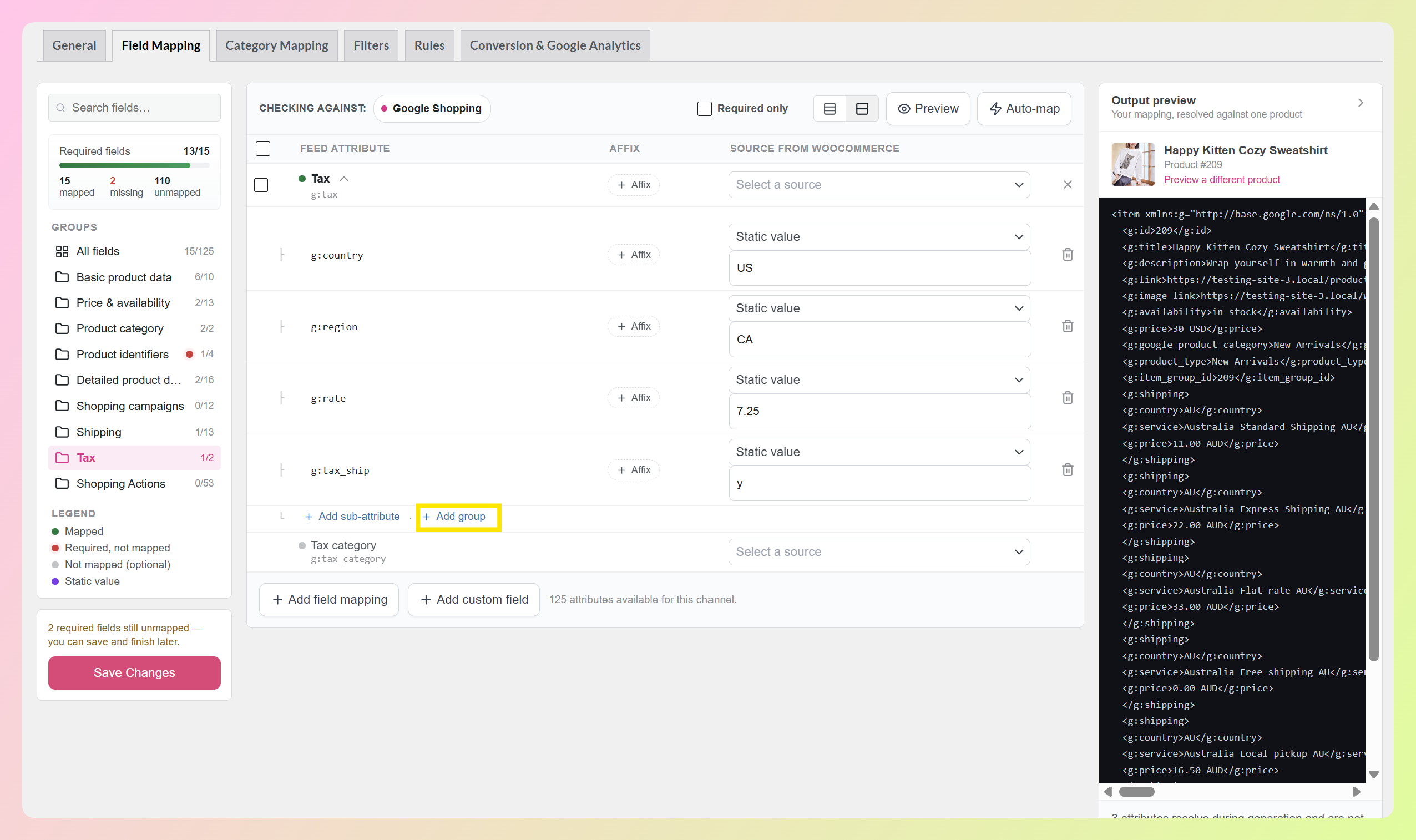
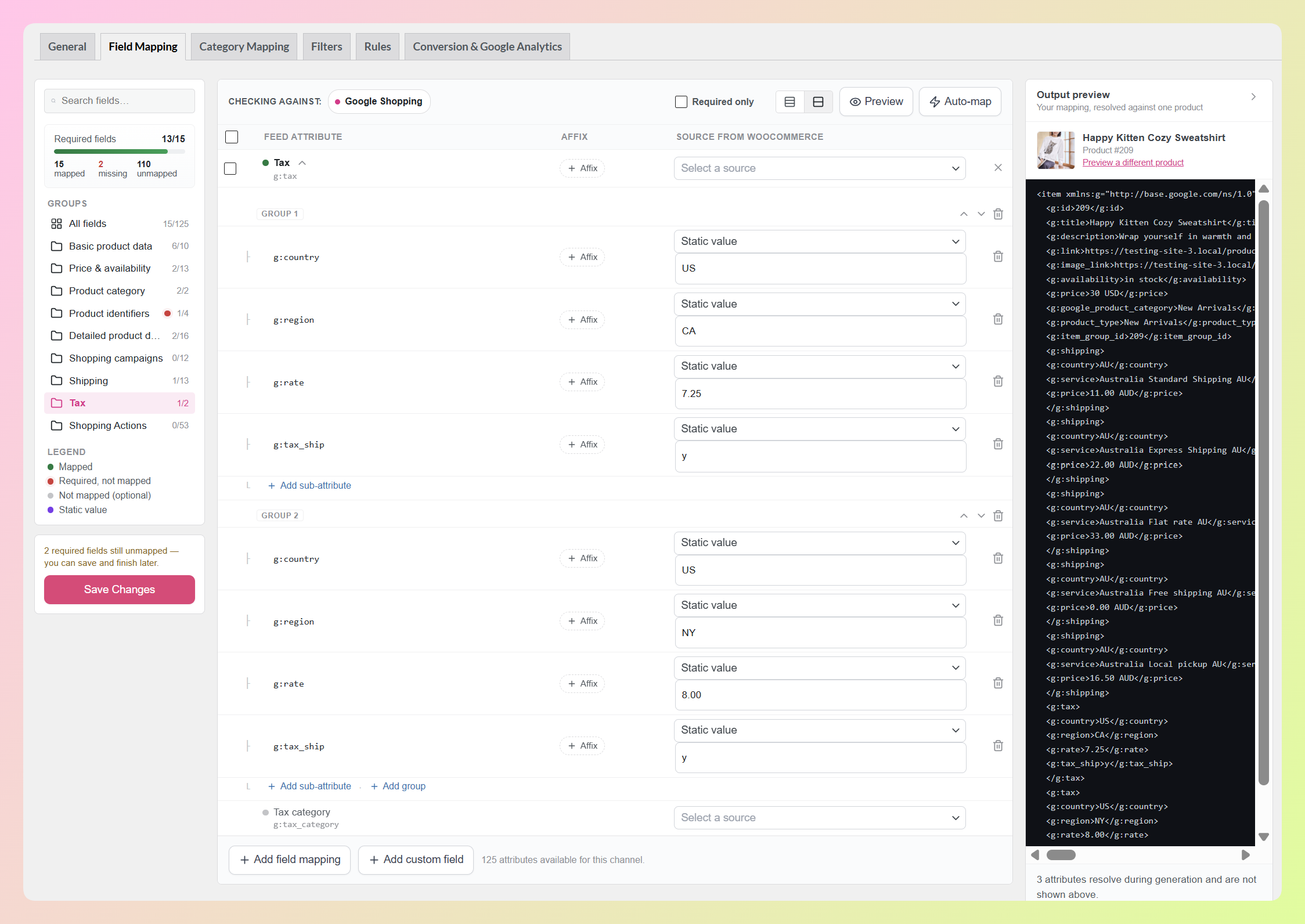
For our sample setup, we created one Tax group for California and another for New York. Each group has its own country, region, rate, and tax-on-shipping value, so the values in one group stay separate from the other.
After you add more than one group, small move controls appear on the right side of each group heading. Use them to move an entire group up or down, or use the trash icon to remove a group you no longer need.
Step 4: Add your own sub-attributes
Custom sub-attributes are optional, so you only need to add them when a channel or feed requirement calls for a nested structure that isn’t already covered by the ready-made presets.
Start with a mapped attribute. In our example, we created a custom product_info field and mapped it to a static value. Once the row is mapped, expand it and click Add sub-attributes.
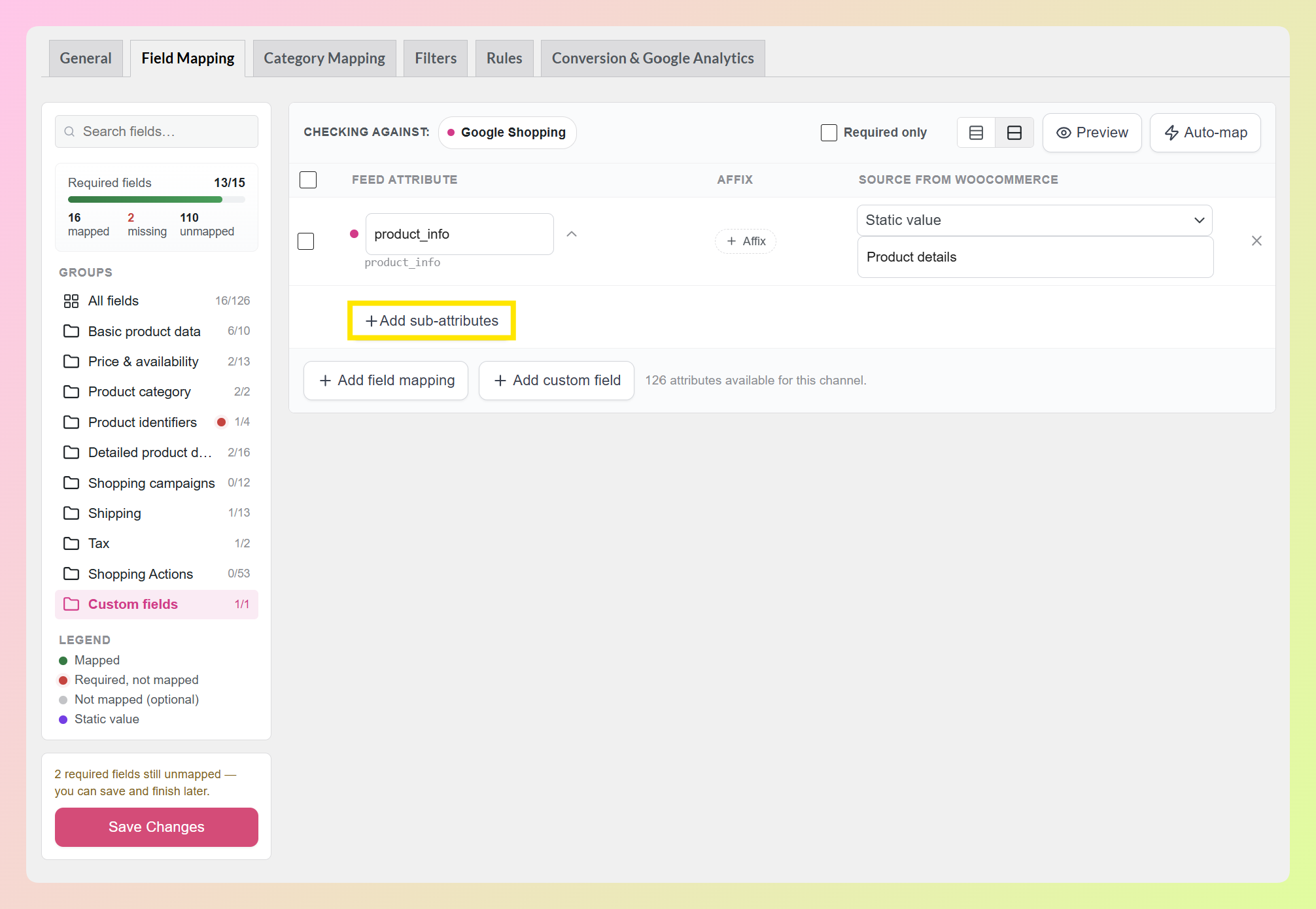
AdTribes will create the first group for you. From there, click Add sub-attribute whenever you need another child field. Give each child its own name, then choose a source from your WooCommerce product data or use a static value.
For this example, we added material with a value of Cotton and collection with a value of Spring. These are only sample values, but they show how you can define your own child tags and give each one its own source.
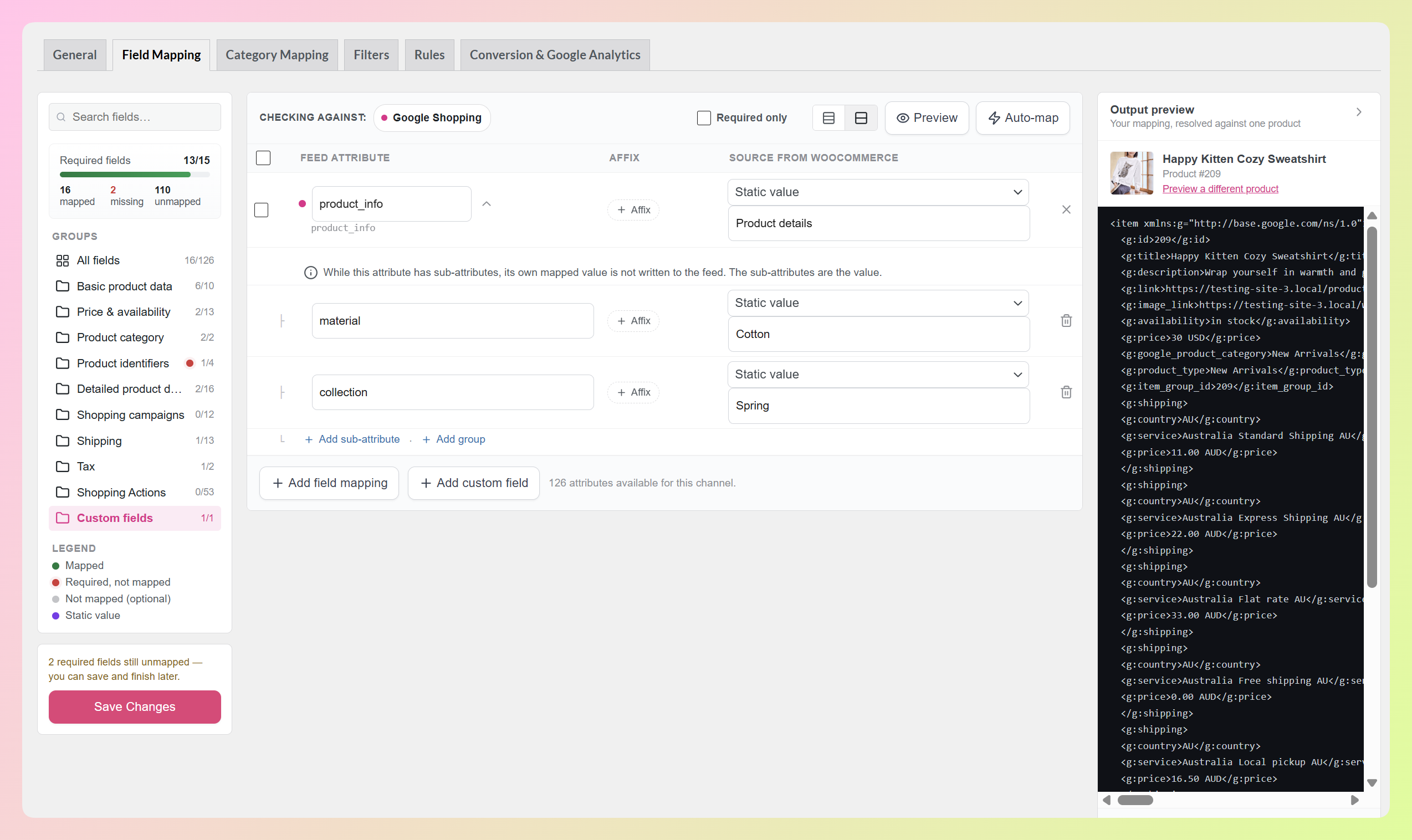
One important detail: once a mapped attribute has sub-attributes, the parent row’s own mapped value isn’t written to the feed. The child sub-attributes become the value of that nested structure instead.
That’s what makes custom sub-attributes useful beyond the ready-made Google Shopping presets. If another feed requirement expects a nested structure of its own, you can build the child fields you need in the same panel.
Once everything looks right, click Save Changes. That’s it!
🎯 POWER TIP: Shipping parts are read from your WooCommerce zones when the feed is generated. If you add or update a shipping zone, you don’t need to remap the sub-attributes. Regenerate the feed when you want the updated shipping setup reflected in the feed output.
How This Update Benefits Your WooCommerce Store
Nested attributes carry important feed data, including shipping costs and delivery times. Structuring those details correctly helps sales channels read and use the information as intended.
Here’s where the new setup makes a practical difference:
1. Each shipping zone and method gets its own group
When your feed is generated, AdTribes Product Feed Pro expands your WooCommerce shipping zones so that each zone and method becomes its own shipping group, with the available nested details for that method, such as country, service, and price.
For example, a store with four zones and two methods in each sends eight shipping groups without manually mapping eight separate shipping entries.
That same nested structure also makes it easier to send the format your channel expects.
2. You can send the nested attributes your channel expects
Google’s product data specification documents formatting and sub-attribute requirements for fields such as shipping.
Sub-attributes let you structure those fields the way the channel expects. Our Google product feed specification reference is a useful companion if you want to check what a particular field requires.
3. It works on your own attributes too
AdTribes Product Feed Pro supports 250+ channels, and custom sub-attributes aren’t limited to the Google Shopping presets. If a mapped attribute needs its own nested structure, you can name the child attributes and choose their sources yourself.
The same setup also works across feed formats. In XML, each group becomes its own nested element; CSV feeds serialize the parts into a single cell; and JSONL feeds write them as an array.
RELATED READ: Google Shopping Feed Setup For WooCommerce: Step By Step
Frequently Asked Questions
What are product feed sub-attributes?
They’re the individual labeled parts inside a nested feed attribute. A Google Shopping shipping element, for example, can include details such as country, service, price, and transit times, with each one represented as a sub-attribute. Configuring them lets your feed describe the nested structure instead of sending a single flat value.
Which attributes support sub-attributes?
Google Shopping’s nested attributes come with their parts ready to configure, covering shipping, tax, installment, subscription cost, loyalty program, product detail, and certification, among others. Beyond those, any attribute you’ve mapped can carry sub-attributes you define yourself.
Where do the shipping sub-attribute values come from?
From the shipping zones you’ve already set up in WooCommerce. Those rows display “Auto (from zone)” with a lock, and when your feed generates, each zone and method is expanded into its own shipping group. Add or change a zone and your next feed run reflects it.
Can I add sub-attributes on channels other than Google Shopping?
Yes. The ready-made presets cover Google Shopping’s nested attributes, and the Add sub-attributes button works on any attribute you’ve mapped, whichever channel your feed targets. You name each child tag and choose its source yourself.
Does this work if my feed is CSV instead of XML?
Yes. XML feeds get a nested element per group, CSV feeds serialize the parts into one cell, and JSONL feeds write them as an array. You configure the sub-attributes once, and AdTribes formats the nested data for the feed type you’re using.
Do I need Product Feed Elite for this?
No. Sub-attributes are included in AdTribes Product Feed Pro, our free plugin. You’ll need version 13.5.8 or newer, and the feature doesn’t require a Product Feed Elite license.
Wrapping Up
Product feed sub-attributes give you a more flexible way to handle nested feed data. Google Shopping presets help you get common structures in place quickly, Shipping can pull from your WooCommerce zones, and custom sub-attributes give you room to handle other feed requirements.
In this guide, we learned:
- What product feed sub-attributes are
- How to configure them, step by step
- Why this update matters for your store
If you’re using AdTribes Product Feed Pro 13.5.8 or newer, head to your Field Mapping tab and give the new sub-attribute controls a try. ❤️
Do you have any questions about this update? Let us know in the comments. Happy to help!