
If your feed includes columns that certain channels reject, that should not appear for some products, or that hold data you don’t want in a given export, you need a way to fix that without removing whole products or editing every SKU in WooCommerce. Product Feed Elite adds the Exclude Attribute action to the Rules Builder, letting you drop a mapped feed field for products that match your IF conditions while those products stay in the feed.
This guide covers how to configure the action, how it differs from filters, and answers common questions.
Prerequisites
- Product Feed Elite for WooCommerce (the action is not available in Product Feed Pro; Pro may show Exclude Attribute (Elite) as an upgrade prompt).
- A feed that uses the Rules tab in the new Rules Builder (not legacy-only rules). If your site is still on legacy rules for that feed, migrate or use the new builder so THEN actions such as Exclude Attribute apply.
If you’re new to conditional rules, start with How to Create Product Feed Rules on the AdTribes knowledge base.
Where to Find “Exclude Attribute”
- Go to Product Feed → Manage Feeds.
- Open an existing feed or create a new one.
- Open the Rules tab in the feed step navigation.
- In the THEN section of a rule, configure the row as follows:
- Field dropdown – Choose the feed field you want to omit (this list comes from your field mapping; it is the channel column you mapped, not a free-text attribute name).
- Action dropdown – Choose Exclude Attribute as the action type.
- Value column – Leave empty; this action doesn’t use a value or second attribute.
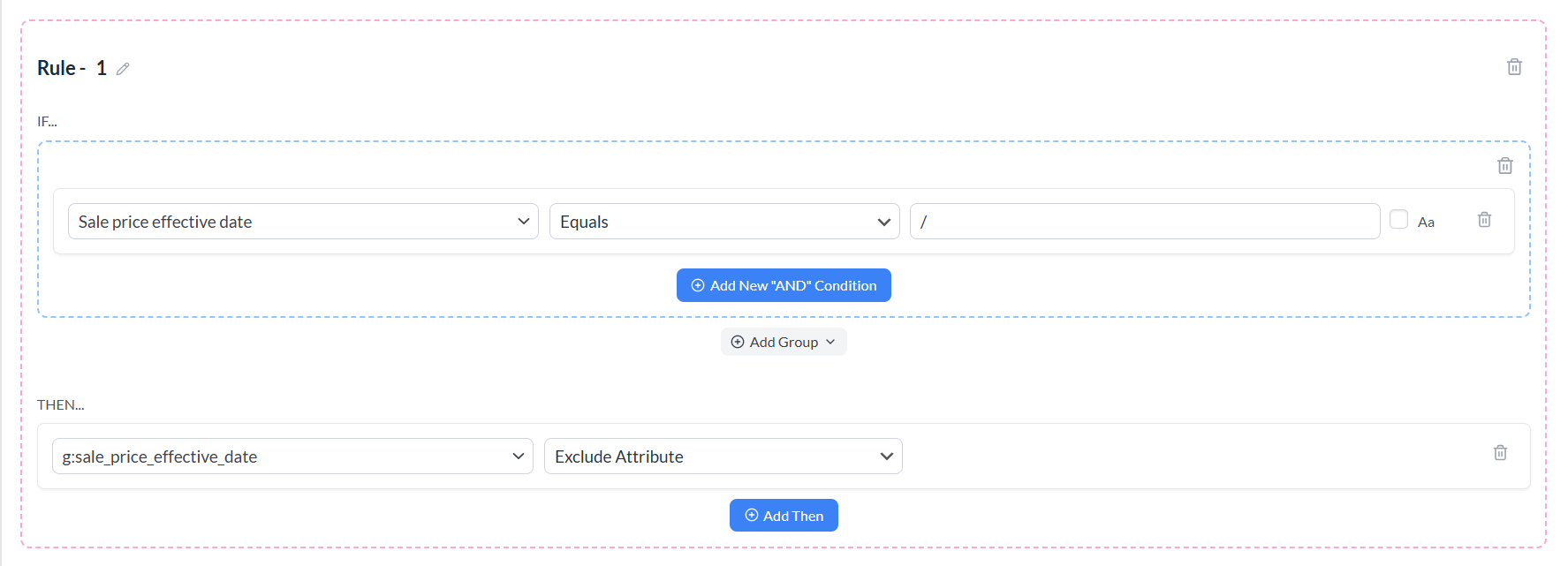
After you save, regenerate, or refresh the feed, the rule runs on the next build.
How “Exclude Attribute” Works
When the IF conditions for a rule are true for a product, the plugin removes that product’s value for the chosen mapped field from the in-memory feed row before the file is written. In practice, the output behaves as if that column were not present for that item (the plugin unsets the internal data key for that mapping).
Whole field, not partial text. This action doesn’t strip individual words or substrings inside a value. For that, use Find and Replace or Set Value. Exclude Attribute omits the entire mapped field for matching products.
Feed output only. The plugin doesn’t change WooCommerce product data in the admin. Similarly, other feeds are unaffected unless they use the same rule setup.
Tied to field mapping. The Field dropdown lists mapped feed fields. The plugin resolves your choice to the correct internal key for that feed’s mapping.
Exclude Attribute vs product filters
| Mechanism | What it affects |
|---|---|
| Exclude Attribute (rule) | Products stay in the feed; one or more columns can be omitted per product when conditions match. |
| Filters (include / exclude) | Can remove entire products from the feed when conditions match. |
Rule order
Rules run in order. If an earlier rule excludes a field and a later rule uses Set Value or Set Attribute on the same underlying data, that later action can put the field back. Plan the sequence so the outcome you want is last.
Common Use Cases
Channel compliance: Some channels reject or warn on certain optional fields for specific product types. Therefore, you can exclude those columns only when IF conditions match (for example, category, brand, or custom label).
Sensitive or internal data: Omit fields such as internal SKUs, supplier codes, or custom meta from a public or partner feed while keeping them on another feed without editing each product.
Cleaner optional columns: If a field should appear only for part of the catalog, conditions plus Exclude Attribute avoid sending empty or misleading values where the channel prefers the column absent.
Per-feed control: Adjust one feed without changing global mappings or the WooCommerce catalog.
For excluding products entirely, see How To Create Filters For Your Product Feed? For filling empty fields instead of removing them, see How To Create A “If Field Y Is Empty Than Do X” Rule?.
Tips and Troubleshooting
Field must be mapped: The excluded target is a mapped feed field. If the column is not in your feed’s field list, add and map it first (or pick a different field).
Elite required: Without Elite, choosing this action in Pro triggers the upgrade flow. Elite processes the Exclude Attribute action during feed generation when the license is active.
Test with preview or a small export: After saving rules, generate the feed and spot-check SKUs that should match versus not match the IF block.
Combine with other THEN actions: You can add multiple THEN rows in one rule; remember that order and later rules can still change the same product row.
Frequently Asked Questions
Need Further Assistance?
If you need help with rules or feed configuration, please create a new ticket to reach our support team.
Ticket support is for Product Feed Elite users only.
If you’re using only the Product Feed Pro plugin, feel free to open a new topic in the WordPress.org forum.

